
Losing precious photos—whether from an accidental tap, a factory reset, or a malfunctioning app—can be distressing. The good news is that Android devices often retain traces of deleted files long after they vanish from view. With the right approach, many lost images can be recovered. Unlike iOS, Android’s file system allows deeper access under certain conditions, making recovery more feasible if acted upon quickly. This guide outlines practical, tested methods to retrieve your deleted photos across a wide range of Android phones, regardless of brand or model.
How Photo Deletion Works on Android
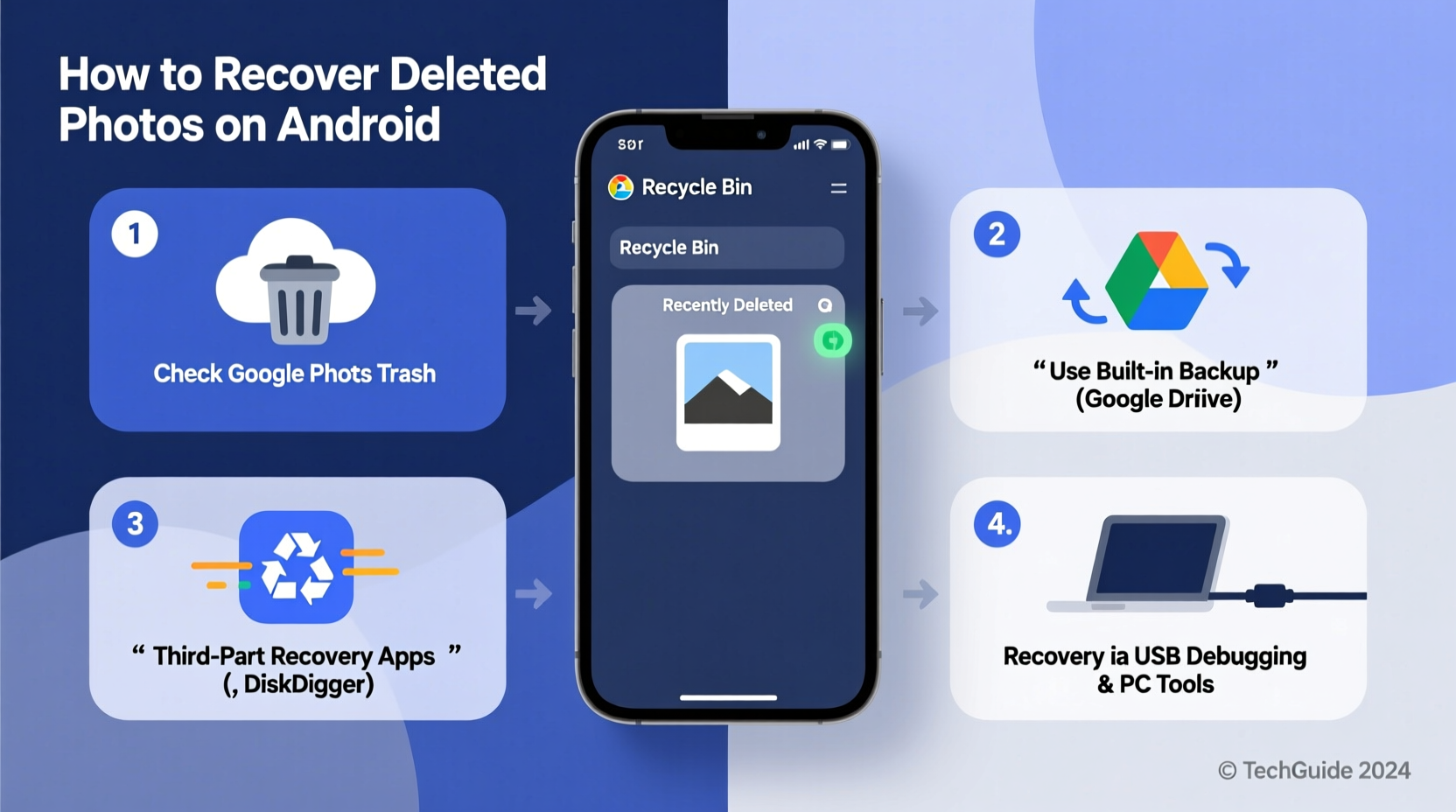
When you delete a photo from your Android phone, it doesn’t immediately disappear from the storage. Instead, the system marks the space occupied by the file as “available” for new data. Until that space is overwritten, the original photo remains recoverable. This behavior is similar to how traditional hard drives work and forms the foundation of most recovery techniques.
The key factor in successful recovery is time. The longer you wait and the more you use your device after deletion—especially installing apps, taking new photos, or downloading files—the higher the chance that the old data has been overwritten and is now irretrievable.
“Data isn’t truly gone until it’s overwritten. That window gives users a real opportunity to recover lost files—if they act fast.” — Dr. Rajiv Mehta, Mobile Forensics Analyst
Immediate Actions to Maximize Recovery Chances
Before attempting any recovery method, follow these urgent steps to preserve your chances:
- Stop using the phone immediately – Especially avoid saving new files or installing apps.
- Enable Airplane Mode – Prevents background sync and automatic downloads that could overwrite memory.
- Do not restart unnecessarily – Some cache or temporary recovery paths may be cleared on reboot.
- Back up existing data – Use Google Photos or cloud services to secure what remains.
Method 1: Restore from Google Photos Trash (Built-in Solution)
The simplest and most reliable method applies if you have Google Photos backup enabled. When you delete a photo from your phone, it also gets removed from your device but remains in the Google Photos trash for 60 days before permanent deletion.
Step-by-Step Guide to Recover from Google Photos Trash
- Open the Google Photos app on your Android phone or visit photos.google.com on a computer.
- Tap or click the Menu icon (☰) in the top-left corner.
- Select Trash.
- Browse through the deleted photos. You’ll see them listed with timestamps.
- Long-press the photo(s) you want to restore.
- Tap Restore at the bottom of the screen.
The restored photos will reappear in your gallery and in their original albums. This method works universally across all Android devices linked to a Google account with sync enabled.
Method 2: Use Third-Party Recovery Software
If backups aren’t available, third-party data recovery tools can scan your phone’s internal storage or SD card for remnants of deleted files. These tools work best on rooted devices, though some offer limited functionality without root access.
Popular Android recovery apps include:
- DiskDigger Photo Recovery – Supports both rooted and non-rooted modes.
- EaseUS MobiSaver for Android – Offers deep scanning and preview features.
- FonePaw Android Data Recovery – User-friendly interface with high success rates.
Using DiskDigger: A Practical Example
Consider Maria, a traveler who accidentally deleted hundreds of vacation photos while cleaning her gallery. She had no recent backup but remembered reading about DiskDigger. Within hours, she downloaded the app, chose the “Basic Scan” (non-rooted mode), connected her phone to Wi-Fi, and initiated a scan. After 20 minutes, the app displayed thumbnails of recoverable images. She selected 87 photos and saved them directly to her Google Drive. While not every image was retrievable, the majority were restored—proof that timing and the right tool make a critical difference.
Steps to Use DiskDigger (Non-Rooted)
- Install DiskDigger from the Google Play Store.
- Launch the app and select Start Basic Photo Scan.
- Allow necessary permissions when prompted.
- Wait for the scan to complete—duration depends on storage size.
- Preview recoverable photos and select the ones you want.
- Choose a recovery location: internal storage, SD card, or cloud (Google Drive, Dropbox).
- Tap Recover.
Method 3: Recover from Manufacturer-Specific Cloud Services
Some Android brands offer proprietary backup systems that may contain your deleted photos even if Google Photos is disabled.
| Brand | Service | Retention Period | Access Method |
|---|---|---|---|
| Samsung | Samsung Cloud | Up to 15 days (free tier) | Samsung Members app or website |
| Huawei | Huawei Cloud | 30 days (recycle bin) | Huawei Cloud app |
| Xiaomi | Mi Cloud | 7–30 days (varies) | Mi Cloud app or mi.com |
To check if your brand offers such a feature, go to Settings > Accounts and Backup > Cloud Service and look for a trash or recycle bin option.
Method 4: Advanced Recovery via Computer Software
For higher success rates—especially with permanently deleted files—using desktop-based recovery software provides deeper access. These tools require USB debugging to be enabled prior to data loss, which limits their effectiveness for unprepared users. However, if previously configured, they are among the most powerful options.
Recommended Tools
- Dr.Fone - Data Recovery (Android)
- PhoneRescue for Android
- Recuva (for SD cards only)
Process Overview
- Download and install the recovery software on your PC or Mac.
- Enable USB Debugging on your Android phone: Go to Settings > About Phone > Tap \"Build Number\" 7 times to unlock Developer Options, then enable USB Debugging.
- Connect your phone via USB cable.
- Allow the computer to detect the device and initiate a deep scan.
- Preview found photos and selectively recover them to your computer.
This method bypasses the phone’s OS limitations and can sometimes recover data from corrupted storage partitions.
Checklist: What to Do When Photos Are Deleted
- ☑ Stop using the phone to prevent overwriting.
- ☑ Check Google Photos Trash immediately.
- ☑ Look for manufacturer cloud backups (Samsung Cloud, Mi Cloud, etc.).
- ☑ Try a trusted recovery app like DiskDigger.
- ☑ If available, use computer-based recovery software.
- ☑ Save recovered files externally (cloud, PC, external drive).
- ☑ Set up automatic backups moving forward.
FAQ
Can I recover photos deleted months ago?
Possibility decreases significantly over time. If the storage sectors weren’t overwritten, recovery is still possible—especially with professional tools. However, success after several months is rare without prior backups.
Do I need to root my phone to recover deleted photos?
Not always. Basic recovery apps work without root, but rooting increases access to system-level data, improving success rates. Proceed with caution—rooting voids warranties and poses security risks.
Why can’t I find my deleted photos in Google Photos Trash?
If backup wasn’t enabled, or if the 60-day retention period has passed, the photos won’t appear. Also, if you manually emptied the trash, they’re permanently removed from Google’s servers.
Prevention: Secure Your Photos Before They’re Lost
The best recovery strategy is prevention. Enable automatic backups to ensure future deletions don’t become disasters.
- Turn on Google Photos Backup with “High Quality” or “Original” quality.
- Use cross-platform sync with Dropbox, OneDrive, or Flickr.
- Regularly transfer photos to a computer or external drive.
- Label important albums and avoid bulk-delete actions.
“The most resilient digital memories are those backed up in multiple places.” — Lena Torres, Digital Archivist
Conclusion
Recovering deleted photos on an Android phone is often possible—if you act swiftly and use the right tools. From built-in solutions like Google Photos Trash to advanced desktop software, multiple pathways exist to reclaim lost moments. While technology offers second chances, relying solely on recovery is risky. Building habits like automatic cloud syncing and regular backups transforms your photo library from fragile to future-proof.




 浙公网安备
33010002000092号
浙公网安备
33010002000092号 浙B2-20120091-4
Comments
No comments yet. Why don't you start the discussion?