
Losing important text messages—whether by accident, a system glitch, or an unintended swipe—can be more than frustrating. For many, SMS contains critical information: appointment reminders, verification codes, personal conversations, or even legal documentation. Samsung Galaxy users benefit from robust hardware and software integration, but even the most careful users aren’t immune to data loss. The good news is that recovery is often possible if you act quickly and use the right approach. This guide outlines proven, safe, and user-friendly methods to retrieve deleted messages from your Samsung phone without compromising privacy or device integrity.
Why Messages Disappear—and Why They Can Be Recovered
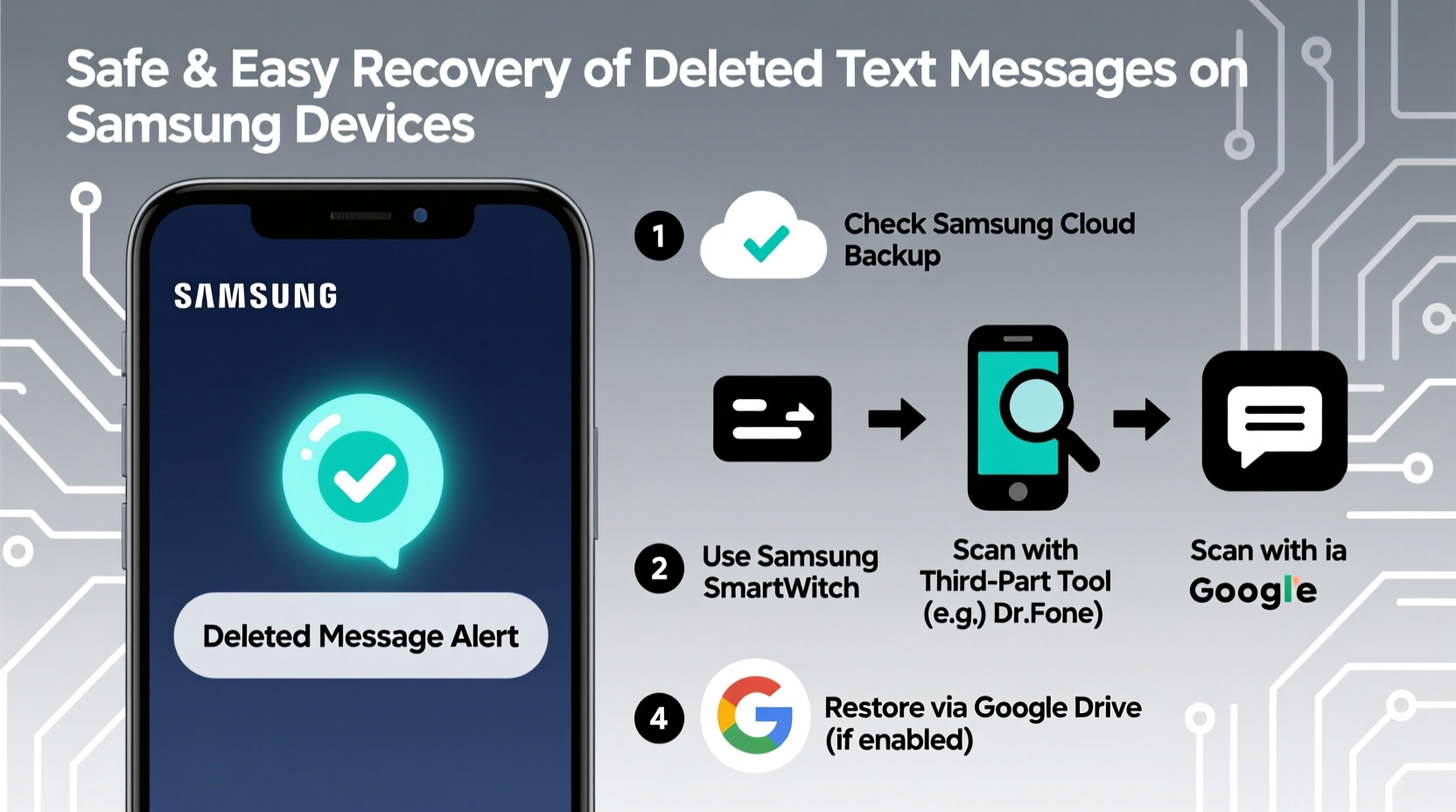
When you delete a text message on Android, it isn’t immediately erased from your device’s storage. Instead, the system marks the space as available for new data. Until that space is overwritten, the original message remains recoverable through specific techniques. Samsung devices running One UI and modern versions of Android use encrypted databases for messaging apps like Samsung Messages and Google Messages, which adds complexity but not impossibility to recovery efforts.
The key factors influencing successful recovery include:
- Time elapsed since deletion: The sooner you act, the better your chances.
- Data overwriting: Continued phone usage increases the risk of overwriting deleted messages.
- Backup status: Whether automatic cloud or local backups were enabled prior to deletion.
- Root access: Some advanced recovery tools require rooted devices, though this carries risks.
Method 1: Restore from Google Messages Backup (No Root Required)
If you use Google Messages as your default app, Google automatically backs up your SMS to your Google Drive account when backup is enabled. This method only works if backups were active before the deletion occurred.
- Uninstall the Google Messages app via Settings > Apps > Google Messages > Uninstall.
- Reinstall Google Messages from the Google Play Store.
- Open the app and verify your phone number.
- When prompted, tap Restore to retrieve messages from your latest Google backup.
- Wait for the process to complete—this may take several minutes depending on volume.
Note that Google Messages backups do not include MMS or chat features (RCS) unless explicitly enabled. Also, backups are tied to your Google account and encrypted with your screen lock credentials.
Method 2: Use Samsung Cloud Backup and Restore
Samsung offers its own cloud ecosystem, Samsung Cloud, which can store messages, contacts, settings, and more. If you previously enabled message syncing, restoration is straightforward.
Steps to Restore from Samsung Cloud:
- Go to Settings > Accounts and Backup > Samsung Cloud.
- Sign in with your Samsung account.
- Navigate to Device Data and locate “Messages.”
- If a backup exists, tap Restore next to Messages.
- Confirm the action and wait for the sync to complete.
This method preserves message threads, timestamps, and sender information exactly as they were. However, Samsung Cloud does not retain backups indefinitely. Free accounts offer 15GB of storage, and older backups may be purged if space is exceeded.
Method 3: Third-Party Recovery Tools (With and Without Root)
For cases where no backup exists, third-party software can scan your device’s internal memory for residual message data. These tools vary in reliability, so choosing reputable options is crucial.
| Tool | Root Required? | Cloud Needed? | Best For |
|---|---|---|---|
| Dr.Fone - Data Recovery (Android) | Optional (better results with root) | No | Beginners; intuitive interface |
| DiskDigger Pro (for rooted devices) | Yes | No | Deep scanning; technical users |
| FonePaw Android Data Recovery | No | No | Quick scans; non-rooted phones |
| UltFone Android Data Recovery | No | No | High success rate; secure encryption |
To use these tools:
- Download and install the software on your computer.
- Enable USB Debugging on your Samsung device (Settings > Developer Options > USB Debugging).
- Connect your phone via USB cable.
- Run the scan for deleted messages.
- Preview recoverable messages and select those to restore.
- Export them to your computer or directly back to the phone.
“Third-party tools can recover lost data, but users must exercise caution. Only download software from official sources to avoid malware.” — Dr. Lena Park, Mobile Security Researcher at Seoul Tech Institute
Method 4: Check Local Backups (Internal Storage or SD Card)
Samsung Messages has a built-in feature to create manual backups stored locally. These files are saved in /Phone/Backup/ or /SDCard/Backup/ as encrypted archives with a .backup extension.
How to Access and Restore Local Backups:
- Open the Samsung Messages app.
- Tap the three-dot menu and go to Settings > Chat backup.
- Select Restore—the app will detect any valid local backup files.
- Choose the backup date and confirm restoration.
If you’ve manually copied backup files elsewhere, transfer them back to the correct directory before attempting restoration. Note that local backups are not encrypted by default unless password protection was set during creation.
Mini Case Study: Recovering Critical Messages After a Factory Reset
Sophia, a small business owner in Austin, accidentally performed a factory reset on her Galaxy S22 while troubleshooting a lag issue. She lost all client SMS threads containing delivery confirmations and payment details. With no recent cloud backup, she turned to Dr.Fone. Using a Windows PC and her phone in USB debugging mode, she ran a deep scan. Though the process took nearly 40 minutes, the software recovered 87% of her deleted messages, including time-stamped conversations. She exported them to a CSV file for record-keeping and re-enabled automatic Google Messages backup immediately afterward.
Sophia’s experience highlights two lessons: always verify backup status before making system changes, and reliable recovery tools can serve as a last line of defense.
Checklist: What to Do Immediately After Message Deletion
- ✅ Stop using the phone intensively to prevent data overwriting.
- ✅ Check if Google Messages or Samsung Cloud backups are available.
- ✅ Attempt restoration through built-in backup options first.
- ✅ Enable USB Debugging if planning to use third-party software.
- ✅ Use trusted recovery tools with positive reviews and secure download sources.
- ✅ After recovery, enable automatic backups to avoid future loss.
FAQ
Can I recover messages deleted months ago?
Possibly, but success depends on whether the data has been overwritten. Older deletions have lower recovery rates, especially on frequently used devices. Cloud backups offer the best chance if they were active at the time.
Is rooting my Samsung phone necessary for message recovery?
No, rooting is not required for most recovery scenarios. While rooted devices allow deeper access to system partitions, modern tools can retrieve data without root. However, rooting voids warranties and increases security risks.
Are free message recovery apps safe to use?
Many free apps make bold claims but lack real functionality or contain ads and malware. Stick to well-known brands with transparent privacy policies. If a tool promises recovery without connecting to a computer, be skeptical—it likely cannot access protected system areas.
Conclusion: Protect Your Digital Conversations
Deleted text messages don’t have to be gone forever. With Samsung’s integrated backup systems and reliable third-party tools, recovery is often within reach—if you act promptly and wisely. The most effective strategy combines proactive habits (like enabling automatic backups) with knowledge of emergency recovery paths. Don’t wait until data vanishes to understand your options. Set up both Google and Samsung Cloud backups today, and familiarize yourself with your device’s restore functions. Your future self might just need that one message back.




 浙公网安备
33010002000092号
浙公网安备
33010002000092号 浙B2-20120091-4
Comments
No comments yet. Why don't you start the discussion?