
Losing your mobile phone contacts can feel like losing part of your personal network—especially when those numbers include family, colleagues, or service providers you rely on daily. Whether due to accidental deletion, device malfunction, or a failed software update, contact loss is more common than many realize. The good news: in most cases, recovery is possible. With the right approach and timely action, you can restore your contacts quickly and securely. This guide walks through practical, tested methods to recover lost contacts on both Android and iOS platforms.
Why Contacts Get Lost: Common Causes
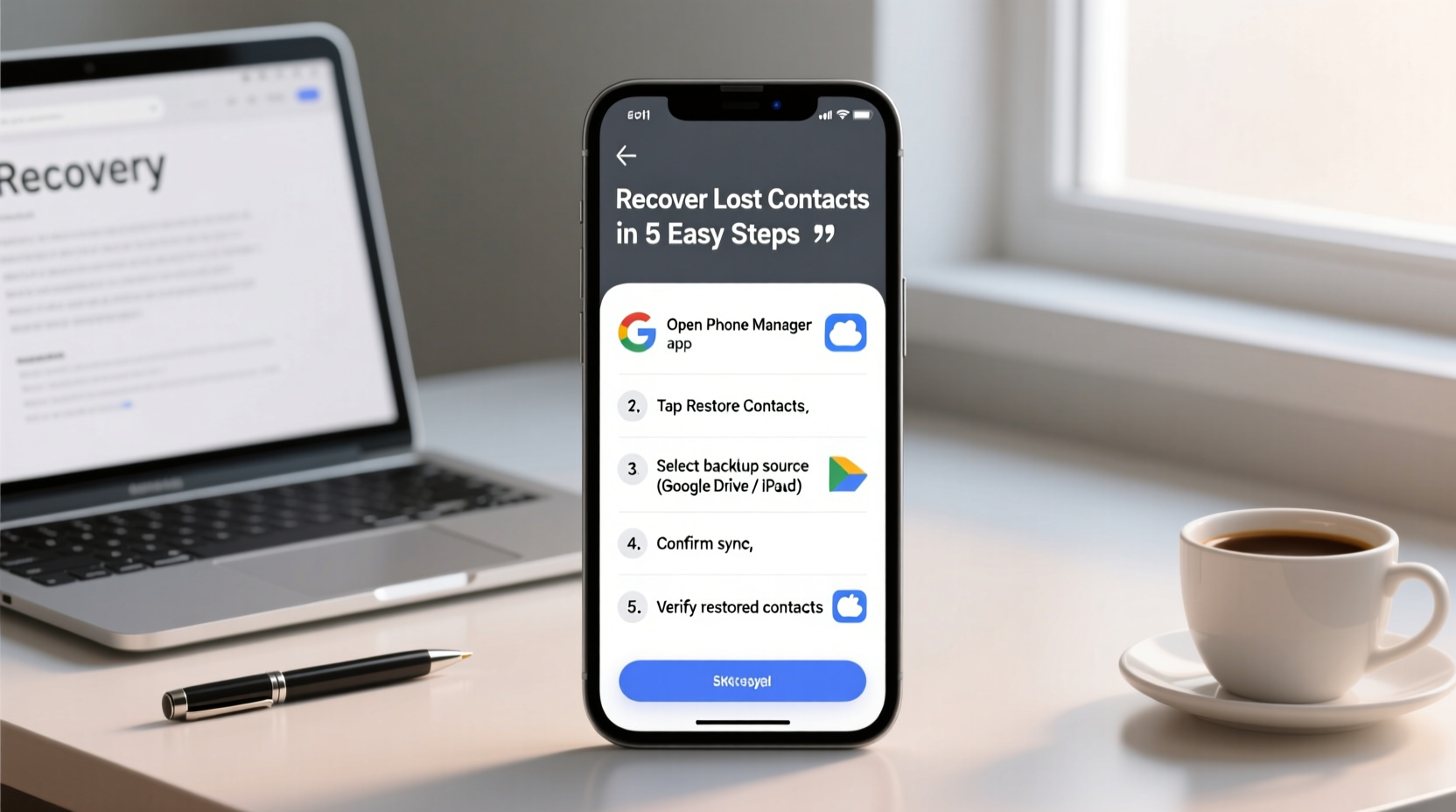
Contact loss doesn’t always stem from user error. Understanding the root cause helps determine the best recovery path. Common reasons include:
- Accidental deletion: A swipe too far while cleaning up your address book.
- Device reset or factory wipe: Often performed during troubleshooting or before selling a phone.
- Syncing issues: Misconfigured Google or iCloud accounts failing to back up or restore data.
- Operating system updates: Bugs during iOS or Android upgrades sometimes corrupt local data.
- Malware or app conflicts: Rare but possible, especially on rooted or jailbroken devices.
Knowing how the loss occurred helps prioritize recovery options. For instance, if you recently restored your phone from a backup, the fix may be as simple as re-syncing with your cloud account.
Step-by-Step Guide to Recovering Lost Contacts
The following sequence outlines a structured recovery process. Follow each step in order for the highest chance of success.
- Determine your device type and sync ecosystem – Are you using an iPhone (iOS) or Android? Identify whether you use Google, iCloud, Samsung Cloud, or another service.
- Check recent deletions – Some services retain deleted contacts in a trash folder for up to 30 days.
- Force a sync with your cloud account – Refresh the connection between your phone and backup provider.
- Restore from the most recent backup – Use built-in tools like iCloud Restore or Google One to retrieve older data.
- Use third-party recovery tools if needed – Only when native options fail, consider trusted software solutions.
Method 1: Restore via Google Account (Android & iOS)
If your Android phone was linked to a Google account, your contacts likely synced automatically. Even if you're now on an iPhone, you can still access them.
- Open Settings > Accounts (or Passwords & Accounts).
- Select Google and ensure sync is enabled for Contacts.
- Tap “Sync Now” to refresh.
- If no contacts appear, visit contacts.google.com from a computer.
- Click the gear icon > Trash. Deleted contacts remain here for 30 days.
- Select the contacts to restore and click Restore.
Once restored online, they will sync back to any device connected to that Google account.
Method 2: Recover Using iCloud (iPhone)
iCloud automatically backs up contacts if enabled. If you’ve accidentally deleted entries, act quickly.
- Go to iCloud.com and sign in.
- Open the Contacts app.
- In the bottom-left corner, click the gear icon > Recently Deleted.
- Select the contacts or groups you want to restore.
- Click Restore.
Note: Deleted contacts stay in iCloud’s trash for only 30 days. After that, they’re permanently erased unless a backup exists.
“Most contact recovery is successful when users act within 72 hours of loss. Delay reduces the chance of retrieval, especially if backups aren’t routine.” — Rajiv Mehta, Mobile Data Recovery Specialist
Using Device Backups for Full Restoration
When cloud sync fails, device-level backups offer a second line of defense.
Android: Restore from Google One Backup
If you used Google One or automatic Android backups:
- During initial phone setup, sign in with the same Google account.
- When prompted, choose to restore from a previous backup.
- Select the backup closest to when your contacts were intact.
This restores not just contacts but apps, settings, and messages. However, it overwrites current data, so proceed with caution.
iOS: Restore from iCloud or iTunes/Finder Backup
To recover from an iCloud backup:
- Erase your iPhone: Settings > General > Transfer or Reset iPhone > Erase All Content and Settings.
- Follow setup prompts until you reach “Apps & Data.”
- Select Restore from iCloud Backup.
- Sign in and choose a backup date prior to the contact loss.
For iTunes or Finder backups (on Mac/PC):
- Connect your iPhone to your computer.
- Open Finder (Mac) or iTunes (Windows).
- Select your device and click Restore Backup.
- Choose the appropriate backup and confirm.
Third-Party Recovery Tools: When Native Methods Fail
If cloud sync and backups don’t yield results, specialized software may help—especially if data was stored locally and never backed up.
Popular tools include:
- Dr.Fone – Data Recovery (iOS/Android): Scans device memory for residual contact data.
- FonePaw Android Data Recovery: Recovers contacts, messages, photos.
- iMyFone D-Back: Supports deep scanning for iOS devices, even without a backup.
Proceed with care: some tools require payment, and effectiveness varies based on device model and usage history. Always download software from official sources to avoid malware.
| Recovery Method | Best For | Success Rate | Time Required |
|---|---|---|---|
| Google Sync Restore | Android users with active Google accounts | High (if synced) | 5–10 minutes |
| iCloud Recently Deleted | iPhone users within 30-day window | High | 10 minutes |
| Google One/iCloud Backup | Full device restoration | Moderate to High | 30+ minutes |
| Third-Party Software | No backup, local-only storage | Low to Moderate | 20–60 minutes |
Prevention Checklist: Avoid Future Contact Loss
Recovery works best when prevention is already in place. Use this checklist to safeguard your contacts moving forward.
- ✅ Enable automatic contact sync with Google or iCloud.
- ✅ Verify sync status weekly under account settings.
- ✅ Export contacts periodically as a .vcf file (vCard) to email or cloud storage.
- ✅ Label and date device backups.
- ✅ Avoid deleting contacts in bulk without confirmation.
- ✅ Use dual sync (e.g., Google + SIM card) for critical numbers.
Real-World Example: Recovering After a Failed Update
Sarah, a small business owner, updated her Samsung Galaxy S23 to the latest Android version. After rebooting, all her client contacts were gone. Panicked, she tried searching locally but found nothing. She remembered using a Google account but hadn’t checked sync in months.
She followed these steps:
- Went to Settings > Accounts > Google.
- Found that contact sync was turned off—likely disabled during the update.
- Turned it on and tapped “Sync Now.”
- Within two minutes, all 327 contacts reappeared.
The issue wasn’t data loss—it was a sync interruption. Her experience underscores the importance of verifying sync settings after major updates.
FAQ
Can I recover contacts without a backup?
Possibility is limited. If contacts were synced to a cloud account at any point, recovery may still work. Otherwise, third-party tools offer slim chances, depending on whether data remnants exist on the device.
How long do deleted contacts stay in iCloud or Google?
iCloud retains deleted contacts in the “Recently Deleted” folder for 30 days. Google Contacts also keeps them in Trash for 30 days before permanent removal.
Should I use SIM card storage for contacts?
SIM storage is outdated and risky—capacity is low (usually 250 contacts), and SIM cards can fail. Use it only as a temporary fallback, not primary storage.
Take Action Before It’s Too Late
Your contacts represent more than just phone numbers—they’re connections, relationships, and lifelines. The key to recovery lies in preparation and prompt action. Whether you're on Android or iOS, cloud-based syncing remains the most reliable safety net. If you haven't verified your backup settings today, do it now. A two-minute check could save hours of frustration later. Don’t wait for loss to strike before protecting what matters.




 浙公网安备
33010002000092号
浙公网安备
33010002000092号 浙B2-20120091-4
Comments
No comments yet. Why don't you start the discussion?