
Losing a mobile device is more than just an inconvenience—it can feel like losing part of your digital identity. Among the most critical pieces of data stored on smartphones are contact lists, which often include not only names and numbers but also personal notes, work relationships, and emergency contacts. While replacing the hardware is possible, recovering your phone numbers without access to the physical device requires strategy, preparation, and knowledge of available tools. Fortunately, modern technology offers several reliable pathways to restore your contact information—even when the phone itself is gone.
Understanding How Contacts Are Stored
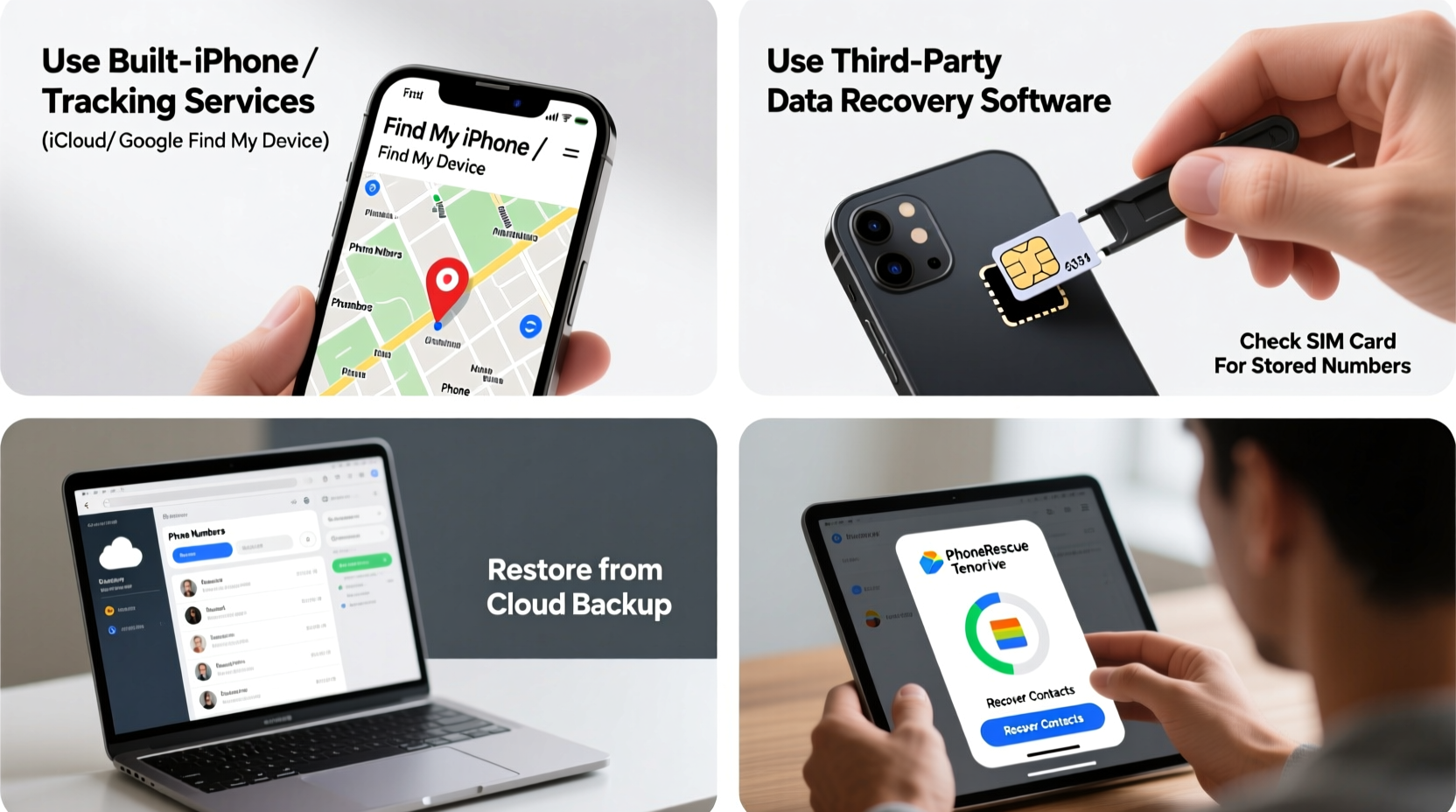
Before attempting recovery, it’s essential to understand where your contacts actually reside. Most users assume their contacts live on the phone, but in reality, they may be stored in multiple locations: internally on the device, on the SIM card, or—most importantly—in cloud-based accounts such as Google, iCloud, or Microsoft. The location determines whether recovery is possible after loss.
Modern smartphones automatically sync contacts with associated accounts if enabled. For Android users, this typically means syncing with a Google account; for iPhone owners, it’s iCloud. If synchronization was active before the device was lost, the vast majority of your contacts likely exist safely in the cloud. However, if sync was disabled or inconsistent, recovery becomes significantly more challenging.
Step-by-Step Guide to Recover Contacts via Cloud Services
The most effective method for recovering phone numbers from a lost device involves leveraging your existing cloud accounts. Below is a clear, actionable process based on your operating system.
- Determine your primary account: Identify whether you used a Google account (Android) or Apple ID (iPhone).
- Access the service from another device: Use a computer, tablet, or borrowed phone to log in.
- Navigate to the contacts section:
- For Google: Go to contacts.google.com.
- For Apple: Visit www.icloud.com and sign in, then open the Contacts app.
- Verify contact presence: Check if your full list appears. If so, they were successfully synced.
- Export or transfer: Select all contacts and export them as a vCard file (.vcf), which can be imported into any new device.
- Import to new phone: During initial setup or in the Contacts app settings, choose “Import from vCard” and select the downloaded file.
This method works even if the original device is powered off, locked, or factory reset remotely—because the data resides independently in the cloud.
Recovering Numbers from SIM Cards and Backups
In some cases, especially with older phones or manually saved entries, contacts may have been stored directly on the SIM card. While SIM cards hold limited data (typically 250 contacts max), they can serve as a partial backup.
To retrieve these:
- Remove the SIM card from the lost device (if recovered separately).
- Insert it into another compatible phone.
- Navigate to Settings > Contacts > Import from SIM card.
Note that SIM cards usually store only basic information—name and number—and do not retain email addresses, photos, or custom fields.
Additionally, consider local backups:
- iPhone users: If you backed up to a Mac or PC via iTunes (now Finder on macOS Catalina+), contacts may be retrievable through a full restore or third-party extraction tools.
- Android users: Some manufacturers (e.g., Samsung) offer built-in backup solutions via their ecosystem (Samsung Cloud). Check online portals for stored contact data.
Do’s and Don’ts When Recovering Lost Contacts
| Action | Do | Don’t |
|---|---|---|
| After losing your phone | Immediately lock or erase the device using Find My Device (Android) or Find My (iOS) | Wait days to act—risk unauthorized access |
| Contact recovery | Check cloud accounts first | Assume everything is lost—check all sync points |
| Data import | Use vCard (.vcf) format for cross-platform transfers | Overwrite existing contacts without backing them up |
| Prevention | Enable automatic sync and periodic manual exports | Rely solely on device storage for critical data |
Real Example: Recovering Contacts After a Theft
Sophie, a marketing consultant in Toronto, had her phone stolen from her bag during a commute. She panicked initially, fearing she’d lose hundreds of client contacts. However, because she had previously linked her Google account and enabled contact sync, she was able to regain access within hours.
From a library computer, she logged into her Google account and visited Google Contacts. Her entire list appeared instantly. She exported the contacts as a vCard, then used her backup phone to import the file. Within a day, she had fully restored her network—without needing to reach out to a single contact to re-collect their number.
Sophie’s experience underscores the importance of proactive setup. “I didn’t think about backups until I lost my phone,” she said later. “Now I check my sync status monthly.”
“Cloud synchronization isn’t just convenient—it’s a fundamental layer of digital resilience. Users who enable it reduce data loss risk by over 90%.” — Dr. Marcus Lin, Cybersecurity Researcher at TechSafe Labs
Checklist: Immediate Actions After Losing Your Phone
- ✅ Lock or locate your device using Find My Device (Android) or Find My (iOS)
- ✅ Log into your Google or Apple account from a secure device
- ✅ Verify that contact sync was enabled before the loss
- ✅ Export contacts as a vCard for safekeeping
- ✅ Insert old SIM into new device (if applicable) and import SIM contacts
- ✅ Restore contacts to replacement phone via import function
- ✅ Enable two-factor authentication and update passwords if sensitive data was accessible
Frequently Asked Questions
Can I recover contacts if sync was turned off?
Recovery is extremely limited in this case. If no cloud sync or manual backup exists, and contacts weren’t saved to the SIM, retrieval from the lost device is unlikely. Future prevention includes enabling auto-sync and conducting regular vCard exports to email or cloud storage.
Will remote wipe erase my contacts permanently?
No—if your contacts were synced to a cloud account prior to wiping, they remain intact in that account. Remote wipe only deletes data on the physical device. Always wipe a lost phone to protect privacy, but know that synced contacts survive the process.
How often should I back up my contacts?
Automatic sync should run continuously. As an added safeguard, manually export your contacts as a vCard every 3–6 months and store it in multiple secure locations (e.g., encrypted drive, email draft, cloud folder).
Conclusion: Turn Loss Into a Lesson in Digital Preparedness
Losing a phone doesn’t have to mean losing your connections. With the right habits—like enabling sync, using cloud services wisely, and understanding where your data lives—recovery is not only possible but often seamless. The key lies in preparation before disaster strikes.
Take action today: verify your sync settings, perform a test export, and store a copy of your contacts offline. These small steps build a resilient digital life. A lost phone is temporary. Your network shouldn’t be.




 浙公网安备
33010002000092号
浙公网安备
33010002000092号 浙B2-20120091-4
Comments
No comments yet. Why don't you start the discussion?