
Over time, your browser accumulates cached data—temporary files like images, scripts, and stylesheets—to speed up website loading. While this improves performance initially, outdated or corrupted cache can slow down browsing, cause layout glitches, or prevent websites from updating properly. Clearing the browser cache is a simple yet powerful solution that resolves many common issues and restores optimal browsing speed. Understanding when and how to do it correctly ensures a smoother, more secure online experience.
Why Clearing Browser Cache Matters
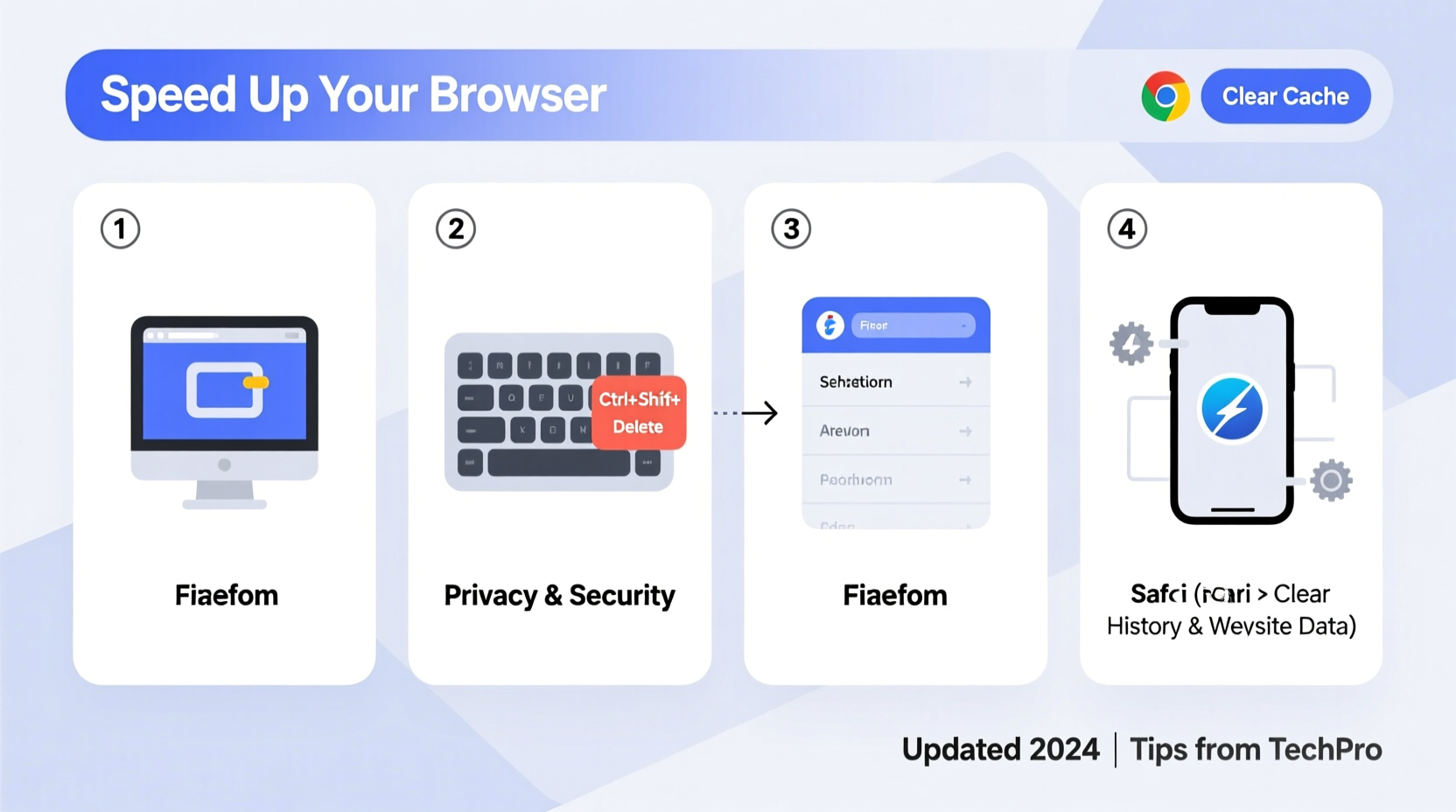
Every time you visit a website, your browser stores certain elements locally so they don’t need to be downloaded again on subsequent visits. This caching mechanism reduces load times and bandwidth usage. However, problems arise when:
- A website has been updated, but your browser continues showing the old version.
- Cached files become corrupted due to interrupted downloads or software conflicts.
- Too much stored data consumes device memory and slows overall performance.
- You encounter login errors, broken layouts, or JavaScript malfunctions.
Clearing the cache forces your browser to fetch fresh copies of all resources, ensuring you see the most current version of a site and eliminating inconsistencies caused by stale data.
“Regular cache maintenance isn’t just about speed—it’s essential for accuracy and security in modern web interactions.” — Daniel Lin, Web Performance Engineer at Mozilla
Step-by-Step Guide to Clear Cache Across Major Browsers
The process varies slightly depending on which browser you use. Below are detailed instructions for the most widely used platforms.
Google Chrome (Desktop)
- Open Chrome and click the three-dot menu in the top-right corner.
- Select Settings.
- Navigate to Privacy and security > Clear browsing data.
- Choose a time range (e.g., “Last hour,” “All time”).
- Check the box next to Cached images and files.
- Leave other options unchecked if you only want to clear cache.
- Click Clear data.
Mozilla Firefox
- Click the hamburger menu (three horizontal lines) in the upper-right corner.
- Go to Settings > Privacy & Security.
- Scroll down to the History section and select “Use custom settings for history” from the dropdown.
- Click Clear Now under “Cached Web Content.”
- Alternatively, press Ctrl+Shift+Delete (Windows) or Cmd+Shift+Delete (Mac) for a quick access dialog.
Apple Safari
- Open Safari and go to Safari > Settings (or Preferences).
- Select the Advanced tab and check “Show Develop menu in menu bar.”
- Return to the main window and choose Develop > Empty Caches.
- Confirm by clicking Empty.
- Note: You can also clear history and cache together via History > Clear History.
Microsoft Edge
- Click the three-dot menu in the top-right corner.
- Go to Settings > Privacy, search, and services.
- Under “Clear browsing data,” click Choose what to clear.
- Select Cached images and files.
- Choose your desired time range.
- Click Clear now.
When Should You Clear Your Browser Cache?
While there's no universal rule, certain situations strongly suggest a cache cleanup:
| Situation | Action Recommended |
|---|---|
| Website appears broken or misaligned | Clear cache immediately |
| Changes to a site you manage aren’t visible | Hard refresh + clear cache |
| Slow page loading despite good internet | Clear cache and cookies |
| Login loops or authentication failures | Clear cache and site data |
| After major system or browser updates | Perform routine cleanup |
As a best practice, consider clearing your cache every 4–6 weeks if you're an active internet user. For developers or those frequently testing websites, doing so after each development cycle is advisable.
Tips for Effective Cache Management
- Be selective: If troubleshooting one site, clear data for that specific domain instead of wiping everything.
- Use Incognito Mode: Test sites without cache interference by opening them in private browsing windows.
- Hard Refresh Shortcut: Press Ctrl+F5 (Windows) or Cmd+Shift+R (Mac) to bypass cache temporarily.
- Disable cache during development: In browser Developer Tools (F12), enable “Disable cache” under the Network tab.
- Sync across devices: If using cloud-synced browsers, remember that clearing cache on one device doesn’t affect others unless synced manually.
Mini Case Study: Fixing a Stuck Login Page
A freelance designer reported being unable to log into her client’s WordPress dashboard. The login form would reload endlessly without error messages. She tried different passwords and browsers with no success. After checking server logs and confirming no backend issues, she suspected local caching. By clearing her Chrome cache specifically for that domain through Site Settings > Cookies and Other Site Data, then performing a hard refresh, the login page loaded correctly and accepted her credentials. The issue stemmed from a recently updated SSL certificate that clashed with an outdated cached redirect script.
Do’s and Don’ts of Cache Clearing
| Do’s | Don’ts |
|---|---|
| Clear cache regularly as part of digital hygiene | Don’t panic-clear all data unnecessarily; it may log you out of important accounts |
| Target specific sites when possible | Don’t ignore signs of corruption like repeated errors or visual bugs |
| Combine cache clearing with cookie management for full resets | Don’t assume cache is always the culprit—check network and hardware first |
Frequently Asked Questions
Will clearing cache delete my saved passwords?
No, unless you explicitly select “Passwords and other sign-in data” during the clearing process. To preserve login details, ensure only “Cached images and files” is checked.
How is cache different from cookies?
Cache stores website components (like images and scripts) to improve load speed. Cookies store user-specific information such as preferences, sessions, and tracking IDs. Both can be cleared independently.
Can clearing cache improve internet speed?
Not directly, but removing bloated or corrupted cached files can make pages render faster and reduce memory usage, leading to a perceived improvement in responsiveness.
Conclusion: Take Control of Your Browsing Experience
Clearing your browser cache is a small action with significant impact. It resolves display issues, enhances performance, and ensures you interact with up-to-date versions of websites. Whether you're troubleshooting a stubborn error or simply maintaining digital cleanliness, knowing how and when to purge cached data empowers you to browse smarter. Make it a habit—just like restarting your router or updating apps—and enjoy a faster, more reliable web experience.




 浙公网安备
33010002000092号
浙公网安备
33010002000092号 浙B2-20120091-4
Comments
No comments yet. Why don't you start the discussion?