
PDF files are widely used for sharing documents due to their consistent formatting and built-in security features. However, these same protections—such as password restrictions or encryption—can become obstacles when you need to edit, copy, or print a file you’re authorized to use. The key is removing security efficiently while preserving the document’s integrity, layout, and metadata. This guide explores practical, ethical, and technically sound approaches to unlock secured PDFs without compromising data quality.
Understanding PDF Security Types
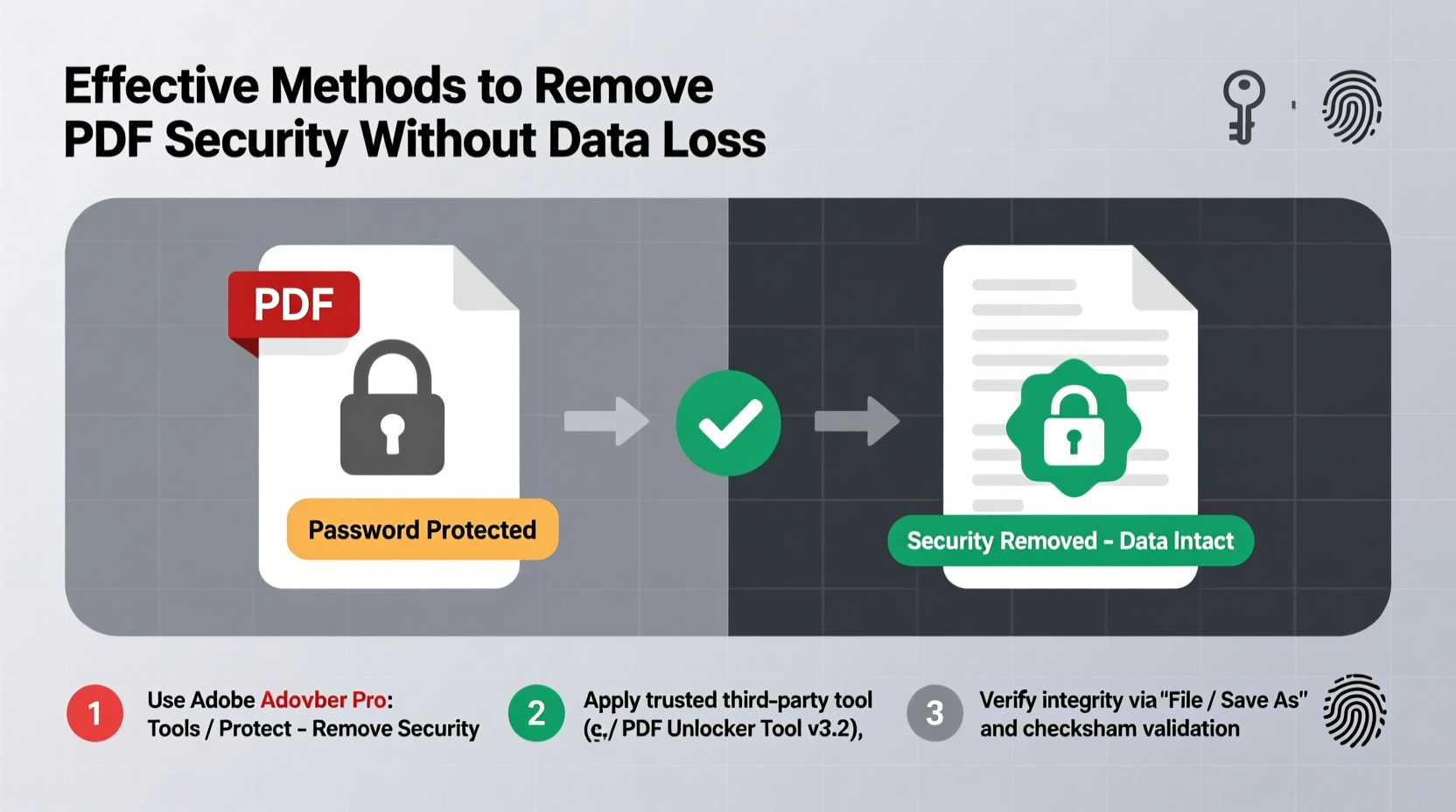
Prior to attempting removal, it's essential to identify the type of restriction applied. Most secured PDFs fall into two categories:
- User Password (Open Password): Prevents opening the file without authentication.
- Owner Password (Permissions Password): Allows opening but restricts actions like copying text, printing, editing, or extracting pages.
The owner password is typically the one targeted for removal when access is authorized but functionality is limited. Note: Bypassing user passwords without permission may violate laws such as the Digital Millennium Copyright Act (DMCA). Always ensure you have legal rights to modify the document.
“Removing PDF restrictions should only be done on files you own or have explicit authorization to modify.” — James Reed, Cybersecurity Consultant at DocuShield Labs
Step-by-Step Guide to Safely Remove PDF Security
Follow this structured approach to maintain document fidelity while unlocking its full functionality:
- Verify Ownership or Authorization: Confirm that you have the right to alter the file. If received from an employer, client, or institution, obtain written consent if necessary.
- Backup the Original File: Create a duplicate before making any changes. This preserves the original in case of errors during processing.
- Determine the Encryption Type: Use Adobe Acrobat Pro or online metadata tools to check whether the PDF uses 40-bit, 128-bit, or AES encryption.
- Select the Appropriate Tool: Choose software based on the level of protection and your technical comfort.
- Apply the Unlock Method: Whether through desktop software, command-line tools, or online services, proceed with caution to avoid corruption.
- Validate Output: After unlocking, review the document thoroughly for missing fonts, broken links, or layout shifts.
Top Tools and Methods Compared
Different scenarios call for different solutions. Below is a comparison of widely used methods, balancing ease of use, reliability, and safety.
| Method | Best For | Data Preservation | Security Risk | Cost |
|---|---|---|---|---|
| Adobe Acrobat Pro DC | Professional users needing full control | Excellent – retains all formatting and metadata | Low – official software | Subscription-based ($14.99+/mo) |
| QPDF (Command Line) | Technical users comfortable with CLI | High – lossless decryption possible | Very Low – open-source, audited code | Free |
| Smallpdf / iLovePDF (Online) | Quick fixes for non-sensitive files | Moderate – some reprocessing may occur | Moderate – upload required; privacy concerns | Freemium model |
| PDFtk Server | Bulk processing and scripting | High – preserves structure well | Low – local execution possible | Free |
| Brute-force tools (e.g., PDFCrack) | Forgotten passwords (owner-only) | Variable – depends on method | High – potential misuse; slow | Free |
Recommended Workflow Using QPDF (Free & Secure)
For those prioritizing data preservation and privacy, QPDF offers a powerful, open-source solution. Here’s how to use it:
- Download and install QPDF from the official site (qpdf.sourceforge.net).
- Open terminal (macOS/Linux) or Command Prompt (Windows).
- Navigate to your PDF’s directory using
cd. - Run the following command:
qpdf --decrypt input.pdf output.pdf
- If prompted, enter the owner password. If no password is known but permissions are set, QPDF may still remove restrictions depending on configuration.
- Open
output.pdfand verify all content remains intact.
This method operates locally, eliminating cloud upload risks and ensuring maximum data fidelity.
Real Example: Unlocking a Client Report for Collaboration
A marketing analyst received a final campaign report in PDF format from a third-party agency. While she could view the document, she couldn’t highlight key metrics or add comments for her team review—functions blocked by owner restrictions. Rather than request a new version (which would delay the project), she used Adobe Acrobat Pro to authenticate ownership via company email and removed the editing restrictions in under two minutes. The file retained all charts, hyperlinks, and embedded fonts, allowing seamless collaboration without reformatting issues.
This scenario highlights how legitimate professionals often encounter restrictive PDFs in daily workflows—and why having secure, reversible methods matters.
Checklist: Before You Remove PDF Security
- ✅ Confirm legal authority to modify the document
- ✅ Back up the original file
- ✅ Identify the type of restriction (open vs. permissions)
- ✅ Assess sensitivity of content (avoid uploading confidential files online)
- ✅ Choose a tool that supports local processing when possible
- ✅ Test the unlocked file across devices and applications
- ✅ Document the change for compliance or audit purposes
Frequently Asked Questions
Can I remove a PDF password without knowing it?
Yes—but only for owner passwords, and only ethically if you own the document. Tools like PDFCrack use brute-force or dictionary attacks, which can take hours or days depending on complexity. Open passwords (user passwords) cannot be bypassed without cracking, which is illegal without authorization.
Will removing security affect my PDF’s formatting?
Not if done correctly. Desktop tools like Adobe Acrobat and QPDF preserve layout, fonts, bookmarks, and metadata. Online converters sometimes reprocess files, potentially altering spacing or image quality. Always compare input and output versions carefully.
Are online PDF unlockers safe?
Proceed with caution. Many free web tools require uploading your file to their servers, creating privacy risks—especially for confidential data. Some retain copies for advertising or analytics. For sensitive documents, prefer offline solutions.
Conclusion: Unlock Responsibly, Preserve Integrity
Removing security from PDFs doesn't have to mean sacrificing quality or ethics. By understanding the types of restrictions, choosing the right tools, and following a disciplined process, you can regain full access to your documents while keeping every detail intact. Whether you're a business professional, academic researcher, or creative collaborator, maintaining data fidelity ensures smoother workflows and trustworthy outputs.




 浙公网安备
33010002000092号
浙公网安备
33010002000092号 浙B2-20120091-4
Comments
No comments yet. Why don't you start the discussion?