
A USB flash drive is one of the most convenient tools for transferring and storing files, but its small size and frequent handling make it vulnerable to damage. When a drive stops working—whether it’s not recognized by your computer, shows corrupted files, or fails to mount—it can feel like a crisis, especially if important data is at stake. The good news is that many issues are fixable using built-in system tools or simple troubleshooting steps. Even better, most failures can be prevented with proper care and smart usage habits.
Understanding Common USB Drive Failures
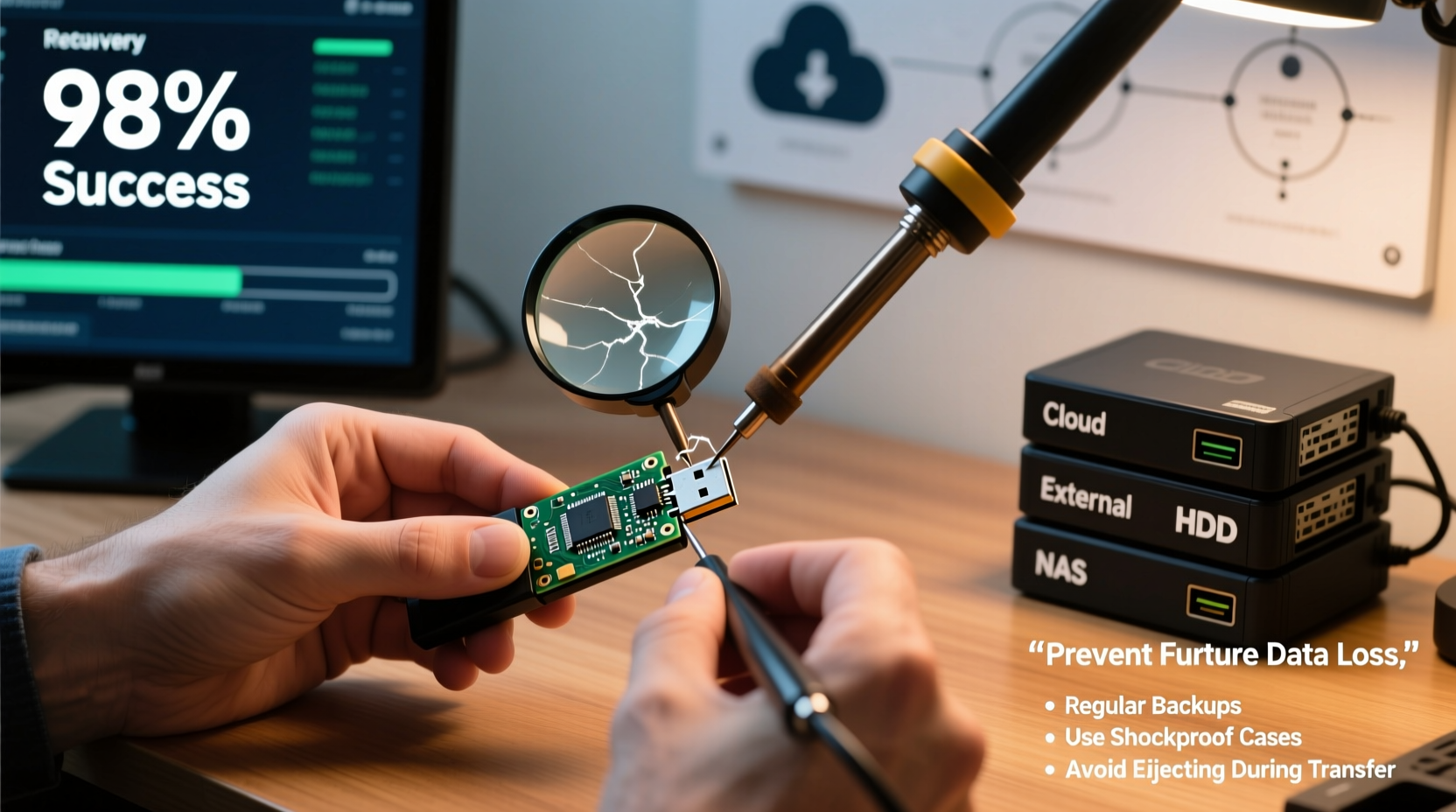
Before attempting repairs, it's essential to identify the type of failure. USB drives can fail due to physical damage, logical errors, file system corruption, or malware infection. Physical damage includes broken connectors, water exposure, or internal circuit failure—these often require professional recovery services. Logical issues, on the other hand, such as corrupted partitions or unrecognized formats, can usually be resolved through software-based fixes.
Common symptoms include:
- The drive appears in File Explorer but doesn’t open
- “The disk is not formatted” error message
- Slow performance or freezing when accessing files
- Drive not detected by any computer
- Frequent disconnections during use
Distinguishing between hardware and software problems determines whether you can handle the repair yourself or need external help.
Step-by-Step Guide to Repair a Non-Working USB Drive
If your drive is recognized by the system but not accessible, follow this sequence of repair methods. Each step builds on the previous one, increasing the chances of recovery without data loss—at least initially.
- Check Disk Management (Windows)
Press Win + X and select “Disk Management.” Look for your USB drive in the list. If it appears with an unassigned drive letter, right-click the partition and choose “Change Drive Letter and Paths” to assign a new letter. - Run CHKDSK to Fix File System Errors
Open Command Prompt as Administrator and type:
chkdsk H: /f /r /x
Replace “H:” with your USB’s assigned drive letter. This command checks for bad sectors, repairs logical errors, and forces the drive to dismount during the scan. - Use Windows Troubleshooter
Navigate to Settings > Update & Security > Troubleshoot > Additional troubleshooters > Hardware and Devices. Run the troubleshooter to detect connection or driver issues automatically. - Reformat Using DiskPart (Last Resort)
If the drive remains inaccessible, open Command Prompt and enter:
diskpart
Then run:
list disk→ Identify your USB
select disk X(replace X with your USB number)
clean→ Erases all partitions
create partition primary
format fs=ntfs quick
assign
This resets the drive completely. Note: This deletes all data.
On macOS, use Disk Utility to First Aid the drive or erase and reformat it using MS-DOS (FAT) or ExFAT for cross-platform compatibility.
Do’s and Don’ts of USB Drive Handling
Mishandling is a leading cause of premature failure. The following table outlines best practices to extend your drive’s lifespan and protect your data.
| Do’s | Don’ts |
|---|---|
| Eject safely using the “Safely Remove Hardware” option | Yank the drive out while files are transferring |
| Keep the drive in a protective case when not in use | Leave it exposed in bags where it can get crushed |
| Back up critical data regularly | Store only one copy of irreplaceable files |
| Scan drives for viruses before opening files | Plug unknown or public-use drives directly into your computer |
| Use high-quality, branded USB drives | Rely on cheap, no-name flash drives for important tasks |
Real Example: Recovering a Corrupted Work Presentation
Sarah, a marketing consultant, arrived at a client meeting only to find her USB drive wouldn’t open. Her final presentation was inaccessible. She tried plugging it into a colleague’s laptop with no success. After returning home, she connected the drive to her Windows PC and opened Disk Management. The drive appeared as “RAW” with no file system. She ran chkdsk G: /f /r, which took nearly 20 minutes but ultimately repaired directory errors. The drive became readable again, and Sarah recovered her files. She later backed up the presentation to cloud storage and now uses two separate drives for redundancy.
This scenario highlights how logical errors—not physical damage—are often the culprit, and how timely intervention can save the day.
“Over 70% of USB failures we see in our lab are recoverable through software tools—only about 15% involve irreversible hardware damage.” — Dr. Alan Reyes, Data Recovery Specialist at SecureBit Labs
Preventing Future Data Loss: A Proactive Checklist
Repairing a drive is helpful, but avoiding failure altogether is smarter. Use this checklist to minimize risks:
- ✅ Always eject the drive properly—never pull it out mid-transfer
- ✅ Maintain at least two copies of critical data (3-2-1 backup rule: 3 copies, 2 media types, 1 offsite)
- ✅ Avoid using USB drives in extreme temperatures or humid environments
- ✅ Regularly scan drives with antivirus software to catch malware early
- ✅ Limit write/erase cycles by minimizing frequent file edits on the drive
- ✅ Label drives clearly and rotate usage to avoid overuse of a single device
- ✅ Upgrade to more durable drives with rugged casing if used frequently on the go
Frequently Asked Questions
Can I recover data from a completely dead USB drive?
If the drive isn’t detected by any computer and doesn’t light up when plugged in, it likely has physical damage. In such cases, consumer tools won’t work. Professional data recovery services may be able to extract data using specialized hardware, though costs can range from $200 to $1,200 depending on complexity.
Is formatting a USB drive safe?
Formatting is safe for the computer but erases all data on the drive. Always attempt data recovery before formatting. Also, choosing the correct file system matters: FAT32 works universally but supports files under 4GB; exFAT is ideal for large files and modern devices; NTFS is best for Windows-only use with full permissions support.
How long do USB flash drives last?
Most drives have a lifespan of 10,000 to 100,000 write/erase cycles. With moderate use, they can last 5–10 years. However, stored data can degrade over time—especially if left unused for years. Experts recommend refreshing data every 2–3 years by copying it to a new medium.
Conclusion: Protect Your Data Before It’s Too Late
Fixing a broken USB drive is possible in many cases, especially when the issue stems from software or file system errors. Tools like CHKDSK, DiskPart, and Disk Utility offer powerful yet accessible solutions. But the real key to avoiding stress and data loss lies in prevention—safe ejection, regular backups, and mindful handling go a long way.
Technology is only as reliable as the habits behind it. Take a moment today to back up your current USB contents, label your drives, and consider upgrading to more resilient models. Your future self will thank you when a potential disaster turns into a minor inconvenience.




 浙公网安备
33010002000092号
浙公网安备
33010002000092号 浙B2-20120091-4
Comments
No comments yet. Why don't you start the discussion?