
Discord has become an essential platform for gamers, remote teams, and online communities. Its real-time voice, video, and text communication tools make collaboration effortless—when everything works as intended. However, frequent users often encounter glitches such as frozen screens, audio dropouts, message delays, or even complete crashes. These disruptions can hinder productivity and diminish user experience. The good news is that most Discord issues are fixable with targeted troubleshooting. Understanding the root causes and applying structured solutions can restore stability and ensure uninterrupted service.
Understanding Common Discord Issues
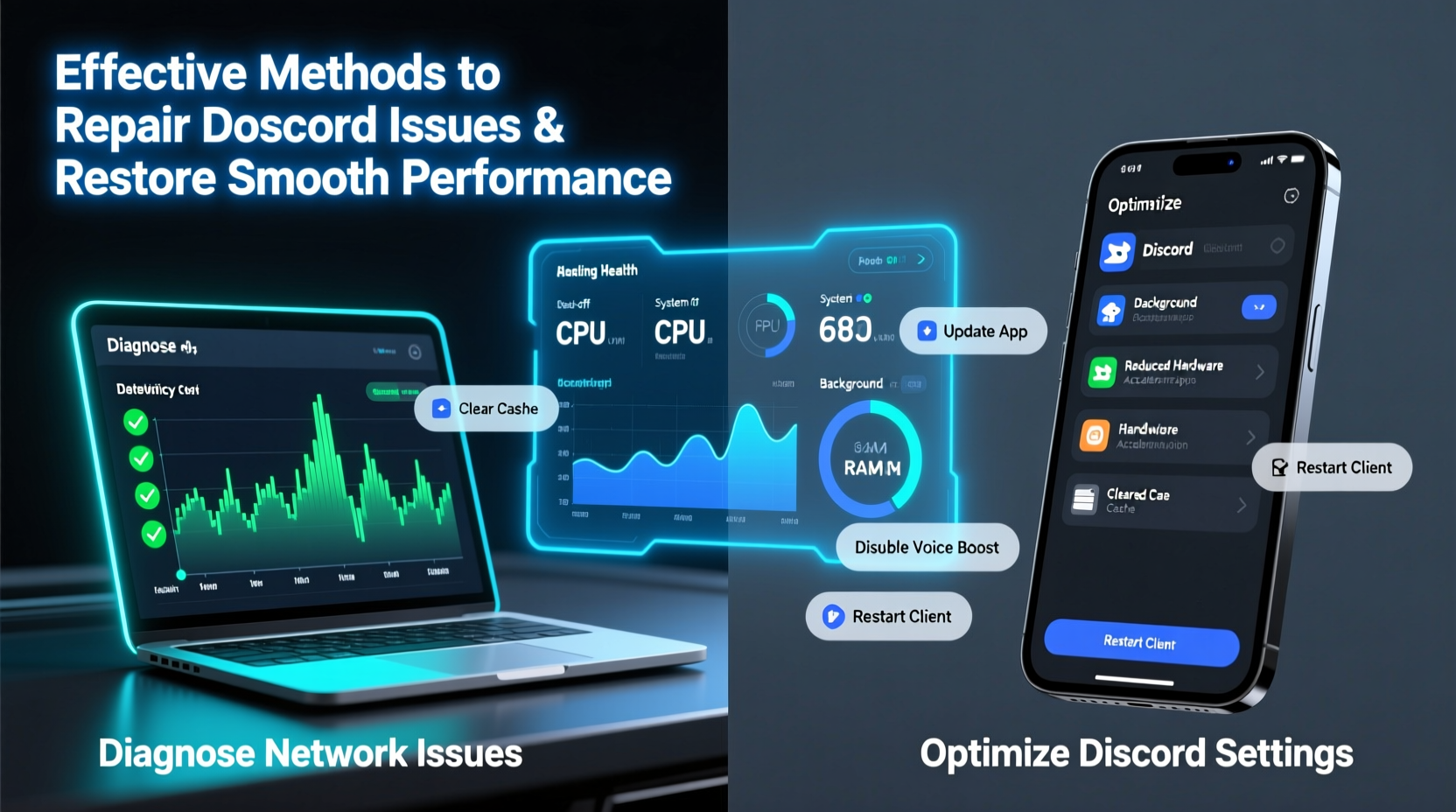
Before diving into fixes, it’s crucial to recognize the types of problems users typically face. Discord may malfunction due to network instability, outdated software, conflicting applications, or corrupted cache files. Some common symptoms include:
- Audio not transmitting or distorted during calls
- Voice chat disconnecting randomly
- Messages failing to send or load
- Application freezing or crashing on startup
- Lag in screen sharing or video calls
- High CPU or memory usage by Discord
These issues often stem from a combination of client-side misconfigurations and external factors like poor internet connectivity or firewall restrictions. Identifying whether the problem is isolated to your device or affects multiple users in a server helps narrow down the solution path.
Step-by-Step Guide to Restore Discord Functionality
A systematic approach ensures no stone is left unturned. Follow this sequence to diagnose and repair Discord issues efficiently:
- Check Server Status: Visit status.discord.com to confirm if the issue originates from Discord’s end. If there’s an ongoing outage, wait until services are restored.
- Restart Discord: Fully close the app via Task Manager (Windows) or Activity Monitor (Mac), then relaunch it.
- Update Discord: Ensure you're using the latest version. Outdated clients often cause compatibility bugs.
- Test Your Internet Connection: Run a speed test. Low upload speeds particularly affect voice transmission.
- Change Voice Region: In server settings, switch to a geographically closer region to reduce latency.
- Reset Voice Settings: Go to User Settings > Voice & Video and click “Reset Voice Settings” to clear custom configurations.
- Reinstall Discord: If problems persist, uninstall completely, delete leftover folders, and install a fresh copy.
This process addresses 90% of recurring issues without requiring advanced technical knowledge.
Optimizing Network and System Performance
Even with a stable Discord client, background processes and network congestion can degrade performance. Optimizing your environment enhances reliability.
Start by prioritizing Discord traffic through Quality of Service (QoS) settings on your router. Assign higher bandwidth priority to UDP ports 50000–65535, which Discord uses dynamically for voice data. Additionally, disable bandwidth-heavy activities like downloads or streaming while using voice channels.
On the system side, monitor resource usage. Discord running alongside GPU-intensive games may lead to audio desynchronization. Adjust hardware acceleration settings:
If enabled, try disabling it—especially on older machines—to reduce graphical strain and improve responsiveness.
Common Fixes Compared: What Works Best?
| Solution | Effectiveness | Difficulty | When to Use |
|---|---|---|---|
| Restart Discord | High | Easy | First step for minor freezes or lag |
| Clear Cache | High | Moderate | Message loading issues or UI glitches |
| Update App | Very High | Easy | After major Discord updates or OS changes |
| Reinstall Client | Very High | Moderate | Persistent crashes or login failures |
| Switch DNS | Moderate | Moderate | Connection timeouts or slow loading |
Using public DNS services like Google DNS (8.8.8.8) or Cloudflare (1.1.1.1) can bypass ISP-related throttling and improve connection speed to Discord servers.
Real-World Example: Resolving Persistent Audio Dropouts
Consider Mark, a streamer who hosts weekly gaming sessions with friends. He began experiencing frequent voice disconnections mid-call, despite having a strong internet connection. Initial troubleshooting steps like restarting the app and checking mic permissions didn’t help.
He then reviewed his firewall settings and discovered that Windows Defender had silently blocked Discord’s access to the microphone after a recent update. After re-granting permission and adding Discord as an allowed app, the issue resolved immediately. Later, he also disabled his third-party audio enhancement software, which was interfering with Discord’s audio processing.
This case highlights how seemingly technical problems can originate from overlooked permissions or silent software conflicts. A methodical check of system-level settings often uncovers the culprit.
Expert Insight on Long-Term Stability
“Maintaining Discord performance isn’t just about fixing crashes—it’s about proactive maintenance. Regularly clearing cache, keeping systems updated, and managing background apps prevent most issues before they occur.” — Jordan Lee, IT Support Specialist and Community Moderator
Experts emphasize preventive care over reactive fixes. Just as operating systems require updates and cleanups, so too does frequently used software like Discord.
Essential Maintenance Checklist
To keep Discord running smoothly, follow this monthly maintenance routine:
- ✅ Update Discord to the latest version
- ✅ Clear the application cache
- ✅ Verify microphone and speaker permissions
- ✅ Check for conflicting audio software (e.g., Voicemeeter, audio enhancers)
- ✅ Review firewall and antivirus exceptions
- ✅ Test connection on mobile or web client to isolate device-specific issues
- ✅ Restart your router and modem periodically
Performing these checks regularly reduces the likelihood of sudden outages and maintains optimal performance across devices.
Frequently Asked Questions
Why does Discord keep crashing on startup?
This is often caused by corrupted installation files or conflicting overlays (like GeForce Experience or Xbox Game Bar). Try closing all background overlays, then reinstall Discord. Also, ensure your graphics drivers are up to date, as outdated GPU drivers can trigger crashes.
How do I fix Discord screen share lag?
Lag during screen sharing usually results from high resolution settings or insufficient bandwidth. Lower the frame rate in Discord’s Screen Share settings (found under Advanced), and avoid sharing full 4K screens unless necessary. Close unused applications to free up system resources.
Can antivirus software block Discord?
Yes. Overzealous antivirus programs may flag Discord’s updater or voice modules as suspicious. Add Discord’s installation folder (typically C:\\Users\\[User]\\AppData\\Local\\Discord) to your antivirus exclusion list to prevent interference.
Conclusion: Take Control of Your Discord Experience
Discord’s power lies in its seamless communication—but only when functioning properly. By understanding common failure points and applying structured solutions, users regain control over their digital interactions. From simple restarts to deeper system optimizations, each step contributes to a more stable, responsive experience. Don’t wait for problems to escalate. Implement regular maintenance, stay informed about updates, and address symptoms early.




 浙公网安备
33010002000092号
浙公网安备
33010002000092号 浙B2-20120091-4
Comments
No comments yet. Why don't you start the discussion?