
Resetting an Android phone is often necessary when it runs slowly, freezes frequently, or before selling or gifting it. However, many users hesitate because of the fear of losing valuable photos, messages, apps, and settings. The good news: you can perform a factory reset without permanent data loss—provided you take the right precautions. With proper backup strategies and careful execution, your device can be restored to optimal performance while preserving all critical information.
Understanding Factory Reset vs. Data Loss
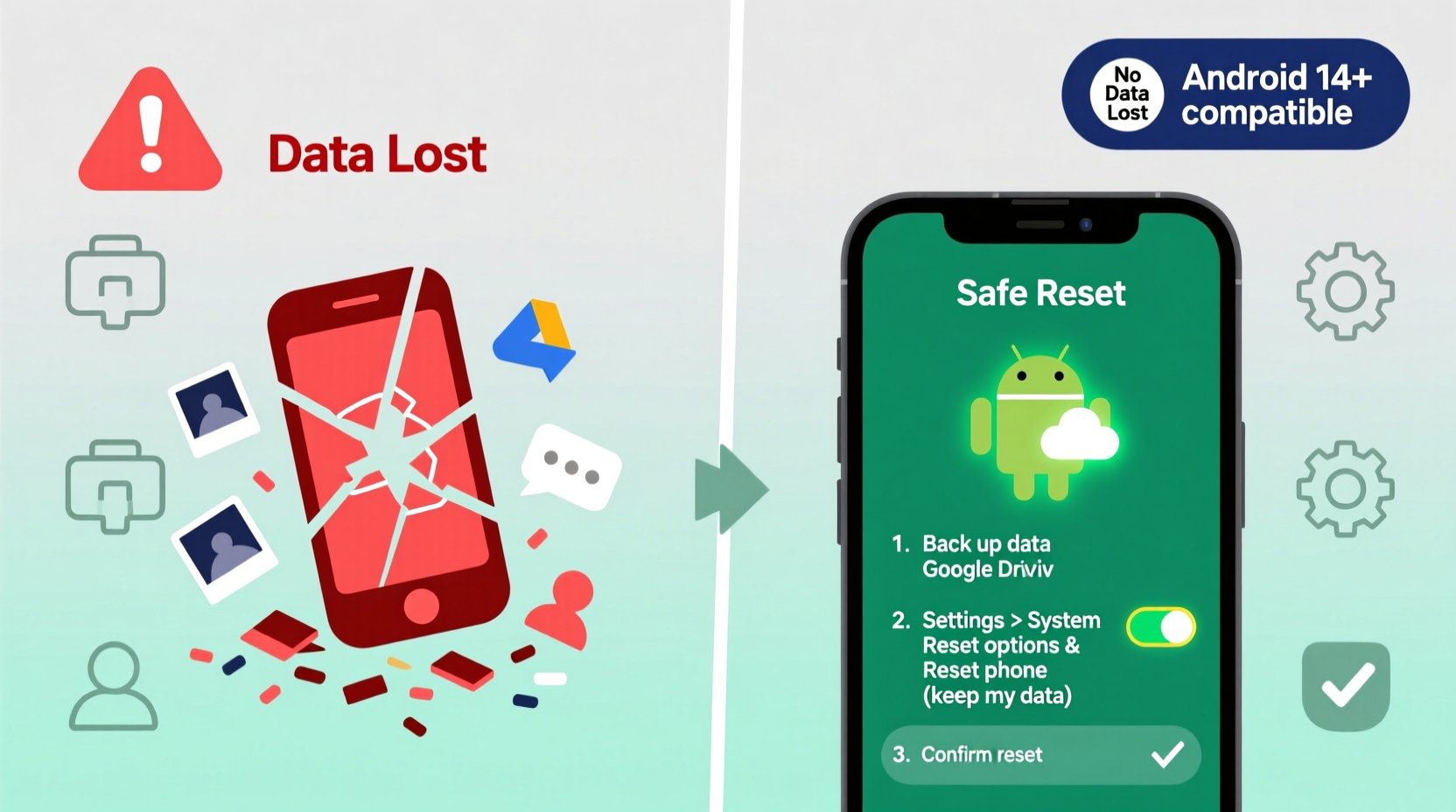
A factory reset returns your Android phone to its original state, erasing installed apps, accounts, and locally stored data. This process does not physically destroy data but removes access to it by clearing the system’s indexing. Without prior backup, recovery becomes difficult, if not impossible. However, resetting doesn’t mean irreversible loss—it simply emphasizes the importance of preparation.
Google accounts are automatically removed during a reset due to Factory Reset Protection (FRP), a security feature that prevents unauthorized access after theft. While this enhances security, it also means you’ll need your Google credentials post-reset to reactivate the device.
Step-by-Step Guide: Safely Reset Your Android Phone
The key to a successful reset lies in preparation. Follow these steps carefully to ensure no data is lost.
- Back up all personal data – Use Google One, manufacturer cloud services (like Samsung Cloud), or third-party tools.
- Sync your Google account – Ensure contacts, calendar, and app data are updated online.
- Check storage status – Confirm backups are complete via Settings > Google > Backup.
- Charge your phone – Ensure at least 50% battery to prevent interruptions.
- Initiate factory reset – Go to Settings > System > Reset options > Erase all data (factory reset).
- Wait for completion – Do not interrupt the process once started.
- Restore from backup – After reboot, follow setup prompts and restore data from your preferred source.
This sequence ensures your digital life remains intact even as the device reverts to its initial configuration.
Best Backup Methods Before Resetting
Different types of data require different backup approaches. A comprehensive strategy combines multiple methods for maximum safety.
| Data Type | Recommended Method | Notes |
|---|---|---|
| Contacts | Google Sync | Enable in Settings > Accounts > Google. Auto-syncs across devices. |
| Photos & Videos | Google Photos (with backup enabled) | Choose “High quality” free option or pay for original quality. |
| Messages (SMS/MMS) | Third-party apps like SMS Backup & Restore | Google Messages syncs only with RCS, not traditional texts. |
| App Data | Google Drive app backup | Some apps may not support automatic restore. |
| Music, Documents | External cloud (Dropbox, OneDrive) or PC transfer | Manual copy via USB recommended for large files. |
For users who rely heavily on specific apps such as WhatsApp, remember to export chats manually. Open WhatsApp > Settings > Chats > Chat backup > Back up to Google Drive. This ensures conversation history survives the reset.
Real Example: Recovering After a Glitchy Reset
Sarah, a freelance photographer, noticed her Pixel 6 freezing daily after months of heavy use. She decided to reset it but was anxious about losing client photos stored locally. Instead of risking it, she first uploaded everything to Google Photos using Wi-Fi-only backup to avoid data charges. She then used SMS Backup & Restore to archive her messages and verified her Google account sync status. After performing the reset, she reactivated the phone with her credentials and restored her media and contacts seamlessly. Her phone ran smoothly again—all without losing a single file.
This case highlights how structured preparation turns a potentially risky procedure into a reliable maintenance routine.
“Backing up isn’t just a precaution—it’s part of responsible device ownership. A well-backed-up phone gives you full freedom to reset without fear.” — David Lin, Mobile Systems Engineer at Android Authority
Common Mistakes That Lead to Data Loss
Even experienced users make errors that result in unintended data loss. Avoid these pitfalls:
- Assuming everything is backed up automatically – Not all data types sync by default. Always verify each category.
- Skipping Google account verification – If FRP locks the device and you forget login details, recovery becomes nearly impossible.
- Using outdated backup tools – Some third-party apps haven't been updated in years and may fail silently.
- Resetting over unstable power – Interrupting the reset due to battery drain can corrupt the OS.
- Ignoring internal storage cleanup – Old cache files and duplicates consume space and slow down future backups.
Alternative: Soft Reset vs. Factory Reset
Not every issue requires a full factory reset. Consider less invasive options first:
- Soft Reset (Reboot): Hold power button > Restart. Clears temporary glitches without affecting data.
- Safe Mode: Boot in Safe Mode to identify problematic third-party apps.
- Cache Partition Wipe: Available in Recovery Mode, clears system cache only—does not touch personal data.
These alternatives often resolve performance issues without the need for complete data erasure, making them ideal for troubleshooting minor problems.
Frequently Asked Questions
Will I lose my WhatsApp messages if I reset my phone?
Only if you haven’t backed them up. WhatsApp stores chat history in Google Drive when enabled. During reinstallation, you’ll be prompted to restore from the latest backup. Ensure your Google account matches the one used previously.
Can I reset my phone without a computer?
Yes. All modern Android devices allow factory resets directly through Settings or Recovery Mode. No PC is required. However, backing up to a computer adds an extra layer of security.
How long does it take to restore data after a reset?
It depends on internet speed and data volume. Small backups may take minutes; full photo libraries or extensive app collections can take hours. Use a stable Wi-Fi connection and let the process run uninterrupted.
Final Thoughts: Reset Smart, Stay Secure
Resetting your Android phone doesn’t have to mean starting over. With deliberate planning and consistent backup habits, you can refresh your device safely and efficiently. Whether you're dealing with sluggish performance or preparing to pass the phone to someone else, taking control of your data ensures peace of mind. Technology should serve you—not create unnecessary stress.




 浙公网安备
33010002000092号
浙公网安备
33010002000092号 浙B2-20120091-4
Comments
No comments yet. Why don't you start the discussion?