
Losing important text messages—whether by accident or during an update—can be frustrating. Whether it’s a sentimental conversation, a critical confirmation code, or a business agreement, once a message is gone, it feels like it’s vanished forever. The good news: recovery is often possible. iPhones don’t erase data instantly when you delete a message; instead, they mark the space as reusable. This creates a window of opportunity to recover what was lost. With the right approach and tools, retrieving deleted messages is achievable for most users.
Understanding How iPhone Message Deletion Works
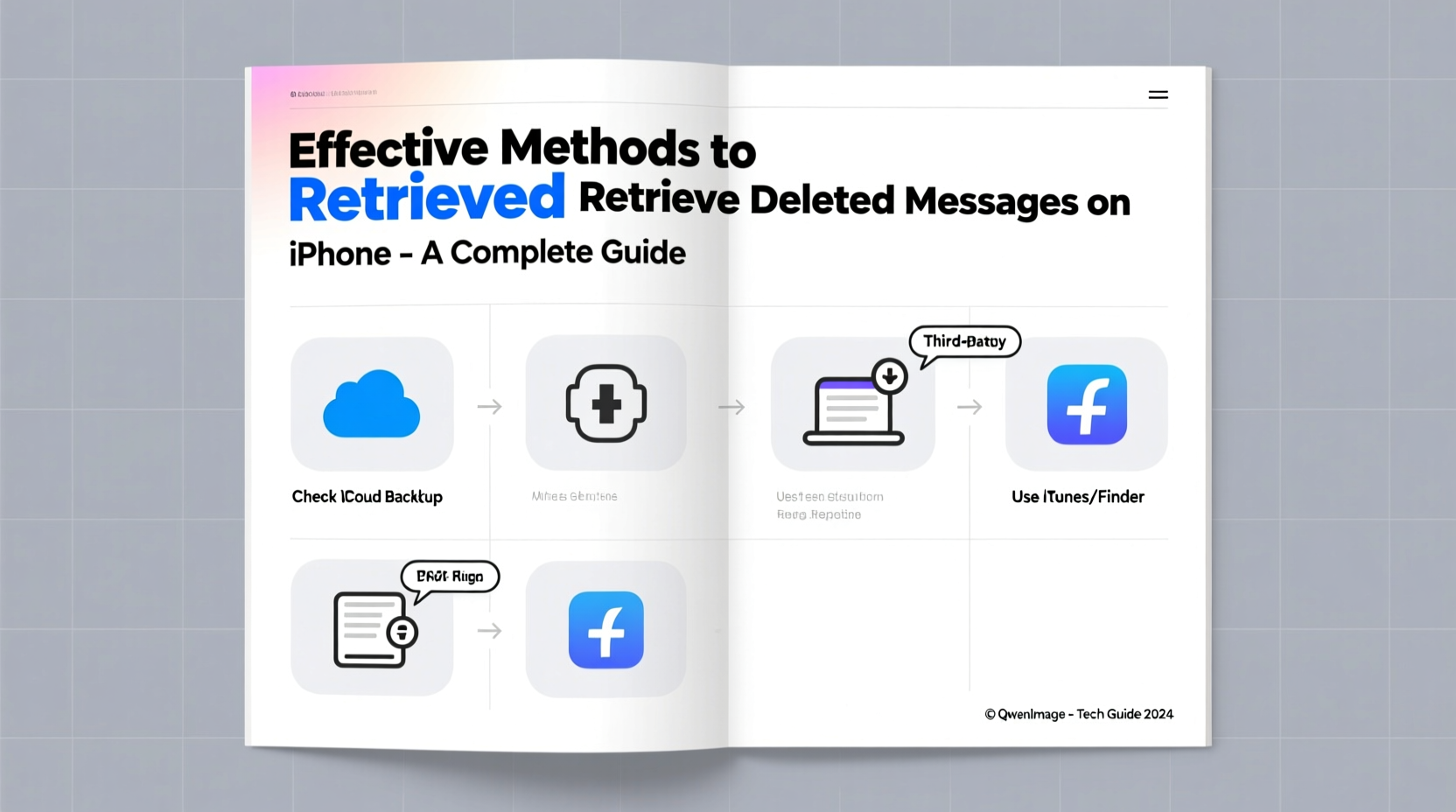
When you delete a message on your iPhone, it isn’t immediately wiped from the device. iOS uses a file management system that retains deleted data until new information overwrites it. This behavior applies to iMessages, SMS, and MMS stored in the Messages app. However, unlike photos or contacts, messages are deeply integrated into the system database, making direct access difficult without specialized tools or backups.
The key factor in successful recovery is time. The sooner you act after deletion, the higher the chance of retrieval. Continued use of your iPhone—especially sending and receiving new messages—increases the risk of overwriting the old data.
“Data isn’t truly gone until it’s overwritten. On iPhones, the Messages app stores records in encrypted databases, but those files can often be accessed through backup systems.” — Dr. Alan Reyes, Mobile Forensics Analyst
Method 1: Restore from an iCloud Backup
If you’ve enabled iCloud Backup, your messages may already be preserved in the cloud. This method works best if you have a recent backup created before the messages were deleted.
Step-by-Step Guide to Restore from iCloud
- Go to Settings > tap your name at the top > select iCloud.
- Tap iCloud Backup and verify that backups are enabled and the last backup date is prior to the deletion.
- If confirmed, back up any new data you want to keep (this process will erase current data).
- Go to Settings > General > Transfer or Reset iPhone > Erase All Content and Settings.
- After the reset, follow the setup prompts until you reach “Apps & Data.”
- Select Restore from iCloud Backup and sign in with your Apple ID.
- Choose the backup taken before the messages were deleted and wait for the restore to complete.
Method 2: Use an iTunes or Finder Backup
If you regularly sync your iPhone with a computer, you likely have a local backup containing your messages. Unlike iCloud, these backups are not end-to-end encrypted by default unless you enable encryption during setup.
How to Restore Using a Computer Backup
- Connect your iPhone to your Mac or PC.
- Open Finder (macOS Catalina and later) or iTunes (older macOS/Windows).
- Select your device when it appears.
- Under the General tab, click Restore Backup.
- Choose the most recent backup that predates the message deletion.
- Click Restore and wait for the process to finish.
Note: This method replaces all current data on your phone with the backup. Ensure you save any new messages or files first.
Method 3: Third-Party Recovery Tools
For users who don’t have a backup or need to extract specific messages without restoring the entire device, third-party software offers a targeted solution. Reputable tools like Dr.Fone – Data Recovery (iOS), iMyFone D-Back, and Tenorshare UltData can scan your iPhone directly or analyze backup files to recover deleted messages.
| Tool | Direct Device Scan | iCloud Backup Support | Preview Before Recovery |
|---|---|---|---|
| Dr.Fone – Data Recovery | Yes | Yes | Yes |
| iMyFone D-Back | Yes | Yes | Yes |
| Tenorshare UltData | Yes | Limited | Yes |
These tools typically allow you to preview recoverable messages before committing to restoration, minimizing unnecessary data changes.
Mini Case Study: Recovering Critical Confirmation Messages
Sophie, a freelance designer, accidentally deleted a thread containing client approvals and payment confirmations before delivering her final project. Panicked, she realized she hadn’t backed up her phone in over two weeks. She used iMyFone D-Back to scan her iPhone directly. The tool detected 87% of the deleted messages, including timestamps and attachments. Within 20 minutes, she recovered the critical conversation and exported it as a PDF for her records. Her experience highlights how third-party tools can serve as a lifeline when backups aren’t available.
Prevention Checklist: Avoid Future Message Loss
Recovery isn’t always guaranteed. Proactive measures reduce the risk of permanent loss.
- ✅ Enable automatic iCloud Backup daily
- ✅ Sync your iPhone with a computer weekly
- ✅ Turn on Messages in iCloud (Settings > Messages > Synced Across Devices)
- ✅ Avoid clearing message threads impulsively
- ✅ Use email or notes to archive important message content
“Syncing messages to iCloud ensures they’re protected even if your device is lost, damaged, or reset.” — Apple Support Documentation
FAQ
Can I recover messages without a backup?
It’s challenging but not impossible. Direct device scanning via third-party tools may retrieve recently deleted messages if the data hasn’t been overwritten. Success depends on usage patterns and time since deletion.
Are third-party recovery tools safe?
Reputable tools from established companies are generally safe. However, avoid downloading cracked versions or unverified software. Stick to official websites and read user reviews. Never grant unnecessary permissions.
Why aren’t my messages showing up in iCloud Backup?
Ensure that Messages is enabled in iCloud settings. Go to Settings > [Your Name] > iCloud > Show All Apps > Messages and toggle it on. If disabled, messages won’t be included in backups.
Conclusion
Retrieving deleted messages on your iPhone doesn’t have to be a lost cause. Whether through iCloud, computer backups, or specialized recovery software, multiple pathways exist to reclaim what matters. The key is acting quickly and understanding your device’s backup ecosystem. By enabling continuous syncing and maintaining regular backups, you create a safety net that protects your digital conversations. Don’t wait until data is gone to set up protection—start today.




 浙公网安备
33010002000092号
浙公网安备
33010002000092号 浙B2-20120091-4
Comments
No comments yet. Why don't you start the discussion?