
Losing important WhatsApp messages can be frustrating—especially when there’s no backup available. Whether accidentally deleted or removed by the sender, these messages often contain crucial information, emotional value, or time-sensitive details. While WhatsApp doesn’t offer a native “undo” feature for permanently deleted messages, several practical workarounds exist. From leveraging device cache to using specialized recovery tools, this guide explores proven strategies to recover deleted WhatsApp messages even in the absence of a cloud or local backup.
Understanding How Message Deletion Works on WhatsApp
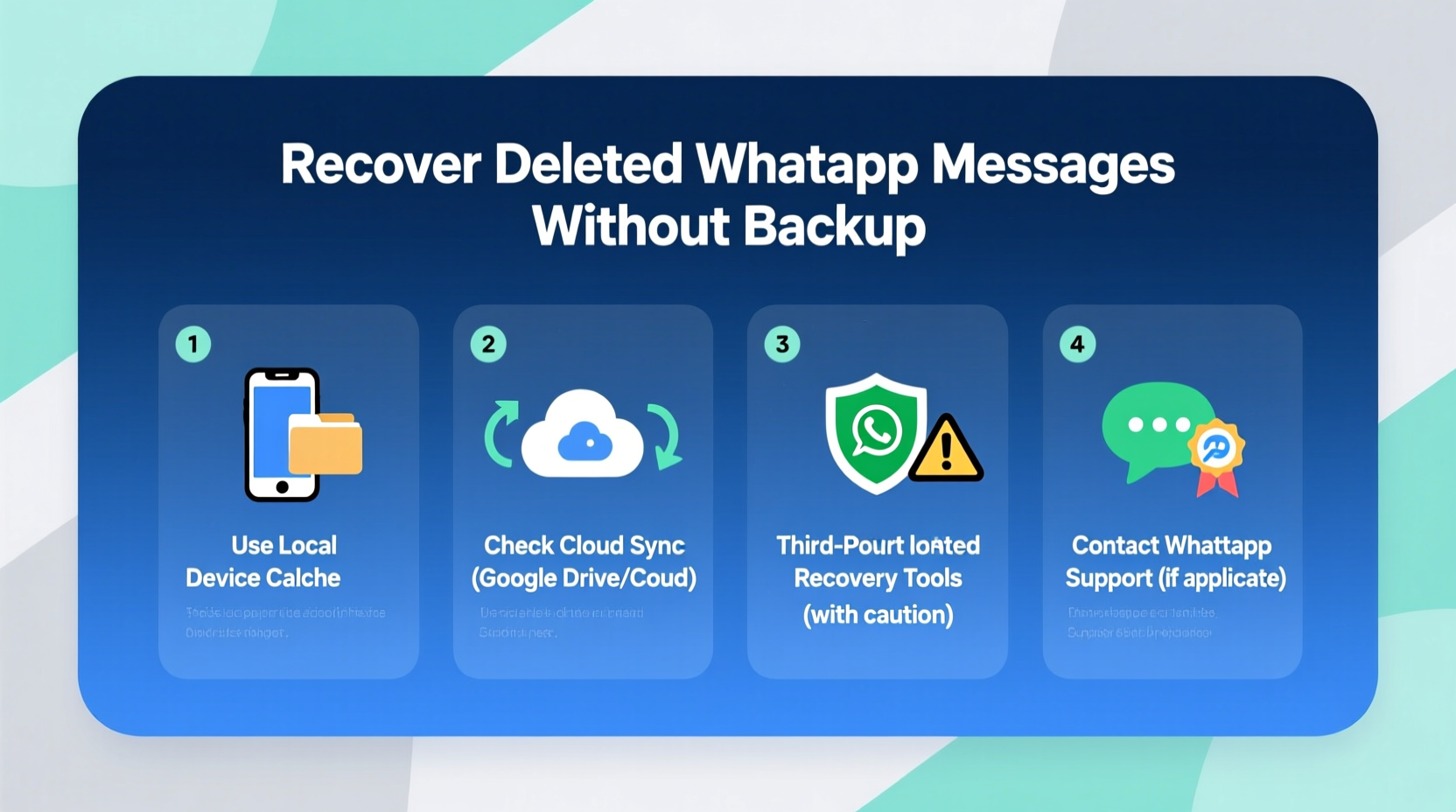
Before attempting recovery, it's essential to understand how deletion functions within WhatsApp. There are two types: user-initiated deletion and sender-deleted messages.
- User deletion: When you manually delete a message from your chat, it removes the message from your device only (unless you select \"Delete for Everyone\").
- \"Delete for Everyone\": This option allows senders to remove a message from both their device and the recipient’s—though only within a limited timeframe (currently up to two days after sending).
Even when a message is deleted, traces may remain temporarily in system caches or app data folders. These remnants form the basis of most recovery methods when no formal backup exists.
“Many users don’t realize that deleted data isn't erased instantly—it’s just marked as ‘available space’ until overwritten.” — Dr. Lena Torres, Digital Forensics Analyst
Method 1: Check Notification History (Android Only)
On Android devices, if notifications were enabled for WhatsApp before the message was deleted, the text might still reside in the system’s notification log. This method works best if you act quickly and didn’t clear your notification panel.
- Open the Settings app on your Android phone.
- Navigate to Apps & Notifications > Notifications > Notification History.
- Enable notification history if it’s not already active.
- Browse through past entries to locate WhatsApp alerts containing the message content.
This approach won’t recover media files but can preserve textual content visible in pop-up alerts. Note that iOS does not offer a built-in notification log, making this method exclusive to Android users.
Method 2: Recover from Local Database Files (Root Required)
WhatsApp stores unencrypted message databases in internal storage under /WhatsApp/Databases/. These files are typically named like msgstore.db.crypt14 and are backed up daily. If automatic backups are disabled, older versions of these files may still contain deleted messages.
Accessing them requires either root access or use of file explorers with elevated permissions. Here's how:
- Use a root-enabled file manager (e.g., ES File Explorer or Solid Explorer) to navigate to
/sdcard/WhatsApp/Databases/. - Look for files named
msgstore.db.crypt12,crypt13, orcrypt14, depending on encryption version. - Identify the oldest file with a date prior to the deletion incident.
- Rename the current
msgstore.db.crypt14tomsgstore.db.bak. - Rename the older backup (e.g.,
msgstore-2024-04-05.1.db.crypt14) tomsgstore.db.crypt14. - Reinstall WhatsApp and skip restore when prompted—the app will load the older database.
This restores all messages from that day, including those later deleted. However, any new messages sent after that date will be lost unless manually re-saved.
Method 3: Use Third-Party Recovery Tools
Several desktop-based tools claim to extract deleted WhatsApp data directly from device memory. While results vary, reputable options include:
| Tool | Platform | Pros | Cons |
|---|---|---|---|
| Dr.Fone - WhatsApp Recovery | Windows, macOS | User-friendly interface; supports media recovery | Paid software; effectiveness depends on device model |
| FoneLab WhatsApp Data Recovery | Windows, macOS | Recovers contacts, messages, attachments | Limited free version; potential privacy concerns |
| PhoneRescue for Android | Windows, macOS | Deep scan mode; previews before recovery | Requires USB debugging; may not work on newer OS versions |
To use these tools:
- Download and install the software on your computer.
- Connect your phone via USB and enable USB debugging (Android).
- Allow the tool to scan internal storage for residual WhatsApp data.
- Preview found messages and selectively restore them.
Mini Case Study: Recovering a Lost Job Offer Message
Sarah, a freelance designer, received a job offer over WhatsApp from a client in Germany. She accidentally swiped away the entire chat while cleaning her inbox. With no Google Drive backup enabled due to limited cloud storage, she feared losing the contract terms and payment details.
She used Dr.Fone on her Samsung Galaxy S21, connected it to her laptop, and ran a deep scan. The tool detected an older msgstore.db.crypt14 file with messages from three days prior. After previewing, she recovered the full conversation, including the agreed scope and bank transfer instructions. Though the process took nearly an hour, it saved her from renegotiating the entire deal.
Best Practices Checklist for Future Prevention
While recovery is possible, prevention remains more reliable. Follow this checklist to minimize future losses:
- ✅ Enable daily auto-backups to Google Drive (Android) or iCloud (iOS)
- ✅ Avoid clearing app cache immediately after deleting important messages
- ✅ Keep notification previews enabled for WhatsApp
- ✅ Regularly export critical conversations via email (“Export Chat” option)
- ✅ Use screen recording or screenshots for high-value messages
- ✅ Disable “Auto-delete” settings in WhatsApp Privacy
Frequently Asked Questions
Can I recover messages deleted with 'Delete for Everyone'?
Yes, sometimes. If the message was already delivered and displayed on your device, parts of it may remain in system logs or cached files. Third-party tools or notification history can help retrieve fragments, especially on Android.
Are third-party recovery tools safe?
Reputable tools from verified developers are generally safe, but always check reviews and avoid entering personal credentials during installation. Be cautious of apps requesting excessive permissions.
Why can’t I find old msgstore files on my phone?
Old database files may have been automatically overwritten or deleted by WhatsApp’s cleanup routine. Additionally, some manufacturers restrict access to internal storage directories without root privileges.
Conclusion: Act Fast and Stay Prepared
Retrieving deleted WhatsApp messages without a backup is challenging—but not impossible. Success largely depends on how quickly you act and what digital footprints remain. From checking Android notification logs to restoring from local database snapshots or using trusted recovery software, multiple avenues exist to reclaim lost conversations.
The key takeaway? Don’t wait until data vanishes to prepare. Implement regular export routines, maintain secure backups, and understand your device’s capabilities. Digital communication is ephemeral by design; staying proactive ensures you retain control over what matters most.




 浙公网安备
33010002000092号
浙公网安备
33010002000092号 浙B2-20120091-4
Comments
No comments yet. Why don't you start the discussion?