
Smartphones have become digital archives of personal memories, with photos capturing everything from daily moments to once-in-a-lifetime events. On Android devices, some images may be hidden—either intentionally by users for privacy or automatically by apps such as messaging platforms, password managers, or gallery organizers. While this feature enhances discretion, it can also lead to confusion when trying to locate specific media files later. Understanding how to reveal and manage these hidden pictures is essential for both organization and data security.
Understanding How Pictures Become Hidden on Android
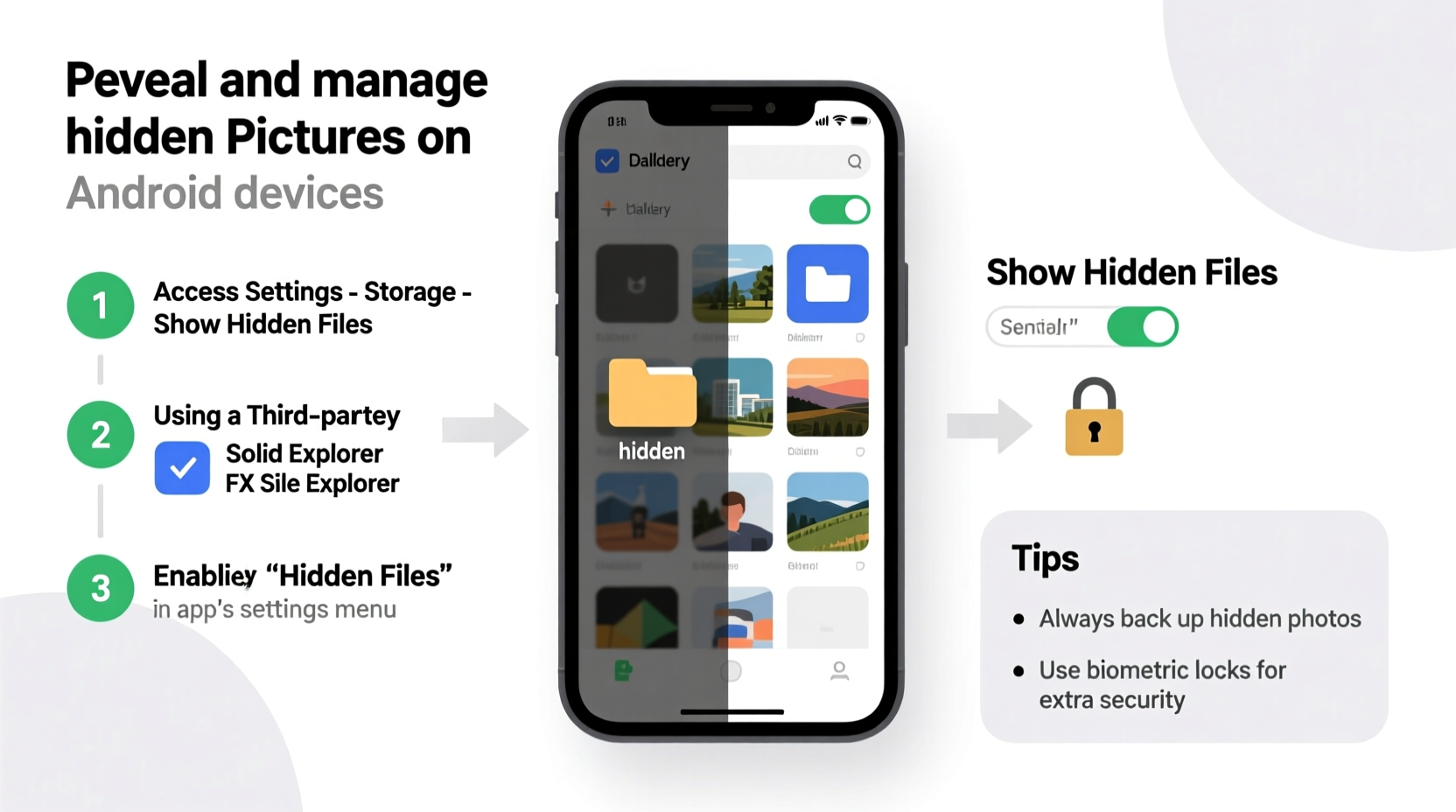
Hidden pictures on Android don’t vanish—they’re simply made invisible through specific system behaviors or user actions. The most common method involves the use of a .nomedia file. When placed in a folder, this file instructs media scanning services (like Google Photos or the default Gallery app) to ignore all content within that directory. As a result, photos stored there won’t appear in photo galleries, even though they remain accessible via file browsers.
Additionally, certain apps create private folders automatically. For example, secure messaging apps like Signal or Telegram store received images in directories marked with .nomedia, preventing accidental exposure. Similarly, vault or privacy apps often move photos into encrypted or concealed folders, sometimes renaming them or altering their extensions to further obscure visibility.
“Many users are unaware that hiding photos isn’t just about locking them away—it’s often a function of file system conventions like .nomedia, which operate silently in the background.” — Rajiv Mehta, Mobile Security Analyst at DroidShield Labs
Step-by-Step Guide to Reveal Hidden Pictures
Revealing hidden images requires accessing the underlying file structure of your device. Follow this structured process to uncover concealed photos:
- Enable File Extensions and Hidden Files: Open a reliable file manager app (such as Solid Explorer, FX File Explorer, or Material Files). Navigate to settings and enable options like “Show hidden files” and “Show file extensions.” This ensures you can see
.nomediafiles and other system-level items. - Browse Key Directories: Go to internal storage and explore folders like
DCIM,Pictures,Download, and any app-specific directories (e.g.,WhatsApp/Media,Telegram). Look for subfolders with names like “Private,” “Vault,” or those starting with a dot (e.g.,.GalleryLock). - Identify .nomedia Files: If you find a
.nomediafile inside a folder containing images, that explains why they aren’t showing up in your gallery. You can either delete the.nomediafile (to make contents visible) or temporarily rename it (e.g., to.nomedia.bak) for testing purposes. - Refresh Media Scanner: After removing or renaming
.nomedia, force-refresh your device’s media database. Use an app like “Media Refresh” from the Play Store, or restart your phone. Your gallery should now display previously hidden images. - Check App-Specific Storage: Some apps hide media behind passwords or biometrics. If you've used a private gallery app before, open it directly to access its vault. These apps often store data in
/Android/media/[package-name]or similar protected paths.
.nomedia files.
Managing Hidden Pictures: Best Practices and Tools
Once revealed, managing hidden pictures effectively prevents future confusion and strengthens privacy control. Consider these strategies:
- Organize with Clear Folder Names: Instead of relying solely on concealment, create clearly labeled folders such as “Personal_Backup” or “Archived_Photos” to separate sensitive content while keeping it traceable.
- Use Trusted Privacy Apps: Applications like Keepsafe, Vaulty, or Google Photos’ Locked Folder offer secure, encrypted storage with intuitive interfaces. They integrate better with system updates than manual file hiding.
- Audit Periodically: Every few months, review your storage to ensure no unintended files are being hidden due to misplaced
.nomediafiles, especially after app installations or cleanups. - Leverage Cloud Sync Wisely: Be cautious when syncing folders containing
.nomediafiles. Some cloud services may still upload hidden content unless explicitly excluded.
Recommended File Managers for Managing Hidden Content
| App Name | Key Features | Privacy-Focused? |
|---|---|---|
| Solid Explorer | Root access, cloud integration, dual-pane view, supports .nomedia detection | Yes – no forced ads or data collection |
| FX File Explorer | Powerful search, script automation, shows hidden files by default | Yes – lightweight and open-source core version |
| Material Files | Open-source, minimal design, full SAF (Storage Access Framework) support | Yes – transparent development, no tracking |
Real Example: Recovering Lost Family Photos
Sarah, a freelance photographer, noticed her daughter’s birthday photos missing from Google Photos after transferring files from an old phone. She recalled saving them in a custom folder named “Family_Memories,” but couldn’t locate them in any gallery app. Using FX File Explorer, she navigated to Internal Storage/Pictures/Family_Memories and discovered a .nomedia file created accidentally during a batch rename operation. After renaming the file, she restarted her device—and the entire album reappeared in her gallery within minutes. This experience prompted her to adopt a routine file audit every quarter.
Do’s and Don’ts of Handling Hidden Pictures
- Do:
- – Use dedicated privacy apps for sensitive content
- – Regularly check folders where apps like WhatsApp or Telegram store media
- – Keep backups of hidden photos in external drives or encrypted clouds
- Don’t:
-
– Rely only on
.nomediafor security—determined individuals can still access files -
– Delete
.nomediafiles without verifying what content will become visible -
– Store hidden photos in easily guessable locations like
/Pictures/Private
Frequently Asked Questions
Can hidden pictures be seen by others if I share my phone briefly?
Not typically through standard gallery apps, since .nomedia-protected folders are excluded from media scans. However, anyone with access to a file manager can navigate to those folders and view the contents unless additional encryption is applied. For true privacy, use password-protected vault apps.
Will deleting a .nomedia file affect my photos?
No—deleting the .nomedia file only allows the system’s media scanner to detect and index the images again. The actual photos remain unchanged. Once deleted, the images should reappear in your gallery after a scan or reboot.
Are hidden pictures backed up to Google Photos?
No, Google Photos respects the .nomedia convention. Any image inside a folder containing a .nomedia file will not be uploaded or synced, even if backup is enabled. This makes .nomedia useful for excluding non-essential or private media from cloud storage.
Conclusion: Take Control of Your Digital Privacy
Hidden pictures on Android serve both practical and protective roles—but only if managed intentionally. Whether using system-level tricks like .nomedia files or leveraging modern privacy apps, the key lies in awareness and consistency. By understanding how visibility works beneath the surface, you gain greater control over your digital footprint. Don’t wait until photos go missing—explore your device’s file structure today, organize your media thoughtfully, and establish habits that keep your memories both safe and accessible.




 浙公网安备
33010002000092号
浙公网安备
33010002000092号 浙B2-20120091-4
Comments
No comments yet. Why don't you start the discussion?