
Losing your mobile phone contacts can be more than just inconvenient—it can mean losing vital connections, business leads, or years of personal relationships stored in a single device. With phones susceptible to theft, damage, or software failure, relying solely on local storage is risky. The good news is that multiple reliable, secure methods exist to back up your contacts effectively. From built-in cloud services to third-party tools and manual exports, this guide walks you through proven strategies to protect your contact data across platforms and devices.
Why Contact Backup Matters
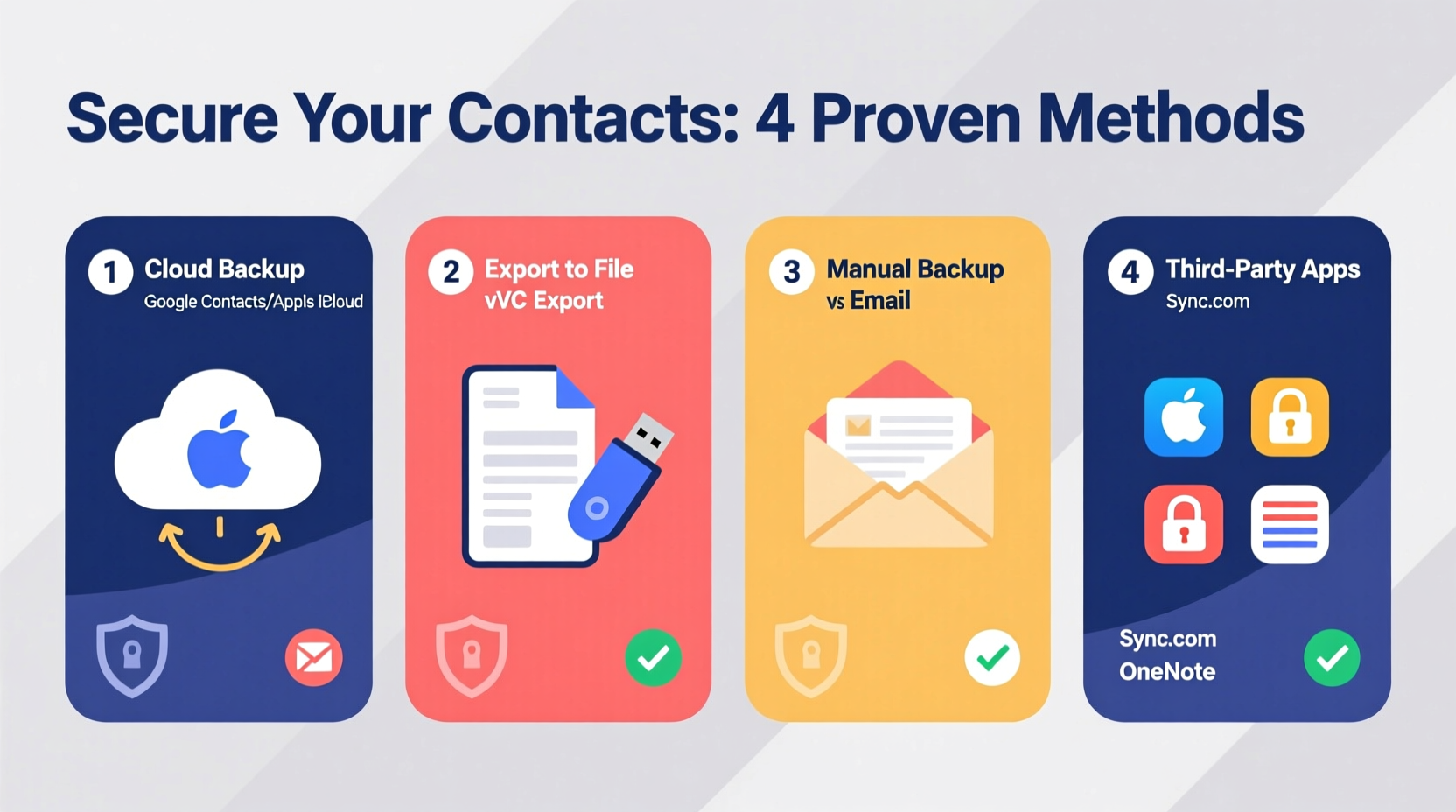
Your phone’s contact list is often one of the most valuable pieces of personal data you carry. Unlike photos or messages, contacts are difficult to reconstruct once lost. Friends, family, colleagues, and service providers may not be easily recoverable without a proper backup system. A 2023 survey by Consumer Reports found that over 40% of smartphone users have experienced partial or complete contact loss at least once—most due to device upgrades or accidental resets.
Regular backups ensure continuity. Whether switching phones, resetting your device, or recovering from a security breach, having a secure copy of your contacts means you’re never starting from zero.
Cloud-Based Syncing: The Most Reliable Method
The simplest and most effective way to back up contacts is through cloud synchronization. Both Android and iOS offer native integration with major cloud platforms that automatically sync your contacts in real time.
For Android Users: Google Contacts Sync
Android devices are designed to work seamlessly with Google services. When you sign in with a Google account, your contacts can be automatically synced and stored in Google Contacts—a free, web-accessible platform.
- Go to Settings > Accounts > Google.
- Select your Google account and ensure “Sync Contacts” is enabled.
- Visit contacts.google.com to view, edit, or export your saved contacts.
This method ensures that every new contact added is instantly backed up. Even if you lose your phone, signing into a new device with the same Google account restores all contacts automatically.
For iPhone Users: iCloud Contacts
iOS users benefit from Apple’s tight ecosystem integration. iCloud Contacts provides end-to-end encryption and automatic syncing across all Apple devices.
- Navigate to Settings > [Your Name] > iCloud.
- Toggle on the Contacts option.
- Ensure Wi-Fi is active to allow background syncing.
Once enabled, all changes reflect across your iPhone, iPad, Mac, and even via iCloud.com. This real-time sync eliminates manual effort and reduces the risk of outdated backups.
“Automated cloud syncing is the gold standard for contact backup. It removes human error and ensures near-instant recovery.” — Dr. Lena Torres, Data Security Analyst at CyberShield Labs
Manual Export and File-Based Backups
While cloud syncing is convenient, relying solely on one provider introduces dependency risk. A layered approach includes exporting contacts as files—giving you full ownership and offline access.
Exporting Contacts to vCard (.vcf) Files
The vCard format (file extension .vcf) is universally supported and ideal for long-term archival or cross-platform transfers.
On Android:
- Open the Phone or Contacts app.
- Tap Manage Contacts or Settings.
- Select Export and choose “SD card” or “Internal Storage.”
- Save as a .vcf file.
On iPhone:
- Ensure iCloud sync is active.
- Log in to iCloud.com.
- Open the Contacts app.
- Select all contacts (or specific ones), click the gear icon, and choose Export vCard.
Store these files in multiple secure locations: encrypted USB drives, password-protected cloud folders (e.g., Dropbox, OneDrive), or external hard drives.
Third-Party Apps and Cross-Platform Tools
Several specialized apps enhance backup flexibility, especially when managing contacts across different operating systems or legacy devices.
- My Contacts Backup (Android): Allows instant email-based backups of selected contacts as vCard attachments.
- Contact Mover (iOS & Android): Securely transfers contacts between accounts or platforms with encryption support.
- Copy My Data: Uses Bluetooth (not internet) to transfer contacts between phones—ideal for sensitive data avoidance.
While useful, third-party apps require careful vetting. Only download from official app stores and check permissions. Avoid apps requesting unnecessary access to messages, location, or call logs.
| Method | Security Level | Automation | Cross-Device Support |
|---|---|---|---|
| Google Contacts Sync | High (2FA, encryption) | Yes | Excellent |
| iCloud Contacts | Very High (end-to-end encryption) | Yes | Apple ecosystem only |
| vCard Export | Medium (depends on storage) | No | Universal |
| Third-Party Apps | Varies (check permissions) | Sometimes | Good |
Mini Case Study: Recovering After a Phone Theft
In early 2023, Sarah Kim, a freelance graphic designer in Portland, had her phone stolen during a client meeting. She hadn’t manually backed up her contacts in six months and assumed her Google account was syncing—only to discover later that sync had been disabled after a factory reset months prior.
She lost over 350 contacts, including key clients and collaborators. Rebuilding her network took three weeks and cost her two project opportunities. Afterward, she implemented a dual strategy: enabling automatic Google sync and scheduling monthly vCard exports stored in an encrypted folder on her laptop and a private cloud vault.
“I learned the hard way,” she said. “Now I treat my contact list like a client database—because it is.”
Best Practices Checklist
- ✅ Enable cloud sync (Google or iCloud).
- ✅ Verify sync status weekly.
- ✅ Export contacts as .vcf file monthly.
- ✅ Store backups in at least two locations (cloud + physical drive).
- ✅ Use strong passwords and two-factor authentication on backup accounts.
- ✅ Test restoration on a secondary device annually.
Frequently Asked Questions
How often should I back up my contacts?
If using automatic cloud sync, daily backups occur in real time. For manual methods, perform exports at least once a month. High-contact users (sales, recruiters) should do so weekly.
Can I restore contacts from a .vcf file to any phone?
Yes. Most smartphones support importing vCard files. On Android, use the Contacts app import tool. On iPhone, transfer via AirDrop, email, or iCloud and open the file to trigger import.
Are my contacts really secure in the cloud?
Major providers like Google and Apple encrypt data in transit and at rest. However, always enable two-factor authentication and avoid public Wi-Fi when syncing sensitive information.
Conclusion: Take Control Before You Lose Everything
Your mobile contacts are more than names and numbers—they represent relationships, opportunities, and personal history. Relying on memory or chance recovery is not a strategy. By combining automated cloud syncing with periodic manual exports and secure storage, you create a resilient backup system that withstands device failures, theft, and human error.
Don’t wait until it’s too late. Spend 15 minutes today verifying your sync settings and exporting a fresh backup. That small investment could save you hours—or even your livelihood—down the road.




 浙公网安备
33010002000092号
浙公网安备
33010002000092号 浙B2-20120091-4
Comments
No comments yet. Why don't you start the discussion?