
A malfunctioning power button doesn’t have to leave you stuck with a constantly running phone. Whether due to physical damage, wear over time, or moisture exposure, a non-responsive power key is a common issue—but it’s far from unsolvable. Modern smartphones offer multiple workarounds that allow users to shut down their devices safely and efficiently without relying on hardware buttons. From built-in accessibility features to software-based solutions and manufacturer-specific tools, there are practical options across Android and iOS platforms.
This guide explores proven techniques to power off your device when the physical button fails, ensuring you retain control over your phone’s operation while avoiding unnecessary repairs or replacements.
Understanding Why Power Buttons Fail
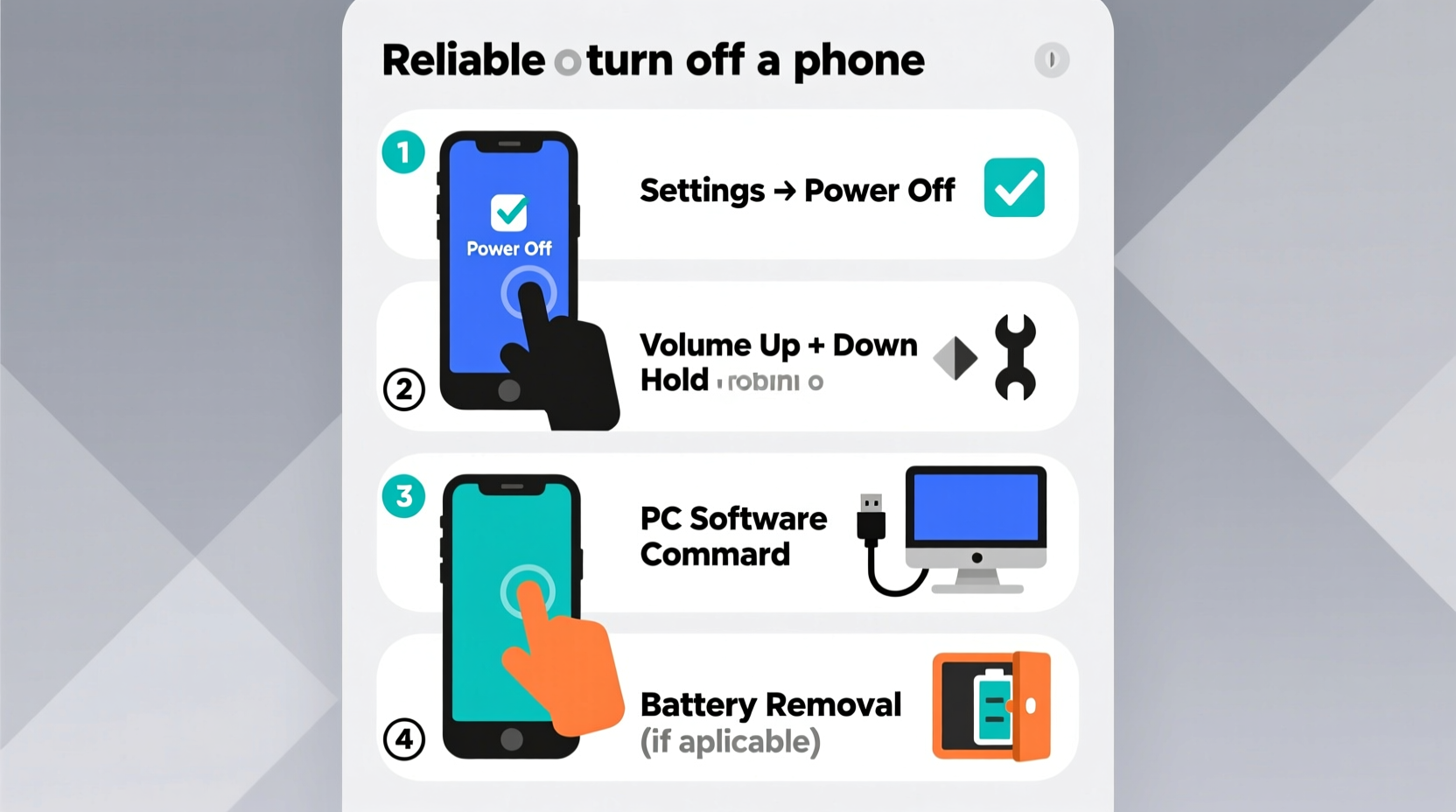
The power button is one of the most frequently used hardware components on any smartphone. Over time, repeated pressing, dust accumulation, or liquid exposure can cause mechanical failure. In some cases, the issue isn’t with the button itself but with the internal connection or firmware recognition. Before attempting software fixes, it’s helpful to confirm whether the problem is purely mechanical or involves deeper system-level issues.
If pressing the power button produces no vibration, sound, or visual response—even after cleaning around the port—it's likely not registering input. However, if the screen turns on briefly or the device vibrates slightly, the button may still be partially functional, suggesting a need for recalibration rather than full bypass.
Software-Based Shutdown Methods by Operating System
Both Android and iOS include alternative shutdown pathways designed for accessibility and emergency use. These vary in availability depending on your device model, OS version, and settings configuration.
Android: Using Scheduled Power On/Off (Samsung & Some OEMs)
Certain Android manufacturers, particularly Samsung, offer a “Scheduled Power On and Off” feature within the settings menu. This allows users to set automatic times for the phone to turn off and back on—ideal when the power button is unusable.
- Navigate to Settings > Device Care > Battery.
- Select Scheduled power on/off.
- Enable “Auto power-off” and choose a time shortly ahead.
- Wait for the phone to shut down automatically at the scheduled time.
Note: This method only works if the feature is supported. It’s available on many Samsung Galaxy models but absent on stock Android or budget devices.
iOS: AssistiveTouch for iPhone Shutdown
Apple provides a robust software solution through AssistiveTouch, originally designed for users with motor difficulties. When enabled, it creates an on-screen button that replicates hardware functions—including powering off the device.
- Go to Settings > Accessibility > Touch > AssistiveTouch.
- Toggle on AssistiveTouch.
- A small circular icon will appear on screen; tap it.
- Select Device > Lock Screen, then hold until the power-off slider appears.
- Drag the slider to turn off the phone.
“AssistiveTouch was never meant just for accessibility—it’s a lifeline when hardware fails.” — Jordan Lee, Mobile Usability Analyst at UX Lab Inc.
Using Third-Party Apps and ADB Commands
For advanced users, especially on Android, developer tools and third-party applications offer direct control over device shutdown behavior.
ADB (Android Debug Bridge) Method
If USB debugging is already enabled on your phone, you can use a computer to send a shutdown command via ADB.
- Install ADB tools on your PC or Mac.
- Connect your phone via USB and ensure it’s recognized (
adb devices). - Run the command:
adb shell reboot -p
This forces a complete power-down. Note: This requires prior setup and technical familiarity. It won’t work if USB debugging is disabled.
Third-Party Apps (e.g., Gravity Screen, Button Mapper)
Apps like Button Mapper allow remapping of other sensors or gestures to simulate a power button press. For instance, you can configure a double-tap on the notification shade or a specific motion to trigger shutdown.
- Download and install Button Mapper from the Google Play Store.
- Grant necessary permissions including accessibility services.
- Map a gesture (like flipping the phone face down) to \"Power Button.\"
- Use the new gesture to access the standard power menu.
Emergency Shutdown Techniques During Freezes
When a phone freezes and the power button fails, conventional shutdown methods become inaccessible. In these situations, forced restarts serve as indirect shutdowns.
| Device Type | Method | Effect |
|---|---|---|
| iPhone (with Face ID) | Press Volume Up → Volume Down → Hold Side Button | Forces restart; simulates hard shutdown |
| Samsung Galaxy | Hold Volume Down + Home (if present) + Power | Enters recovery; can power off from menu |
| Most Android Phones | Hold Volume Down + Power for 10–15 seconds | Triggers forced reboot |
While this doesn’t cleanly “shut down” the OS, it cuts power effectively and resolves temporary software locks. After restarting, explore long-term fixes.
Mini Case Study: Recovering a Frozen Pixel Without a Functional Power Button
A user reported their Google Pixel 4a freezing during an app update. The power button had stopped working weeks earlier due to water damage. Unable to access the power menu, they connected the phone to a laptop with pre-enabled USB debugging. Using ADB, they executed adb shell reboot -p, successfully shutting down the device. Upon reboot, the system resumed normally, and the user later replaced the button through a certified repair service.
This case highlights how combining preparation (USB debugging enabled) with technical knowledge can resolve critical issues without hardware intervention.
Preventative Measures and Long-Term Solutions
Once you’ve powered down your device using alternative methods, consider steps to prevent future dependency on fragile hardware buttons.
📋 **Checklist: Protect Your Phone From Button Failure**- ✅ Enable AssistiveTouch (iOS) or Accessibility Menu (Android)
- ✅ Use protective cases that reduce strain on side buttons
- ✅ Keep software updated to ensure all workaround features function properly
- ✅ Regularly clean ports and buttons to prevent debris buildup
- ✅ Back up data frequently in case sudden shutdowns occur
Additionally, disabling unnecessary wake triggers—like lifting to wake or pocket detection—can reduce accidental activations and preserve button longevity.
Frequently Asked Questions
Can I permanently disable the power button and use only software controls?
No official setting allows complete deactivation of the power button, but you can minimize its use by enabling features like tap-to-wake, scheduled power cycles, or gesture-based shortcuts. The button remains essential for emergency restarts unless fully replaced.
What if none of the software methods work?
If your phone lacks USB debugging, AssistiveTouch, or scheduled shutdown options, professional repair may be necessary. Alternatively, visit a service center where technicians can safely disconnect the battery or replace the faulty component.
Is it safe to let the battery drain completely instead?
While letting the battery die will eventually turn off the phone, it’s not recommended as a regular practice. Frequent deep discharges degrade lithium-ion batteries over time and may lead to boot issues or data loss during active processes.
Conclusion
Losing access to your phone’s power button doesn’t mean losing control. With thoughtful use of built-in accessibility tools, developer options, or manufacturer-specific features, you can reliably turn off your device—even when hardware fails. These methods empower users to maintain functionality, avoid premature upgrades, and extend the lifespan of their smartphones.
Start by enabling AssistiveTouch or exploring your device’s accessibility settings today. Prepare now so you’re never stranded with a frozen screen and a broken button.




 浙公网安备
33010002000092号
浙公网安备
33010002000092号 浙B2-20120091-4
Comments
No comments yet. Why don't you start the discussion?