
The \"location is not available\" error can be frustrating—especially when you're relying on navigation apps, fitness trackers, or location-based services. Whether you're using an Android phone, iPhone, or a Windows laptop, this issue typically stems from incorrect settings, outdated software, or hardware limitations. The good news is that most cases are fixable without professional help. By systematically addressing potential causes, you can restore accurate GPS functionality and regain access to essential location-dependent tools.
Understanding the Location Services Ecosystem
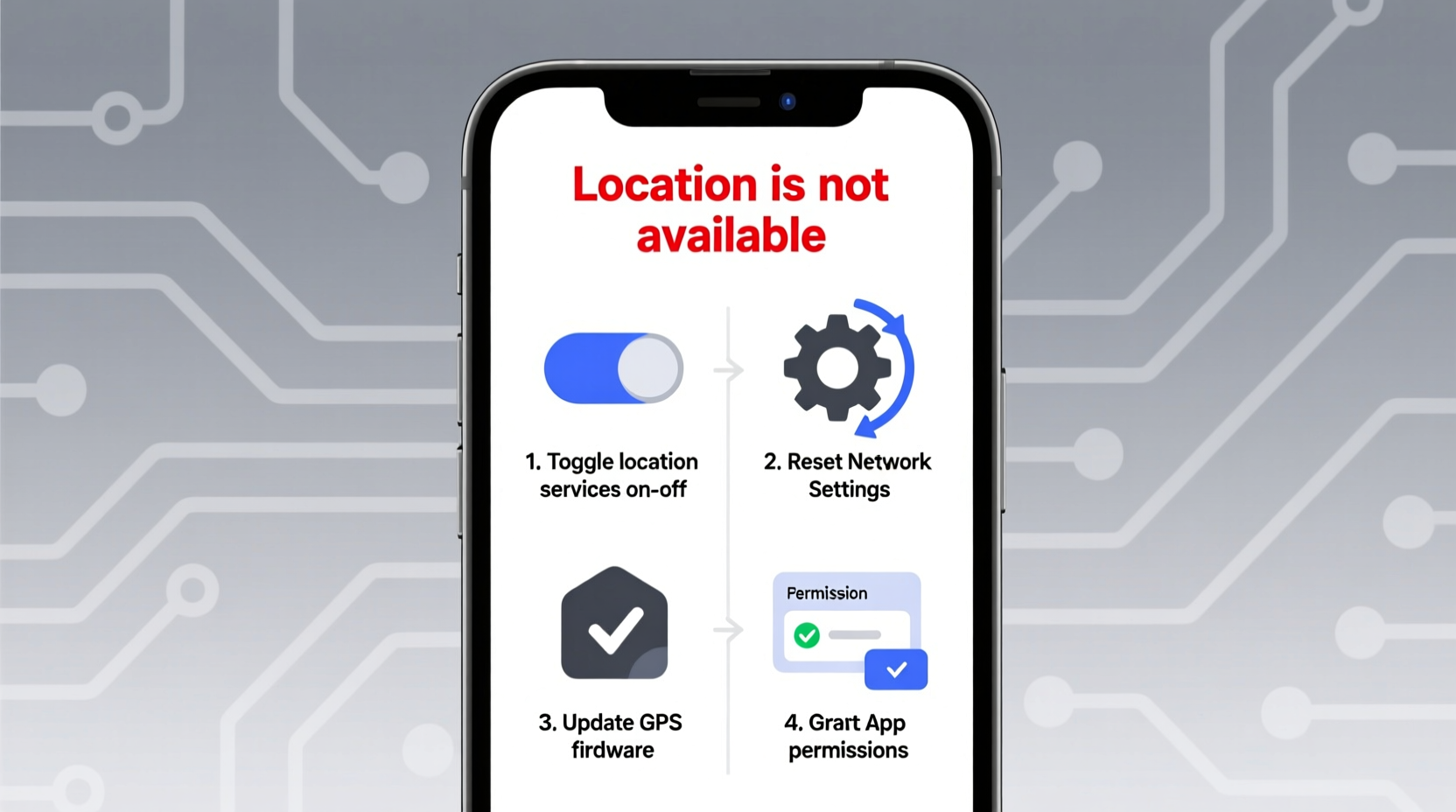
Modern devices use a combination of GPS satellites, Wi-Fi networks, cellular towers, and Bluetooth beacons to determine your position. This hybrid approach improves accuracy, especially in urban environments or indoors where satellite signals may be weak. However, if one component fails—such as disabled permissions, poor signal reception, or corrupted cache—the entire system may report “location not available.”
Different operating systems manage location differently:
- Android: Offers granular control over app-level permissions and multiple location modes (High Accuracy, Battery Saving, Device Only).
- iOS: Emphasizes privacy with clear permission prompts and background location tracking controls.
- Windows: Relies heavily on Wi-Fi triangulation and requires location services to be enabled at both the OS and hardware level.
Before diving into fixes, confirm whether the issue affects all apps or just one. If only a single app fails to get location data, the problem likely lies within that app’s permissions or configuration.
Step-by-Step Guide to Restore Location Access
Follow this structured sequence to diagnose and resolve the error efficiently:
- Check Physical Obstructions: Move to an open area away from tall buildings, underground spaces, or metal structures that block GPS signals.
- Enable Airplane Mode Briefly: Turn on Airplane Mode for 15 seconds, then disable it. This resets wireless radios including GPS, Wi-Fi, and cellular.
- Toggle Location Services Off and On: Navigate to Settings > Location (or Privacy > Location Services on iOS) and toggle the master switch off and back on.
- Restart Your Device: A reboot clears temporary glitches affecting sensor operation.
- Update Your Operating System: Install pending updates, as they often include bug fixes for location components.
- Clear App Cache (Android): For specific apps failing to locate, go to Settings > Apps > [App Name] > Storage > Clear Cache.
- Reset Network Settings: This restores Wi-Fi, Bluetooth, and mobile connections to default states, which can repair location-related network handshakes.
Do’s and Don’ts When Troubleshooting Location Errors
| Do’s | Don’ts |
|---|---|
| Use High Accuracy mode when precise GPS is needed (Android) | Keep location services disabled long-term if you rely on maps or delivery apps |
| Grant location access only to trusted apps | Ignore system update notifications related to security or connectivity |
| Test location in multiple apps like Google Maps and Weather | Assume hardware failure without checking software settings first |
| Ensure battery saver modes aren't restricting background location | Install third-party GPS booster apps—they rarely work and may compromise privacy |
Real-World Example: Fixing Location Failure During Travel
Sarah, a frequent traveler, encountered the “location not available” message while trying to navigate Paris using her Android phone. Despite having data enabled and Google Maps updated, the blue dot wouldn’t appear. She initially assumed her SIM card was faulty. Instead of contacting support immediately, she followed basic diagnostics:
- She toggled Airplane Mode on and off.
- Switched Location Mode to “High Accuracy.”
- Ensured Google Location History was enabled under her Google Account settings.
Within two minutes, GPS reacquired. Later, she learned that switching between French and international roaming had temporarily disrupted location metadata syncing. Her experience highlights how transient network changes can trigger persistent-looking errors—even when hardware functions normally.
“Over 70% of reported GPS issues are resolved by resetting location settings or updating firmware—no hardware repair needed.” — Dr. Alan Reyes, Senior Mobile Systems Engineer at TechInsight Labs
Advanced Fixes for Persistent Problems
If standard methods fail, consider these deeper interventions:
Calibrate Your Device’s Compass and Sensors
Smartphones use inertial sensors to assist GPS. Misaligned sensors lead to inaccurate or missing location data.
For Android:
- Open Google Maps.
- Tap the blue dot representing your location.
- Select “Calibrate compass” and follow the on-screen motion prompts.
For iPhone:
- Open the Compass app and move your phone in a figure-eight pattern several times.
- Ensure Motion Calibration & Distance is enabled under Settings > Privacy > Location Services > System Services.
Check Date, Time, and Time Zone Settings
Incorrect system time disrupts GPS signal decoding, which relies on precise timestamp synchronization with satellites.
Perform a Safe Mode Boot (Android)
Third-party apps can interfere with location services. Booting into Safe Mode disables all non-essential apps temporarily.
To enter Safe Mode:
- Press and hold the Power button.
- Long-press the “Power Off” option until “Reboot to Safe Mode” appears.
- Confirm and test location in Safe Mode.
If location works in Safe Mode, uninstall recently installed apps one by one to identify the culprit.
Essential Checklist to Resolve Location Issues
Use this checklist to methodically eliminate common causes:
- ✅ Ensure Location Services are turned ON in system settings
- ✅ Verify individual app permissions for location access
- ✅ Confirm device has clear sky view or strong Wi-Fi signal
- ✅ Set time and time zone to automatic
- ✅ Restart the device after making changes
- ✅ Update the operating system and relevant apps
- ✅ Calibrate sensors if positioning is erratic
- ✅ Reset network settings if connectivity seems unstable
- ✅ Test with multiple location-dependent apps (e.g., Uber, Weather, Find My Device)
- ✅ Contact manufacturer support only if all else fails
Frequently Asked Questions
Why does my phone show “location not available” even with GPS enabled?
This usually happens due to conflicting settings such as disabled Wi-Fi scanning (used for hybrid location), incorrect time, or blocked satellite signals. Also, some apps require additional permissions beyond basic location access—like Google’s Location History for better accuracy.
Can a factory reset fix location problems?
Yes, but it should be a last resort. A factory reset removes software conflicts, corrupted caches, and misconfigured settings. Back up your data first, as this process erases everything on the device.
Does airplane mode affect GPS permanently?
No. While GPS is disabled during Airplane Mode, turning it off restores normal function. However, some older devices may need a manual restart to fully reactivate location hardware.
Conclusion: Take Control of Your Device’s Location Accuracy
The “location is not available” error is more common than many users realize—but it’s rarely permanent. With a logical approach and awareness of how modern positioning systems operate, most people can restore full functionality in under ten minutes. The key is avoiding assumptions and testing each potential cause systematically. From checking simple toggles to recalibrating internal sensors, every step brings you closer to reliable, real-time location tracking.




 浙公网安备
33010002000092号
浙公网安备
33010002000092号 浙B2-20120091-4
Comments
No comments yet. Why don't you start the discussion?