
Wireless keyboards offer freedom from cables and greater flexibility in workspace design. Among the most trusted brands, Logitech delivers reliable performance, ergonomic designs, and multi-device compatibility. However, connecting a Logitech keyboard via Bluetooth can sometimes feel confusing—especially if you're switching between devices or using it on multiple platforms like Windows, macOS, or mobile operating systems. The good news is that with the right approach, pairing your Logitech keyboard is fast, intuitive, and highly efficient.
This guide walks through every essential step to establish a stable Bluetooth connection, avoid common pitfalls, and optimize your typing experience across devices. Whether you’re setting up a new keyboard or re-pairing after an update, these methods ensure smooth integration.
Understanding Bluetooth Compatibility
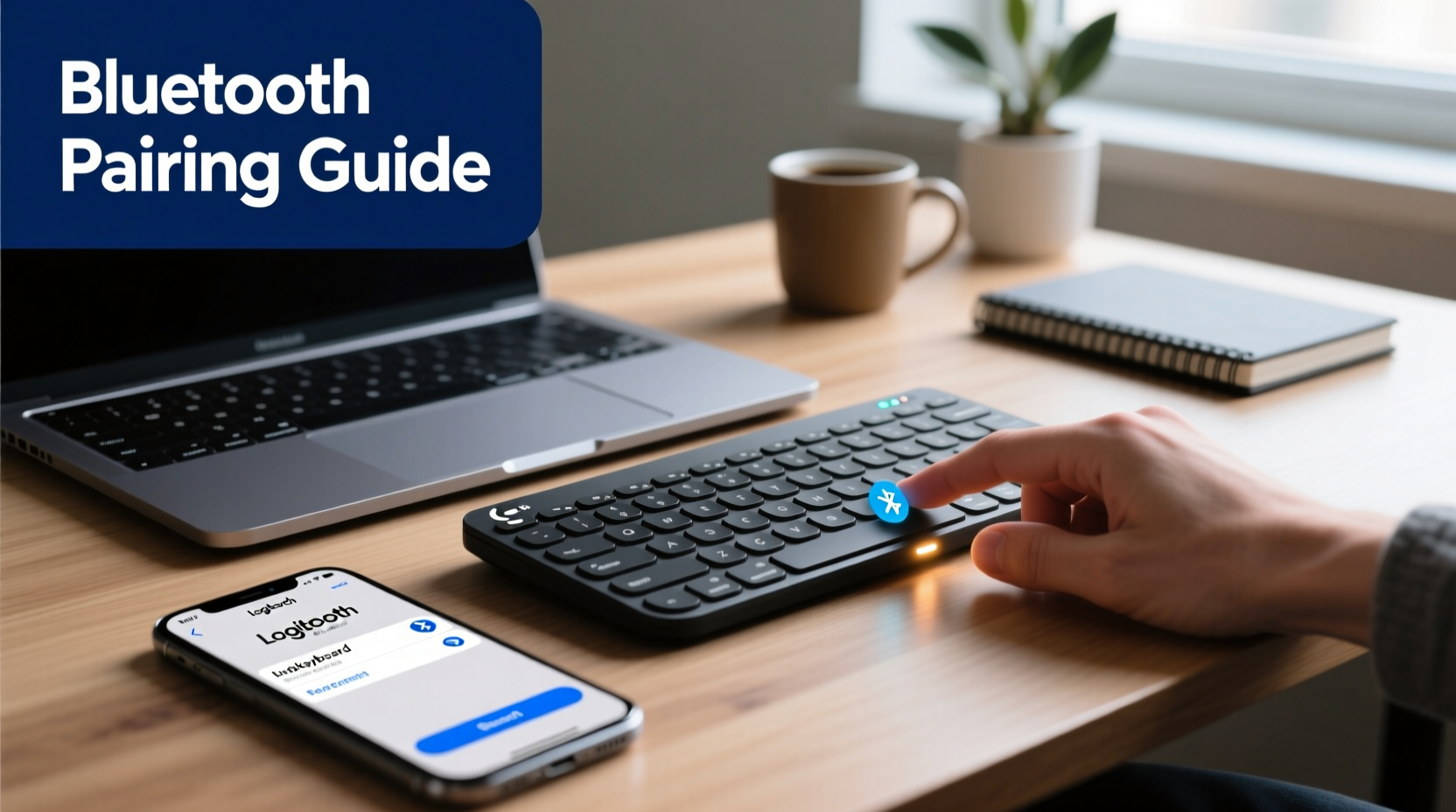
Before initiating any setup, confirm that your Logitech keyboard supports Bluetooth. Not all Logitech models use Bluetooth natively—some rely on proprietary USB receivers (like Logitech’s Unifying or Lightspeed technology). Models such as the K380, K480, MX Keys, and MX Keys Mini are Bluetooth-enabled and designed for cross-platform use.
Equally important is verifying that your host device has functional Bluetooth capabilities. Most modern laptops, tablets, and smartphones support Bluetooth 4.0 or higher, which is sufficient for keyboard connectivity. Older systems may require a USB Bluetooth adapter for compatibility.
Step-by-Step Guide to Pair Your Logitech Keyboard
Follow this structured process to successfully pair your Logitech keyboard with any compatible device.
- Power On the Keyboard: Locate the power switch (usually on the back or side) and slide it to “On.” A small LED indicator will typically blink, signaling readiness.
- Enter Pairing Mode: Press and hold the Bluetooth button (often labeled with a symbol like ⚫⚫/⚫ or numbered as B1/B2/B3) until the status light begins flashing rapidly. This indicates discoverability.
- Enable Bluetooth on Your Device: Go to Settings > Bluetooth and ensure it’s turned on. Allow the system to scan for nearby devices.
- Select the Keyboard: From the list of available devices, choose your Logitech model (e.g., “Logitech K380” or “MX Keys”).
- Complete Pairing: If prompted, enter the PIN shown on screen (commonly 0000 or 1234), though many newer models auto-pair without input.
- Test Functionality: Type a few characters in a text field to verify responsiveness and key registration.
Once paired, the keyboard will usually reconnect automatically when powered on and within range (typically up to 10 meters or 33 feet in open space).
Managing Multiple Devices with Easy-Switch Technology
Many premium Logitech keyboards feature Easy-Switch technology, allowing users to toggle between three connected devices with a single button press. This is particularly useful for hybrid work environments where you might alternate between a laptop, tablet, and smartphone.
To set up multiple connections:
- Repeat the pairing process above for each device, using B1, B2, and B3 buttons to assign different pairings.
- Label each slot mentally or physically (e.g., B1 = Work Laptop, B2 = iPad, B3 = Phone).
- Switch seamlessly by pressing the corresponding number button—no need to unpair or re-enter settings.
| Model | Bluetooth Versions Supported | Multi-Device Slots | OS Compatibility |
|---|---|---|---|
| K380 | Bluetooth 3.0 | 3 | Windows, macOS, Chrome OS, iOS, Android |
| MX Keys | Bluetooth 5.0 | 3 | Windows, macOS, Linux, iOS, Android |
| K480 | Bluetooth 3.0 | 1 | iOS, Android, Windows |
“Bluetooth pairing success hinges on signal clarity and correct mode activation. Many failures occur not due to technical flaws, but because users miss the brief window when the keyboard is discoverable.” — David Lin, Senior Peripheral Engineer at Logitech
Troubleshooting Common Connection Issues
Even with careful setup, occasional hiccups arise. Here’s how to resolve frequent problems:
Keyboard Not Showing Up in Device List
Ensure the keyboard is in pairing mode—the LED should flash quickly. Replace batteries if low, as weak power can disrupt signal transmission. Also, keep the keyboard within one meter during initial pairing.
Typing Lag or Intermittent Response
Interference from Wi-Fi routers, microwaves, or other wireless devices may degrade Bluetooth performance. Move the keyboard closer to the host device and minimize physical obstructions. Restart Bluetooth services or reboot the host device if necessary.
Pairs but Doesn’t Transmit Input
This often occurs when the keyboard is still connected to another device. Use the correct Easy-Switch button (B1/B2/B3) to select the intended device. Alternatively, delete the pairing from all devices and start fresh.
Best Practices for Long-Term Performance
To maintain consistent performance and extend battery life, adopt these habits:
- Turn off the keyboard when not in use to conserve energy.
- Keep firmware updated via Logitech Options+ software (available for Windows and macOS).
- Avoid placing metal objects between the keyboard and connected device to prevent signal blockage.
- Clean the contact points and battery compartment periodically to ensure stable electrical connections.
Mini Case Study: Remote Worker Streamlines Setup
Sophie, a digital marketing consultant, uses her Logitech MX Keys across a MacBook Pro, Windows desktop, and iPad. Initially frustrated by frequent disconnects, she followed the proper pairing sequence, assigned each device to B1–B3 slots, and updated firmware using Logitech Options+. She now switches between machines effortlessly during client calls and reports a significant improvement in workflow efficiency and typing accuracy.
Frequently Asked Questions
Can I use my Logitech Bluetooth keyboard with both Mac and Windows?
Yes, most Logitech Bluetooth keyboards are cross-platform compatible. You may need to adjust the function key behavior in settings or use Logitech Options+ to customize key mappings per OS.
How long do batteries last in Logitech Bluetooth keyboards?
Battery life varies by model and usage. The K380 lasts up to 2 years on two AAA batteries, while the MX Keys runs about 10 days on a full charge (USB-C rechargeable). Always refer to the specific product specifications for accurate estimates.
Why does my keyboard connect to one device but not another?
This usually stems from outdated Bluetooth drivers, disabled services, or maximum paired device limits. Ensure Bluetooth is enabled, delete old pairings, and restart the host device before retrying.
Conclusion: Master Your Wireless Workflow
Connecting your Logitech keyboard via Bluetooth doesn’t have to be complicated. With clear preparation, adherence to pairing protocols, and awareness of multi-device features, you can achieve a responsive, cable-free typing experience tailored to your daily needs. These steps empower you to work efficiently across platforms, reduce clutter, and enhance comfort—all hallmarks of a well-optimized workspace.




 浙公网安备
33010002000092号
浙公网安备
33010002000092号 浙B2-20120091-4
Comments
No comments yet. Why don't you start the discussion?