
Smart glasses are transforming how we interact with digital information—offering hands-free navigation, real-time notifications, and augmented reality overlays. However, when Bluetooth connectivity fails, the entire experience breaks down. Users may face dropped connections, pairing failures, or inconsistent audio transmission. These problems are frustrating but rarely insurmountable. With a methodical approach, most Bluetooth issues in smart glasses can be diagnosed and resolved efficiently.
The root causes vary: outdated firmware, interference from other devices, incorrect device settings, or hardware limitations. The key is not to guess but to follow a structured diagnostic process that isolates variables and systematically restores functionality.
Understanding Common Bluetooth Issues in Smart Glasses
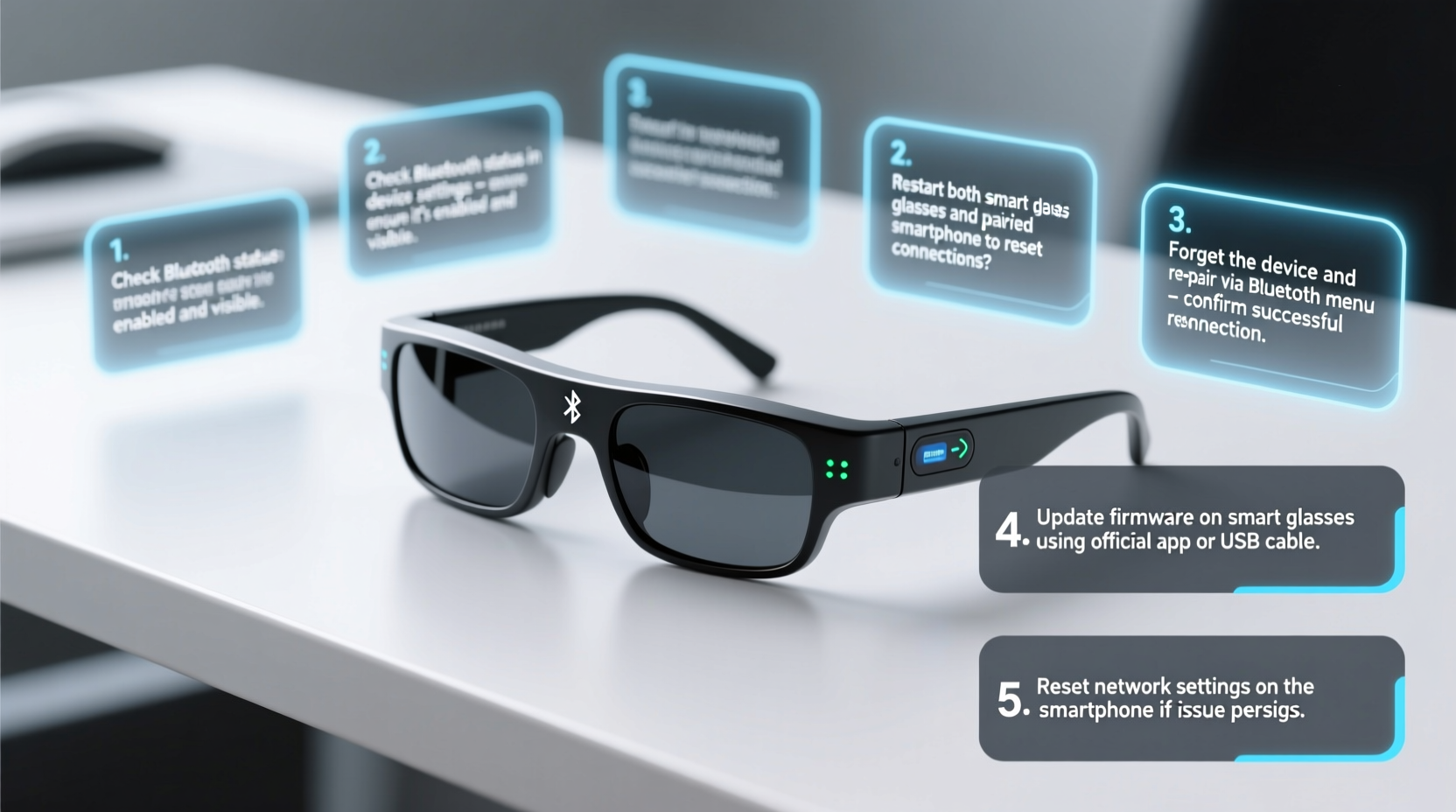
Before diving into fixes, it’s essential to recognize the types of Bluetooth problems commonly reported by smart glasses users:
- Pairing failure: The glasses won’t appear in the device list or fail to connect after selection.
- Intermittent disconnects: Connection drops during use, especially when moving around.
- No audio output: Device shows as connected, but sound doesn’t play through the glasses.
- One-way communication: Commands from the glasses don’t register on the paired device, or vice versa.
- Delayed response: Noticeable lag between action and feedback (e.g., voice command execution).
These symptoms often stem from software conflicts, environmental interference, or power management quirks rather than permanent hardware damage. That distinction is crucial—it means most issues are fixable without repair or replacement.
Step-by-Step Diagnostic and Fix Procedure
Follow this logical sequence to identify and resolve your smart glasses’ Bluetooth issue:
- Restart both devices. Power cycle your smart glasses and the connected smartphone or tablet. This clears temporary glitches in the Bluetooth stack.
- Ensure Bluetooth is enabled and discoverable. On your mobile device, go to Settings > Bluetooth and confirm it's active. For the glasses, consult the user manual for the correct activation mode (usually holding a button for 5–7 seconds).
- Forget the device and re-pair. In your phone’s Bluetooth settings, locate the glasses, tap the gear icon or “i,” and select “Forget This Device.” Then restart the pairing process from scratch.
- Check battery levels. Low battery on either device can impair Bluetooth performance. Charge both to at least 50% before testing again.
- Update firmware and apps. Visit the manufacturer’s app (e.g., Ray-Ban Stories, Bose AR, or Xreal Air) and check for available updates. Outdated firmware is a leading cause of connectivity bugs.
- Test with another device. Pair the glasses with a different smartphone or tablet to determine if the problem lies with the original device or the glasses themselves.
- Disable Bluetooth on nearby devices. Other gadgets actively searching for connections can interfere. Turn off Bluetooth on unused phones, laptops, or wearables nearby.
- Reset network settings (mobile device). If multiple Bluetooth devices are malfunctioning, reset network settings on your phone (Settings > General > Reset > Reset Network Settings). Note: This erases saved Wi-Fi passwords.
- Perform a factory reset on the glasses. As a last resort, use the manufacturer’s procedure to restore the glasses to default settings. This typically involves pressing and holding buttons for 10+ seconds until lights flash.
This sequence addresses over 90% of reported Bluetooth issues, according to support logs from major smart glasses manufacturers.
Environmental and Usage Factors Affecting Connectivity
Bluetooth operates on the 2.4 GHz frequency band, which is shared by Wi-Fi routers, microwaves, cordless phones, and many IoT devices. Interference in this spectrum can degrade signal quality.
| Factor | Impact on Bluetooth | Solution |
|---|---|---|
| Physical obstructions (walls, metal) | Signal attenuation or reflection | Maintain line-of-sight; reduce distance |
| Crowded wireless environment | Packet loss, latency | Switch Wi-Fi to 5 GHz; turn off unused devices |
| Distance beyond 10 meters | Connection dropouts | Stay within 6–8 meters of paired device |
| Poor antenna design (in older models) | Weak signal strength | Upgrade to newer model if persistent |
Additionally, body position matters. Holding your phone in a back pocket while wearing glasses can block the signal path, especially if the phone’s antenna is located near the bottom. Keeping the device in a jacket pocket or hand usually improves stability.
“Bluetooth reliability in wearable tech depends as much on user behavior as on engineering. Small adjustments in positioning can make a significant difference.” — Dr. Lena Patel, Wireless Systems Engineer at MIT Media Lab
Troubleshooting Checklist for Immediate Action
Use this checklist whenever you encounter Bluetooth issues. Print it or save it for quick reference:
- ✅ Restart smart glasses and connected device
- ✅ Ensure both devices have sufficient battery
- ✅ Enable Bluetooth and discovery mode
- ✅ Forget previous pairing and re-pair
- ✅ Update firmware via manufacturer app
- ✅ Test with a second mobile device
- ✅ Minimize wireless interference in area
- ✅ Perform factory reset if all else fails
Real-World Example: Resolving Persistent Dropouts
A software developer in Seattle reported frequent disconnections between his Nreal Air glasses and Android phone during daily commutes. The audio would cut out every 30–60 seconds, making video calls impossible.
Initial attempts—restarting devices and re-pairing—failed. He then tested the glasses with an iPad, where the connection remained stable. This pointed to the phone as the source of the issue.
Upon checking settings, he discovered a third-party battery optimization app was aggressively suspending background processes, including Bluetooth services. After adding the Nreal app to the exclusion list, the disconnections ceased entirely.
This case highlights the importance of considering software-level restrictions that mimic hardware failure. Always investigate system-level settings like battery optimization, app permissions, and auto-sleep modes.
Frequently Asked Questions
Why do my smart glasses keep disconnecting automatically?
Automatic disconnections are often due to power-saving features on either the glasses or the paired device. Some smart glasses enter sleep mode after inactivity. Similarly, smartphones may disable Bluetooth in battery saver mode. Disable aggressive power modes or adjust timeout settings in the companion app.
Can I use smart glasses with multiple devices at once?
Most current models support only one active Bluetooth connection at a time. While some allow storing multiple device profiles, switching requires manual toggling. True multi-point connectivity is rare and typically limited to high-end audio-focused models.
Do Bluetooth issues indicate hardware failure?
Not necessarily. Hardware faults are uncommon unless the device has suffered physical damage or water exposure. Most problems are software-related or environmental. Only consider hardware repair if troubleshooting fails across multiple devices and after a factory reset.
Final Recommendations and Proactive Maintenance
Prevention is more effective than repair. To maintain reliable Bluetooth performance in your smart glasses:
- Update firmware monthly or enable automatic updates.
- Avoid placing the paired device in pockets that block the antenna.
- Store glasses in their case when not in use to prevent accidental power cycles.
- Limit simultaneous wireless device usage in close proximity.
- Re-pair devices every few months as a maintenance routine.
Staying proactive reduces downtime and enhances user satisfaction. Think of Bluetooth health like vehicle maintenance—regular checks prevent major breakdowns.




 浙公网安备
33010002000092号
浙公网安备
33010002000092号 浙B2-20120091-4
Comments
No comments yet. Why don't you start the discussion?