
Cancelling a subscription often comes with an immediate loss of service, but Spotify operates differently. If you're considering ending your Premium plan, you don’t have to stop listening the moment you hit “cancel.” Spotify allows users to continue enjoying full access until the end of their current billing period. This grace period is a powerful feature that many overlook, leading to premature loss of benefits or unnecessary stress about timing. Understanding how to properly cancel your subscription ensures you maximize value while avoiding surprise charges.
Whether you're switching services, taking a break, or simply reevaluating your spending, knowing the correct process helps maintain control over your digital experience. Below is a detailed breakdown of how to end your Spotify subscription effectively—without sacrificing access before you’re ready.
How Spotify’s Subscription Model Works
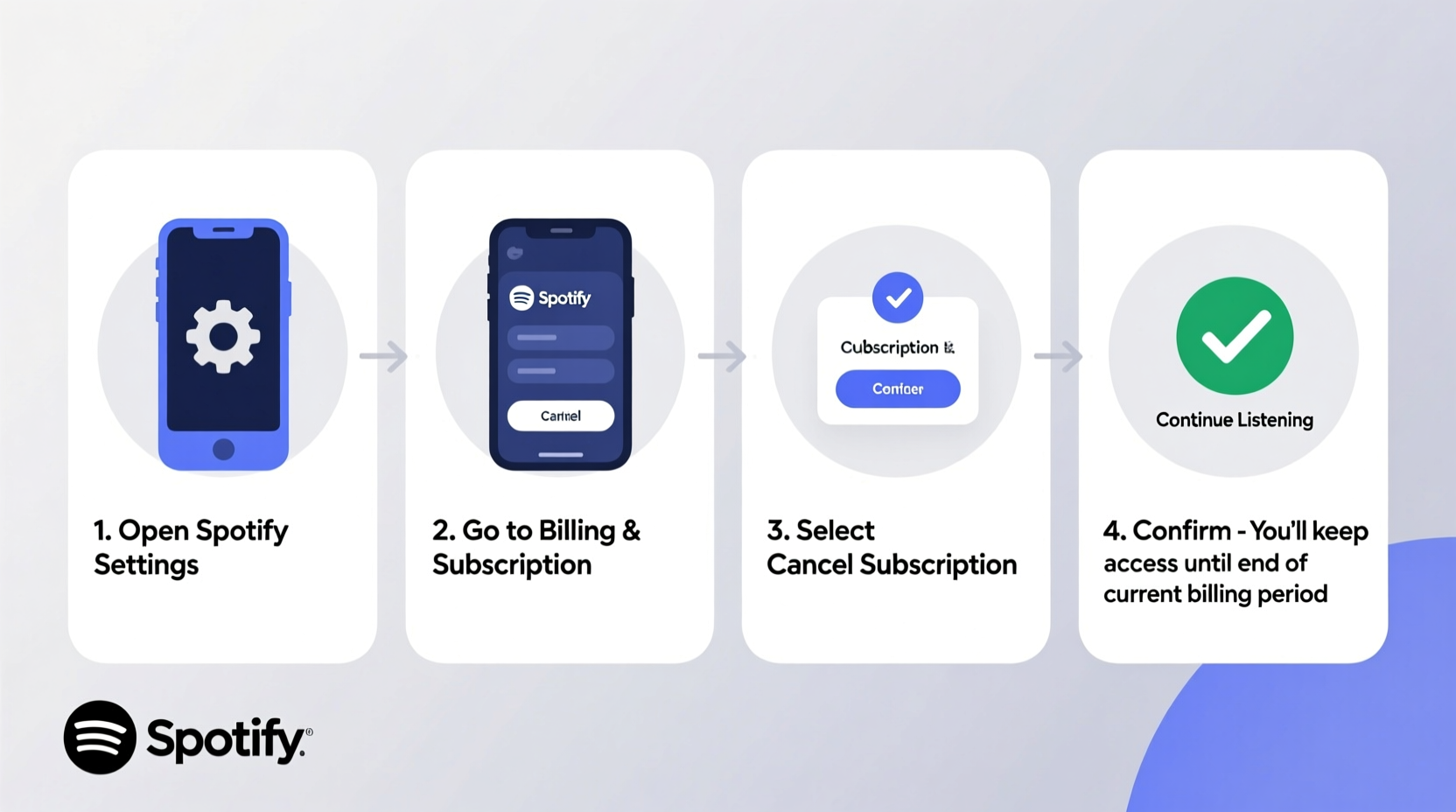
Spotify operates on a prepaid subscription model. When you sign up for Premium, you pay upfront for a set period—typically one month or one year. That payment grants uninterrupted access for the entire duration, regardless of when during the cycle you decide to cancel.
The key insight: cancellation does not equal immediate deactivation. Instead, Spotify disables auto-renewal while honoring your existing access until the final day of your paid term. For example, if your billing date is the 15th of each month and you cancel on the 20th, you’ll still have Premium features until the next 15th. After that, your account reverts to Free unless you resubscribe.
Step-by-Step Guide to Cancel Without Losing Access
- Log into Your Spotify Account
Visit spotify.com and sign in using your credentials. Use a desktop browser for easier navigation, though mobile works too. - Navigate to Your Account Settings
Click your profile icon in the top-right corner, then select “Account” from the dropdown menu. This will redirect you to your account overview page. - Locate the Subscription Section
Scroll down to the “Your Plan” section. Here, you’ll see details like your current plan type (Individual, Duo, Family, etc.), price, and next billing date. - Select “Change Plan or Cancel”
Click this option to enter the subscription management portal. Spotify will prompt several retention offers—skip these by scrolling down to “Cancel Subscription.” - Confirm Cancellation
Follow the prompts to confirm your decision. You may be asked to provide feedback; this is optional. Once confirmed, Spotify displays a message stating your Premium access continues until [end date].
This entire process takes less than five minutes and guarantees no disruption to your current listening experience. Your playlists, downloads, and ad-free playback remain fully functional until the last day of your billing cycle.
What Happens After You Cancel?
After cancellation, your account transitions seamlessly at the end of your paid period. There's no abrupt cutoff, no lost data, and no requirement to re-enter payment information unless you choose to resubscribe later.
You retain all saved music, custom playlists, followed artists, and listening history. The only change is the downgrade to Spotify Free, which includes ads, limited skips, and no offline playback. Any downloaded songs for offline use will become unplayable once Premium ends, as they are protected by DRM (Digital Rights Management).
| Feature | Before Cancellation (Premium) | After Billing Cycle Ends (Free) |
|---|---|---|
| Ad-Free Listening | Yes | No |
| Offline Playback | Yes | No |
| Unlimited Skips | Yes | Limited |
| High-Quality Audio | 320 kbps | 160 kbps (lower on mobile) |
| Access to All Features | Full | Restricted |
Avoid These Common Mistakes
- Cancelling Through Third Parties: If you subscribed via Apple App Store or Google Play, cancelling within Spotify’s website won’t work. You must manage the subscription through your device’s app store settings.
- Expecting Refunds: Spotify does not issue partial refunds upon cancellation. You’ve already paid for the full period, so focus on using every remaining day.
- Deleting the App Prematurely: Some users uninstall Spotify right after cancelling. This isn’t necessary—you can keep using it normally until your access expires.
- Ignoring Download Expiry: Offline tracks disappear when Premium ends. Consider streaming important albums one last time or transferring them legally to another platform.
“Many users cancel early out of confusion, leaving days or even weeks of paid service unused. A simple understanding of billing cycles can save both money and frustration.” — Lena Patel, Digital Consumer Analyst at TechWatch Insights
Mini Case Study: Sarah’s Smart Cancellation Strategy
Sarah, a college student, used Spotify Premium throughout the academic year but wanted to cut costs during summer break. Her monthly renewal was set for June 10th. On May 25th, she cancelled her plan directly through her account settings.
Instead of losing access immediately, she continued using Premium features for two more weeks—listening to final exam playlists, downloading road trip mixes, and finishing her favorite podcasts—all without paying another cent beyond what she’d already spent.
On June 10th, her account automatically reverted to Free. She kept her playlists and followed artists, occasionally streaming music with ads. By September, when classes resumed, she easily reactivated Premium without losing any data.
Sarah maximized her investment by aligning her cancellation with her lifestyle needs—proof that timing and knowledge make all the difference.
Checklist: Cancelling Spotify the Right Way
- ✅ Log into your Spotify account via web browser
- ✅ Go to Account > Your Plan
- ✅ Click “Change Plan or Cancel”
- ✅ Choose “Cancel Subscription” (not downgrade, unless desired)
- ✅ Confirm cancellation and note your access end date
- ✅ If subscribed via Apple/Google, cancel in respective app store
- ✅ Continue using Premium until your billing cycle ends
FAQ
Will I lose my playlists when my subscription ends?
No. All your playlists, saved songs, and followings remain intact. You can still access them on the Free tier, though with ads and limited functionality.
Can I reactivate Premium later without losing anything?
Absolutely. Your entire library syncs back instantly upon re-subscription. No data is deleted due to cancellation.
Why can’t I cancel directly in the Spotify mobile app?
Spotify limits cancellation options in its mobile apps to reduce accidental terminations. Full control is available only through the desktop website or app store interfaces, depending on your original purchase method.
Conclusion
Ending your Spotify subscription doesn’t mean saying goodbye to Premium features today. With the right approach, you maintain full access until the very last day you've already paid for. This smart, strategic exit ensures you extract maximum value from your subscription while maintaining control over your digital life.
Take a moment now to review your next billing date and proceed with confidence. Whether you're pausing for budget reasons or exploring alternatives, you don’t need to rush. Let your current plan run its course—listen, stream, and enjoy every second you’ve already paid for.




 浙公网安备
33010002000092号
浙公网安备
33010002000092号 浙B2-20120091-4
Comments
No comments yet. Why don't you start the discussion?