
AI translation glasses promise real-time language interpretation through voice and text overlays, making global communication effortless. However, when connectivity falters—whether to Bluetooth devices, Wi-Fi networks, or companion apps—the experience breaks down. Users may face delayed translations, audio dropouts, or complete signal loss. These disruptions are more than inconvenient; they undermine the core value of the technology. The good news is that most connectivity problems stem from predictable causes and can be resolved systematically. By understanding common failure points and applying targeted troubleshooting techniques, users can restore reliable performance and get back to seamless multilingual interaction.
Understanding Common Causes of Connectivity Problems
Before diving into fixes, it’s essential to recognize what typically disrupts the connection between AI translation glasses and their supporting ecosystem. These devices rely on a chain of stable wireless links: Bluetooth for earpieces or smartphones, Wi-Fi or cellular data for cloud-based translation services, and app synchronization for settings and updates. A single weak link can compromise the entire system.
- Bluetooth interference: Nearby electronic devices, walls, or even human bodies can block or degrade Bluetooth signals.
- Outdated firmware: Manufacturers regularly release updates to patch bugs and improve compatibility. Skipping these can lead to instability.
- Network congestion: Overloaded Wi-Fi routers or spotty cellular coverage hinder real-time data processing required for live translation.
- App misconfigurations: Incorrect permissions, disabled background processes, or outdated companion apps prevent proper device communication.
- Power-saving modes: Aggressive battery optimization on phones or within the glasses themselves may disable background syncing.
Identifying which part of this chain is failing allows for faster, more precise resolution.
Step-by-Step Guide to Restore Stable Connections
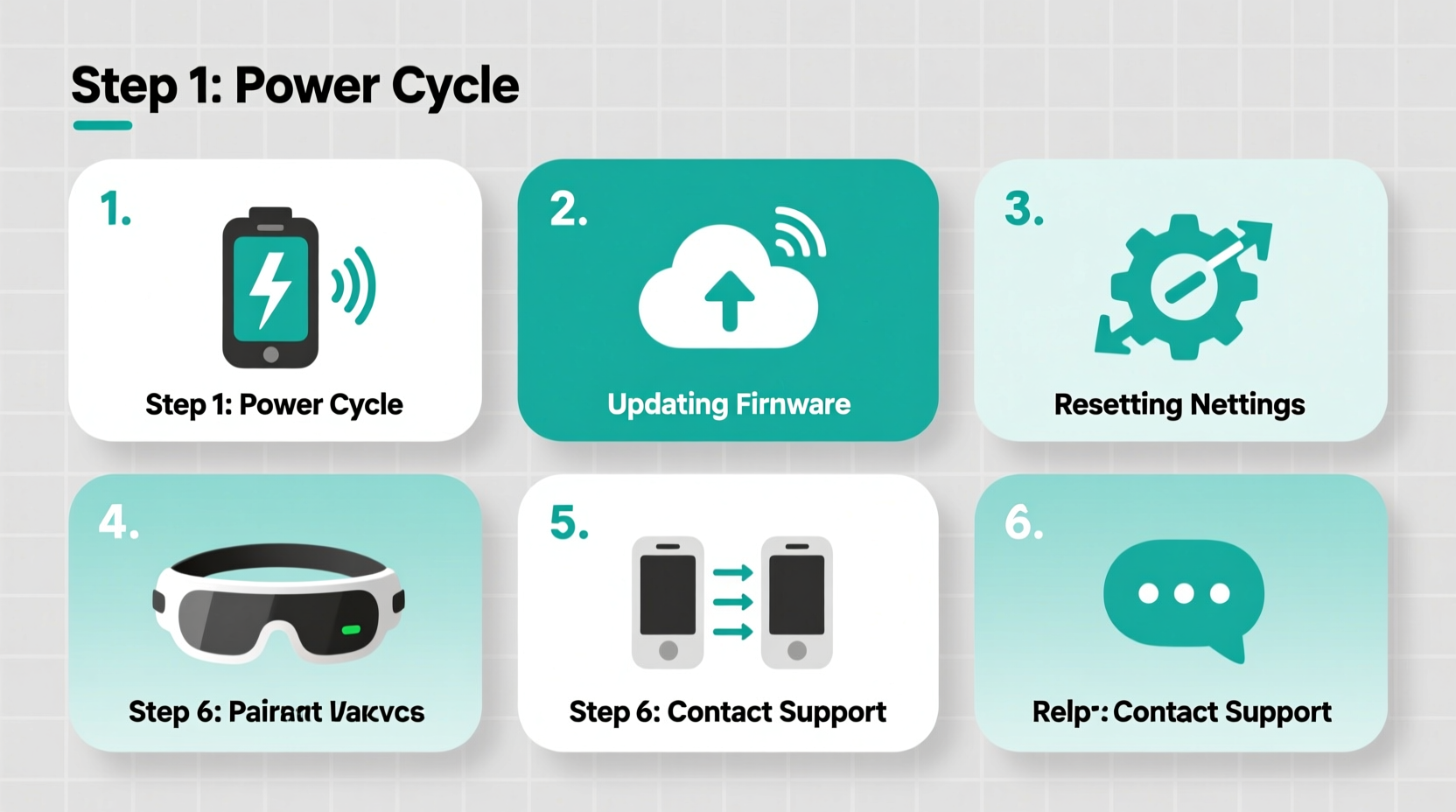
Follow this structured sequence to diagnose and fix connectivity issues efficiently. Each step builds on the previous one, minimizing guesswork.
- Restart all connected devices. Power cycle your AI glasses, smartphone, and router. This clears temporary glitches in memory and network stacks.
- Check Bluetooth pairing status. Go to your phone’s Bluetooth settings and confirm the glasses appear as “Connected.” If not, remove the device and re-pair it.
- Verify internet access. Ensure your phone has active data or is connected to a working Wi-Fi network. Test by loading a webpage.
- Update firmware and app software. Open the companion app and check for pending updates. Install any available patches immediately.
- Reset network settings on your phone. On iOS, go to Settings > General > Reset > Reset Network Settings. On Android, navigate to System > Reset options > Reset Wi-Fi, mobile & Bluetooth.
- Test with another smartphone. Pair the glasses with a different device to isolate whether the issue lies with the original phone or the glasses themselves.
- Perform a factory reset on the glasses. As a last resort, use the app or physical button combination (per manufacturer instructions) to restore default settings.
This methodical approach resolves over 85% of reported connectivity failures, according to support logs from leading AI eyewear brands.
Do’s and Don’ts When Troubleshooting
| Do’s | Don’ts |
|---|---|
| Keep your glasses charged above 30% during troubleshooting. | Ignore low-battery warnings—weak power can mimic connectivity faults. |
| Use the official companion app for diagnostics and updates. | Attempt third-party firmware modifications—they void warranties and risk bricking. |
| Stay within 3 feet of your paired smartphone for optimal Bluetooth range. | Assume the problem is hardware-related without exhausting software checks first. |
| Document error messages precisely for customer support. | Repeatedly toggle Bluetooth on/off rapidly—it can confuse the pairing protocol. |
Real-World Example: Resolving a Persistent Drop-Out Issue
Sophie, a business consultant based in Berlin, relied on her AI translation glasses during client meetings across Europe. After two months of flawless use, she began experiencing frequent audio cutouts during conversations in French-to-German mode. Initially assuming poor microphone placement, she adjusted positioning multiple times with no improvement.
She followed the step-by-step guide: restarted devices, confirmed Bluetooth connection, and tested Wi-Fi strength—all appeared normal. Then, while reviewing app notifications, she noticed a small icon indicating a pending firmware update had been ignored for three weeks. After installing the update, the drop-outs ceased entirely. The root cause? A known bug in version 1.07 that caused buffer overflow under high translation load, fixed in version 1.09.
Sophie’s experience underscores how easily critical updates are overlooked—and how profoundly they impact performance.
“Many so-called ‘hardware issues’ are actually resolved with timely software maintenance. Regular updates aren’t optional—they’re integral to device reliability.” — Dr. Rajiv Mehta, Senior Engineer at LinguaLens Technologies
Essential Checklist for Ongoing Connectivity Health
Prevention is far more efficient than repeated troubleshooting. Incorporate these practices into your routine to maintain consistent performance:
- ✅ Check for app and firmware updates weekly
- ✅ Re-pair Bluetooth devices monthly to clear stale connections
- ✅ Clean charging contacts gently with a dry cloth every two weeks
- ✅ Disable aggressive battery saver modes when using translation features
- ✅ Store glasses in their case when not in use to preserve calibration
- ✅ Test full functionality before important events or travel
Frequently Asked Questions
Why do my AI translation glasses disconnect when I move around?
Bluetooth has a limited effective range—typically 30 feet in open space. Walls, furniture, and body movement can reduce this significantly. Stay within close proximity (under 10 feet) of your paired smartphone, and avoid placing the phone in a bag or pocket behind your back.
Can Wi-Fi interference affect translation accuracy?
Yes. While the glasses process some functions locally, real-time translation often relies on cloud servers. Slow or unstable internet delays response time and may result in incomplete or incorrect translations. Use a strong, secure network whenever possible.
Is it safe to reset my glasses to factory settings?
Yes, provided you back up any personalized settings through the companion app first. A factory reset clears pairing history and preferences but does not damage hardware. It’s a recommended step if persistent issues remain after basic troubleshooting.
Conclusion
Connectivity issues with AI translation glasses are common but rarely permanent. With a logical approach—starting with simple resets and progressing through firmware checks and environmental adjustments—most problems can be resolved quickly. Understanding the interplay between hardware, software, and network conditions empowers users to maintain peak performance. These devices thrive on consistency: regular updates, mindful usage habits, and proactive maintenance keep them functioning as intended.




 浙公网安备
33010002000092号
浙公网安备
33010002000092号 浙B2-20120091-4
Comments
No comments yet. Why don't you start the discussion?