
In an age where smartphones store everything from banking details to private messages, securing your iPhone isn’t just smart—it’s essential. While Apple builds strong privacy protections into iOS, no device is immune to determined cyber threats. Hackers use phishing, malware, spyware, and even physical access to compromise devices. Fortunately, most attacks can be prevented with the right knowledge and habits. By implementing layered defenses, you significantly reduce the risk of unauthorized access and data theft.
Update iOS Regularly
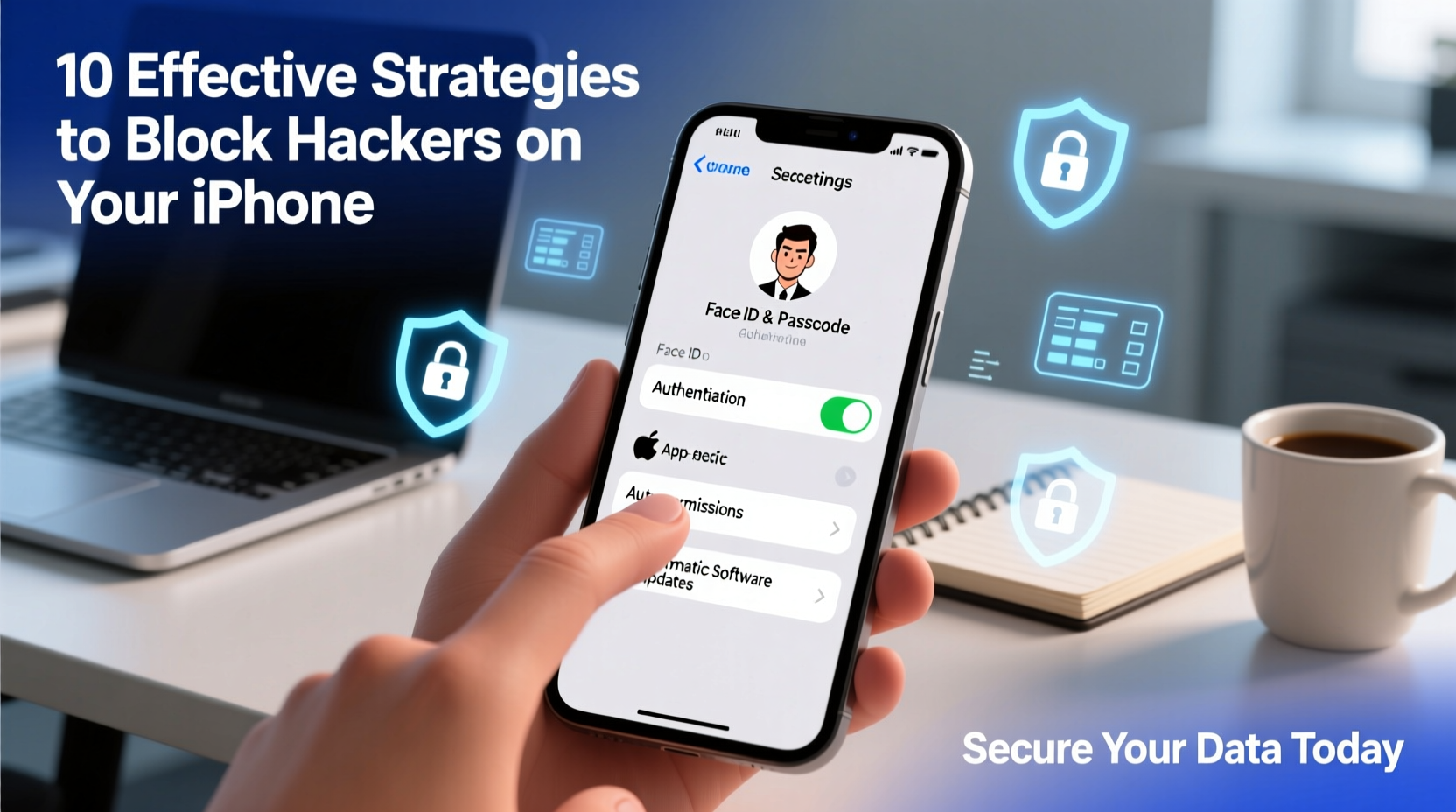
Apple consistently releases security patches through iOS updates. These fixes address vulnerabilities that hackers could exploit to gain access to your device. Delaying updates leaves known weaknesses unpatched—essentially inviting attackers in.
Many users ignore update notifications due to concerns about battery life or app compatibility. However, skipping critical updates is a gamble. Security researchers at the Citizen Lab, for example, have documented cases where zero-day exploits were used to install spyware like Pegasus through unpatched iOS flaws.
Use Strong Authentication Methods
Your passcode is the first line of defense. A simple four-digit PIN can be cracked in seconds using automated tools. Upgrade to a six-digit alphanumeric passcode or longer for exponentially greater protection.
Additionally, enable biometric authentication (Face ID or Touch ID) to add convenience without sacrificing security. Even if someone gains physical access to your phone, they won't easily bypass these layers.
“Strong passcodes combined with biometrics create a robust barrier against both digital and physical intrusion.” — Dr. Linette Lopez, Cybersecurity Researcher at MIT
Step-by-Step: Set Up a Strong Passcode
- Go to Settings > Face ID & Passcode (or Touch ID).
- Enter your current passcode.
- Select Change Passcode, then tap Passcode Options.
- Choose Custom Alphanumeric Code and set a unique combination of letters, numbers, and symbols.
- Avoid using personal information like birthdays or names.
Enable Two-Factor Authentication (2FA)
Two-factor authentication adds a second verification step when signing in to your Apple ID from a new device. Even if a hacker obtains your password, they cannot access your account without the second factor—typically a code sent to a trusted device or phone number.
To activate 2FA:
- Navigate to Settings > [Your Name] > Password & Security.
- Select Turn On Two-Factor Authentication.
- Verify your phone number and confirm the setup.
Once enabled, every login attempt will require approval via a trusted device, making remote breaches far less likely.
Be Wary of Phishing and Suspicious Links
Phishing remains one of the most common ways hackers infiltrate iPhones. These attacks often arrive via iMessage, email, or social media, disguised as urgent alerts from banks, delivery services, or Apple itself.
These messages typically contain links to fake websites designed to steal credentials. Safari now includes Intelligent Tracking Prevention and warnings for known malicious sites, but user awareness is still crucial.
Mini Case Study: The iCloud Phishing Trap
Sophia, a freelance designer, received an iMessage claiming her iCloud storage was full. The message included a link to “upgrade now.” She clicked it and entered her Apple ID and password on a site that looked identical to Apple’s. Within hours, her photos were leaked online.
Upon investigation, she realized the URL ended in “icloud-support.net” instead of “apple.com.” Apple does not send storage upgrade links via iMessage. After resetting her password and enabling 2FA, she regained control—but the breach could have been avoided entirely by recognizing the red flags.
Manage App Permissions and Privacy Settings
Many apps request excessive permissions—access to your microphone, camera, location, and contacts. While some are necessary (e.g., maps needing location), others may collect data unnecessarily or even serve as entry points for surveillance.
| Permission | When It's Needed | Risks If Misused |
|---|---|---|
| Location | Navigation, weather apps | Stalking, behavioral tracking |
| Microphone | Voice memos, calls | Eavesdropping, unauthorized recording |
| Camera | Photo/video apps | Secret photo capture |
| Contacts | Messaging, dialer apps | Data harvesting, spam campaigns |
Review and restrict permissions under Settings > Privacy & Security. Disable access for apps that don’t genuinely need it. For example, a calculator app should never require location data.
Secure Your Network Connections
Public Wi-Fi networks in cafes, airports, and hotels are convenient but notoriously insecure. Hackers can intercept traffic on these networks using man-in-the-middle attacks to steal login credentials or inject malware.
To stay safe:
- Avoid logging into sensitive accounts (banking, email) while on public Wi-Fi.
- Use a trusted Virtual Private Network (VPN) to encrypt all internet traffic.
- Disable automatic Wi-Fi joining to prevent connection to rogue hotspots named “Free Airport Wi-Fi.”
“Encryption is your best friend on public networks. Without it, your data travels in plain sight.” — Marcus Chen, Senior Network Security Analyst
Checklist: iPhone Security Audit
- ✅ iOS updated to the latest version
- ✅ Strong alphanumeric passcode set
- ✅ Face ID/Touch ID enabled
- ✅ Two-factor authentication active for Apple ID
- ✅ Review and limit app permissions
- ✅ Avoid suspicious links and unknown downloads
- ✅ Use a reputable VPN on public networks
- ✅ Turn off Bluetooth and AirDrop when not in use
- ✅ Enable Find My iPhone for remote wipe capability
- ✅ Regularly review trusted devices in Apple ID settings
Frequently Asked Questions
Can iPhones get viruses from websites?
iPhones are highly resistant to traditional viruses due to iOS sandboxing, but visiting malicious websites can lead to drive-by downloads or phishing attacks. Safari’s built-in protections help, but user caution is still required. Avoid clicking on pop-ups or untrusted links.
Is it safe to use third-party antivirus apps on iPhone?
Most “antivirus” apps on the App Store offer limited functionality because iOS restricts deep system access. They may provide network monitoring or phishing alerts, but true real-time scanning isn’t possible. Relying on Apple’s native security features and safe browsing habits is more effective.
What should I do if I suspect my iPhone has been hacked?
Immediately change your Apple ID password and enable two-factor authentication if not already active. Revoke access to any unrecognized devices under Apple ID settings. Install the latest iOS update. As a last resort, back up important data and perform a factory reset. Monitor financial and email accounts for signs of misuse.
Conclusion: Take Control of Your Digital Safety
Your iPhone holds a vast amount of personal information—your responsibility to protect it grows with every photo saved, message sent, and account logged in. No single setting guarantees total security, but combining software updates, strong authentication, cautious browsing, and smart permission management creates a formidable defense.




 浙公网安备
33010002000092号
浙公网安备
33010002000092号 浙B2-20120091-4
Comments
No comments yet. Why don't you start the discussion?