
Smartphones have become indispensable tools in daily life, but over time they tend to slow down and run out of space. This isn’t inevitable—it’s often the result of accumulated digital clutter, unused apps, and inefficient file management. The good news is that a few targeted actions can dramatically improve both speed and available storage. Whether you’re using an iPhone or Android device, these practical, proven strategies will help you reclaim performance and keep your phone running smoothly.
1. Audit and Remove Unused Apps
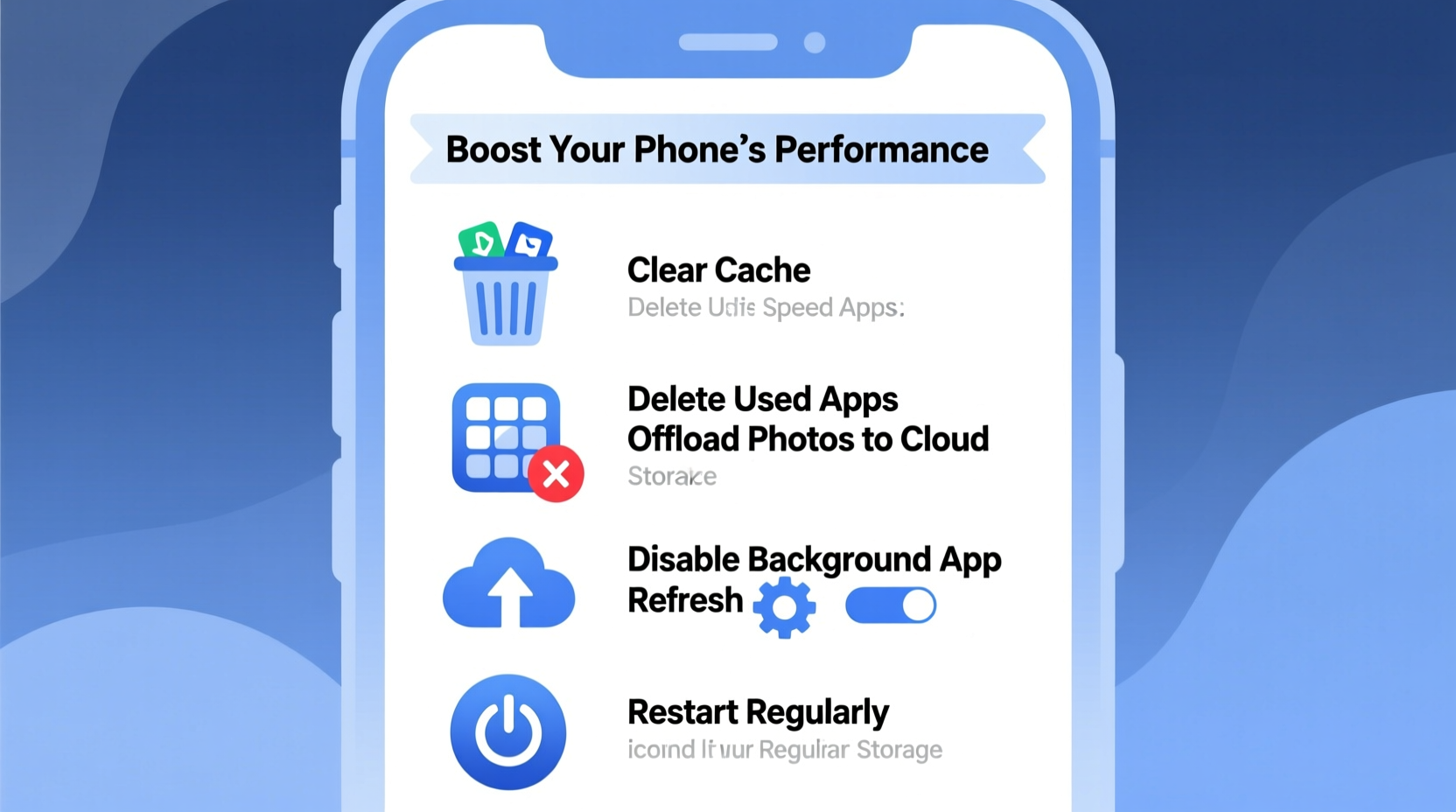
One of the biggest contributors to sluggish performance and wasted storage is the collection of apps you no longer use. Many of these continue to run background processes, consume memory, and receive updates without providing any real benefit.
Start by reviewing every app on your home screens and app drawer. Ask yourself: Have I used this in the past 30 days? Does it serve a current purpose? If not, uninstall it.
Some apps may seem small individually, but together they occupy gigabytes—especially those with cached data or media files. Games, social media apps, and streaming services are frequent offenders.
2. Clear Cache and Temporary Files Regularly
Cache files help apps load faster by storing temporary data, but over time they accumulate and can take up significant space. While clearing cache won’t delete your personal data, it can free up hundreds of megabytes—or even gigabytes—on older devices.
On Android, go to Settings > Storage > Cleaner (or similar, depending on brand) to automatically clear cached data. For manual control, visit individual app settings under \"Storage\" and tap “Clear Cache.”
iOS handles caching more automatically, but restarting your phone periodically helps flush unnecessary temporary files. You can also offload unused apps (Settings > General > iPhone Storage > Enable “Offload Unused Apps”), which removes the app but keeps its documents and data.
“Regular cache maintenance is like changing the oil in your car—it prevents long-term damage and keeps systems running efficiently.” — David Lin, Mobile Systems Engineer at TechFlow Labs
3. Optimize Photo and Video Storage
Photos and videos typically consume the largest portion of phone storage. A single 4K video can take up hundreds of megabytes, and high-resolution photos add up quickly.
To manage this:
- Back up your media to cloud services like Google Photos, iCloud, or Dropbox.
- Delete duplicates, blurry shots, and screenshots you no longer need.
- Use built-in tools: Google Photos offers a “Free Up Space” option; iOS has “Optimize iPhone Storage” under Settings > Photos.
| Strategy | Benefit | Platform |
|---|---|---|
| Enable cloud backup + auto-delete | Reduces local storage use by 40–70% | Both iOS & Android |
| Delete old screenshots | Reclaims 500MB–2GB easily | Both |
| Use HEIF/HEVC format | Halves photo/video file sizes | iOS (enable in Settings > Camera > Formats) |
| Disable auto-download in messaging apps | Prevents media buildup in WhatsApp, Telegram, etc. | Both |
4. Manage Messaging App Data
Messaging apps like WhatsApp, Facebook Messenger, and iMessage silently fill your storage with photos, videos, voice notes, and documents. Over months or years, this becomes a major burden.
In WhatsApp, go to Settings > Storage and Management > Manage Storage to review media by chat and selectively delete large files. You can also disable automatic downloads for media over mobile, Wi-Fi, or roaming in Settings > Chats > Chat Backup.
For iMessage, reduce message retention under Settings > Messages > Keep Messages (set to 30 days or 1 year instead of forever). Also disable Memoji and large attachments if unused.
5. Perform a Monthly Digital Detox Routine
Just as physical clutter affects mental clarity, digital clutter impacts device performance. Establishing a monthly cleanup habit ensures your phone stays fast and responsive.
Follow this step-by-step routine:
- Day 1 – Review Installed Apps: Uninstall anything unused in the last month.
- Day 2 – Clean Media: Delete duplicate photos, old screenshots, and unwanted videos.
- Day 3 – Clear Caches: Use system tools or manually clear caches in heavy apps (e.g., Instagram, TikTok).
- Day 4 – Tidy Messaging Apps: Remove large media from chats and disable auto-downloads.
- Day 5 – Reboot Device: Restart your phone to refresh memory and terminate lingering processes.
“A disciplined monthly cleanup can extend your phone’s usable life by 2–3 years.” — Priya Mehta, UX Researcher at Mobile Insights Group
Mini Case Study: Reviving a Sluggish Two-Year-Old Phone
Mark, a freelance designer, noticed his iPhone 12 was taking longer to open apps, frequently freezing, and showing “Storage Almost Full” warnings after two years of regular use. He avoided upgrading due to cost and environmental concerns.
He applied the following steps:
- Uninstalled 23 unused apps, freeing 4.2 GB.
- Backed up 1,800+ photos to iCloud and deleted originals using “Optimize iPhone Storage.”
- Cleared cache in Instagram, Spotify, and Safari.
- Disabled auto-download of media in WhatsApp and Telegram.
- Restarted the device after cleanup.
The result? His phone gained 12.7 GB of free space, app launch times improved by nearly 40%, and overall responsiveness returned to near-new levels—all without resetting or replacing the device.
Frequently Asked Questions
Will clearing cache delete my saved passwords or login sessions?
No, clearing cache typically only removes temporary files like thumbnails and offline data. However, some apps may log you out if session tokens are stored in cache. It’s wise to know your passwords before clearing app data.
Is it safe to use third-party cleaning apps?
Most are unnecessary and potentially risky. iOS restricts access to system files, making such apps ineffective. On Android, many so-called “cleaners” display misleading stats or show ads. Stick to built-in tools like Samsung’s Device Care or Google’s Digital Wellbeing.
How often should I clean my phone’s storage?
A full cleanup every 4–6 weeks is ideal. Quick checks—like deleting screenshots or offloading unused apps—can be done weekly. Set a calendar reminder to stay consistent.
Final Checklist: Your Phone Cleanup Blueprint
- ✅ Uninstall apps not used in the last 30 days
- ✅ Back up photos/videos to the cloud
- ✅ Delete duplicate and low-quality images
- ✅ Clear cache in top 5 largest apps
- ✅ Disable auto-download of media in messaging apps
- ✅ Offload or delete large files (videos, podcasts, downloads)
- ✅ Restart your phone after cleanup
- ✅ Schedule next cleanup in 4 weeks
Take Control of Your Device’s Performance Today
Your phone doesn’t need to slow down just because it’s aging. With intentional digital hygiene, even older models can perform like new. The strategies outlined here require minimal time but deliver lasting benefits in speed, efficiency, and peace of mind. Start today—pick one section, complete it, and feel the difference. A faster, leaner phone is within reach, and it begins with what you choose to keep—and what you let go.




 浙公网安备
33010002000092号
浙公网安备
33010002000092号 浙B2-20120091-4
Comments
No comments yet. Why don't you start the discussion?