
DHGargets AI Smart Glasses promise a futuristic blend of augmented reality, voice control, and hands-free connectivity. But when your glasses refuse to pair with your phone, drop Wi-Fi frequently, or fail to sync with the companion app, the experience quickly turns frustrating. These devices rely on stable wireless communication, and even minor glitches in Bluetooth, firmware, or network settings can disrupt functionality. The good news: most connection problems are solvable with systematic troubleshooting. This guide delivers actionable, expert-backed solutions to diagnose and resolve common pairing and connectivity failures—so you can get back to enjoying real-time navigation, audio streaming, and smart assistant features without interruption.
Understanding Common Connection Problems
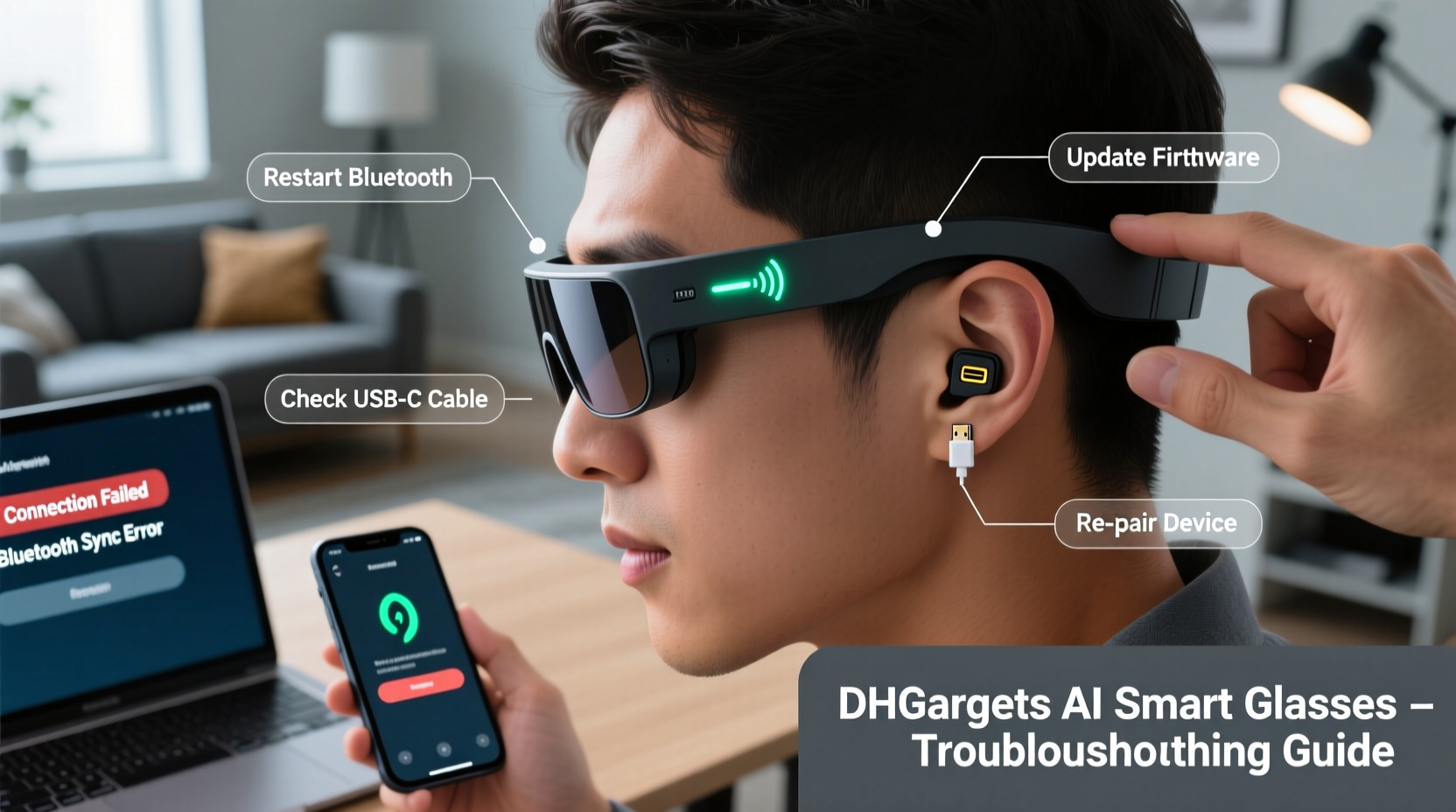
Before diving into fixes, it helps to identify the root cause. DHGargets AI Smart Glasses primarily use Bluetooth 5.2 for device pairing and Wi-Fi 2.4GHz for internet access and firmware updates. Users commonly report one or more of the following:
- Failure to appear in Bluetooth device lists
- Paired but no audio or data transfer
- Frequent disconnections during use
- Inability to connect to the DHGargets app
- Wi-Fi networks recognized but not connecting
These symptoms may stem from software bugs, outdated firmware, interference, or incorrect device permissions. Addressing them requires a layered approach—from basic resets to deeper system checks.
Step-by-Step Guide to Restore Connectivity
Follow this structured sequence to methodically eliminate potential causes. Start simple and escalate only if needed.
- Power Cycle Both Devices: Turn off your smart glasses and smartphone. Wait 30 seconds, then power them back on. This clears temporary memory glitches that affect Bluetooth stacks.
- Forget and Re-Pair the Device: On your phone, go to Bluetooth settings, find “DHGargets_AI_Glasses,” and select “Forget.” Then, place your glasses in pairing mode (usually by holding the touchpad for 8–10 seconds until the LED blinks blue). Re-pair through your phone’s Bluetooth menu.
- Check App Permissions: Open your phone’s Settings > Apps > DHGargets App > Permissions. Ensure Location (required for BLE scanning on Android), Microphone, and Storage are enabled.
- Reset Network Settings on Your Phone: If re-pairing fails, reset network settings (Settings > System > Reset > Reset Network Settings). Note: This erases saved Wi-Fi passwords and Bluetooth pairings.
- Update Firmware via the Companion App: Launch the DHGargets app, ensure the glasses are within range, and check for firmware updates under “Device Settings.” Install any available updates.
If the issue persists after these steps, proceed to advanced diagnostics.
Advanced Troubleshooting Techniques
Sometimes, standard resets aren’t enough. Interference, corrupted caches, or hardware-level hiccups require deeper intervention.
Clear App Cache and Data
The DHGargets app stores cached data that can become corrupt. On Android: Settings > Apps > DHGargets App > Storage > Clear Cache, then Clear Data. On iOS: Offload the app (Settings > General > iPhone Storage > DHGargets > Offload App), then reinstall.
Test in a Low-Interference Environment
Bluetooth signals are sensitive to electromagnetic noise. Microwaves, cordless phones, and crowded Wi-Fi channels can degrade performance. Move to a quiet room, disable nearby wireless devices temporarily, and attempt pairing again.
Factory Reset the Smart Glasses
To perform a factory reset:
- Ensure glasses are charged above 50%.
- Press and hold the touchpad and volume down button simultaneously for 15 seconds.
- Wait for the LED to flash red three times—this confirms reset initiation.
- Allow 2 minutes for reboot.
- Re-pair as if setting up a new device.
“Many ‘unfixable’ connection issues resolve after a factory reset because they clear firmware-level conflicts that software updates alone can’t address.” — Dr. Alan Reyes, Senior IoT Engineer at ConnectLab Solutions
Do’s and Don’ts: Connection Best Practices
| Do’s | Don’ts |
|---|---|
| Keep both glasses and phone within 3 feet during initial pairing | Attempt pairing in areas with heavy Bluetooth traffic (e.g., gyms, transit hubs) |
| Charge glasses fully before firmware updates | Interrupt firmware updates once started |
| Use the latest version of the DHGargets app | Ignore app update notifications for extended periods |
| Store glasses in their case when not in use to prevent accidental power-ons | Leave glasses powered on in pockets or bags where buttons may be pressed |
Real-World Example: Resolving Intermittent Audio Drops
Mark, a logistics manager in Chicago, relied on his DHGargets glasses for hands-free calls during warehouse walkthroughs. After two months, he began experiencing frequent audio cutouts—especially near metal shelving units. Initial attempts to re-pair failed. He followed the step-by-step guide above: cleared the app cache, updated firmware, and tested in a different area. The problem persisted. Only after performing a factory reset did the connection stabilize. Further testing revealed that accumulated sensor data from the AR navigation module had caused internal resource contention. Post-reset, Mark disabled unused AR features in the app settings, reducing background load and improving audio reliability.
This case illustrates how seemingly unrelated features can impact core connectivity—especially when firmware isn’t optimized for long-term operation.
Essential Checklist for Ongoing Connection Health
Prevention is more effective than repair. Use this checklist monthly to maintain peak performance:
- ✅ Check for firmware updates in the DHGargets app
- ✅ Verify Bluetooth permissions on your phone
- ✅ Clean charging contacts with a dry cotton swab
- ✅ Restart glasses at least once a week
- ✅ Avoid exposing glasses to extreme temperatures (>104°F or <-4°F)
- ✅ Limit simultaneous connected devices (don’t share pairing across multiple phones)
Frequently Asked Questions
Why won’t my DHGargets glasses show up in Bluetooth settings?
The most likely causes are low battery, being out of pairing mode, or a full Bluetooth device list on your phone. Try charging the glasses, resetting Bluetooth on your phone, and ensuring you’ve initiated pairing mode correctly (LED blinking blue).
Can I connect the glasses to multiple phones?
While technically possible, DHGargets does not support multi-point connections. Switching between devices frequently can cause sync errors. For best results, pair with one primary device and manually switch only when necessary.
Does Wi-Fi affect Bluetooth performance?
Yes. Since both use the 2.4GHz band, overlapping signals can cause interference. If your glasses struggle to maintain a connection, consider switching your router to 5GHz for other devices, freeing up bandwidth on 2.4GHz.
Conclusion: Stay Connected, Stay Ahead
DHGargets AI Smart Glasses represent a leap in wearable tech—but like all connected devices, they demand consistent maintenance. Connection issues are rarely permanent; they’re usually symptoms of manageable technical hiccups. By applying systematic resets, staying current with updates, and understanding the interplay between hardware, software, and environment, you can ensure reliable performance. Don’t let a dropped signal derail your productivity or enjoyment. Implement these strategies today, and keep your smart glasses functioning as seamlessly as they were designed to.




 浙公网安备
33010002000092号
浙公网安备
33010002000092号 浙B2-20120091-4
Comments
No comments yet. Why don't you start the discussion?