
A cluttered hard drive slows down your system, reduces responsiveness, and can even prevent software updates from installing. Yet many users hesitate to delete anything, fearing they might lose critical documents, photos, or work projects. The good news is that you can reclaim gigabytes of storage without risking data loss. With the right approach, you’ll improve performance while keeping everything valuable intact.
1. Identify What’s Taking Up Space
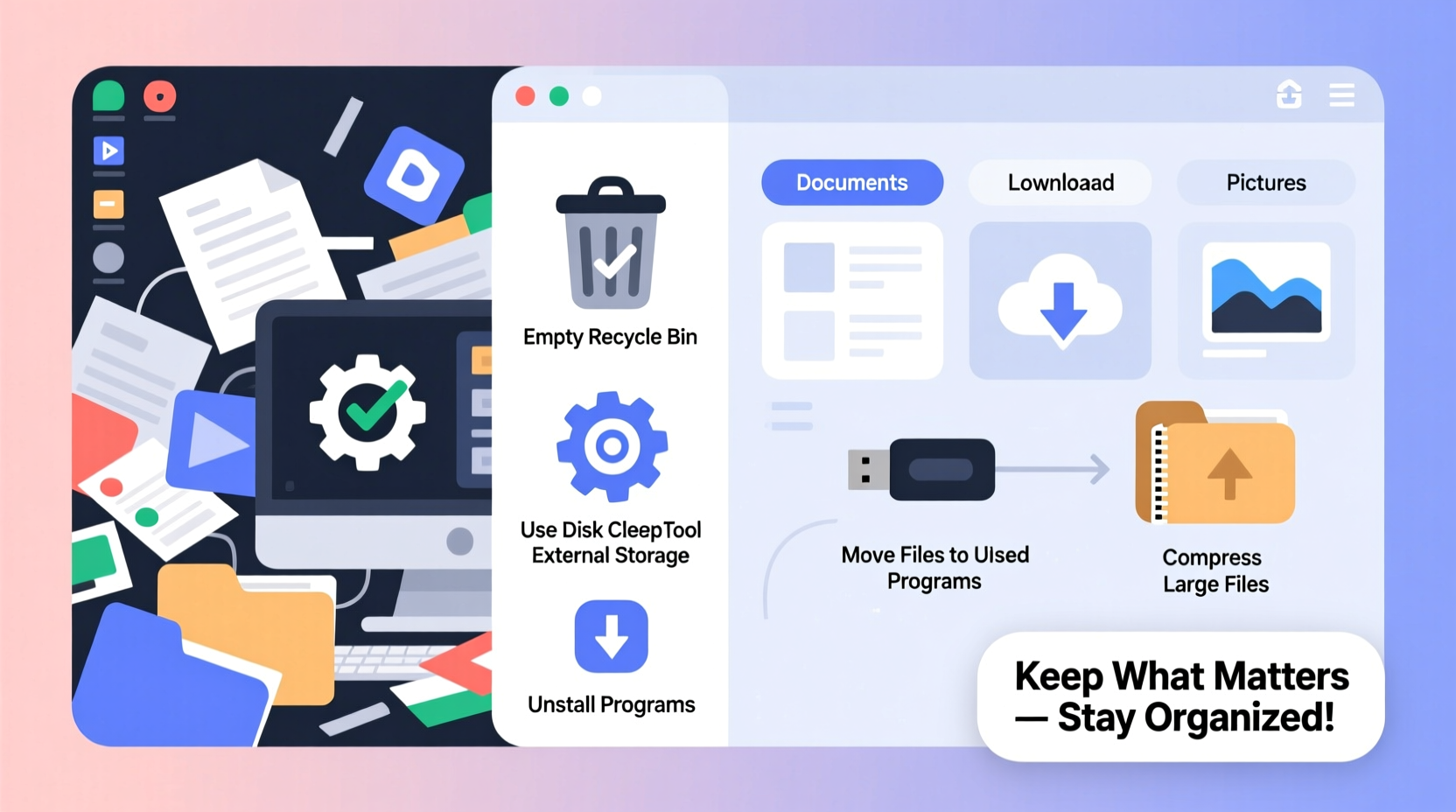
Before deleting or moving anything, understand what’s consuming your disk space. Windows and macOS both offer built-in tools to analyze storage usage. On Windows, go to Settings > System > Storage to see a breakdown by category—apps, documents, temporary files, and more. macOS users can access this under Apple Menu > About This Mac > Storage.
Third-party tools like WinDirStat (Windows) or DaisyDisk (macOS) provide visual maps of your drive, showing which folders are largest. These insights help you prioritize cleanup efforts where they matter most.
2. Clean Temporary and Cache Files Safely
Operating systems, browsers, and applications generate cache and temporary files over time. While useful for speeding up processes, these files often accumulate far beyond necessity.
On Windows, use the built-in Disk Cleanup tool:
- Type “Disk Cleanup” in the Start menu.
- Select your main drive (usually C:).
- Check boxes like “Temporary files,” “Recycle Bin,” and “Delivery Optimization Files.”
- Click “Clean up system files” for deeper removal (including old Windows updates).
For macOS, navigate to ~/Library/Caches and manually delete contents of subfolders (e.g., com.apple.Safari). Avoid deleting the folders themselves—just their contents. Browsers also store significant cache; clearing it via settings rarely affects bookmarks or passwords.
“Regularly cleaning temporary files is one of the safest ways to recover space with zero risk to personal data.” — David Lin, Senior Systems Administrator at TechFlow Solutions
3. Organize and Offload Large Media Files
Photos, videos, and audio files are typically the biggest space hogs. A single 4K video can take up several gigabytes. Instead of deleting them, relocate them to external storage or cloud services.
Consider this practical workflow:
- Back up all media to an external hard drive or NAS (Network Attached Storage).
- Use cloud platforms like Google Photos, OneDrive, or iCloud with optimization enabled (keeps low-res versions locally).
- Delete original high-resolution copies only after confirming backups are complete and accessible.
This strategy frees up local space while ensuring long-term preservation.
Do’s and Don’ts When Handling Media Files
| Do | Don’t |
|---|---|
| Create a folder structure (e.g., by year or event) before transferring. | Delete originals without verifying backup integrity. |
| Use checksum tools to confirm file transfer accuracy. | Store backups on the same physical drive as originals. |
| Leverage cloud auto-sync for ongoing photo management. | Assume “upload complete” means “backup secure”—test restores occasionally. |
4. Uninstall Unused Programs and Bloatware
Many pre-installed apps (bloatware) serve little purpose and consume hundreds of megabytes each. Others may be software you tried once and never used again.
To remove safely:
- On Windows: Go to Settings > Apps > Installed apps, sort by size, and uninstall large, unused entries.
- On macOS: Open Applications folder, drag unwanted apps to Trash, then empty it.
Be cautious with system-related entries. If unsure, search the app name online before removing. Also, consider portable alternatives (like lightweight browsers or open-source tools) that leave fewer traces behind.
5. Use Cloud Sync and File Streaming
Modern operating systems support file-on-demand features that keep files in the cloud but make them appear locally. For example:
- OneDrive: Right-click any synced folder and select “Free up space” to keep only shortcuts until opened.
- iCloud Drive: Enable “Optimize Mac Storage” to automatically offload older files.
This means you retain full access to your files without occupying physical disk space. It's ideal for archives, project backups, or seasonal documents like tax records.
Mini Case Study: Recovering 80GB in a Day
Sarah, a freelance graphic designer, noticed her laptop was nearly full despite having deleted “everything she could.” Using WinDirStat, she discovered 67GB of old client project renders stored in a forgotten folder. She moved them to an encrypted external SSD and set up OneDrive for future collaboration files. By enabling OneDrive’s Files On-Demand, another 12GB became available immediately. Total recovered space: 79.3GB—all without deleting a single essential file.
Step-by-Step Weekly Maintenance Routine
Maintaining space doesn’t require monthly deep cleans. Integrate these steps into a weekly habit:
- Day 1 – Scan Storage: Run your OS storage analyzer to identify growth areas.
- Day 2 – Clear Browser Cache: In Chrome, Firefox, or Edge, clear last week’s cached images and files.
- Day 3 – Review Downloads Folder: Move or delete files older than 14 days unless needed.
- Day 4 – Check Cloud Sync Status: Ensure recent uploads completed and verify offloaded files are accessible.
- Day 5 – Audit Installed Software: Remove at least one unused program per month.
Consistency prevents buildup and eliminates the need for stressful cleanups later.
Frequently Asked Questions
Can I really free up space without deleting personal files?
Yes. Most space recovery comes from temporary files, caches, duplicates, and relocating large media—not from deleting personal documents. Smart organization and cloud integration allow you to access everything without storing it locally.
Is it safe to delete files from the Temp folder?
Generally, yes. Files in C:\\Users\\[Username]\\AppData\\Local\\Temp are meant to be temporary. However, close all programs before deletion to avoid removing active process files. When in doubt, reboot first, then delete.
What if my computer still runs slow after freeing up space?
Storage is just one factor. Performance also depends on RAM, CPU, background processes, and drive health. If you have less than 20% free space, your system may struggle with virtual memory. Aim to keep at least 15–20% of your drive unoccupied for optimal operation.
Final Thoughts: Make Space Management a Habit
Freeing up space isn’t a one-time fix—it’s part of responsible digital hygiene. By understanding what takes up room, leveraging cloud solutions, and maintaining regular cleanup habits, you protect both performance and peace of mind. The goal isn’t minimalism for its own sake, but efficiency: a machine that works faster because it isn’t burdened by clutter.




 浙公网安备
33010002000092号
浙公网安备
33010002000092号 浙B2-20120091-4
Comments
No comments yet. Why don't you start the discussion?