
Smartphones are essential for communication, productivity, and entertainment—but limited storage can quickly turn them into sluggish devices. Many users face the frustrating choice between deleting cherished photos or uninstalling useful apps. The good news is that you don’t have to sacrifice valuable memories or functionality. With intelligent organization, cloud integration, and built-in optimization tools, it’s entirely possible to free up significant space while keeping every important file intact.
Understand What’s Taking Up Space
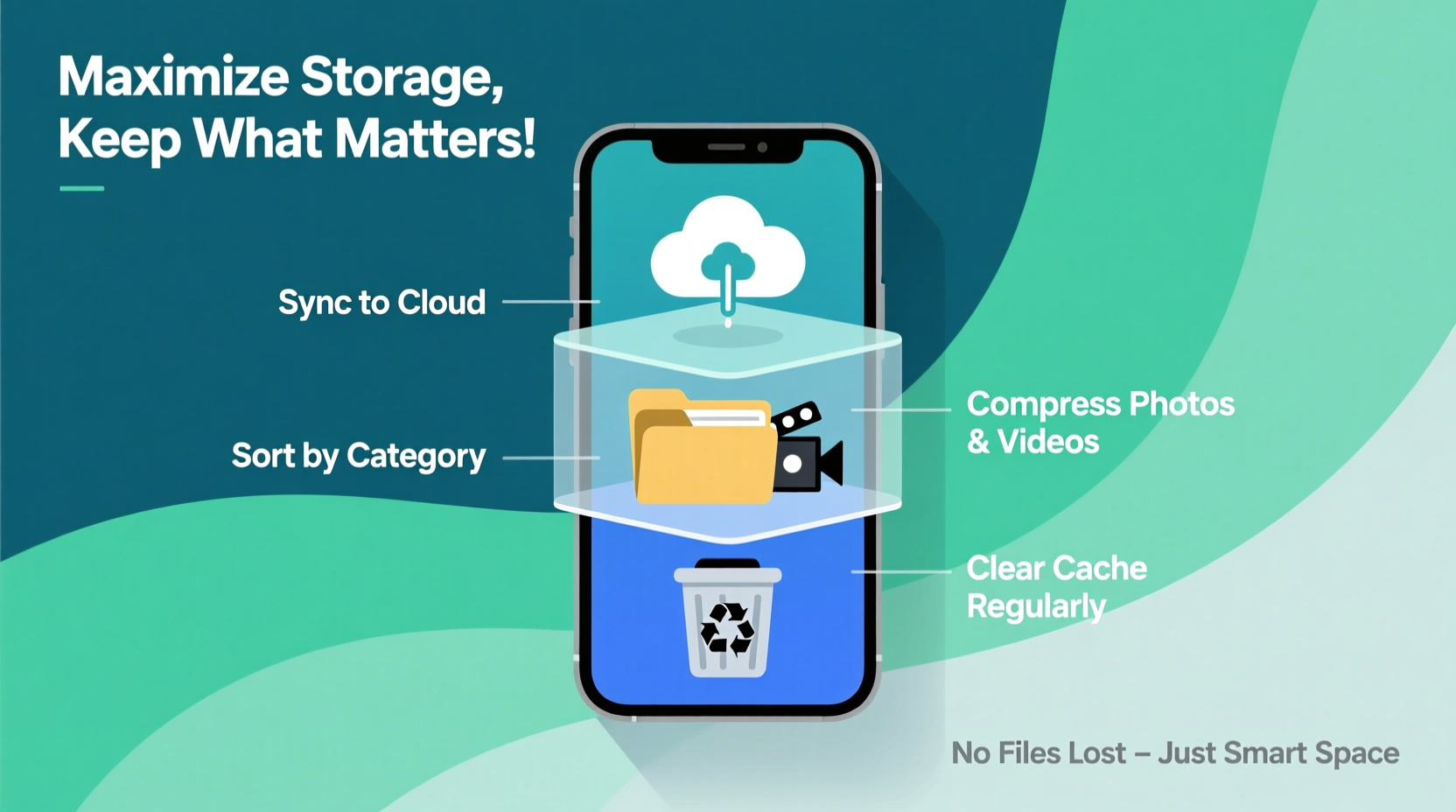
Before making changes, identify what’s consuming your phone’s storage. Most modern smartphones offer a detailed breakdown under Settings > Storage. Common space hogs include:
- Photos and videos: Often the largest category, especially with high-resolution cameras.
- App data and cache: Apps store temporary files and user data that accumulate over time.
- Downloads: Forgotten PDFs, documents, and installers pile up silently.
- Messages with media: Group chats filled with images, voice notes, and videos can occupy gigabytes.
Knowing exactly where space is being used allows you to prioritize actions without blindly removing files.
Leverage Cloud Storage for Media and Documents
Cloud services are among the most effective tools for reclaiming local storage. By offloading photos, videos, and documents to secure online platforms, you maintain access while freeing up device space.
Popular options include Google Photos, iCloud, Dropbox, and Microsoft OneDrive. Each offers automatic backup features that sync your content in the background.
“Moving your photo library to the cloud can free up 50% or more of your phone’s storage—without losing a single memory.” — Lena Park, Mobile Optimization Specialist
For example, enabling Google Photos’ “Free up space” feature automatically removes locally stored images after confirming they’ve been backed up. This process is seamless and reversible if needed.
Step-by-Step: Enable Automatic Photo Backup (Android & iOS)
- Open the Google Photos or iCloud app.
- Sign in with your account (create one if necessary).
- Navigate to Settings > Backup & Sync (Google) or Settings > [Your Name] > iCloud > Photos (Apple).
- Toggle on “Back Up & Sync” or “iCloud Photos.”
- Wait for initial upload to complete—preferably over Wi-Fi.
- After confirmation, use the “Free up space” option in Google Photos or check iCloud settings to optimize iPhone storage.
Use Smart File Management Tools
Manual sorting through folders is time-consuming. Instead, use built-in or third-party file managers that identify duplicates, large files, and obsolete downloads.
On Android, the Files by Google app analyzes your device and suggests actions like removing duplicate photos or clearing residual APK files. Apple’s iPhone Storage section in Settings highlights large apps and offers “Offload App” functionality—keeping documents while removing the app binary.
| Tool | Platform | Key Benefit |
|---|---|---|
| Files by Google | Android | Detects duplicates, junk files, and enables fast sharing |
| iPhone Storage Suggestions | iOS | Recommends unused apps, large items, and offloading options |
| Duplicate File Finder | Cross-platform | Locates redundant photos, audio, and documents |
| CCleaner | Android/iOS | Clears cache and temporary system files safely |
Mini Case Study: Reclaiming 12GB in One Weekend
Sarah, a freelance photographer, noticed her iPhone was constantly warning about full storage. She had over 4,000 photos, many duplicates from editing sessions. Using iCloud Photos, she enabled syncing across all devices. After a week of uploading, she activated “Optimize iPhone Storage,” which replaced full-resolution images with smaller versions. She then used an app to detect 387 duplicate JPEGs totaling 2.3GB. Separately, she moved old client contracts to Dropbox and cleared WhatsApp media backups. In two days, she reclaimed 12.6GB—without deleting any original work.
Minimize App Bloat and Cache Buildup
Apps often grow larger over time due to cached data, logs, and embedded media. While some cache improves performance, excessive buildup serves no purpose.
To manage this:
- Review app sizes regularly in Settings > Storage.
- Tap on large apps (especially social media and streaming services) and clear cache—not data, unless you’re prepared to re-login.
- Use “Lite” versions of apps when available (e.g., Facebook Lite, YouTube Go).
- Uninstall rarely used apps and rely on web versions instead.
Do’s and Don’ts of App Storage Management
| Do | Don’t |
|---|---|
| Clear cache monthly for social media apps | Delete app data without backing up login info |
| Offload infrequently used apps (iOS) | Ignore app updates that include size optimizations |
| Use progressive web apps (PWAs) for services like Twitter or Notion | Keep multiple note-taking or cloud storage apps |
Create a Sustainable Digital Maintenance Routine
Storage optimization isn’t a one-time fix—it requires ongoing habits. A consistent routine prevents clutter from accumulating again.
Weekly Checklist for Phone Storage Health
- ✅ Review cloud backup status (photos, documents)
- ✅ Delete downloaded files no longer needed
- ✅ Clear cache for top 3 space-consuming apps
- ✅ Archive or move old messages with media attachments
- ✅ Uninstall at least one unused app
This simple five-minute weekly habit keeps your phone running smoothly and avoids last-minute panic when storage runs out.
Frequently Asked Questions
Will moving photos to the cloud delete them from my phone?
Not necessarily. Services like Google Photos and iCloud offer options to keep originals in the cloud while storing optimized versions locally. Use the “Free up space” or “Optimize Storage” settings to remove full-size copies only after backup confirmation.
Is it safe to clear an app’s cache?
Yes. Cache contains temporary files used to speed up loading times. Clearing it won’t affect your personal data, settings, or login status in most cases. The app may load slightly slower the next time you open it as it rebuilds the cache.
Can I recover files after using “Free up space” in Google Photos?
Absolutely. As long as the photos were successfully backed up, they remain accessible in the app. If you open a freed-up photo, it will download again from the cloud. Deleted items stay in the Trash for 60 days before permanent removal.
Take Control of Your Digital Space
Maximizing your phone’s storage doesn’t require sacrificing precious memories or essential apps. By combining cloud solutions, smart file management, and regular maintenance, you gain breathing room and improved performance. The key is consistency—small actions taken weekly prevent overwhelming clutter later. Start today by reviewing your largest apps and enabling automatic photo backup. Within days, you’ll notice faster response times and fewer storage warnings.




 浙公网安备
33010002000092号
浙公网安备
33010002000092号 浙B2-20120091-4
Comments
No comments yet. Why don't you start the discussion?