
In today’s digital age, smartphones are nearly indispensable—even for children and teens. While these devices offer educational tools, social connection, and entertainment, they also expose young users to risks like inappropriate content, cyberbullying, and excessive screen time. As a parent or guardian, establishing strong parental controls is not about surveillance; it's about creating a safe digital environment that supports healthy development. The good news? Whether you're using an iPhone, Android device, or managing multiple platforms at home, effective tools and strategies exist to help you take control—without sacrificing trust.
Understanding the Risks of Unmonitored Phone Use
Children as young as eight now have access to smartphones, often without adequate digital boundaries. According to the American Academy of Pediatrics, excessive screen time can disrupt sleep, reduce physical activity, and impair attention spans. Beyond usage habits, unfiltered internet access exposes kids to mature content, online predators, and social media pressures. A 2023 report from Common Sense Media found that over 60% of tweens encountered explicit material online unintentionally before turning 13.
Parental controls act as digital guardrails—not to restrict freedom, but to guide responsible behavior. They allow caregivers to filter content, limit app access, monitor location, and manage screen time, all while teaching kids how to navigate technology wisely.
Step-by-Step Guide to Setting Up Parental Controls
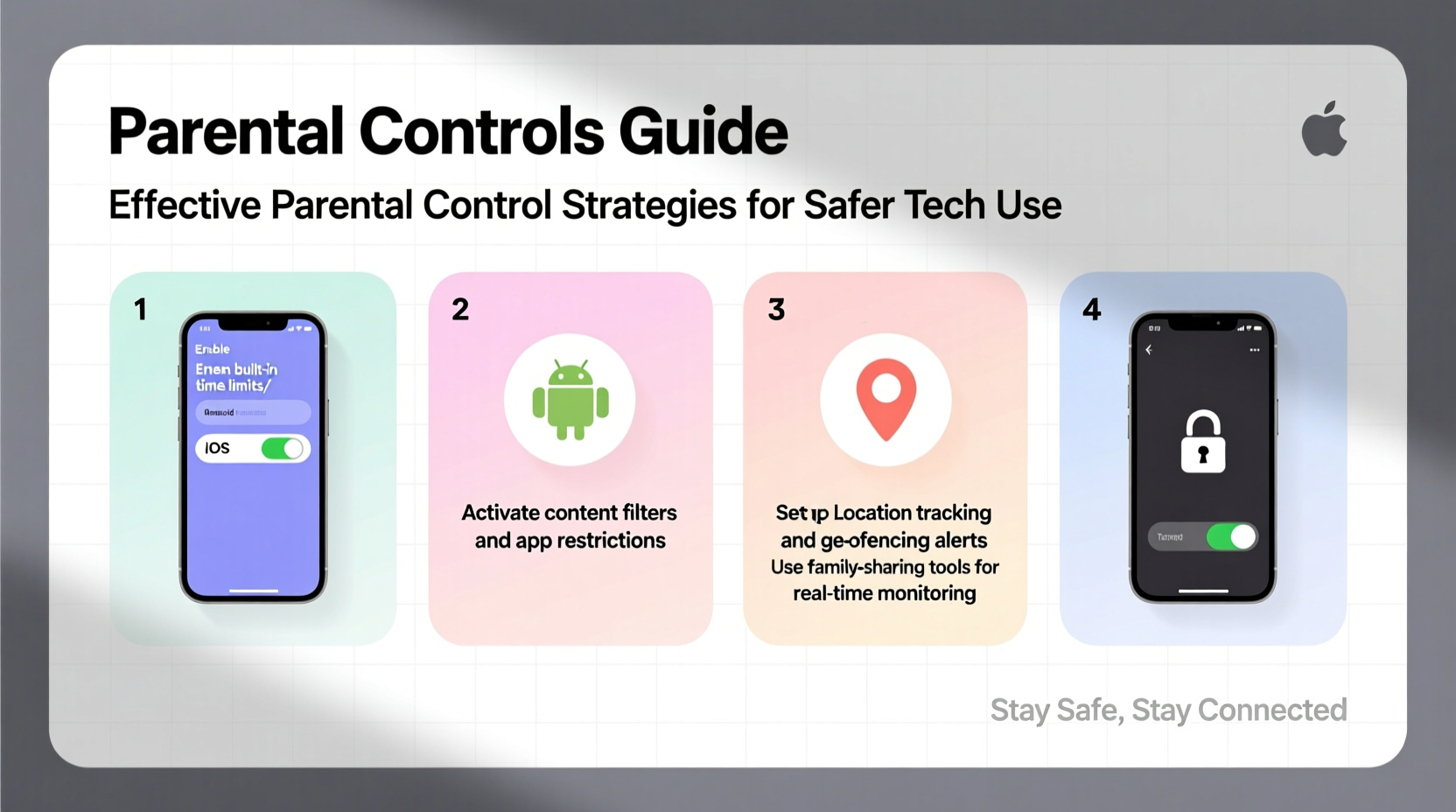
Setting up parental controls varies slightly between operating systems, but the process follows a consistent logic. Follow this universal timeline to secure any smartphone:
- Determine the user profile: Is the phone used by a child under 10, a preteen, or a teenager? Age influences which restrictions are appropriate.
- Choose the primary platform: Identify whether the device runs iOS (iPhone) or Android. Each has built-in tools and third-party options.
- Set up a family account: Use Apple Family Sharing or Google Family Link to link the child’s device to your own.
- Enable content filters: Block adult websites, mature apps, and explicit music or videos.
- Manage screen time: Set daily limits, downtime schedules (e.g., no phone after 9 PM), and app-specific timers.
- Review location settings: Enable GPS tracking so you know where your child is, especially during commutes.
- Test the setup: Try accessing blocked sites or apps to ensure protections are active.
- Discuss the rules: Transparency builds trust. Explain why certain limits exist and involve your child in setting reasonable boundaries.
Platform-Specific Control Options
While third-party apps exist, both iOS and Android offer robust native solutions. Here's how they compare:
| Feature | iOS (Screen Time + Family Sharing) | Android (Google Family Link) |
|---|---|---|
| Content Filtering | Blocks adult websites, explicit content in apps, and restricts app downloads by age rating. | Filters search results, blocks inappropriate sites, and restricts YouTube content. |
| Screen Time Limits | Custom daily limits per app, scheduled downtime, and “Always Allowed” apps. | Set daily usage caps and bedtime mode to lock the device overnight. |
| App Management | Prevent app deletions, disable in-app purchases, and require approval for new downloads. | Remotely approve or block app installations and purchases. |
| Location Tracking | Find My app shows real-time location; geofencing alerts available via third-party tools. | View child’s location in real time; get alerts when they arrive or leave specific places. |
| Cost | Free with iCloud account. | Free with Google account. |
For families using mixed devices, Google Family Link works on both Android and iOS, allowing centralized management even if your child uses an iPhone. This cross-platform flexibility makes it ideal for households with varied tech ecosystems.
Real Example: How One Family Regained Digital Balance
The Rivera family had growing concerns when their 12-year-old son began staying up late playing mobile games and became withdrawn during meals. After a teacher mentioned declining focus in class, they decided to intervene. Using Google Family Link on his Android phone, they set a 7 PM daily downtime, limited gaming apps to one hour, and disabled notifications after 8 PM. They also enabled SafeSearch and restricted access to social media until age-appropriate.
Within three weeks, homework completion improved, and family conversations at dinner resumed. More importantly, their son admitted he felt less anxious without constant pings. The parents emphasized that the goal wasn’t punishment but balance—and the transparency helped him understand digital responsibility.
“Technology isn’t the enemy. Poorly managed access is.” — Dr. Lena Torres, Child Psychologist & Digital Wellness Advocate
Essential Checklist for Effective Parental Controls
- ✅ Create a family group using Apple Family Sharing or Google Family Link
- ✅ Enable content and privacy restrictions based on age
- ✅ Set daily screen time limits and enforce bedtime device curfews
- ✅ Approve all app downloads and in-app purchases
- ✅ Activate location services for safety tracking
- ✅ Regularly review activity reports (available in both platforms)
- ✅ Update software to ensure security patches and feature improvements
- ✅ Hold monthly check-ins to discuss digital habits and adjust rules as needed
Common Pitfalls and How to Avoid Them
Even well-intentioned setups can fail due to oversight. Common mistakes include:
- Using weak passwords: Children often guess admin passwords. Use complex combinations and avoid birthdays or common words.
- Over-restricting: Excessive blocking can lead to resentment or attempts to bypass controls. Focus on high-risk areas first.
- Ignoring updates: Software updates often include security enhancements. Enable automatic updates whenever possible.
- Not involving the child: Rules imposed without explanation feel punitive. Co-create digital agreements to foster accountability.
One effective strategy is drafting a “Family Media Agreement” that outlines expectations, responsibilities, and consequences. This document becomes a reference point during discussions and reinforces mutual respect.
Frequently Asked Questions
Can I monitor my teen’s texts and social media messages?
Native parental controls do not allow reading private messages for privacy reasons. However, you can restrict which messaging apps are installed and enable monitoring features through third-party apps (with legal and ethical considerations). Open communication remains the most effective approach for understanding your teen’s digital interactions.
What if my child tries to disable parental controls?
Both iOS and Android require a passcode or account credentials to change settings. Ensure only you know the admin password. On Android, Family Link sends alerts if the child attempts to remove the supervision app. On iOS, Screen Time settings are locked unless changed from the parent’s device.
Are third-party parental control apps worth it?
For advanced needs—like detailed browsing history, social media monitoring, or multi-device dashboards—apps like Qustodio, Bark, or Norton Family offer deeper insights. These often come with subscription fees but provide real-time alerts and AI-driven risk detection (e.g., signs of cyberbullying).
Final Thoughts: Building Trust Alongside Technology
Parental controls are not a one-time setup. They’re part of an ongoing conversation about digital citizenship, safety, and self-regulation. The most effective strategy combines technical safeguards with emotional support and open dialogue. As children grow, their privileges should evolve too—perhaps earning more screen time through responsible behavior or gaining access to social platforms with guided onboarding.
Remember, the goal isn’t to raise kids who fear technology, but to empower them to use it wisely. By implementing thoughtful controls today, you’re not just protecting your child—you’re preparing them for a lifetime of healthy digital engagement.




 浙公网安备
33010002000092号
浙公网安备
33010002000092号 浙B2-20120091-4
Comments
No comments yet. Why don't you start the discussion?