
Sending an email is often instantaneous, but the consequences of a mistake—typos, wrong attachments, or sending to the wrong recipient—can linger far longer. While we can’t turn back time, modern email platforms offer tools that allow limited control after hitting “Send.” The ability to recall or undo a sent message depends heavily on the platform, timing, and configuration. Understanding how each system handles post-send corrections empowers professionals to act quickly and confidently when errors occur.
How Email Recall Works: The Basics
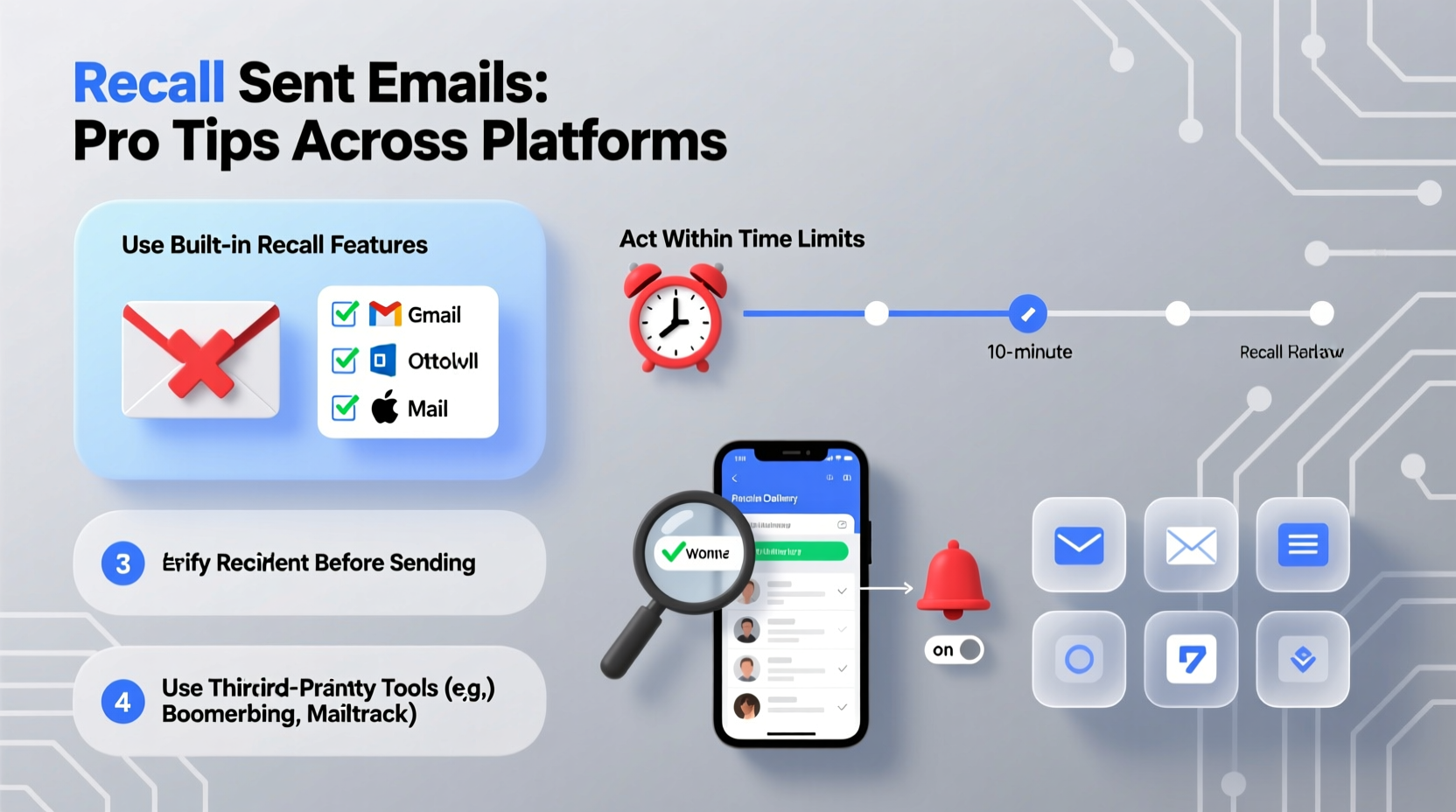
Email recall is not a universal feature. Unlike text messages or instant messaging, where edits or deletions may be possible after delivery, traditional email operates on a decentralized protocol (SMTP) that makes true recall nearly impossible once a message reaches an external server. However, some platforms provide workarounds under specific conditions.
In internal environments—especially within organizations using Microsoft Exchange or Google Workspace—recall features are more viable because both sender and recipient use the same infrastructure. These systems allow for message interception before the recipient opens the email. Outside these controlled ecosystems, options narrow significantly.
“Email recall is less about magic and more about timing and ecosystem compatibility. It only works when all components align.” — David Lin, Enterprise IT Architect at NexaCore Solutions
Platform-Specific Recall Methods
Different platforms offer varying degrees of control after sending. Below is a breakdown of the most widely used services and their capabilities.
| Platform | Recall Available? | Time Window | Requirements |
|---|---|---|---|
| Gmail (Undo Send) | Yes (Undo, not full recall) | Up to 30 seconds | Feature must be enabled in Settings |
| Outlook (Exchange Only) | Yes (Full recall possible) | Indefinite, if unread | Same Exchange organization; recipient hasn't opened email |
| Apple Mail | No native recall | N/A | Third-party tools required |
| Yahoo Mail | Yes (Undo Send) | 5–10 seconds | Must enable in settings |
| ProtonMail | Limited (Self-destruct timer) | Configurable up to 4 weeks | Only for unopened messages; sender-controlled expiration |
Gmail: Mastering the Undo Send Feature
Gmail does not technically \"recall\" emails. Instead, it offers an “Undo Send” function that delays delivery for a few seconds, giving users a chance to cancel the send entirely. This is not retroactive—it must be activated immediately after sending.
To enable Undo Send:
- Open Gmail and click the gear icon to access Settings.
- Select “See all settings.”
- Go to the “General” tab.
- Scroll to “Undo Send” and choose a cancellation period (5, 10, 20, or 30 seconds).
- Click “Save Changes” at the bottom.
Once enabled, after you hit “Send,” a banner appears at the bottom saying “Message sent. Undo” for the duration of your selected delay. Clicking “Undo” removes the message from the outbox before it’s transmitted.
Outlook: True Recall with Limitations
Microsoft Outlook, when connected to an Exchange Server, supports actual email recall. This means you can attempt to delete a message from a recipient’s inbox—even if they haven’t read it yet.
To recall an email in Outlook:
- Open the Sent Items folder.
- Double-click the message you want to recall.
- Go to the “Message” tab, then select “Actions” → “Recall This Message.”
- Choose either to delete the unread copy or replace it with a new one.
- Select “Tell me if recall succeeds or fails” for feedback.
- Click OK.
The success of this action depends on several factors: the recipient must be in the same Exchange environment, the message must remain unread, and their Outlook client must be open and synchronized. If the recipient uses Outlook on the web or has cached mode disabled, recall may still fail silently.
Realistic Scenarios: When Recall Succeeds (and Fails)
Mini Case Study: The Misaddressed Bonus Announcement
A finance manager at a mid-sized tech firm drafted an email announcing salary adjustments and accidentally sent it to the entire company instead of just department heads. Using Outlook with Exchange, she acted within minutes. She recalled the message successfully for 78% of employees—those who hadn’t yet opened it. For others, she followed up with a clarification email apologizing for the premature disclosure. Though not perfect, the recall minimized confusion and maintained trust.
In contrast, a freelance designer using Apple Mail sent a proposal with outdated pricing to a potential client. With no built-in recall option and the message delivered via iCloud servers, there was no way to retract it. Her only recourse was to send a follow-up correction promptly, which preserved transparency but highlighted the risks of relying on consumer-grade email tools for professional communication.
Action Plan: What to Do Immediately After Sending a Mistake
Speed matters. Whether or not recall is technically possible, here’s a step-by-step response strategy:
- Stay calm. Panic leads to rushed decisions. Take a breath and assess the error.
- Determine the severity. Is it a typo? Wrong attachment? Confidential data leak? Prioritize accordingly.
- Act within seconds. If using Gmail or Yahoo, look for the “Undo” prompt. In Outlook, go to Sent Items immediately.
- If recall fails, send a correction. Be concise, professional, and apologetic without over-explaining.
- Follow up offline if necessary. For sensitive issues, a phone call or Teams message adds accountability.
- Review settings afterward. Ensure Undo Send is enabled and set to the longest delay available.
Best Practices to Reduce Email Errors
Prevention is always better than cure. Incorporate these habits into your daily workflow:
- Use delayed send. Schedule outgoing emails to leave your outbox 2–5 minutes later. This creates a buffer for last-minute edits.
- Double-check recipients. Type names slowly or use contact groups with clear labels.
- Attach files first. Attach documents before writing the body to avoid forgetting them.
- Enable spell check. Use tools like Grammarly or built-in proofreading to catch typos.
- Preview before sending. Read the full email aloud to catch awkward phrasing or missing context.
Checklist: Minimize Email Mistakes Before They Happen
- ✅ Enable Undo Send (Gmail, Yahoo)
- ✅ Set delayed send to 2+ minutes
- ✅ Verify all attachments are included
- ✅ Confirm recipient list accuracy
- ✅ Proofread subject line and body
- ✅ Use BCC for large external distributions
- ✅ Store templates for frequent corrections
Frequently Asked Questions
Can I recall an email sent to a Gmail account from Outlook?
No. Recall functionality in Outlook only works within the same Exchange organization. Emails sent to external domains, including Gmail, cannot be recalled—even if the sender uses Exchange.
Is there any way to recall an email after 30 seconds in Gmail?
Not through standard features. Once the Undo Send window closes and the message leaves the outbox, it is delivered. Third-party add-ons claim to offer extended control, but they are unreliable and pose security risks.
Does recalling an email notify the recipient?
In Outlook, if the recall succeeds, the original message disappears without notification. However, if the user has already opened the email, the recall fails, and they may receive a system message indicating someone tried to recall a message—potentially drawing more attention to it.
Final Thoughts and Proactive Steps
While technology continues to evolve, the reality remains: true email recall is rare and highly conditional. Most solutions are preventive rather than corrective. The most effective strategy isn’t relying on recall tools—but building habits that reduce errors before they happen.
Take five minutes today to review your email settings. Enable Undo Send, configure delayed delivery, and create a quick-response template for mistakes. These small steps build resilience against costly oversights. In high-stakes communication, preparation separates professionals from those reacting to crises.




 浙公网安备
33010002000092号
浙公网安备
33010002000092号 浙B2-20120091-4
Comments
No comments yet. Why don't you start the discussion?