
In an era where mobile data is both essential and expensive, managing it wisely is critical—especially when you're on a limited plan or traveling abroad. However, many users make the mistake of aggressively restricting background processes or disabling app functionality in an attempt to conserve data, only to end up with sluggish performance, missed notifications, and a frustrating user experience. The truth is, saving data doesn’t have to mean sacrificing speed or responsiveness. With intelligent settings, selective optimization, and built-in tools, you can reduce data consumption while keeping your Android device running smoothly.
Optimize App Behavior with Data Saver Mode
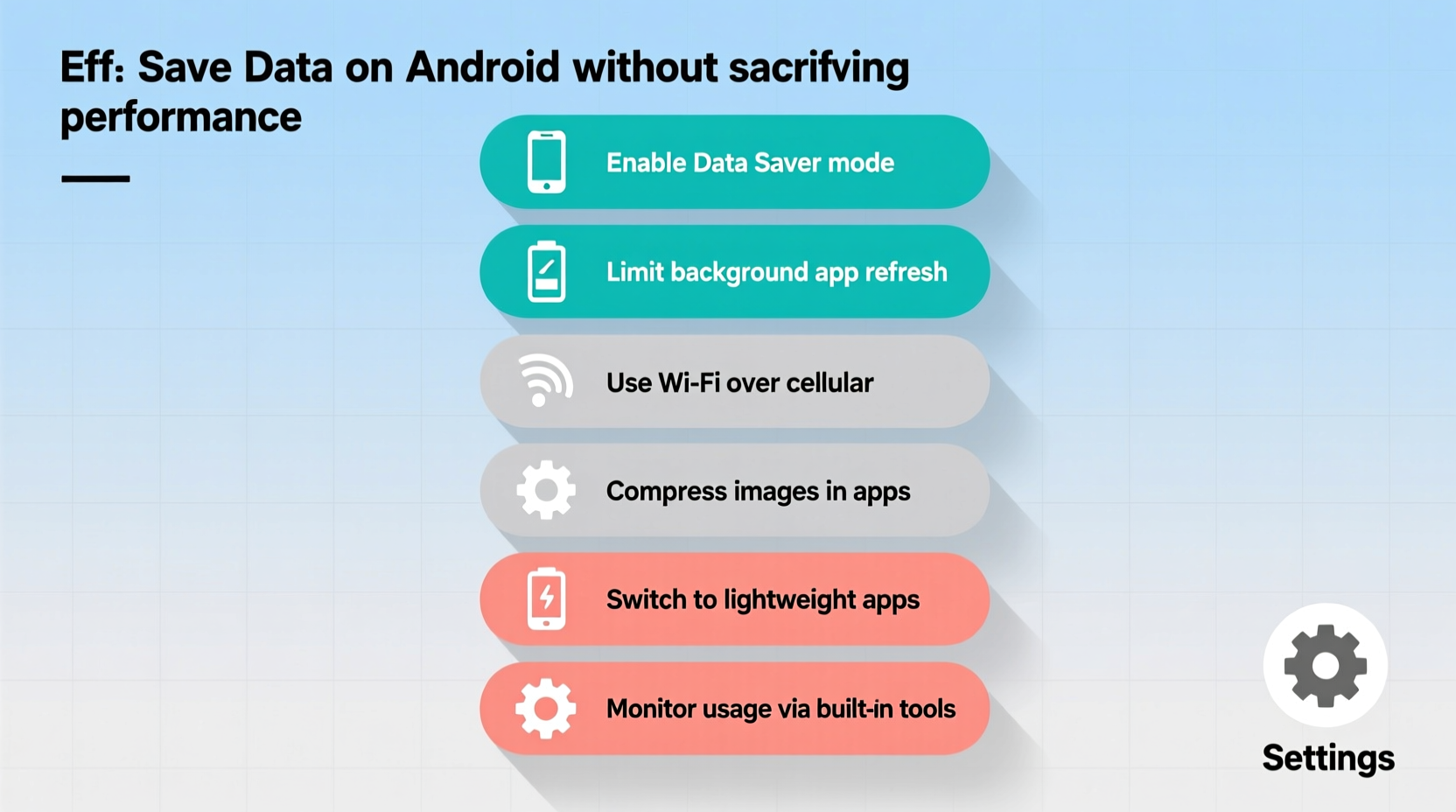
Android’s built-in Data Saver mode is one of the most effective ways to control background data without manually adjusting each app. When enabled, it restricts apps from using data in the background—such as syncing emails, updating feeds, or preloading videos—while still allowing them to function normally when opened.
To activate Data Saver:
- Go to Settings > Network & Internet > Data Usage.
- Select Data Saver and toggle it on.
- Tap “Unrestricted data access” to allow select apps (like messaging or navigation) to bypass restrictions.
Unlike third-party tools that may interfere with system processes, Data Saver is integrated at the OS level and intelligently throttles non-critical traffic without affecting app stability or UI responsiveness.
Manage Auto-Sync and Background Refresh Settings
One of the biggest hidden data drains comes from apps constantly syncing in the background—email clients checking every few minutes, social media refreshing newsfeeds, cloud storage uploading photos. While convenient, this behavior consumes data even when you’re not actively using your phone.
Instead of turning off sync entirely—which can lead to outdated information and poor app performance—adjust the frequency and conditions under which sync occurs.
- In Settings > Accounts > Google, disable “Auto-sync data” or set sync intervals manually.
- For email apps, change fetch frequency from “Push” or “Every 15 minutes” to “Manually” or “Hourly.”
- Use Wi-Fi-only syncing for large services like Google Photos, Dropbox, or Spotify cache updates.
“Balancing sync frequency with network availability ensures apps stay updated without eating into your mobile data.” — Raj Mehta, Mobile Systems Engineer at Android Authority
Use Lite Versions and Progressive Web Apps
Many major apps now offer lightweight alternatives designed specifically for low-data environments. These versions load faster, use minimal resources, and often deliver core functionality without the bloat.
| Standard App | Lite Alternative | Data Saved (Est.) | Performance Impact |
|---|---|---|---|
| Facebook Lite | Up to 70% | Faster loading, lower RAM use | |
| YouTube | YouTube Go / YouTube Vanced (PWA) | 50–80% | Smoother playback on weak networks |
| Use Instagram via browser (PWA) | ~40% | Slightly reduced features, same speed | |
| Google Maps | Offline maps + Lite mode | 60%+ on navigation | No delay once cached |
Progressive Web Apps (PWAs), accessible through Chrome or Samsung Internet, provide near-native experiences with significantly reduced bandwidth requirements. For example, Twitter’s PWA uses 70% less data than the full app while maintaining real-time updates and push notifications.
Control Video Streaming Quality
Video streaming accounts for over 60% of mobile data usage globally. A single hour of HD video can consume up to 1 GB. Adjusting streaming quality is one of the fastest ways to cut data use dramatically—with smart settings, you won’t even notice the difference.
Strategies by platform:
- YouTube: Tap your profile > Settings > Video quality preferences > Choose “Save data” or set default to 480p on mobile.
- Netflix: Profile settings > Data usage per screen > Select “Low” (0.3 GB/hour) or “Medium” (0.7 GB/hour).
- Spotify: Settings > Audio Quality > Set mobile streaming to “Normal” (50 kbps) instead of “High” (160 kbps).
On smaller screens, the visual difference between 480p and 1080p is negligible, especially in motion. By capping video resolution on cellular data, you preserve bandwidth and reduce buffering—enhancing perceived performance.
Step-by-Step Guide: Weekly Data Audit Routine
To maintain optimal balance between data conservation and performance, conduct a quick weekly review. This proactive habit prevents surprises and keeps your device efficient.
- Check Data Usage: Go to Settings > Network & Internet > Data Usage. Review which apps consumed the most data in the past week.
- Identify Anomalies: Did a music app use 2 GB unexpectedly? It might be caching albums. Adjust its settings to cache only over Wi-Fi.
- Clear Problematic Caches: For misbehaving apps, go to Settings > Apps > [App Name] > Storage > Clear Cache (not data).
- Update Wi-Fi-Only Policies: Ensure large downloads (OS updates, game patches) are restricted to Wi-Fi.
- Test Performance: After adjustments, open key apps to confirm they respond quickly and sync properly when needed.
This routine takes less than ten minutes but can prevent future slowdowns caused by uncontrolled background activity.
Mini Case Study: Maria’s International Trip
Maria, a digital marketer from Toronto, traveled to Southeast Asia for a month-long project. Her local data plan was limited to 5 GB/month, but she relied heavily on Google Drive, Slack, and Zoom for work.
Rather than disable apps or risk connectivity issues, she implemented targeted strategies:
- Enabled Data Saver and allowed exceptions for Slack and Google Meet.
- Set Google Docs and Sheets to sync only when opened.
- Used Google Maps offline areas for cities she planned to visit.
- Streamed music via Spotify’s “Normal” quality and downloaded playlists weekly over hotel Wi-Fi.
The result? She used just 3.8 GB of data over four weeks and experienced no lag in communication tools. Her phone remained responsive, and she avoided extra charges—all without changing her workflow.
FAQ
Does restricting background data slow down my phone?
No. In fact, limiting unnecessary background activity can improve performance by reducing CPU and network contention. Apps launch faster and run smoother when they aren’t competing for resources with silent sync processes.
Can I automate data-saving rules based on network type?
Yes. Using Android’s “Adaptive Data Usage” (available on Pixel and some Samsung devices), your phone learns your habits and automatically applies data-saving measures on cellular networks while relaxing them on Wi-Fi. Third-party automation apps like Tasker can also create custom rules based on connection type, time, or location.
Will using Lite apps compromise security?
Not if downloaded from official sources. Facebook Lite, YouTube Go, and other official lightweight apps are maintained by their parent companies and receive regular security updates. Avoid unofficial clones from third-party stores.
Conclusion: Smart Data Use Equals Better Performance
Saving data on Android isn’t about cutting corners—it’s about making smarter choices. By leveraging built-in tools, adjusting settings thoughtfully, and using lightweight alternatives when appropriate, you gain control over your data without compromising speed, reliability, or usability. The goal isn’t to limit what your phone can do, but to optimize how it does it.




 浙公网安备
33010002000092号
浙公网安备
33010002000092号 浙B2-20120091-4
Comments
No comments yet. Why don't you start the discussion?