
Accidentally entering the wrong PIN, pattern, or password too many times can lock you out of your mobile device—a frustrating situation that many users face. Depending on your phone’s operating system and security settings, repeated incorrect entries may trigger temporary lockouts, forced delays, or even complete device disabling. The good news is that most lockout scenarios can be resolved with the right approach. Understanding the mechanisms behind failed unlock attempts and knowing which recovery options are available can save time, prevent data loss, and restore access efficiently.
How Lockout Systems Work on Smartphones
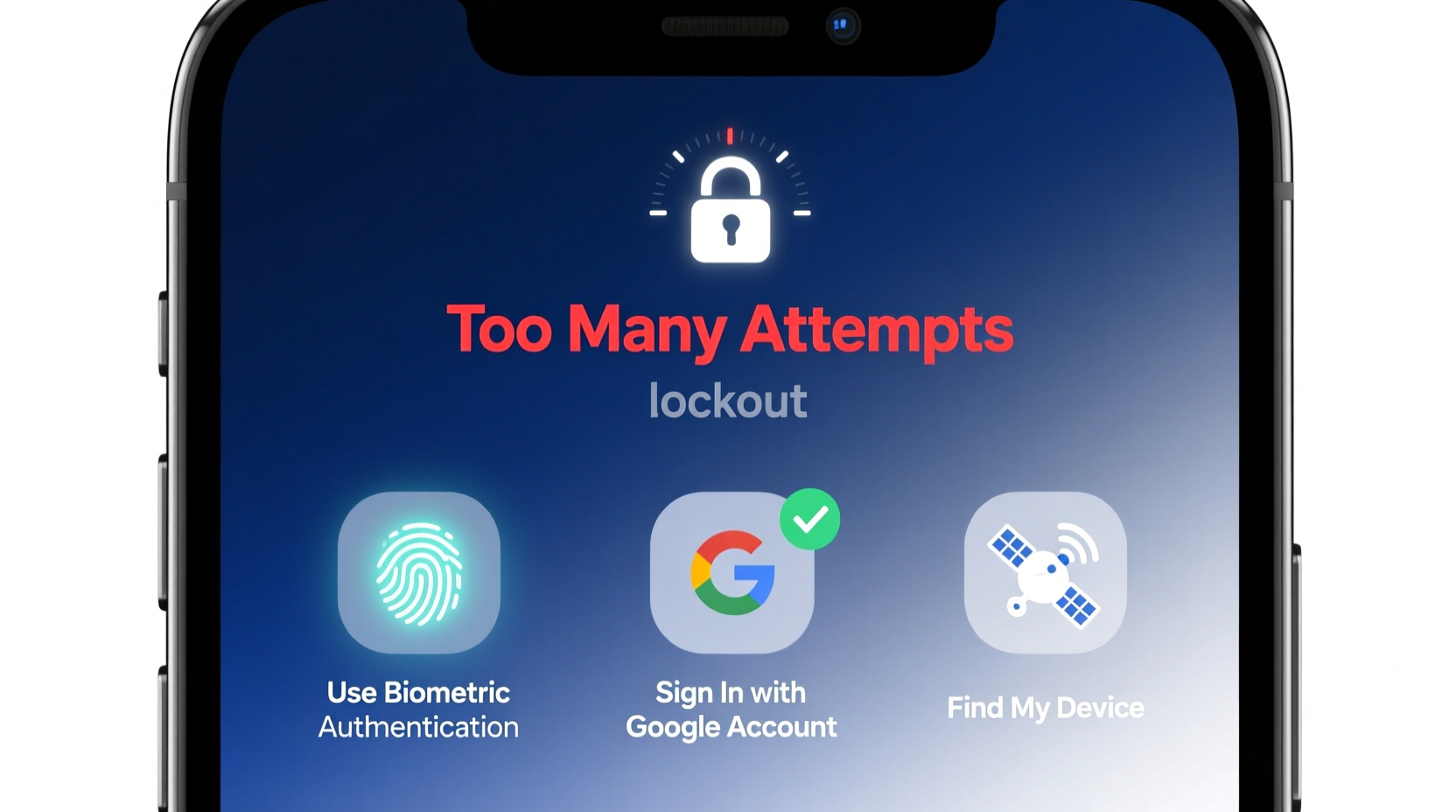
Modern smartphones use layered security protocols to protect user data. After a set number of failed unlock attempts—typically between five and ten—the device enforces escalating penalties. These may include:
- Time-based lockouts (e.g., 30 seconds, then increasing exponentially)
- Requirement to use biometric authentication (fingerprint or face ID) before retrying
- Prompt to enter a Google Account (Android) or Apple ID (iOS) for verification
- Complete device disablement requiring factory reset
These safeguards deter brute-force attacks but can inadvertently affect legitimate users who forget their codes. The key is recognizing when the lockout becomes persistent and what tools are built into each platform to regain control.
Strategies for Android Devices
Android phones typically integrate Google Account recovery as a fallback. If you've previously signed in with a Google account and enabled \"Find My Device,\" several official pathways exist.
Step-by-Step Guide: Regain Access to an Android Phone
- Wait out the lockout timer if one is active. Repeated guessing will only extend the delay.
- Look for the “Forgot Pattern” or “Forgot PIN” option on the lock screen. Tap it after multiple failures.
- Enter your Google Account credentials (email and password) associated with the device.
- Follow on-screen instructions to reset your screen lock method.
- If online recovery fails, use Google’s Find My Device from another device to remotely lock or erase the phone.
Note: This method only works if the device has internet connectivity and was previously linked to a Google account. Factory reset via recovery mode is a last resort but results in full data erasure.
| Situation | Solution | Data Loss? |
|---|---|---|
| “Forgot PIN” option visible | Use Google Account login | No |
| No internet connection | Enable Wi-Fi via emergency call trick* or wait | No |
| No Google account linked | Recovery mode > Wipe data/factory reset | Yes |
| Device disabled permanently | Contact manufacturer or carrier support | Possible |
*Some older models allowed accessing Wi-Fi settings through the emergency call interface; newer versions have patched this.
iOS Lockout Recovery: What iPhone Users Need to Know
Apple takes a stricter approach. After six incorrect passcode attempts, the iPhone imposes progressively longer delays. At ten failures, it may display “iPhone is disabled—connect to iTunes” or, on newer models with Activation Lock, require Apple ID verification.
The primary recovery methods are:
- iTunes/Finder Restore: Connect the iPhone to a computer previously used to sync it, open iTunes (Windows) or Finder (Mac), and restore from backup.
- Find My iPhone: Use iCloud.com or the Find My app to erase the device remotely if it's online.
- Recovery Mode: Force restart into recovery mode and restore via computer when no backup is accessible.
“We design our security features to protect user privacy first. If you're locked out, your best path is using trusted devices or accounts you’ve already verified.” — Craig Federighi, Apple Senior Vice President of Software Engineering
Mini Case Study: Recovering a Disabled iPhone
Sarah, a teacher, forgot her iPhone passcode after changing it during a school event. After seven failed attempts, her phone displayed “Disabled for 15 minutes.” She waited, tried again, and triggered permanent disablement. With no recent computer sync, she used a friend’s Mac to put the phone into recovery mode. Using Finder, she restored the device and re-downloaded her iCloud backup. Though stressful, she regained full access within 45 minutes—highlighting the importance of regular iCloud backups.
Universal Prevention & Best Practices
While recovery methods exist, prevention remains the most effective strategy. Implementing proactive habits reduces the risk of being locked out unexpectedly.
Checklist: Prevent Future Lockouts
- ✅ Enable biometric unlocking (Face ID, fingerprint) as your primary method
- ✅ Store your PIN or password securely (e.g., password manager)
- ✅ Set up Find My Device (Android) or Find My iPhone (iOS)
- ✅ Regularly back up your phone to cloud or computer
- ✅ Avoid sharing your unlock code, even temporarily
- ✅ Use a memorable but secure passcode (avoid birthdays or simple sequences)
Frequently Asked Questions
Can I unlock my phone without losing data after too many attempts?
Yes, if you can verify ownership through your Google Account (Android) or iCloud/Trusted Devices (iOS). Data-preserving recovery is only possible when account recovery options are enabled and accessible.
What happens if I don’t remember my Apple ID or Google password?
You must recover your account first. Visit iforgot.apple.com or accounts.google.com to reset your password using recovery email, phone, or security questions. Without successful account recovery, device access cannot be restored without erasing all data.
Is there a way to bypass the lock screen without a factory reset?
Officially, no. Third-party tools claiming to bypass locks often violate terms of service, pose malware risks, and may brick your device. Always use manufacturer-approved methods to ensure security and functionality.
Conclusion: Stay Calm and Regain Control
Being locked out of your phone doesn’t mean losing it forever. Whether you’re using Android or iOS, structured recovery paths exist—provided you’ve taken basic precautions like linking a recovery account and enabling backups. The moment you see a lockout warning, stop guessing and shift to a verified recovery process. Understanding your device’s behavior under failed attempts empowers you to act wisely, not hastily. Technology should protect you without locking you out permanently.




 浙公网安备
33010002000092号
浙公网安备
33010002000092号 浙B2-20120091-4
Comments
No comments yet. Why don't you start the discussion?