
Finding specific information in a lengthy or complex PDF can feel like searching for a needle in a haystack. Whether you're reviewing a research paper, scanning a legal contract, or studying course materials, the ability to locate key terms efficiently is essential. Fortunately, modern PDF readers offer robust search functions—many of which are underutilized. Mastering these tools can save hours of manual scrolling and dramatically improve productivity.
Understanding PDF Search Capabilities
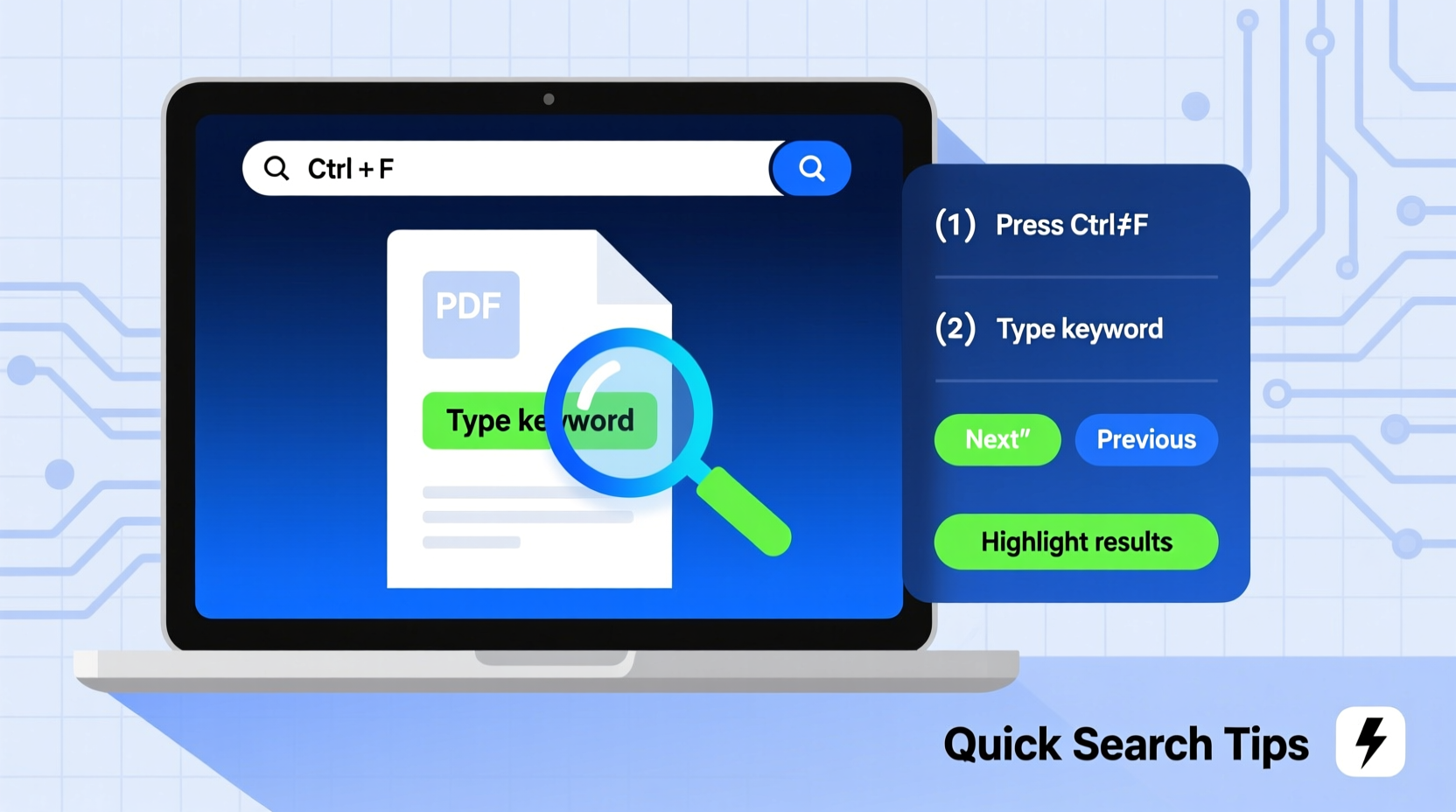
Most PDF documents are text-based, meaning the content is encoded as searchable characters rather than static images. This allows users to perform full-text searches across the entire document. However, not all PDFs are created equal. Scanned documents or those exported from image-heavy sources may be non-searchable unless OCR (Optical Character Recognition) has been applied.
Before relying on search functions, verify that your PDF supports text selection. Try highlighting a word with your cursor. If text can be selected, the document is searchable. If not, you may need to convert it using OCR-enabled software such as Adobe Acrobat Pro, Google Drive, or online tools like Smallpdf or ILovePDF.
Core Keyboard Shortcuts for Instant Access
The fastest way to initiate a search is through keyboard shortcuts. These work across nearly all major platforms and applications, including desktop viewers, web browsers, and mobile apps.
| Platform | Search Shortcut | Alternative Method |
|---|---|---|
| Windows / Linux | Ctrl + F | Press 'F' after opening Find toolbar |
| macOS | Cmd + F | Use Spotlight (Cmd + Option + F) |
| Web Browsers | Ctrl + F (or Cmd + F) | Right-click → “Find in page” |
| Mobile Devices | Tap magnifying glass or “Search” icon | Long press text to trigger context menu |
Once activated, a search bar appears, usually at the top or bottom of the screen. Typing a word instantly highlights all matching instances, often with a counter showing total occurrences. Navigating between results is typically done with arrow buttons or Enter/Shift+Enter.
“Time spent learning basic navigation shortcuts pays off exponentially in long-term efficiency.” — Dr. Alan Reed, Digital Workflow Consultant
Advanced Search Techniques for Precision Results
Basic searches are useful, but precision matters when dealing with dense technical or legal texts. Here are several advanced methods to refine your queries:
- Case-sensitive search: Some readers allow you to match exact capitalization, helpful when distinguishing between \"Class\" and \"class.\"
- Whole word only: Prevents partial matches (e.g., searching \"run\" won’t highlight \"running\" or \"brunch\").
- Regular expressions (regex): Available in professional tools like Adobe Acrobat Pro, enabling pattern-based searches (e.g., phone numbers, email addresses).
- Search within bookmarks or annotations: Locate comments or highlighted notes containing specific keywords.
In Adobe Acrobat, access advanced options by clicking the dropdown arrow in the search panel. You can also search across multiple PDFs in a folder—ideal for researchers or auditors managing large document sets.
Step-by-Step: Perform an Advanced Search in Adobe Acrobat
- Open your PDF in Adobe Acrobat Reader or Pro.
- Press Ctrl + F (or Cmd + F on Mac).
- Type your keyword in the search box.
- Click the gear icon or “Show More Options” to expand settings.
- Select “Match Whole Words Only” and/or “Case Sensitive” as needed.
- To search multiple files, choose “All PDF Documents in” and select a folder.
- Review results in the sidebar and click entries to jump directly to pages.
Real-World Example: Legal Document Review
Samantha, a paralegal at a mid-sized law firm, was tasked with reviewing a 278-page merger agreement for references to \"non-compete clauses.\" Initially, she scrolled manually, taking over 45 minutes to complete the task. After training on PDF search features, she used Ctrl + F, typed “non-compete,” enabled case-insensitive and whole-word matching, and found all 14 instances in under two minutes. She then exported the results to a summary report using Acrobat’s “Create List of Results” feature, saving her supervisor significant review time.
This scenario illustrates how mastering search tools transforms tedious tasks into streamlined workflows. In high-stakes environments where accuracy and speed matter, such skills are invaluable.
Do’s and Don’ts of PDF Word Searching
| Do’s | Don’ts |
|---|---|
| Use precise keywords (e.g., “confidentiality agreement” instead of “agreement”) | Assume every PDF is searchable without testing first |
| Enable whole-word matching to reduce false positives | Ignore formatting variations (e.g., hyphenated vs. spaced terms) |
| Leverage search history to revisit previous queries | Rely solely on Ctrl+F in scanned documents without OCR |
| Bookmark frequently searched terms for recurring use | Overlook mobile app capabilities—many support voice-to-search |
Checklist: Optimize Your PDF Search Workflow
- ✅ Confirm the PDF is text-searchable (test text selection)
- ✅ Use Ctrl + F or Cmd + F to open search instantly
- ✅ Enable “Whole Words Only” to eliminate irrelevant matches
- ✅ Turn on case sensitivity when necessary
- ✅ Search across multiple documents if working with related files
- ✅ Save frequent searches or use tags for quick access
- ✅ Apply OCR to scanned documents before searching
- ✅ Export search results when compiling evidence or citations
Frequently Asked Questions
Why can’t I find a word I know is in the PDF?
The most common reason is that the PDF is image-based or scanned without OCR processing. Even if the text appears visible, it may not be machine-readable. Convert the file using OCR software to make it searchable.
Can I search for phrases with special characters or symbols?
Yes, but success depends on encoding. For example, searching “co-author” may fail if the PDF uses an en dash instead of a hyphen. Try variations or disable “Whole Word” matching. In advanced tools, regex patterns can help capture such inconsistencies.
Is there a way to search inside encrypted or password-protected PDFs?
You can search within encrypted PDFs only if you have permission to extract text. If the author disabled copying or searching, you’ll need the owner password to change permissions. Without it, no standard method will bypass these restrictions legally.
Final Thoughts and Action Steps
Efficiency in information retrieval starts with knowing how to navigate digital documents effectively. The ability to quickly locate words in a PDF isn't just about convenience—it's a foundational skill for students, professionals, researchers, and anyone managing digital content. By combining simple keyboard shortcuts with advanced filtering and preparation techniques like OCR, you turn overwhelming documents into navigable resources.
Start applying these strategies today. Test your current PDF viewer’s capabilities, practice advanced search modes, and integrate OCR into your workflow when needed. Small changes in how you interact with documents lead to significant gains in productivity over time.




 浙公网安备
33010002000092号
浙公网安备
33010002000092号 浙B2-20120091-4
Comments
No comments yet. Why don't you start the discussion?