
In the digital age, high-resolution images are essential for professional photography, web design, printing, and social media. However, not every image starts with sufficient pixel density. Enlarging a low-resolution photo often leads to blurriness, pixelation, or loss of detail—unless done correctly. Fortunately, modern tools and intelligent workflows make it possible to increase photo pixels without sacrificing quality. This guide explores proven methods, from AI-powered upscaling to strategic file handling, so you can enhance image resolution while preserving clarity and sharpness.
Understanding Image Resolution and Pixel Density
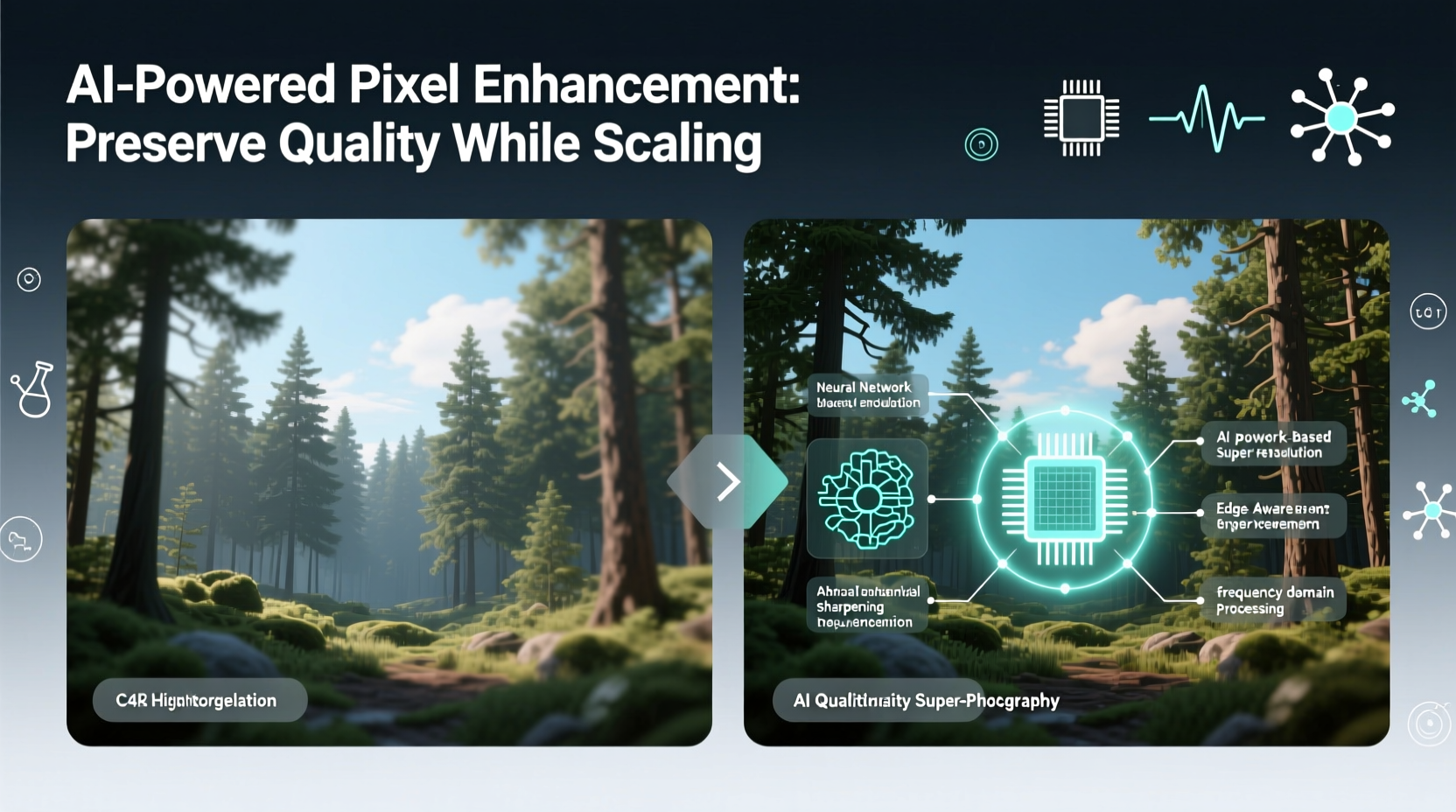
Before increasing pixel count, it's crucial to understand what resolution means. Resolution refers to the total number of pixels in an image, typically expressed as width × height (e.g., 1920×1080). Pixel density, measured in PPI (pixels per inch), determines how sharp an image appears when printed or displayed on screen.
When you enlarge a photo without adding meaningful data, the software must \"invent\" new pixels through interpolation—a process that can degrade quality if not handled properly. The goal is not just to increase pixel dimensions but to do so intelligently, enhancing detail rather than stretching existing information.
“Upscaling isn’t about guessing missing pixels—it’s about reconstructing them with context-aware precision.” — Dr. Lena Park, Digital Imaging Researcher at MIT Media Lab
AI-Powered Upscaling: The Game Changer
Artificial intelligence has revolutionized image enhancement. Unlike traditional interpolation methods like bicubic or bilinear scaling, AI models analyze patterns in textures, edges, and colors to predict realistic details. These models are trained on millions of high-quality images, enabling them to generate plausible fine structures such as hair strands, fabric weaves, or architectural lines.
Top AI-based tools include:
- Topaz Gigapixel AI: Uses deep learning to upscale images up to 6x with minimal artifacts.
- Adobe Photoshop Super Resolution: Built into Camera Raw, doubles image size with enhanced detail.
- Let’s Enhance: Web-based platform offering various AI models tailored for photos, faces, and illustrations.
- Waifu2x: Specialized for anime-style art but effective for line art and clean graphics.
Step-by-Step Guide to Upscaling Without Quality Loss
Follow this structured workflow to maximize results when increasing pixel count:
- Start with the Original File: Use the unedited, full-resolution version of your image. Avoid upsizing compressed formats like heavily reduced JPEGs.
- Convert to 16-bit (if applicable): In Photoshop, go to Image > Mode > 16 Bits/Channel to preserve smoother gradients during processing.
- Apply Noise Reduction First: If the image has noise, reduce it before upscaling. AI tools may amplify grain instead of removing it.
- Use AI Upscaling Software: Import into Topaz Gigapixel AI or similar tool. Select appropriate model (e.g., “Standard,” “Face,” or “Art & Line”).
- Preview and Adjust: Zoom in to check facial features, text, or fine textures. Tweak settings like denoise strength or sharpening.
- Export at Target Resolution: Save as TIFF or PNG to avoid compression loss after upscaling.
- Final Touches in Post: Apply subtle sharpening only after resizing. Over-sharpening creates halos and unnatural edges.
Choosing the Right Interpolation Method (When AI Isn't Available)
If AI tools aren’t accessible, selecting the correct interpolation method in your editor matters significantly. Here’s a comparison of common options in Adobe Photoshop and similar software:
| Method | Best For | Quality Outcome | Limitations |
|---|---|---|---|
| Nearest Neighbor | Pixel art, hard edges | Poor for photos | Causes blocky distortion |
| Bilinear | Small enlargements | Moderate softening | Loses edge definition |
| Bicubic (Smooth) | General use | Balanced smoothness | Can blur fine details |
| Bicubic (Sharper) | Enlarging detailed images | Preserves edges well | Risks over-sharpening |
| Lanczos | Technical/scientific imaging | High accuracy | May introduce ringing artifacts |
For best non-AI results, use Bicubic Sharper when enlarging photos by more than 20%. Combine with manual sharpening post-resize using Unsharp Mask (Amount: 50–80%, Radius: 1.0–1.5 px, Threshold: 2–4 levels).
Real Example: Restoring a Vintage Portrait
A photographer was tasked with enlarging a scanned 3-megapixel family portrait from the 1970s for a large wall print. The original scan measured 2048×1536 pixels—too small for a 24×36 inch display at 150 PPI, which required at least 3600×5400 pixels.
The team first cleaned dust spots and corrected color fade in Photoshop. Then they applied Topaz Gigapixel AI with the “Face” enhancement mode, increasing the image size by 300%. After export, minor luminance noise was reduced using Lightroom’s Detail panel, followed by selective sharpening on the eyes and clothing textures.
The final print showed remarkable clarity, with natural-looking skin texture and readable embroidery on the subject’s blouse—details that didn’t exist in the original scan but were convincingly reconstructed by the AI. Clients reported being moved by the restored emotional depth of the image.
Checklist: How to Safely Increase Photo Pixels
Use this checklist before starting any upscaling project:
- ✅ Work from the highest-resolution original available
- ✅ Convert to 16-bit depth for better editing headroom
- ✅ Remove noise and compression artifacts prior to resizing
- ✅ Choose AI upscaling for critical projects (especially portraits or prints)
- ✅ Test multiple settings and zoom in to inspect key areas
- ✅ Export in lossless format (TIFF, PNG) after upscaling
- ✅ Apply final sharpening only after all resizing is complete
- ✅ Compare side-by-side with original to assess realism
Frequently Asked Questions
Can I increase photo resolution in Photoshop without losing quality?
Yes, especially using the “Super Resolution” feature in Adobe Camera Raw (available via right-click > “Enhance”). It uses AI to double both width and height while preserving detail. Regular “Image Size” resampling with Bicubic Sharper works for modest increases, but AI delivers superior results.
Is it possible to turn a 1MP image into a 12MP one realistically?
Modern AI tools can effectively upscale a 1MP image to 12MP with convincing results, particularly for standard subjects like landscapes, portraits, or architecture. However, success depends on image content and lighting. Extremely noisy or blurry originals will still show limitations even after enhancement.
Does increasing pixels improve print quality?
Only if done correctly. Simply stretching pixels degrades print quality. But intelligent upscaling that adds plausible detail can make low-res images printable at larger sizes. Aim for at least 150–200 PPI at the final print size for acceptable output.
Conclusion: Elevate Your Images Intelligently
Increasing photo pixels without losing quality is no longer a trade-off between size and clarity. With AI-driven tools and informed workflows, you can transform low-resolution images into high-fidelity assets suitable for professional use. The key lies in preparation, choosing the right technology, and understanding the limits of each method. Whether restoring old memories, preparing visuals for marketing, or creating large-format artwork, these techniques empower you to push boundaries without compromising integrity.




 浙公网安备
33010002000092号
浙公网安备
33010002000092号 浙B2-20120091-4
Comments
No comments yet. Why don't you start the discussion?