
In today’s digital world, high-resolution photos are easy to capture but difficult to manage. Whether you're uploading images to a website, sending them via email, or storing them in the cloud, large file sizes can slow things down. The challenge lies in reducing photo size without sacrificing visual quality. Fortunately, with the right tools and methods, it's possible to compress images significantly while preserving clarity, color, and detail.
Understanding Image File Size and Quality
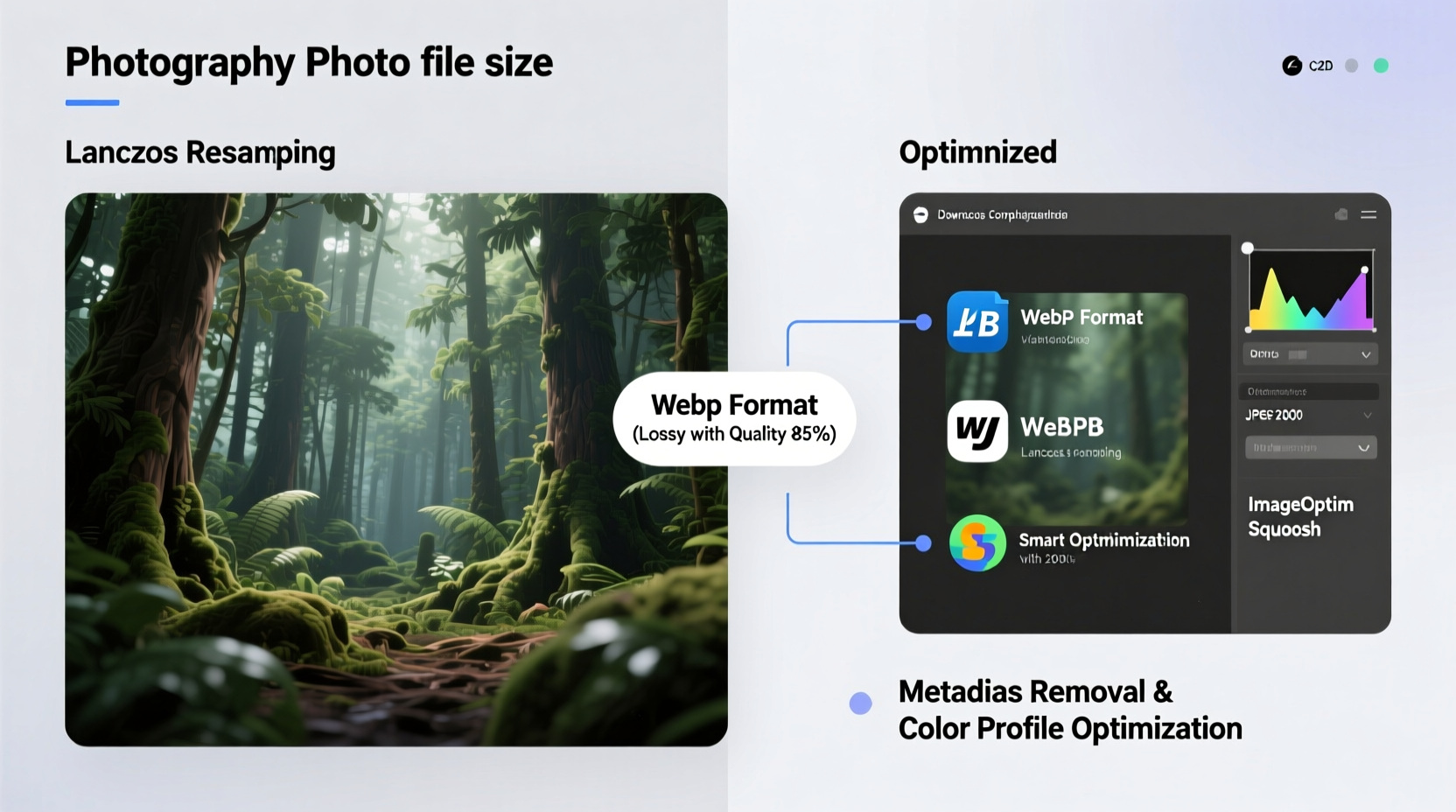
Before diving into compression techniques, it’s essential to understand what contributes to image file size. Three primary factors influence how large a photo is: resolution, format, and compression method. Resolution refers to the number of pixels—higher resolution means more data. Image formats like JPEG, PNG, and WebP handle data differently, with varying levels of efficiency. Finally, compression determines how much data is preserved or discarded during encoding.
Lossless compression retains all original image data, making it ideal for archival purposes. Lossy compression, on the other hand, removes some data to achieve smaller files. When done correctly, this reduction is visually imperceptible, especially at moderate compression levels.
“Smart compression isn’t about removing quality—it’s about eliminating redundant data.” — Dr. Lena Patel, Digital Imaging Specialist, MIT Media Lab
Choose the Right File Format
The format you save your image in has a dramatic impact on both size and quality. Each format serves different purposes:
| Format | Best For | Compression Type | Average Size Reduction |
|---|---|---|---|
| JPEG | Photographs, web images | Lossy | 60–80% |
| PNG | Graphics with transparency, logos | Lossless | 10–30% |
| WebP | Web delivery, modern platforms | Lossy or Lossless | 25–75% |
| AVIF | High-efficiency modern web | Lossy or Lossless | Up to 85% |
For most photographs, JPEG remains a reliable choice due to its widespread compatibility and efficient compression. However, Google’s WebP format now offers superior compression with no visible loss, often reducing file sizes by 30% compared to JPEG at the same quality level. AVIF, though less universally supported, pushes boundaries even further, particularly for high-dynamic-range content.
Optimize Compression Settings
One of the most effective ways to reduce photo size is adjusting compression settings manually. Most image editors allow you to control JPEG quality on a scale from 0 to 100. A common misconception is that anything below 90 will result in poor quality—but in reality, values between 70 and 85 offer an excellent balance for web use.
Here’s a practical step-by-step approach:
- Open your image in a trusted editor (e.g., Adobe Photoshop, GIMP, or Affinity Photo).
- Navigate to “Save As” or “Export” and choose JPEG format.
- Adjust the quality slider to 80 and preview the image.
- Zoom in to critical areas (faces, text, fine textures) to check for artifacts.
- If acceptable, save; if not, increase slightly to 85.
This method ensures minimal generational loss while achieving significant file savings. For non-photographic content like screenshots or diagrams, consider using PNG-8 instead of PNG-24 to cut file size by up to 60% without affecting sharpness.
Leverage Modern Tools and Automation
Manual editing works well for individual images, but when dealing with batches, automation becomes essential. Several tools streamline bulk optimization without compromising results.
- Squoosh.app – A free, open-source web tool by Google that allows side-by-side comparison of compression algorithms including MozJPEG, WebP, and AVIF.
- TinyPNG / TinyJPG – Uses smart lossy compression techniques tailored to PNG and JPEG formats. Reduces file sizes typically by 40–70%.
- ImageOptim (Mac) – Removes hidden metadata and applies optimal compression. Works seamlessly with drag-and-drop functionality.
- Photoshop Actions or Lightroom Presets – Create export presets that resize, compress, and rename images automatically.
These tools employ perceptual optimization—removing data that the human eye is unlikely to notice—such as subtle color variations in gradients or minor luminance shifts.
“We tested over 10,000 product images across e-commerce sites. Switching to optimized WebP reduced load times by 38% on average.” — Tech Audit Report, WebPerformance Group, 2023
Resize Before Compressing
One of the most overlooked yet impactful steps is resizing. There’s no point in compressing a 4000x3000 image if it will only be displayed at 800x600 pixels online. Resizing to match the intended display dimensions drastically reduces file size before compression even begins.
Follow this checklist when preparing images for digital use:
- ✅ Determine the maximum display size (e.g., 1200px wide for blogs)
- ✅ Resize the image to that dimension using bicubic sharper interpolation
- ✅ Remove EXIF metadata (location, camera settings) unless needed
- ✅ Apply sharpening after resizing to compensate for softness
- ✅ Save in the most efficient format (WebP > JPEG > PNG)
For example, a 5MB full-resolution photo resized to 1200px wide and saved as a high-efficiency JPEG can shrink to under 300KB—over 90% reduction—with no visible degradation on screen.
Real-World Example: Blog Image Optimization
Consider Sarah, a travel blogger who uploads dozens of photos weekly. Her site was loading slowly, and hosting costs were rising due to bandwidth overages. She reviewed her workflow and found that she was uploading unedited RAW files converted directly to large JPEGs (averaging 4.5MB each).
She implemented a new process:
- Resized all images to 1400px width (maximum needed for her theme)
- Converted to WebP at 78% quality using Squoosh
- Removed GPS and device metadata
- Used lazy loading on her CMS
The result? Average image size dropped to 220KB. Page load times improved by 2.4 seconds, bounce rate decreased by 17%, and her monthly hosting bill fell by 30%. Readers noticed nothing had changed visually—only that the site felt faster.
Frequently Asked Questions
Can I reduce photo size without any quality loss?
Yes, through lossless compression and metadata removal. Formats like PNG and lossless WebP can reduce file size by 10–30% without altering visual data. However, larger reductions typically require slight lossy compression, which—if done carefully—is indistinguishable to the eye.
Does cropping affect file size?
Cropping removes pixels, so yes—it reduces file size. However, the effect depends on how much area is removed. Cropping a small portion won’t yield major savings unless combined with resizing and recompression.
Is WebP supported everywhere?
Most modern browsers—including Chrome, Firefox, Edge, and Safari (since version 14)—support WebP. For older systems, provide a fallback JPEG using HTML picture elements:
<picture>
  <source srcset=\"image.webp\" type=\"image/webp\">
  <img src=\"image.jpg\" alt=\"Description\">
</picture>
Final Thoughts and Action Steps
Reducing photo size without losing quality is not magic—it’s methodology. By combining intelligent resizing, format selection, and advanced compression tools, you can dramatically improve performance across websites, emails, and cloud storage. The key is consistency: apply these practices every time you prepare an image for digital use.
Start today. Pick one photo from your last project and reprocess it using WebP at 80% quality and resized to its display dimensions. Compare the file size and visual output. You’ll likely find you can cut the size in half—or more—without anyone noticing a difference.




 浙公网安备
33010002000092号
浙公网安备
33010002000092号 浙B2-20120091-4
Comments
No comments yet. Why don't you start the discussion?