
Streaming has evolved from a niche hobby into a global phenomenon, with millions of creators broadcasting across platforms like Twitch, YouTube, Facebook Live, and TikTok. Whether you're gaming, hosting live events, or teaching online classes, a seamless stream is essential for retaining viewers and building credibility. But behind every smooth broadcast lies careful preparation, the right tools, and an understanding of technical best practices. This guide delivers actionable strategies and proven tools to help you deliver high-quality streams—regardless of your platform or experience level.
Optimize Your Internet Connection for Reliable Streaming
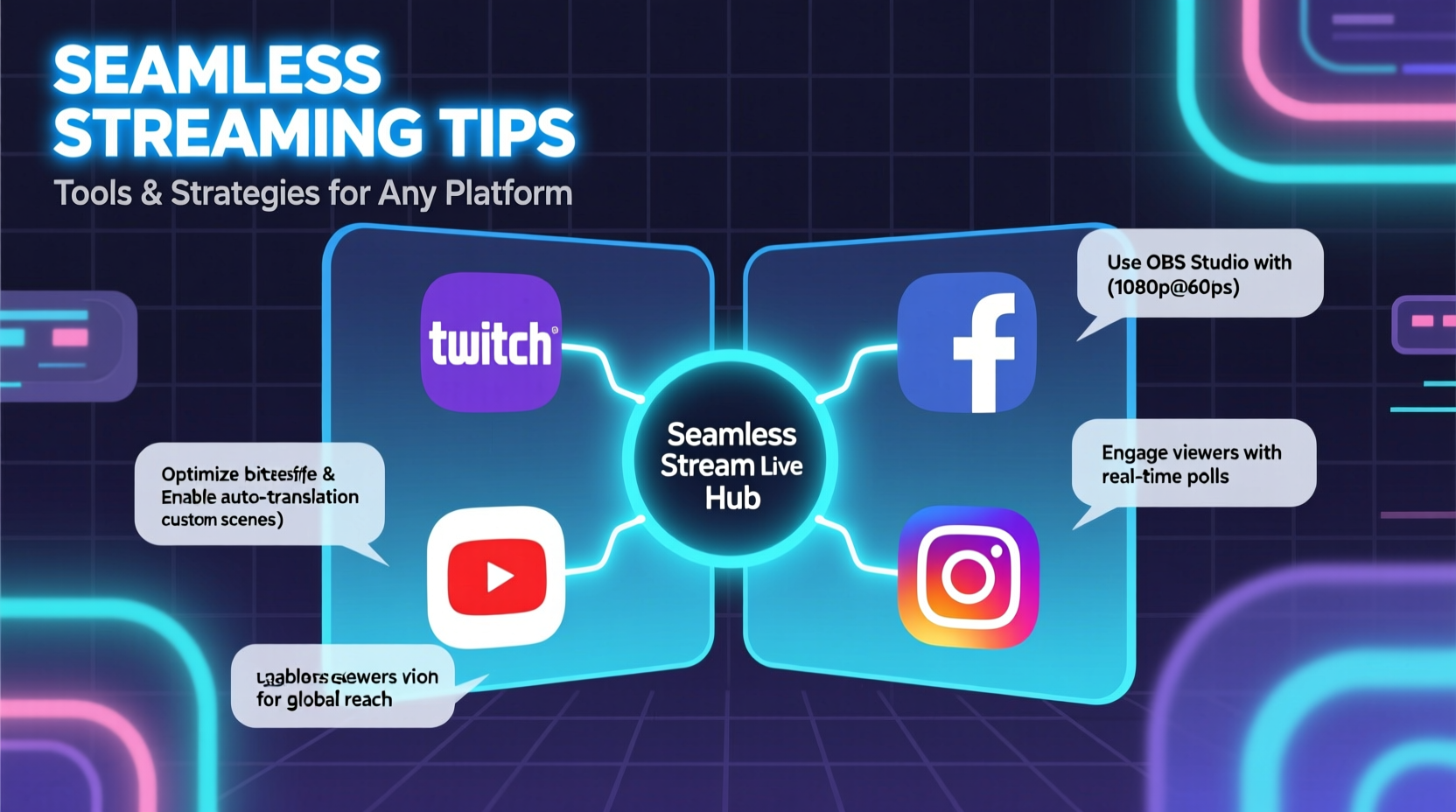
Your internet connection is the backbone of any successful stream. Even the most powerful hardware can't compensate for unstable bandwidth. To ensure consistent upload speeds, start by conducting a speed test using tools like Speedtest.net or Fast.com. For HD streaming (720p at 30fps), aim for at least 5 Mbps upload speed. For Full HD (1080p at 60fps), target 8–10 Mbps.
Wired connections are far more stable than Wi-Fi. Use an Ethernet cable to connect your streaming device directly to the router. If Wi-Fi is unavoidable, position yourself close to the router and minimize interference from other devices.
Consider enabling Quality of Service (QoS) settings on your router to prioritize streaming traffic. Some ISPs offer business-grade plans with higher upload caps and lower latency—worth exploring if streaming is part of your professional workflow.
Choose the Right Streaming Software and Configure It Properly
The software you use plays a crucial role in stream quality and performance. The most widely used tool is OBS Studio (Open Broadcaster Software), a free, open-source application compatible with Windows, macOS, and Linux. It offers granular control over audio sources, video resolution, encoding settings, and scene transitions.
For beginners, Streamlabs Desktop simplifies the process with built-in themes, alerts, and monetization features. However, it consumes more system resources than OBS. Advanced users may prefer vMix for multi-camera setups or Restream for simulcasting across multiple platforms simultaneously.
“OBS remains the gold standard because it’s lightweight, customizable, and doesn’t lock you into proprietary ecosystems.” — Jordan Lee, Streaming Engineer at Broadcast Labs
Key OBS Settings for Smooth Performance
| Setting | Recommended Value | Notes |
|---|---|---|
| Base Canvas Resolution | 1920x1080 | Match your source content |
| Output (Scaled) Resolution | 1280x720 | Balances quality and bandwidth |
| Frame Rate | 30 or 60 fps | 60 fps for fast-motion content |
| Encoder | x264 or NVIDIA NVENC | NVENC reduces CPU load |
| Bitrate (Twitch/YouTube) | 3000–6000 kbps | Adjust based on upload speed |
Essential Hardware for Professional-Quality Streams
No amount of software tuning can overcome poor hardware limitations. At minimum, you need a capable computer, microphone, camera, and optionally, lighting and audio interfaces.
- CPU & GPU: A modern quad-core processor (Intel i5/i7 or AMD Ryzen 5/7) and dedicated graphics card improve encoding efficiency.
- Microphone: USB mics like the Elgato Wave:3 or Shure MV7 deliver studio-quality voice clarity.
- Webcam: Logitech Brio or Sony ZV-E10 offer 4K support and auto-focus features.
- Lighting: Softbox lights or ring lights eliminate shadows and enhance facial visibility.
If you’re using a laptop, ensure adequate cooling. Thermal throttling during long sessions can degrade stream stability. Consider a cooling pad or external fan setup.
Step-by-Step Guide to Launching Your First Seamless Stream
- Test your equipment: Check mic levels, camera focus, and background noise two days before going live.
- Configure your streaming software: Set resolution, bitrate, and scenes (e.g., intro, gameplay, webcam-only).
- Connect to your platform: Input your stream key from Twitch, YouTube, or another service into OBS.
- Run a rehearsal: Do a 10-minute test stream to monitor for lag, echo, or dropped frames.
- Go live with confidence: Start with a greeting script and engage viewers early to build rapport.
- Monitor performance: Keep an eye on CPU usage, network stability, and chat activity.
- End gracefully: Thank viewers, announce next stream time, and save a local recording for highlights.
Real Example: How Maya Grew Her Twitch Channel Through Technical Consistency
Maria “MayaPlays” Rodriguez began streaming indie games on Twitch with a budget laptop and a $30 headset. Her early streams suffered from frequent buffering and echo, causing viewer drop-off. After researching best practices, she upgraded her internet plan, switched to a wired connection, and invested in a Blue Yeti microphone.
She spent a weekend learning OBS, creating branded overlays, and setting up scene transitions. By locking her bitrate at 4500 kbps and using NVENC encoding, she eliminated frame drops. Within three months, her average concurrent viewers rose from 12 to over 200—all without changing her content style. The difference? Technical reliability made her stream more enjoyable to watch.
Must-Have Tools for Every Streamer
Beyond core software and hardware, several tools elevate professionalism and streamline workflows:
- Restream.io: Simulcast to up to 30 platforms simultaneously with real-time analytics.
- Elgato Stream Deck: Programmable buttons for instant scene switching, sound effects, and alerts.
- Chatbot (Streamlabs or Nightbot): Automate moderation, respond to common questions, and manage commands.
- Canva or Placeit: Design thumbnails, overlays, and profile banners quickly.
- Luigi’s Box or OBS Websocket: Integrate custom scripts and remote control capabilities.
Common Mistakes That Disrupt Streaming Quality
Avoid these pitfalls that undermine even well-prepared streams:
| Mistake | Solution |
|---|---|
| Overloading your PC with background apps | Close browsers, Discord, and non-essential programs before streaming |
| Using default audio settings | Set correct input/output devices and enable noise suppression |
| Ignoring aspect ratio mismatches | Ensure all sources fit within your canvas to avoid black bars |
| Streaming at max resolution without testing | Start at 720p and scale up only if performance allows |
FAQ
Why does my stream keep buffering even with good internet?
Buffering often stems from inconsistent upload speeds or packet loss. Run a continuous ping test to check for network instability. Also, verify that your streaming software isn’t exceeding your ISP’s sustained upload capacity.
Can I stream smoothly on a laptop?
Yes, but ensure your model has at least 16GB RAM, SSD storage, and a dedicated GPU. Avoid streaming while charging if thermal throttling occurs. Lower output resolution to 720p and use hardware encoding (NVENC or AMF) to reduce strain.
How do I prevent echo during multiplayer streams?
Use headphones instead of speakers. In OBS, enable \"Audio Monitoring\" only when necessary and set microphone filters like noise suppression and gain control. Test audio with a friend before going public.
Final Checklist Before Going Live
- ✅ Internet Connection
- Wired Ethernet, tested upload speed ≥5 Mbps
- ✅ Streaming Software
- OBS or Streamlabs configured with correct bitrate and resolution
- ✅ Audio Setup
- Microphone tested, no background noise, monitoring disabled
- ✅ Video Sources
- Webcam, game capture, or screen share functioning correctly
- ✅ Platform Link
- Stream key entered, title and category selected
- ✅ Backup Plan
- Local recording enabled in case of platform outage
Conclusion
Seamless streaming isn’t about having the most expensive gear—it’s about smart preparation, consistent optimization, and attention to detail. From stabilizing your internet connection to mastering OBS settings and investing in clear audio, each step contributes to a professional viewer experience. Platforms reward reliability with better discoverability and viewer retention. Apply these tips, use the recommended tools, and refine your setup with every broadcast. The difference between a forgettable stream and a standout one often comes down to technical excellence.




 浙公网安备
33010002000092号
浙公网安备
33010002000092号 浙B2-20120091-4
Comments
No comments yet. Why don't you start the discussion?