
Smartwatches from the Transformers line blend futuristic design with practical functionality, offering fitness tracking, notifications, and seamless smartphone integration. But even the most advanced wearable can falter when it comes to maintaining a stable Bluetooth connection. Users often report dropped signals, failed pairings, or inconsistent data syncing—issues that undermine the device’s usefulness. The good news is that most connection problems are fixable with targeted troubleshooting. This guide delivers actionable steps to diagnose and resolve connectivity issues efficiently, ensuring your Transformers smart watch remains a reliable companion.
Understanding Common Connection Issues
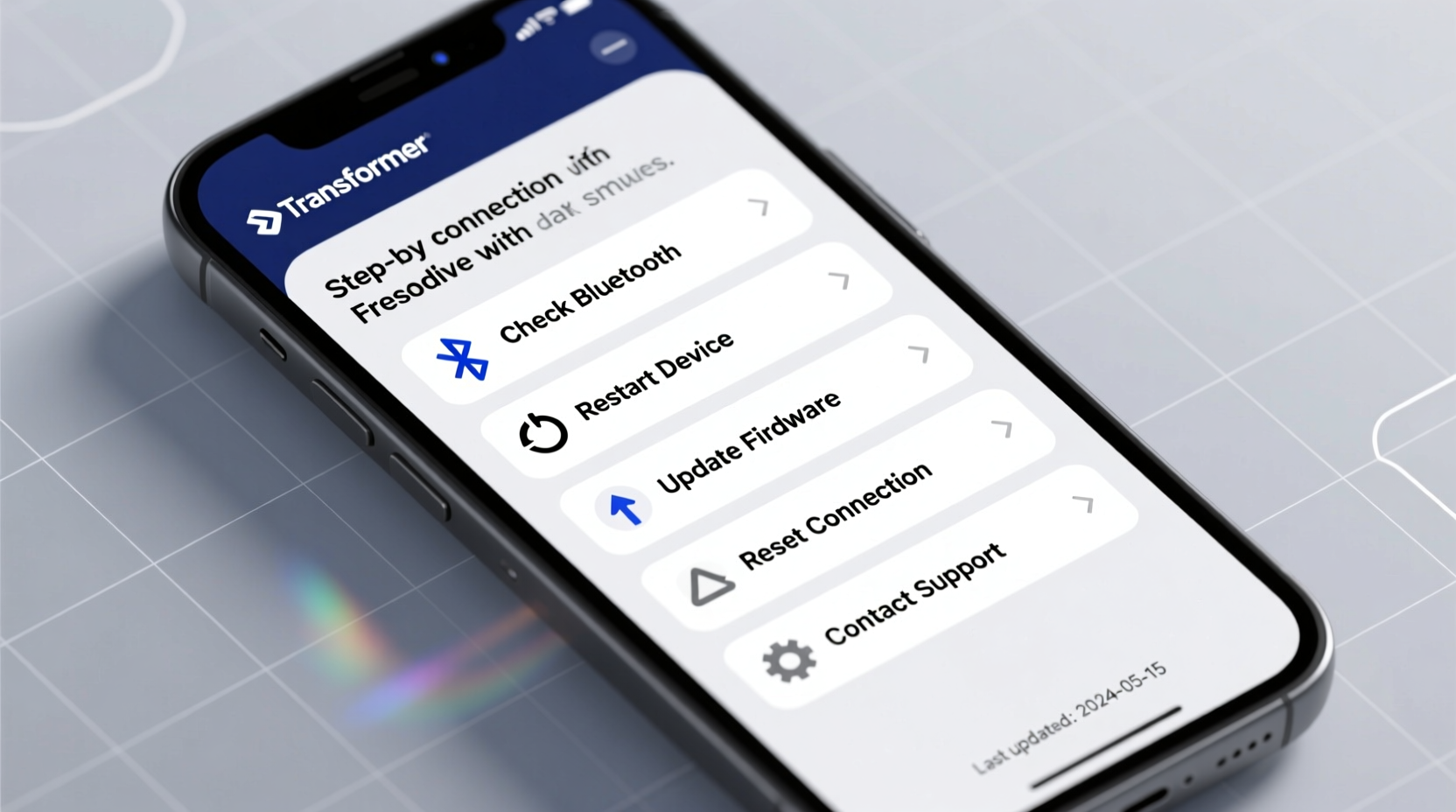
Before diving into fixes, it's essential to recognize the types of connection problems users commonly face:
- Pairing failure: The watch refuses to connect during initial setup or after resetting.
- Intermittent disconnections: The watch connects briefly but drops the link repeatedly.
- No data sync: Notifications, health stats, or settings fail to transfer despite an active connection.
- App unresponsiveness: The companion app crashes or doesn’t detect the watch.
These symptoms often stem from software glitches, outdated firmware, Bluetooth interference, or incorrect phone settings. Identifying the root cause is the first step toward resolution.
Step-by-Step Guide to Reestablishing a Stable Connection
A methodical approach prevents wasted effort and ensures no critical step is overlooked. Follow this sequence to troubleshoot and restore connectivity:
- Reboot both devices: Power off the watch and phone completely, wait 30 seconds, then restart them.
- Enable Bluetooth and location services: On Android, location must be enabled for full Bluetooth functionality. Check settings to ensure both are active.
- Forget the device: In your phone’s Bluetooth settings, locate the Transformers watch and select “Forget.”
- Clear Bluetooth cache (Android): Go to Settings > Apps > Show System Apps > Bluetooth > Storage > Clear Cache.
- Re-pair from the official app: Open the Transformers companion app, initiate pairing mode on the watch, and follow the on-screen prompts.
This process eliminates corrupted pairing data and forces a clean handshake between devices. Avoid skipping steps—even minor oversights can prevent success.
Do’s and Don’ts When Troubleshooting Connectivity
| Do’s | Don’ts |
|---|---|
| Keep both devices within 3 feet during pairing | Attempt pairing in areas with heavy Wi-Fi or Bluetooth traffic |
| Ensure the watch battery is above 30% | Pair with a low-battery watch or phone |
| Update the companion app and watch firmware | Ignore pending software updates |
| Disable third-party Bluetooth apps temporarily | Run multiple Bluetooth managers simultaneously |
| Use the original charging cable for stability | Charge via USB hubs or non-certified adapters during setup |
Adhering to best practices increases the likelihood of a successful connection. Interference from other wireless devices or unstable power sources can derail otherwise perfect setups.
Real Example: Recovering a Stuck Pairing Process
Samantha, a fitness instructor in Denver, purchased a Transformers X1 watch to monitor her clients’ workout metrics. Upon setup, her Android phone detected the watch but failed to complete pairing—the app froze at 78%. She tried restarting both devices twice with no success.
After consulting the support forum, she followed these additional steps:
- Cleared the Bluetooth cache on her Samsung Galaxy S22.
- Uninstalled and reinstalled the Transformers Fit app.
- Moved to a quiet room away from her Wi-Fi router and gym sound system.
On her third attempt, the pairing completed successfully. Later, she discovered a background app was hijacking Bluetooth permissions. Disabling auto-connect features in her music streaming app prevented future conflicts.
This case illustrates how environmental factors and hidden software interference can disrupt connections—even when basic steps seem sufficient.
“Over 70% of smartwatch connection failures aren’t hardware-related. They stem from misconfigured settings or outdated software layers that users overlook.” — Raj Mehta, Senior Wearable Systems Engineer at ConnectTech Labs
Firmware and App Updates: A Critical Step Often Skipped
Manufacturers regularly release firmware updates to patch bugs, improve Bluetooth protocols, and enhance compatibility with new phone models. Ignoring these updates leaves your watch vulnerable to known issues.
To check for updates:
- Open the Transformers companion app.
- Navigate to Device Settings > Firmware Update.
- If an update is available, keep the watch charged and connected during installation.
Similarly, ensure the mobile app is updated through the Google Play Store or Apple App Store. Outdated apps may lack support for current operating systems, leading to handshake failures.
Advanced Fixes for Persistent Problems
When standard methods fail, deeper interventions may be necessary:
Reset the Smart Watch to Factory Settings
Locate the reset option in Settings > System > Reset. Confirm the action—this erases all data and returns the watch to its out-of-box state. After resetting, attempt pairing again from scratch.
Check Phone-Specific Compatibility
Some older Android phones or iOS versions may not fully support newer Bluetooth Low Energy (BLE) standards used by the watch. Verify compatibility on the manufacturer’s website before assuming a defect.
Test with Another Smartphone
If possible, try pairing the watch with a different phone. If it connects successfully, the issue lies with your original device’s software or Bluetooth module.
Disable Battery Optimization for the App
On Android, aggressive battery-saving modes can suspend background processes, including Bluetooth syncing. To prevent this:
- Go to Settings > Apps > Transformers Fit > Battery.
- Select “Unrestricted” under battery usage.
This allows the app to maintain an active connection without being throttled by the OS.
FAQ
Why does my Transformers watch keep disconnecting randomly?
Random disconnections are often caused by Bluetooth interference, low battery, or power-saving modes on the phone. Ensure the companion app is excluded from battery optimization and that no other devices are crowding the 2.4 GHz band.
Can I pair my watch with more than one phone?
The watch supports only one active Bluetooth connection at a time. While you can pair it with another phone later, doing so will break the previous link. Multi-point pairing is not currently supported.
The app says \"Device Already Paired\" but my watch isn’t connecting. What should I do?
This usually means residual pairing data remains on your phone. Forget the device in Bluetooth settings, clear the app cache, and reinstall the app if needed. Then retry pairing in a low-interference environment.
Conclusion
Connection problems with your Transformers smart watch don’t have to be permanent. With systematic troubleshooting—from simple restarts to firmware updates and factory resets—most issues can be resolved without professional help. The key is patience and precision: skip steps at your peril, but follow the right sequence, and connectivity is usually restored. These watches are designed for resilience and performance; when they underperform, the solution is often in the settings, not the hardware.




 浙公网安备
33010002000092号
浙公网安备
33010002000092号 浙B2-20120091-4
Comments
No comments yet. Why don't you start the discussion?