
Bluetooth headphones offer freedom from wires, but when they refuse to connect or keep dropping the signal, the convenience turns into frustration. Whether you're preparing for a work call, commuting, or unwinding with music, an unstable Bluetooth link disrupts your routine. The good news: most connection problems stem from common, fixable causes. With the right approach, you can diagnose and resolve these issues efficiently—often in under ten minutes.
Understanding how Bluetooth works is key. It relies on short-range wireless communication between two devices, typically within 30 feet and without major obstructions. Interference, outdated firmware, incorrect settings, or hardware glitches can all interfere with this handshake. Instead of replacing your headphones prematurely, apply targeted troubleshooting steps that address root causes—not just symptoms.
1. Reset the Bluetooth Connection Chain
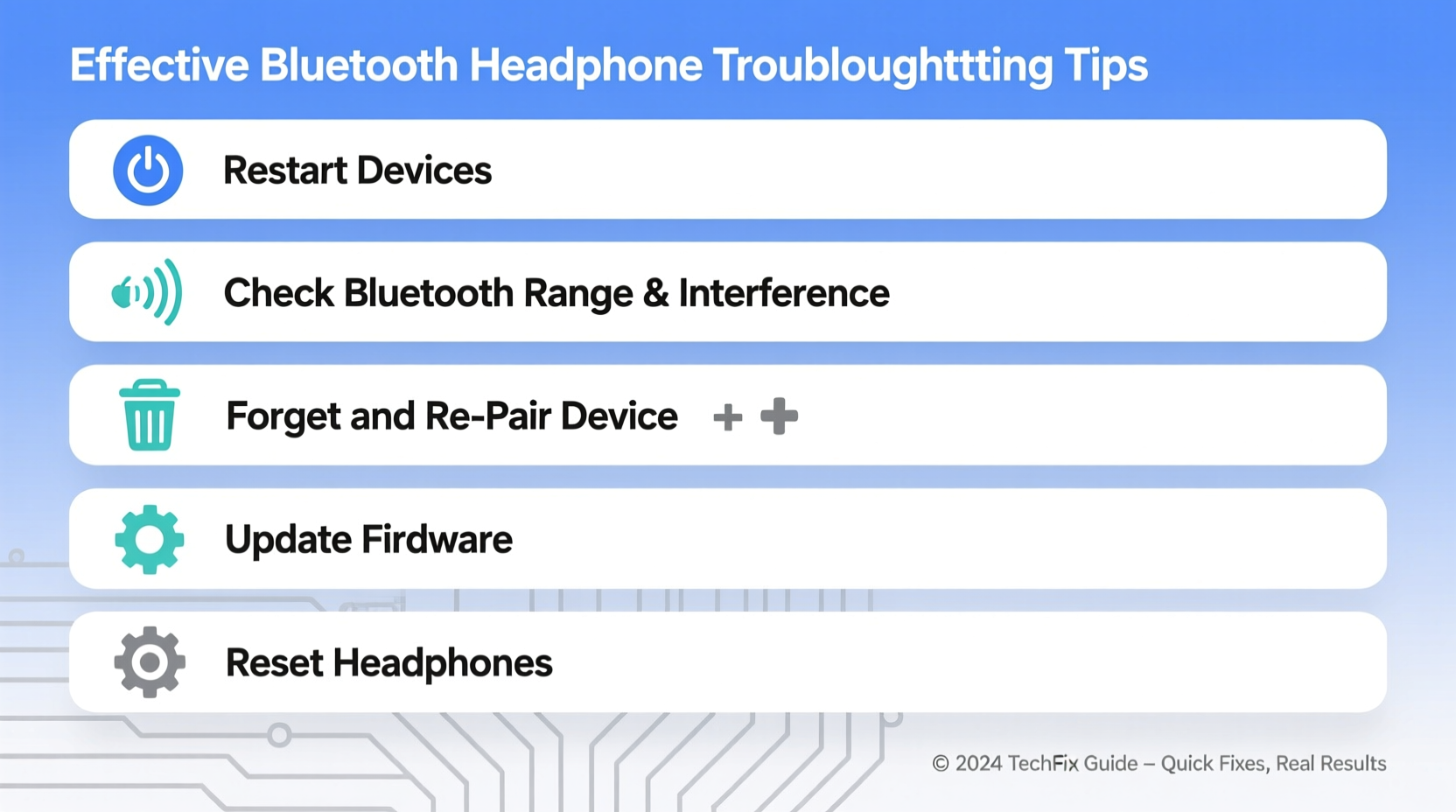
One of the most overlooked yet effective fixes is resetting the entire connection process. Many users attempt to reconnect without clearing previous pairings, leading to conflicts. A clean reset removes cached data and forces both devices to re-establish communication properly.
- Turn off your headphones completely.
- On your phone or computer, go to Bluetooth settings and “Forget” the device.
- Restart your source device (phone, laptop, tablet).
- Power on your headphones in pairing mode (usually indicated by a flashing LED).
- Re-pair the devices from scratch.
This sequence clears stale connections and resolves many intermittent dropouts. It's especially useful after software updates, which sometimes corrupt existing Bluetooth profiles.
2. Eliminate Signal Interference and Range Issues
Bluetooth operates on the 2.4 GHz frequency band—the same as Wi-Fi routers, microwaves, cordless phones, and even USB 3.0 ports. When multiple devices transmit on this crowded spectrum, interference occurs, causing audio stuttering or disconnections.
Maintaining line-of-sight and minimizing distance helps, but environmental factors matter too. Thick walls, metal surfaces, and large electronic appliances absorb or reflect signals. Even carrying your phone in a back pocket while wearing headphones can weaken connectivity due to body absorption.
| Common Source of Interference | Impact on Bluetooth | Solution |
|---|---|---|
| Wi-Fi router | Signal congestion | Move away or switch router to 5 GHz if possible |
| Microwave oven | Temporary dropout during use | Avoid using headphones near kitchen appliances |
| USB 3.0 devices | EMI leakage | Keep external drives/hubs away from Bluetooth adapter |
| Other Bluetooth devices | Channel overlap | Turn off unused earbuds, speakers, or trackers |
For consistent performance, maintain proximity—ideally within 10 feet—and reduce competing electronics nearby. If you frequently experience dropouts at your desk, consider relocating your laptop or using a Bluetooth extender dongle.
3. Update Firmware and Device Software
Firmware bugs are a silent culprit behind persistent connection issues. Manufacturers release updates to improve stability, compatibility, and battery efficiency. Unfortunately, many users never check for them.
Headphones from brands like Sony, Bose, Sennheiser, and Apple often require companion apps—such as Headphones Connect, Bose Music, or macOS Audio Updates—to deliver firmware patches. These updates may not appear through standard system updates.
“Over 60% of support cases we see are resolved simply by updating to the latest firmware version.” — Rajiv Mehta, Senior Support Engineer at JBL Audio Solutions
To update your headphones:
- Download the manufacturer’s official app.
- Ensure your headphones are fully charged and connected via Bluetooth.
- Open the app and navigate to device settings or system updates.
- Follow prompts to install any available firmware.
Similarly, ensure your smartphone or computer OS is up to date. iOS, Android, and Windows regularly refine Bluetooth stack performance. An outdated OS can prevent proper recognition of newer audio codecs or cause pairing timeouts.
4. Perform a Hardware Reset on Your Headphones
When software tweaks fail, a factory reset of the headphones themselves can restore normal operation. This clears all paired devices, resets internal memory, and reinstalls default settings—similar to rebooting a router.
The reset method varies by brand:
- Sony WH-1000XM4/5: Hold power and NC/Ambient buttons simultaneously for 7 seconds.
- Bose QuietComfort: Press and hold the volume down and Bluetooth buttons for 10 seconds.
- Apple AirPods: Press and hold the setup button on the case for 15 seconds until status light flashes amber, then white.
- Generic models: Usually involve holding the power button for 15+ seconds until lights flash erratically.
After resetting, re-pair your headphones as if they were new. This step often resolves deep-seated glitches like one-sided audio, unresponsive controls, or failure to power on correctly.
5. Real-World Example: Solving Daily Commute Dropouts
Consider Sarah, a daily commuter who uses wireless earbuds on her train ride to work. Every morning, her left earbud disconnects intermittently around the same subway tunnel. She tried charging, restarting her phone, and toggling Bluetooth—but the issue persisted.
Upon investigation, she realized the problem occurred only during peak hours. After reading about RF congestion, she tested turning off her smartwatch and fitness tracker during transit. The disconnections stopped. Further testing revealed that her watch, located on the same arm as her phone, was transmitting heart rate data over Bluetooth LE, creating channel contention.
By disabling non-essential Bluetooth devices during her commute, Sarah restored stable audio. She also updated her earbuds’ firmware, which included improved multipoint connection handling—a feature not available when she first bought them.
Sarah’s case illustrates how environmental and usage patterns affect Bluetooth reliability. What seemed like a hardware defect was actually a solvable configuration issue.
Troubleshooting Checklist
Use this checklist whenever your Bluetooth headphones fail to connect or behave erratically:
- ✅ Ensure headphones are charged above 20%
- ✅ Confirm Bluetooth is enabled on the source device
- ✅ Forget the device and re-pair from scratch
- ✅ Restart both the headphones and source device
- ✅ Check for firmware updates via manufacturer app
- ✅ Move away from potential sources of interference
- ✅ Perform a factory reset on the headphones
- ✅ Test with another device to isolate the problem
Following these steps systematically increases the likelihood of identifying and fixing the core issue—without unnecessary replacements.
FAQ
Why do my Bluetooth headphones connect but produce no sound?
This usually means the device is paired but not set as the active audio output. On smartphones, pull down the quick settings panel and tap the media output icon to select your headphones. On computers, go to Sound Settings and choose the correct playback device. Also, ensure the app you're using supports Bluetooth audio routing—some VoIP apps default to speaker or wired headset.
Can I use Bluetooth headphones with multiple devices at once?
Some modern headphones support multipoint pairing, allowing simultaneous connections to two devices (e.g., phone and laptop). However, only one stream plays at a time. When a call comes in on your phone, audio from your laptop pauses automatically. Not all models support this—check your product specifications. Enable it through the manufacturer’s app if available.
How often should I reset my Bluetooth headphones?
There's no need for regular resets unless you encounter issues. However, doing so every few months can prevent minor glitches from accumulating, especially if you frequently switch between multiple devices or travel through high-interference zones.
Conclusion: Regain Control Over Your Listening Experience
Bluetooth headphone issues are rarely permanent. Most problems arise from temporary mismatches in software, environment, or settings—not hardware failure. By applying structured troubleshooting—resetting connections, eliminating interference, updating firmware, and understanding device behavior—you can restore reliable performance quickly.
Don’t accept constant dropouts as inevitable. With the right knowledge, you can diagnose and fix over 90% of connection issues in under 15 minutes. Take control today: grab your headphones, follow the checklist, and enjoy uninterrupted audio exactly as intended.




 浙公网安备
33010002000092号
浙公网安备
33010002000092号 浙B2-20120091-4
Comments
No comments yet. Why don't you start the discussion?