
PDFs are among the most widely used document formats today, prized for their consistency across devices and operating systems. However, many users struggle when they need to modify or enhance these files—especially when it comes to adding new content such as text, images, annotations, or links. Unlike word processors, PDFs are not inherently designed for editing, but that doesn’t mean changes can’t be made effectively. This guide walks through practical, proven methods to insert content into a PDF, whether you're working on a school assignment, business report, or personal project.
Understanding PDF Limitations and Possibilities
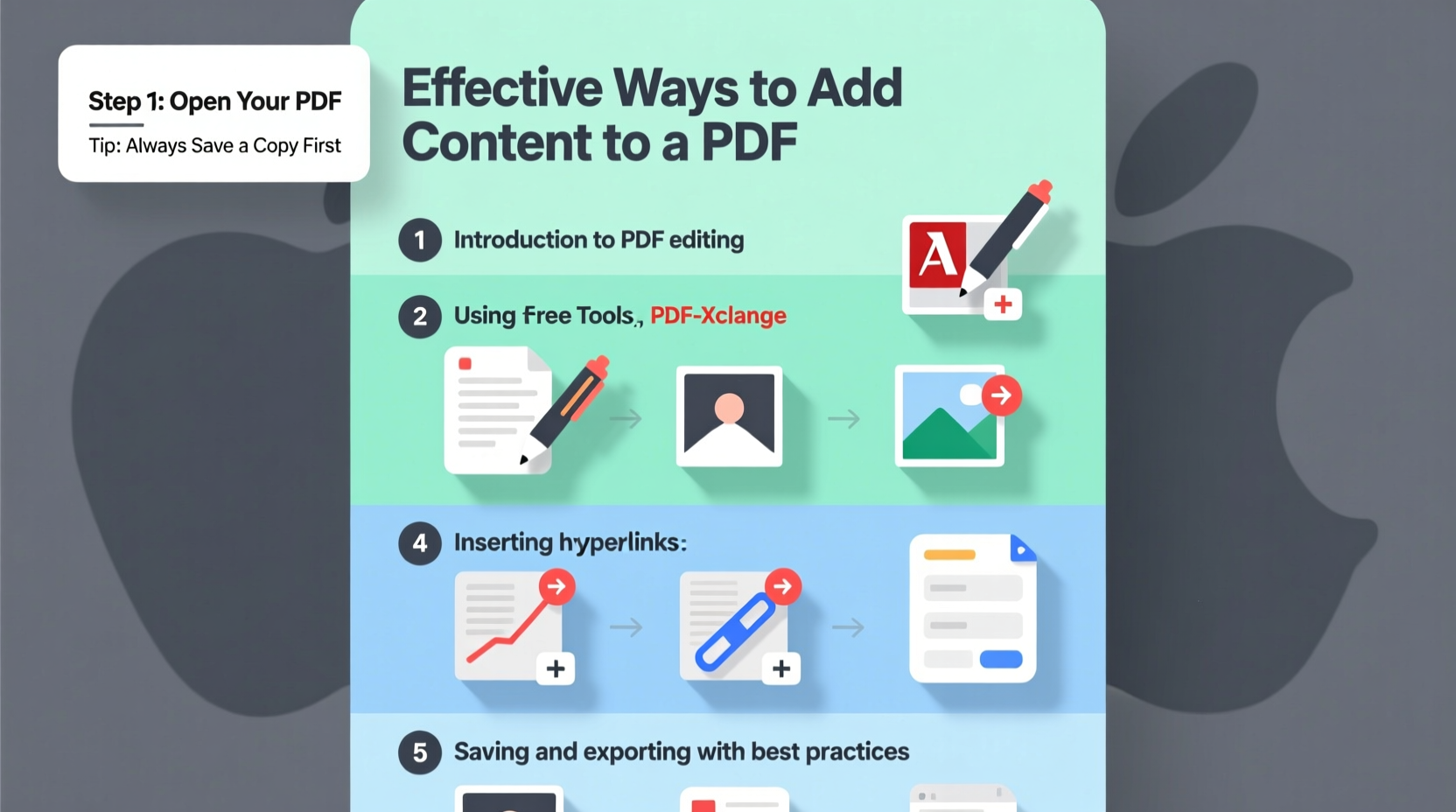
Before diving into how to edit a PDF, it’s important to understand what makes them different from editable documents like .docx or .odt files. A PDF (Portable Document Format) preserves layout, fonts, and graphics exactly as intended by the creator. While this ensures visual fidelity, it also means direct editing isn’t always straightforward.
However, modern tools have bridged much of this gap. You can now add text, draw shapes, insert images, highlight sections, and even fill out forms—all without altering the original formatting. The key is choosing the right method based on your technical comfort level, budget, and the complexity of the changes needed.
Step-by-Step Guide: Adding Text to a PDF
Adding text is one of the most common reasons people want to edit a PDF. Whether you’re inserting comments, correcting errors, or annotating a contract, here’s how to do it properly.
- Choose Your Tool: Select a reliable PDF editor. Free options include Adobe Acrobat Reader (limited editing), LibreOffice Draw, or online editors like PDFescape. Paid tools like Adobe Acrobat Pro, Foxit PhantomPDF, or Nitro PDF offer more advanced features.
- Open the PDF: Launch your chosen software and open the target file.
- Select the Edit Text Tool: In most editors, this appears as a “Edit Text” or “Add Text” icon, often resembling an “Aa” symbol.
- Click Where You Want to Insert: Click inside the document where you'd like to add text. A cursor will appear, allowing you to type directly onto the page.
- Adjust Font and Size: Match the existing font style and size if possible to maintain visual consistency. Most editors allow you to change font, color, and alignment via a toolbar.
- Save the File: Once satisfied, save your edited version under a new name to preserve the original.
Note: If the PDF is scanned (i.e., an image of text rather than selectable text), optical character recognition (OCR) must first convert the image into editable content. Tools like Adobe Acrobat Pro and online OCR services support this function.
Inserting Images and Graphics
Visual elements can greatly enhance clarity in reports, presentations, or instructional guides. Here’s how to embed images into a PDF:
- Navigate to the “Insert” or “Comment” menu in your PDF editor.
- Select “Add Image” or use the image tool (usually represented by a mountain or photo icon).
- Browse your computer to select the image file (JPG, PNG, etc.).
- Place and resize the image as needed. Hold shift while resizing to maintain proportions.
- Adjust layering if necessary—some tools allow you to send images behind or in front of text.
For best results, ensure images are high-resolution but compressed appropriately to avoid bloating the file size. Large files may become difficult to email or upload.
| Method | Best For | Limitations |
|---|---|---|
| Adobe Acrobat Pro | Professional editing, OCR, batch processing | Paid subscription required |
| PDFescape (Online) | Quick edits, form filling, light annotation | Limited image size; requires internet |
| LibreOffice Draw | Free desktop solution, basic modifications | Steeper learning curve; less intuitive UI |
| Google Docs (via Upload) | Converting and editing simple PDFs | Formatting often breaks; no native PDF export after edit |
Real Example: Updating a Client Proposal
Sarah, a freelance graphic designer, received feedback on her latest client proposal. She needed to add two new service packages and include sample mockups. Using Adobe Acrobat Pro, she opened the original PDF, selected “Edit Text,” and inserted descriptions of the new offerings directly into the pricing section. Then, she used the “Insert Image” tool to place thumbnail designs next to each package. By matching font styles and spacing carefully, the additions looked seamless. She saved the updated version as “Proposal_v2_ClientReview.pdf” and sent it within minutes—without needing to recreate the entire document in design software.
This scenario illustrates how efficient PDF editing can streamline workflows, especially when time-sensitive revisions are required.
Expert Insight: Why Proper Editing Matters
“Many professionals waste hours re-creating documents just because they don’t know how to edit PDFs efficiently. Learning to add content correctly saves time and maintains brand consistency.” — James Lin, Digital Workflow Consultant
According to industry experts, mastering basic PDF editing skills ranks among the top productivity boosters for remote workers, educators, and small business owners. It reduces dependency on original source files and allows collaboration directly on finalized layouts.
Checklist: How to Successfully Add Content to a PDF
- ✅ Back up the original PDF before editing
- ✅ Verify if the PDF is scanned or digital (use OCR if needed)
- ✅ Choose the right tool based on your needs (free vs. paid)
- ✅ Match fonts, colors, and alignment with existing content
- ✅ Test interactivity (e.g., hyperlinks) before sharing
- ✅ Save the edited file with a clear, descriptive name
- ✅ Share only when confident formatting hasn't been disrupted
Frequently Asked Questions
Can I add clickable links to a PDF?
Yes. Most professional PDF editors include a “Link” or “Hyperlink” tool. After selecting it, draw a rectangle over the area you want to make clickable (such as a URL or button), then assign the destination web address. When viewed in compatible readers, the link will be active.
Why does my added text look blurry or misaligned?
This usually happens when the font isn’t embedded in the original PDF or when zoom levels affect placement accuracy. Try changing the font to a standard one like Arial or Times New Roman, and double-check alignment using grid guides if available. Also, ensure you're editing in actual size view (100%) rather than fit-to-page mode.
Is it safe to use online PDF editors?
For non-sensitive documents, reputable online tools like PDFescape or Sejda are generally safe. However, avoid uploading confidential data (contracts, IDs, financial records) to third-party websites unless they explicitly state end-to-end encryption and automatic file deletion policies.
Conclusion: Start Enhancing Your PDFs Today
Adding content to a PDF doesn’t require advanced technical skills or expensive software. With the right approach and tools, anyone can update, annotate, and improve PDF documents efficiently. From inserting simple text notes to embedding visuals and interactive elements, these techniques empower you to work smarter—not harder. Begin practicing with low-stakes files, explore different editors, and build confidence over time. Once mastered, PDF editing becomes an indispensable part of your digital toolkit.




 浙公网安备
33010002000092号
浙公网安备
33010002000092号 浙B2-20120091-4
Comments
No comments yet. Why don't you start the discussion?