
In an age where we interact with digital devices constantly—smartphones, tablets, laptops, smartwatches—the way we manage screen behavior directly impacts our efficiency, eye comfort, and battery longevity. One of the most overlooked yet powerful tools in this equation is the screen timeout setting. Far from being a minor convenience, it plays a critical role in balancing usability, security, and energy conservation. Adjusting this feature thoughtfully can extend battery life, reduce distractions, and protect sensitive information when devices are left unattended.
Screen timeout refers to the amount of time your device waits before automatically turning off its display after inactivity. While default settings often range between 30 seconds and 2 minutes, these may not suit every user’s lifestyle or environment. Optimizing this duration based on your usage patterns leads to smarter device interaction without compromising accessibility.
Why Screen Timeout Matters More Than You Think
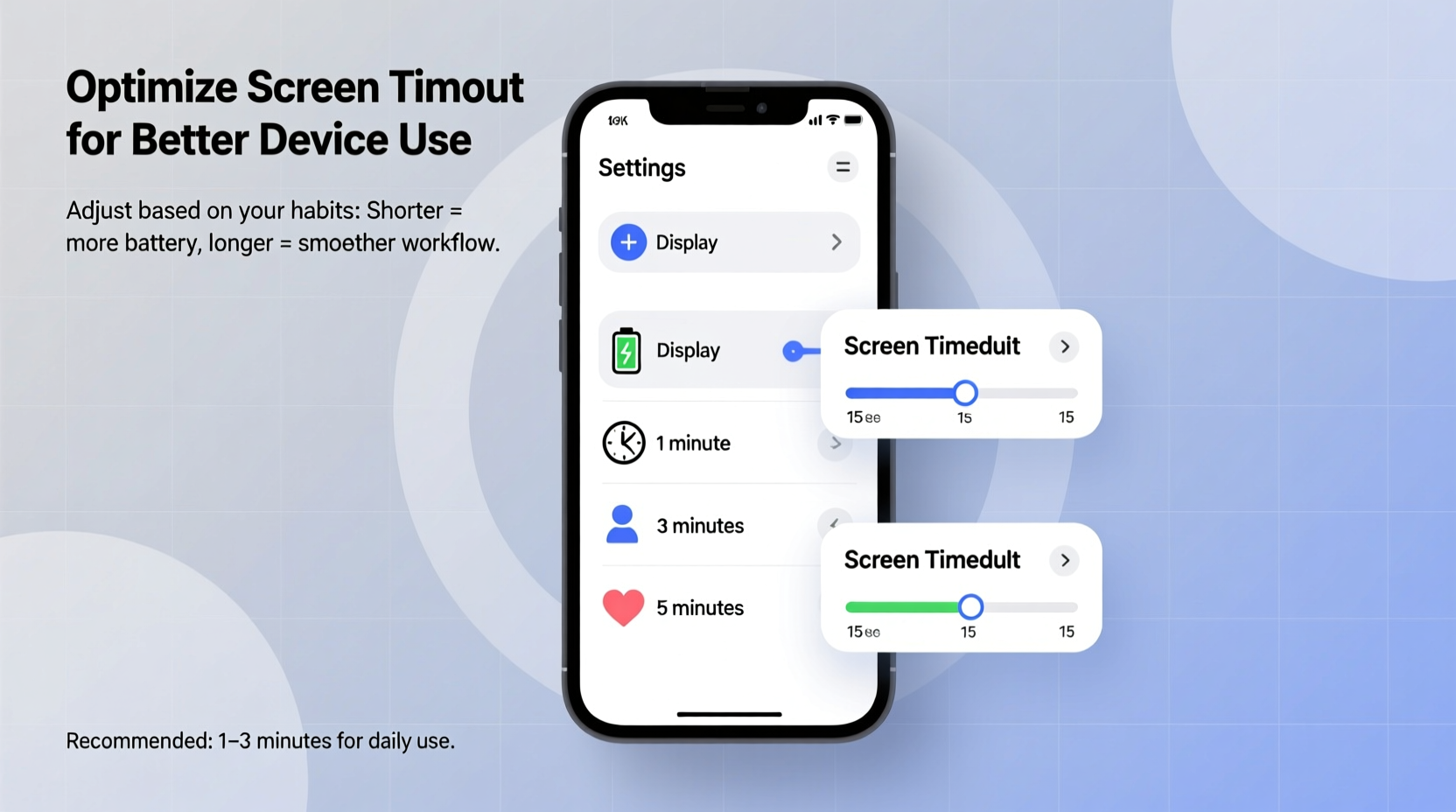
The screen is typically the most power-hungry component of any mobile device. According to research by the University of California, Irvine, display usage accounts for up to 60% of total smartphone battery consumption. A shorter timeout reduces unnecessary screen-on time, which translates into meaningful power savings—especially over days or weeks of regular use.
Beyond battery preservation, screen timeout also affects privacy and focus. Devices left unlocked with active screens expose personal data in public spaces. Conversely, excessively short timeouts can frustrate users during reading or media viewing, forcing constant reactivation. The goal is to find a balance tailored to context: work, travel, home use, or outdoor activity.
“Optimizing screen timeout isn’t about cutting corners—it’s about aligning device behavior with human behavior.” — Dr. Lena Torres, Human-Computer Interaction Researcher at MIT Media Lab
Step-by-Step Guide to Adjusting Screen Timeout Across Devices
Each operating system handles screen timeout differently, but all offer accessible controls. Follow these steps to customize settings effectively:
For Android Devices
- Navigate to Settings.
- Select Display (or Screen & Display, depending on brand).
- Tap Screen timeout or Sleep.
- Choose a duration—from 15 seconds to 10 minutes—or enable adaptive sleep if available.
For iPhones (iOS)
- Open Settings.
- Go to Display & Brightness.
- Select Auto-Lock.
- Pick a time interval (30 seconds, 1 minute, 5 minutes) or choose Never only in trusted environments like at home.
For Windows Laptops
- Click the Start menu and go to Settings.
- Select System, then Power & sleep.
- Under “Screen,” set separate durations for when plugged in vs. on battery.
- Recommended: 2 minutes on battery, 5 minutes when charging.
For macOS
- Open System Settings (or System Preferences on older versions).
- Go to Displays.
- Adjust the “Turn display off after” slider under the Energy Saver tab.
- Consider enabling “Slightly dim the display while on battery power” for additional savings.
Customizing Timeout Based on Usage Scenarios
A one-size-fits-all approach rarely works. Instead, tailor your screen timeout to specific situations. Below is a comparison of ideal settings across different contexts:
| Scenario | Ideal Timeout | Rationale |
|---|---|---|
| Commuting / Public Transit | 30 seconds | Enhances security; prevents shoulder surfing; conserves battery during idle periods. |
| Reading E-books or Articles | 5–10 minutes | Reduces interruptions while flipping through pages; improves immersion. |
| Work Desk (Plugged In) | 3–5 minutes | Balances readiness with energy efficiency; avoids blackouts during quick breaks. |
| Outdoor Use (Sunlight) | 2 minutes | High brightness drains battery fast; shorter timeout mitigates waste. |
| Nighttime / Bedtime | 1 minute or less | Minimizes blue light exposure; supports sleep hygiene. |
Advanced Optimization Strategies
Modern devices support more than just static timers. Leveraging automation and contextual awareness can elevate your control:
- Use automation apps: Tools like Tasker (Android) or Shortcuts (iOS) allow you to change timeout settings based on location, Wi-Fi network, or time of day. For example, set a longer timeout at home via geofencing.
- Enable proximity sensors: Some phones turn off the screen during calls or when placed face-down. Ensure these features are active to prevent accidental input and wasted screen time.
- Leverage dark mode synergy: On OLED screens, darker interfaces consume less power. Pair dark mode with moderate timeouts for compounded battery benefits.
- Monitor actual usage: Check battery usage statistics in settings to see how much power your screen consumes daily. This data helps validate whether changes are effective.
Mini Case Study: Reducing Screen-On Time in a Remote Work Setup
Jamie, a freelance graphic designer using a MacBook Pro and iPhone throughout the day, noticed her laptop battery rarely lasted beyond four hours despite minimal app usage. After reviewing energy logs, she discovered the display was active 78% of the time—even during coffee breaks and meetings. She adjusted her Mac’s screen-off timer from 10 minutes to 3 minutes on battery and enabled automatic switching based on charger status. Combined with reducing her iPhone auto-lock from 5 minutes to 1 minute, she extended combined device uptime by nearly 40%. The change required no sacrifice in usability but significantly reduced recharging frequency.
Common Mistakes and What to Avoid
While adjusting screen timeout seems straightforward, several pitfalls can undermine its effectiveness:
- Setting it too long out of convenience: A 10-minute timeout may feel comfortable, but it wastes energy and increases exposure risk.
- Ignoring differences between charging and mobile use: Failing to set shorter timeouts when on battery misses key optimization opportunities.
- Disabling lock screen requirements: Even with a short timeout, ensure a passcode, fingerprint, or facial recognition locks the device upon wake.
FAQ
Does a shorter screen timeout improve battery life significantly?
Yes. On average, reducing screen timeout from 5 minutes to 30 seconds can save 15–25% of daily battery drain, especially on smartphones used frequently throughout the day.
Can I have different timeouts for different apps?
Not natively on most systems, but third-party tools like iOS Shortcuts or Android Tasker can simulate this behavior. For instance, disable auto-lock when a reading app is open and restore it afterward.
Is there a universal recommended timeout duration?
No single value fits all, but a general rule is: 30 seconds in public or on battery, 2–3 minutes at home or when plugged in. Adjust based on real-world testing and feedback from your usage patterns.
Final Checklist: Optimize Your Screen Timeout Today
- Review current screen timeout settings on all personal devices.
- Set shorter durations (15–30 seconds) for mobile/public use.
- Allow slightly longer timeouts (2–5 minutes) in private, low-risk environments.
- Configure separate settings for battery vs. charging modes.
- Test new settings for one full day and adjust based on usability.
- Enable auto-lock and biometric authentication for security.
- Explore automation options to make adjustments context-aware.
Take Control of Your Digital Experience
Screen timeout settings are a small lever with outsized impact. When optimized intentionally, they enhance battery performance, strengthen privacy, and refine your relationship with technology. These adjustments require only minutes to implement but deliver lasting benefits across every interaction. Start today by auditing your current configurations and applying scenario-based tuning. Small changes compound into smarter, more sustainable device habits.




 浙公网安备
33010002000092号
浙公网安备
33010002000092号 浙B2-20120091-4
Comments
No comments yet. Why don't you start the discussion?