
Smartphones hold sensitive personal information—banking details, private messages, photos, and access to social media and email accounts. When a device is lost or stolen, the risk of data exposure increases dramatically. Fortunately, modern technology allows users to remotely block or lock their phones, preventing unauthorized access even when the device is out of reach. Understanding how to execute this critical action can mean the difference between a minor inconvenience and a full-scale digital breach.
Why Remote Phone Blocking Matters
Every year, millions of smartphones are misplaced or stolen. According to the Federal Communications Commission (FCC), smartphone theft accounts for nearly half of all robberies in major U.S. cities. Without proper safeguards, a lost phone becomes a gateway to identity theft, financial fraud, and privacy violations.
Remote blocking disables access to your phone’s interface, locking it behind a passcode or wiping its contents entirely. This function not only protects your data but also discourages thieves from using or reselling the device. Most operating systems now include built-in tools designed specifically for this purpose, making remote security accessible to everyone.
Step-by-Step Guide to Remotely Block Your Phone
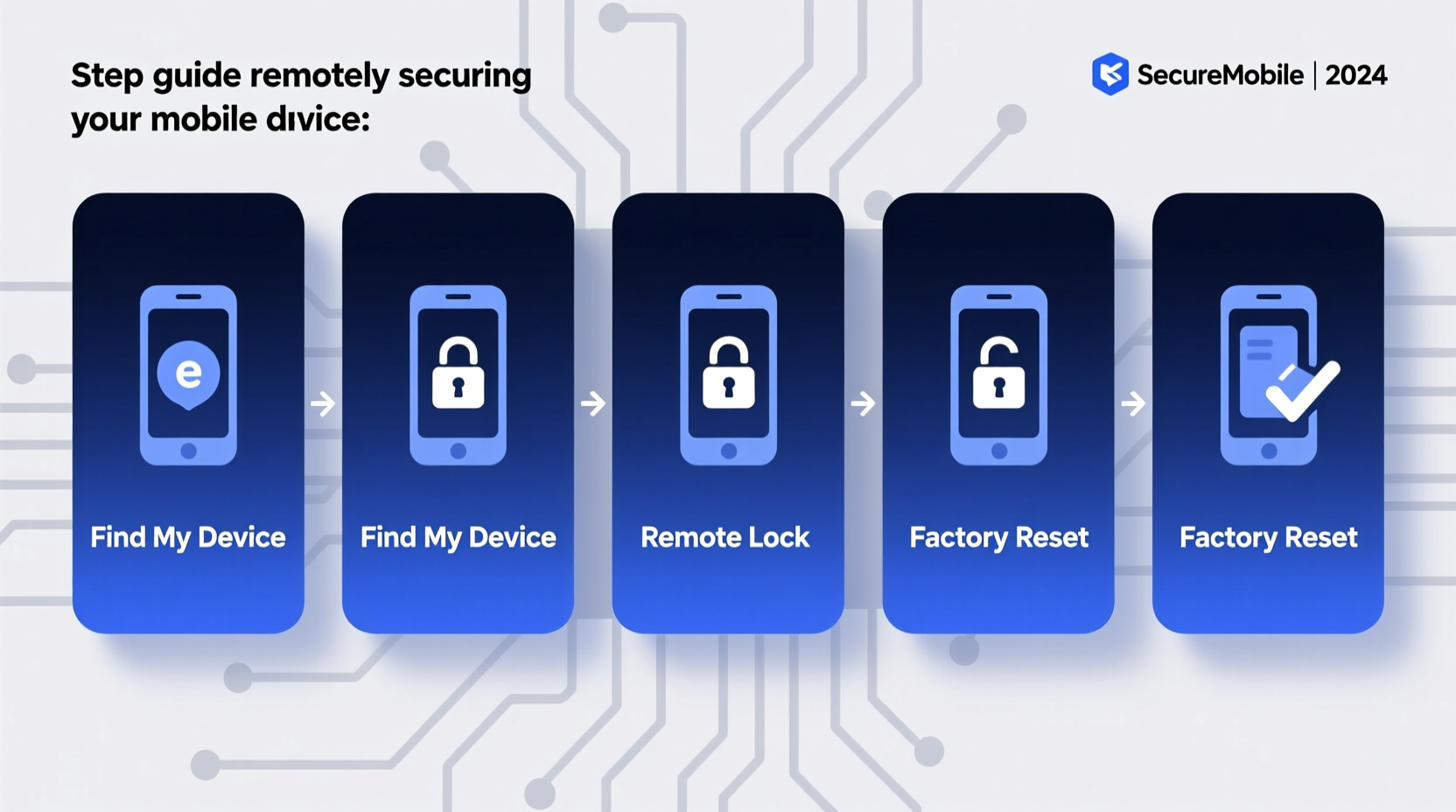
Blocking a phone remotely involves locating the device, securing it with a lock command, and optionally erasing all data. The exact process varies depending on the operating system. Follow these steps based on your device type.
For Android Devices: Using Find My Device
- Access Google’s Find My Device: Open a web browser on another device and go to findmydevice.google.com.
- Sign In: Log in with the same Google account linked to your lost Android phone.
- Select the Device: If you have multiple devices, choose the one that’s missing.
- Choose “Secure Device”: Click the “Lock” option. You’ll be prompted to set a new PIN or password that will override the current lock screen.
- Add a Recovery Message (Optional): Enter contact information or a message like “Reward if found” to appear on the lock screen.
- Confirm Action: Once confirmed, the command will push to the device as soon as it connects to the internet.
Note: The device must be powered on, connected to Wi-Fi or cellular data, and have location services enabled for this to work.
For iPhones: Using Find My iPhone
- Visit iCloud.com: On any computer or iOS device, navigate to www.icloud.com.
- Log In: Use your Apple ID credentials associated with the missing iPhone.
- Open Find iPhone: Select the “Find iPhone” app from the dashboard.
- Locate Your Device: A map will display your iPhone’s last known location.
- Enable Lost Mode: Choose “Lost Mode” to lock the phone with a passcode and display a custom message.
- Remote Wipe (If Necessary): If recovery seems unlikely, select “Erase iPhone.” This removes all data but keeps Activation Lock active, rendering the device unusable without your Apple ID.
Activation Lock ensures that even after a factory reset, the thief cannot reactivate the device without your login—a powerful deterrent.
Essential Precautions Before You Lose Your Phone
Remote blocking only works if certain conditions are met ahead of time. Relying on these tools after losing your phone won’t help if they weren’t set up previously.
| Action | Android | iOS |
|---|---|---|
| Enable Location Services | Settings > Location > On | Settings > Privacy > Location Services > On |
| Turn On Remote Find Feature | Google Settings > Find My Device > On | Settings > [Your Name] > Find My > Find My iPhone > On |
| Use a Strong Screen Lock | PIN, Pattern, or Biometric | Passcode + Face ID/Touch ID |
| Keep OS Updated | Security patches improve protection | iOS updates include anti-theft improvements |
“Setting up remote lock features is like digital insurance—you hope you never need it, but you’ll regret not having it.” — David Lin, Cybersecurity Analyst at SecureMobile Labs
Real-World Scenario: Recovering a Stolen Phone
Sophia, a freelance photographer in Austin, left her phone in a café after a client meeting. She realized it was missing 20 minutes later. Panicked, she remembered enabling Find My iPhone months earlier. Using her iPad, she logged into iCloud, located the device moving slowly along a downtown street, and immediately activated Lost Mode with a message: “This phone is tracked. Return to Café Luna for $50 reward.”
Within two hours, the café manager called—someone had dropped off the phone. The thief likely saw the lock screen message and decided against tampering with it. Thanks to proactive setup and quick action, Sophia recovered her device unharmed.
Common Mistakes That Disable Remote Blocking
- Disabling location services: Without GPS or network location, tracking fails.
- Signing out of your cloud account: Both Google and Apple require active account sessions.
- Powering off the phone manually: Thieves often do this to prevent tracking; however, commands queue and execute once power is restored.
- Removing the SIM card: While this limits cellular tracking, Wi-Fi-based location may still work if the device connects to known networks.
Additional Security Measures to Enhance Protection
Remote blocking is just one layer of mobile security. Combine it with other best practices for comprehensive defense.
Checklist: Mobile Security Essentials
- ✅ Set up biometric authentication (fingerprint or face recognition)
- ✅ Use strong, unique passcodes (avoid 1234 or birthdates)
- ✅ Install reputable security apps (e.g., Lookout, Norton Mobile)
- ✅ Enable two-factor authentication on your cloud accounts
- ✅ Regularly back up your phone to the cloud or computer
- ✅ Record your phone’s IMEI number (dial *#06# to find it)
Storing your IMEI (International Mobile Equipment Identity) helps law enforcement track the device and request blacklisting through carriers. Many countries maintain national databases that block stolen devices from connecting to any network.
Frequently Asked Questions
Can I block my phone if it’s turned off?
Yes, but the command will only take effect once the device powers back on and reconnects to the internet. Until then, it remains queued in your account.
Does remote blocking work without internet?
No. The phone must connect to Wi-Fi or cellular data to receive the lock or wipe command. However, most modern tools attempt delivery whenever connectivity is restored.
Will blocking my phone erase all data?
Locking the phone does not erase data—it only secures access. However, choosing the “Erase” option permanently deletes everything. Always back up your data regularly to avoid irreversible loss.
Take Control of Your Digital Safety Today
Remote phone blocking is a simple yet powerful tool that every smartphone owner should understand and implement. It turns a potentially devastating situation into a manageable incident. The key is preparation: setting up tracking services, using strong authentication, and knowing exactly what steps to take when your phone goes missing.
You don’t need technical expertise to protect your device—just awareness and action. Review your phone’s security settings now. Confirm that Find My Device or Find My iPhone is active. Test the feature from another browser. These few minutes could save you from significant stress and risk down the line.




 浙公网安备
33010002000092号
浙公网安备
33010002000092号 浙B2-20120091-4
Comments
No comments yet. Why don't you start the discussion?