
Unwanted calls and spam messages are more than just a nuisance—they can be invasive, deceptive, or even dangerous. From robocalls promoting fake services to scam texts attempting to steal personal information, the volume of unsolicited contact has surged in recent years. The good news? Every Android phone offers built-in and third-party tools to help you take back control. Whether you're dealing with persistent telemarketers, blocked contacts, or international spam, this guide covers practical, reliable methods to block unwanted numbers across all major Android devices.
Why Blocking Unwanted Numbers Matters
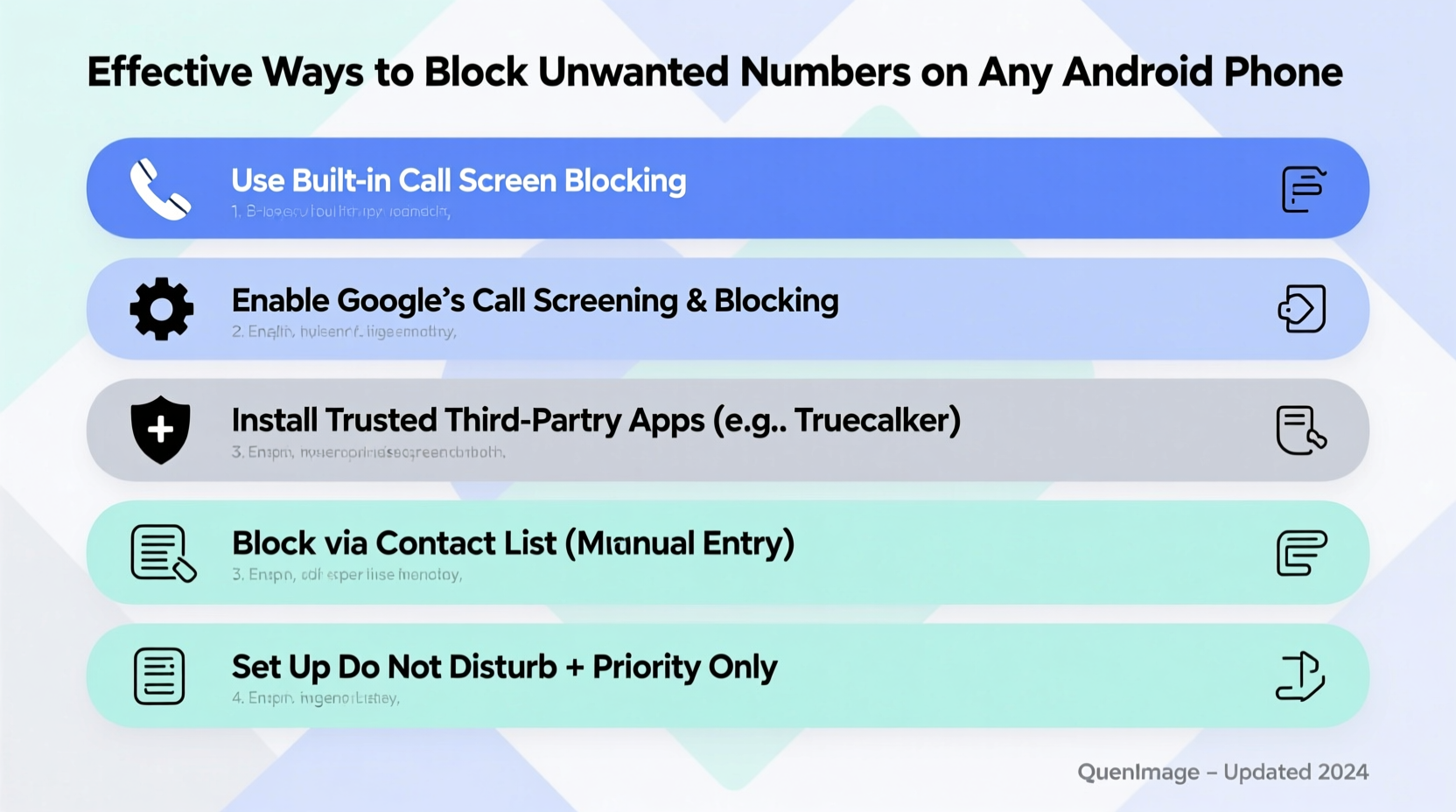
Ignoring spam calls might seem like the easiest option, but repeated interruptions disrupt daily life and erode trust in legitimate communications. According to the Federal Trade Commission (FTC), consumers reported over 5.6 million fraud-related phone calls in 2023 alone. Beyond annoyance, these calls often aim to extract sensitive data or trick users into financial scams.
Blocking unwanted numbers isn’t just about convenience—it’s a proactive step toward digital hygiene. By filtering out known spam sources, you reduce exposure to phishing attempts, protect your time, and maintain focus without constant distractions from your device.
Step-by-Step: How to Block Numbers Using Built-In Android Tools
Most modern Android phones run on versions of Google’s Phone app, which includes native call-blocking features. These tools work seamlessly across Samsung, Pixel, OnePlus, and other major brands using stock or near-stock Android interfaces.
- Open the Phone app and go to your call history.
- Find the unwanted number and tap the three-dot menu (⋮) next to it.
- Select Block number or Add to reject list.
- Confirm the action when prompted.
Once blocked, future calls from that number will go straight to voicemail (or be silenced), and SMS messages will not appear in your inbox. Some manufacturers, like Samsung, offer additional settings under Settings > Advanced Features > Call Settings > Spam Calls, where you can enable automatic detection and filtering.
Using Google’s Built-In Spam Protection
Google’s Dialer app includes an intelligent spam filter powered by real-time data from millions of users. To activate it:
- Navigate to Phone app > Settings > Spam and Call Screen.
- Toggle on “Filter spam calls.”
- Optionally enable “See details for suspected spam calls” to view why a number was flagged.
This feature uses machine learning to identify high-risk numbers before they even ring your phone. When enabled, you’ll see a “Suspected spam” label during incoming calls, giving you the choice to answer, block, or report.
Third-Party Apps for Enhanced Call Blocking
While built-in tools are effective, third-party apps provide deeper functionality, including crowd-sourced blacklists, caller ID databases, and advanced filtering rules. Here are three top-rated options:
| App | Key Features | Best For |
|---|---|---|
| Truecaller | Caller ID, spam detection, SMS blocking, global database | Users wanting comprehensive caller identification |
| Hiya | Real-time spam alerts, business caller ID, integration with carrier services | Professionals receiving frequent unknown calls |
| Call Control | Blacklist sharing, customizable filters, no ads (premium) | Privacy-focused users avoiding data collection |
These apps typically scan incoming calls against vast databases updated in real time. Truecaller, for instance, identifies over 3 billion numbers globally and allows users to report new spam entries. However, consider privacy implications—some apps require access to your entire contact list and may share anonymized usage data.
“Call-blocking apps have reduced spam call engagement by up to 78% among regular users.” — Consumer Technology Association, 2023 Mobile Security Report
Automating Protection: Do’s and Don’ts
Setting up one-time blocks helps, but long-term protection requires consistent habits and smart configurations. Follow this checklist to maximize effectiveness:
- ✅ Enable Google’s spam filter in the default Phone app
- ✅ Install one trusted third-party blocker (avoid multiple apps to prevent conflicts)
- ✅ Regularly review blocked numbers and remove false positives
- ✅ Report confirmed spam numbers through your app or carrier portal
- ❌ Don’t respond to suspicious SMS messages—even replying ‘STOP’ can confirm your number is active
- ❌ Avoid apps requesting excessive permissions like SMS read/write without clear justification
Real Example: Maria’s Experience with Persistent Scam Calls
Maria, a small business owner in Austin, began receiving daily automated calls claiming her tax filing was overdue. The numbers rotated frequently, making manual blocking impractical. After installing Truecaller and enabling its auto-block function for detected spam, she noticed a 90% drop in disruptive calls within a week. She also reported several numbers to the FTC via the app, contributing to broader spam mitigation efforts.
“I used to dread picking up unknown calls,” she said. “Now I only worry if it’s labeled ‘Unknown’—everything else gets filtered automatically.”
Advanced Tactics: Carrier-Level and Enterprise Solutions
Many mobile carriers now offer network-level spam protection at no extra cost. For example:
- T-Mobile: Uses Scam Shield with free features like Scam ID, Scam Block, and Caller Verified.
- Verizon: Offers Call Filter with AI-driven threat analysis and optional premium tiers.
- AT&T: Includes免费 Enhanced Caller ID and Robocall Blocking in most plans.
To activate these services:
- Download your carrier’s official app (e.g., T-Mobile App, My Verizon).
- Log in with your account credentials.
- Navigate to “Call Settings” or “Security & Privacy.”
- Turn on spam protection and customize alert preferences.
Carrier tools operate at the network level, meaning threats are stopped before reaching your device. This reduces battery drain and processing load compared to app-based solutions running constantly in the background.
Frequently Asked Questions
Can I block text messages from a number too?
Yes. In most messaging apps, open the conversation, tap the three-dot menu, select “Details” or “People & Options,” then choose “Block number.” This prevents both calls and future messages from appearing.
Will the person know I’ve blocked them?
No. Blocked callers typically hear a normal ringtone once or twice before being diverted to voicemail or a rejection tone, depending on your carrier. They receive no notification that they’ve been blocked.
What if a legitimate number gets blocked by mistake?
You can unblock numbers anytime. Go to Phone app > Settings > Blocked Numbers, find the entry, and tap the trash icon or “Unblock.” Always double-check labels like “Suspected spam” before taking action.
Final Thoughts: Take Control of Your Communication
Your smartphone should serve you—not interrupt you. With built-in tools, intelligent apps, and carrier-backed protections, blocking unwanted numbers on any Android phone is simpler than ever. The key is consistency: enable filters, update apps regularly, and stay informed about emerging scam tactics.
Start today by reviewing your recent call log. Block at least one suspicious number, turn on Google’s spam filter, and consider downloading a reputable third-party app if you face frequent spam. Small steps lead to lasting peace of mind.




 浙公网安备
33010002000092号
浙公网安备
33010002000092号 浙B2-20120091-4
Comments
No comments yet. Why don't you start the discussion?