
Unwanted calls have become a daily nuisance for millions of smartphone users. From automated telemarketing scams to persistent debt collectors or former contacts, unsolicited calls disrupt focus, waste time, and sometimes pose real security risks. The good news is that every modern Android device comes equipped with tools—and supports powerful third-party solutions—to regain control over who can reach you. Whether you're using a Samsung Galaxy, Google Pixel, OnePlus, or budget-friendly device, the methods below will help you effectively block unwanted numbers with precision and ease.
Why Blocking Numbers Matters
Blocking unwanted callers isn't just about convenience—it's about digital well-being. Repeated spam calls can lead to anxiety, especially when they mimic legitimate institutions like banks or government agencies. According to the Federal Trade Commission (FTC), consumers reported losing over $500 million to imposter scams in 2023 alone, many of which began with a suspicious incoming call. By proactively blocking numbers, you reduce exposure to fraud, protect your privacy, and maintain peace of mind.
“Call blocking is one of the most underused yet effective tools for personal cybersecurity on mobile devices.” — Dr. Lena Torres, Mobile Privacy Researcher at the Center for Digital Safety
Step-by-Step: How to Block a Number Using Built-In Android Tools
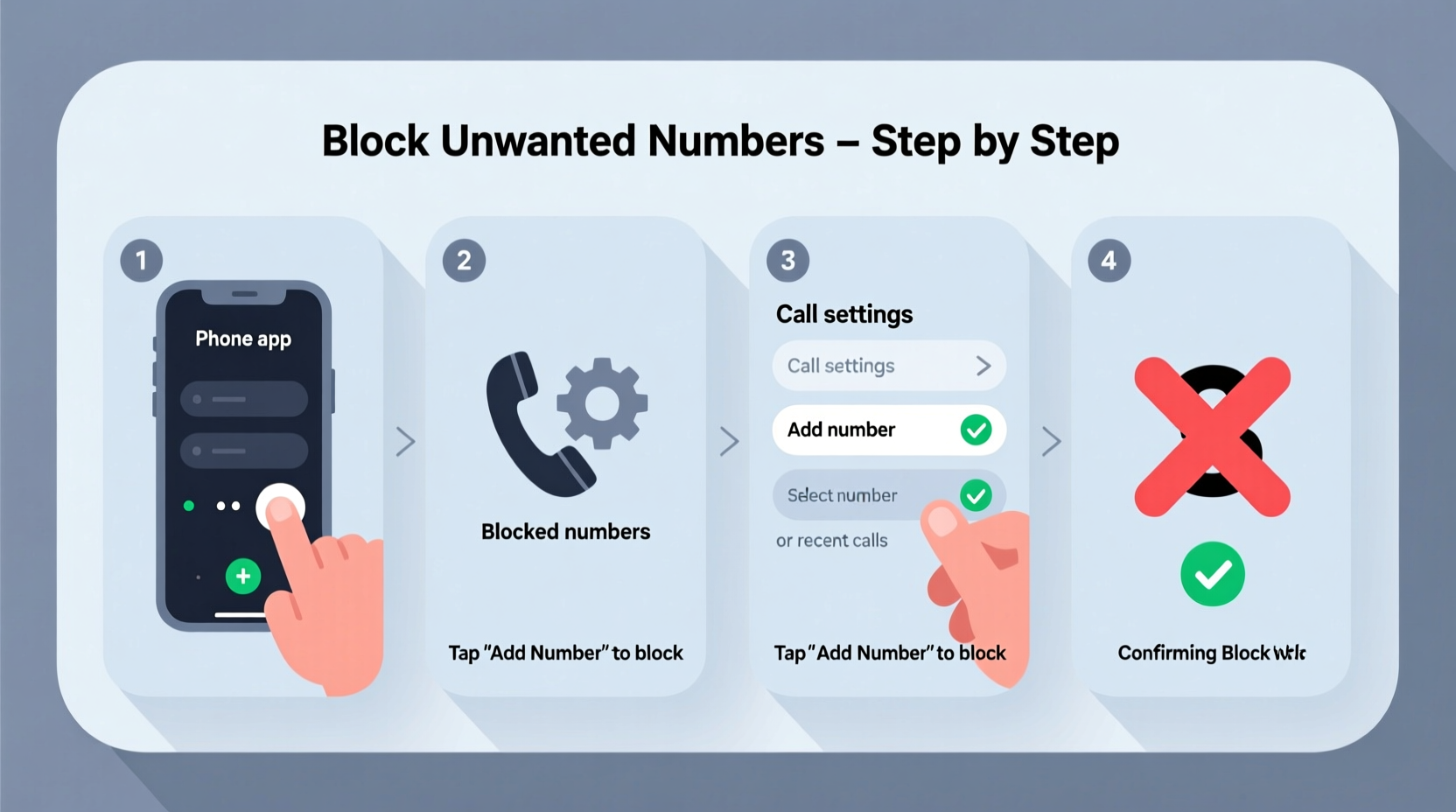
Most Android phones running Android 7.0 (Nougat) or later include native call-blocking features through the default Phone app. These vary slightly by manufacturer but follow a consistent logic. Here’s how to use them across common devices:
- Open the Phone app and go to your call history.
- Find the number you want to block and tap the three-dot menu (⋮) next to it.
- Select Block number or Add to reject list.
- Confirm the action when prompted.
On Samsung devices, this feature may be labeled “Block/Report spam” and includes an option to report the number to Samsung’s spam database. Google Pixel users benefit from direct integration with Google’s spam detection system, which automatically flags suspicious numbers based on crowd-sourced data.
Using Third-Party Apps for Advanced Call Control
While built-in tools are sufficient for occasional spammers, frequent or sophisticated threats require more robust solutions. Third-party apps offer caller ID, spam filtering, blacklists, whitelists, and even AI-powered threat detection.
The following apps are trusted by millions and integrate seamlessly with Android’s calling system:
- Truecaller – Identifies unknown callers, blocks spam globally, and crowdsources data from its massive user base.
- Hiya – Offers real-time spam alerts and integrates with carrier services for deeper protection.
- RoboKiller – Uses answer bots to waste scammers’ time while blocking their access to you.
These apps work by analyzing call patterns, comparing numbers against global spam databases, and allowing users to report new threats. Once installed, they run quietly in the background, intercepting calls before they ring your phone.
Comparison of Top Call-Blocking Apps
| App | Spam Detection | Caller ID | Premium Cost (Monthly) | Android Integration |
|---|---|---|---|---|
| Truecaller | Excellent | Yes | $4.99 | Fully integrated |
| Hiya | Very Good | Yes | $3.99 | High |
| RoboKiller | Excellent + Answer Bots | Yes | $5.99 | Moderate (requires setup) |
| Google Dialer (Built-in) | Good (automatic) | Limited | Free | Native |
Setting Up a Whitelist: Allow Only Trusted Contacts
For maximum control—especially useful for elderly users or those overwhelmed by constant interruptions—you can configure your phone to only accept calls from saved contacts. All other numbers are automatically silenced or sent to voicemail.
To set up a whitelist:
- Install a call manager app like Blokada or enable Do Not Disturb mode with contact exceptions.
- Go to Settings > Sound & Notification > Do Not Disturb.
- Under “Calls,” select Contacts only or Starred contacts.
- Customize rules to allow repeated calls (in case of emergencies).
This method ensures peace during work hours or sleep, while still permitting urgent communication. It’s particularly effective when combined with automatic spam reporting.
Mini Case Study: Maria’s Experience with Persistent Scams
Maria, a small business owner in Austin, Texas, began receiving daily calls from numbers claiming to be the IRS. Despite hanging up, the calls continued from different area codes. Frustrated, she downloaded Truecaller and enabled automatic blocking. Within a week, her phone stopped ringing for unrecognized numbers. She also reported several numbers, contributing to broader spam prevention. “It felt empowering,” she said. “I didn’t realize how much stress those fake calls caused until they stopped.”
Best Practices Checklist for Long-Term Protection
Staying protected requires ongoing attention. Use this checklist monthly to keep your defenses strong:
- ✅ Review recent blocked numbers for false positives
- ✅ Update your call-blocking app to the latest version
- ✅ Report new spam numbers to your app or carrier
- ✅ Avoid answering calls from unknown international numbers
- ✅ Never confirm personal information over unsolicited calls
- ✅ Use Google Voice for secondary numbers when signing up online
Frequently Asked Questions
Can I unblock a number once it’s blocked?
Yes. Go to your Phone app settings, find “Blocked numbers,” and select the number you wish to unblock. Tap the trash icon or “Unblock” option. This works for both native and third-party app blocks, though the path may vary slightly by device.
Does blocking a number stop texts too?
No—blocking via the Phone app typically only stops voice calls. To block SMS messages, you must separately block the number in your messaging app (e.g., Messages by Google). Some apps like Truecaller offer unified call and text blocking in premium versions.
Are there free alternatives to paid call-blocking apps?
Yes. The Google Phone app (available on Pixels and downloadable via Play Store) offers solid spam detection and call screening at no cost. Additionally, Android’s built-in “Filter spam” feature learns from user behavior and improves over time without requiring a subscription.
Conclusion: Take Back Control of Your Phone
Your smartphone should serve you—not subject you to relentless interruptions. With native Android tools, intelligent third-party apps, and disciplined habits, you can eliminate unwanted calls and reclaim your attention. Start today by blocking one persistent spammer, then build a long-term strategy using whitelists, updates, and reporting. The technology exists. The power is in your hands.




 浙公网安备
33010002000092号
浙公网安备
33010002000092号 浙B2-20120091-4
Comments
No comments yet. Why don't you start the discussion?