
In an age where data is currency, your online searches can reveal more than you intend. Every query typed into Google contributes to a detailed profile used for targeted advertising, personalized results, and sometimes even shared across services. While convenience is valuable, so is privacy. Taking control of your Google search history isn’t just about erasing the past—it’s about shaping how your data is collected and used moving forward.
Google stores your searches when you're signed in and have Web & App Activity enabled. This history includes not only what you’ve searched for but also videos watched on YouTube, locations visited, and voice commands issued through devices. Over time, this builds a comprehensive digital trail. Fortunately, Google provides tools to review, delete, and restrict this data collection. Understanding how to use them effectively is key to protecting your personal information.
Why Managing Your Search History Matters
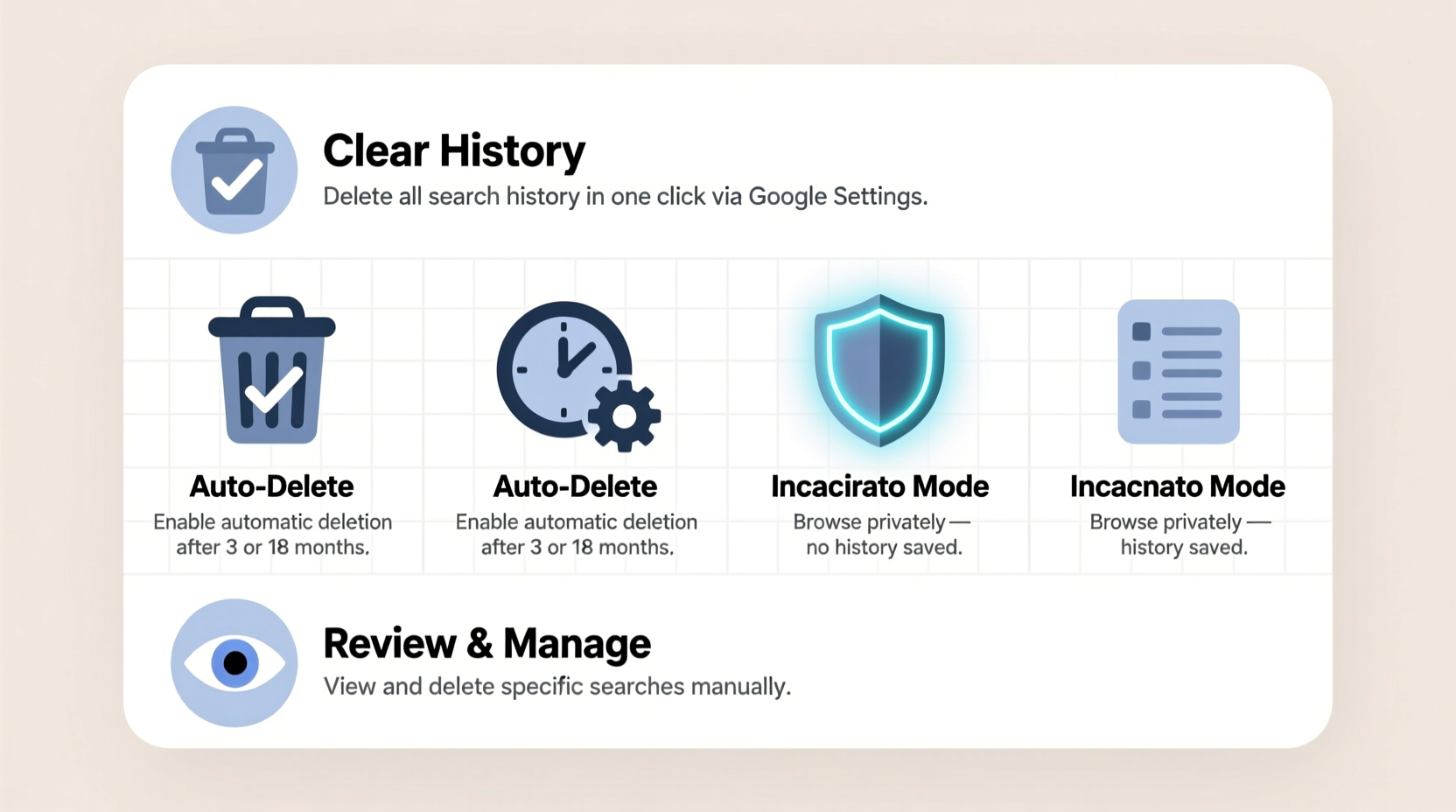
Your search history may seem harmless—after all, most queries are everyday questions or fleeting interests. But aggregated over time, they form a behavioral blueprint. Advertisers use this data to serve hyper-targeted ads. Third-party partners may access anonymized versions of your activity. In some cases, law enforcement or legal proceedings have requested search histories as evidence.
More importantly, automatic personalization based on your history can create filter bubbles—limiting exposure to diverse perspectives. By managing your search history, you regain neutrality in your browsing experience and reduce digital profiling.
“Your search history is one of the most revealing datasets about your personal life. Controlling it is a fundamental step toward digital autonomy.” — Dr. Lena Patel, Cybersecurity Researcher at Stanford University
Step-by-Step Guide to Clear Your Google Search History
Deleting your search history is straightforward, but knowing where to look and what options exist ensures you do it thoroughly. Follow these steps across devices:
- Sign in to your Google Account: Visit myaccount.google.com and log in with your credentials.
- Navigate to Data & Privacy: On the left sidebar, click “Data & privacy” to access activity controls.
- Go to “My Activity”: Under “History settings,” select “Manage your activity controls” or directly visit myactivity.google.com.
- Select “Web & App Activity”: This section contains your Google searches, app usage, and related interactions.
- Delete specific items or entire periods: Use the search bar or filters to narrow results by date, product (e.g., Search, YouTube), or device. Click the three dots next to any entry to delete it individually.
- Bulk deletion: Click “Delete” at the top left, choose a time range (e.g., last hour, last month, all time), and confirm.
Automate Privacy: Turn Off or Limit Future Tracking
Manually deleting history works, but automation prevents accumulation in the first place. The key setting is Web & App Activity, which records your interactions across Google services.
How to Pause Data Collection
- From My Activity, toggle off “Web & App Activity.”
- You’ll be prompted to choose: “Pause” or “Continue.” Select “Pause.”
- Once paused, Google stops saving new searches, location history, and app activity tied to your account.
Note: Pausing doesn’t affect other settings like Location History or Voice & Audio Activity, which must be managed separately under the same dashboard.
Scheduled Auto-Deletion
Instead of turning off tracking entirely, consider auto-delete. Google allows you to set your data to automatically erase after 3 or 18 months.
- In “Web & App Activity,” click “Manage activity controls.”
- Toggle on “Auto-delete” and select your preferred timeframe.
- Confirm your choice. All future activity will be purged on schedule.
This balances personalization with privacy—keeping short-term convenience while minimizing long-term exposure.
Device-Specific Management Tips
Your search history syncs across devices when signed in. However, management varies slightly depending on platform.
| Device | Access Method | Key Tip |
|---|---|---|
| Android Phone | Google app > Profile icon > Settings > Manage your Google Account > Data & privacy | Use Google Dashboard shortcut for quick access to all activity settings. |
| iOS (iPhone) | Safari/Chrome > Google site > Sign-in menu > Manage your Google Account | Enable “Prevent cross-site tracking” in Safari to limit third-party cookies alongside Google history cleanup. |
| Desktop (Windows/Mac) | Browser > google.com > Top-right profile > Manage your Google Account | Use incognito mode for sensitive searches to avoid saving history altogether. |
Real Example: Recovering Privacy After a Security Alert
Jamal, a freelance writer, received an email notification that someone had accessed his Google account from a foreign IP address. Though he changed his password immediately, he realized his search history included medical research, financial queries, and private communications via Gmail autocomplete suggestions.
He took action: first, he reviewed “My Activity” and deleted all entries from the past six months. Then, he paused Web & App Activity and turned on auto-delete for any future data. He also enabled two-factor authentication and reviewed connected devices. Within an hour, his risk exposure dropped significantly. Months later, he reported feeling more confident in his digital habits and now schedules quarterly history cleanups as part of his routine.
His experience underscores that proactive history management isn’t just preventive—it’s restorative after a breach.
Checklist: Secure Your Google Search History in 5 Minutes
Use this checklist to take immediate control:
- ✅ Sign in to your Google Account
- ✅ Navigate to “My Activity”
- ✅ Delete unwanted search history (select “All time” for full wipe)
- ✅ Toggle off “Web & App Activity” or enable auto-delete
- ✅ Repeat on mobile and desktop devices
Frequently Asked Questions
Will clearing my search history log me out of websites?
No. Clearing Google search history only removes records of your queries and related activity from your Google Account. It does not affect saved passwords, cookies, or login sessions on individual websites unless you manually clear browser data.
Can someone else see my Google search history?
If you’re signed in and sharing a device without privacy protections, yes—anyone with access could open your browser or Google app and view your activity. Additionally, if your Web & App Activity is enabled, Google uses this data internally. Employers or schools managing work/school accounts may also have oversight rights.
Does pausing Web & App Activity affect Google Assistant or Maps?
Yes. Disabling Web & App Activity limits functionality. Google Assistant may not recall past requests, and Maps might not offer accurate “frequent locations” or traffic predictions. Consider auto-delete instead if you rely heavily on these features.
Take Control of Your Digital Identity
Your search history shapes how algorithms see you—but it shouldn’t define your digital experience. Regularly clearing and managing this data empowers you to maintain privacy without sacrificing utility. Whether you choose full pauses, scheduled deletions, or periodic audits, consistency is what matters most.
Privacy isn’t a one-time fix; it’s an ongoing practice. Start today by reviewing your My Activity page. Set up auto-delete, lock down your settings, and make digital hygiene part of your routine. Small actions compound into meaningful protection.




 浙公网安备
33010002000092号
浙公网安备
33010002000092号 浙B2-20120091-4
Comments
No comments yet. Why don't you start the discussion?