
Over time, smartphones and tablets accumulate digital clutter in the form of cached files and stored app data. While these elements help apps load faster initially, they can eventually slow down your device, consume valuable storage, and even contribute to erratic behavior. Clearing app cache and data is a simple yet powerful maintenance task that restores responsiveness, improves battery efficiency, and ensures smoother operation. Unlike factory resets or reinstallation, this method preserves your settings while eliminating unnecessary bloat.
Why App Cache Builds Up and Slows Devices
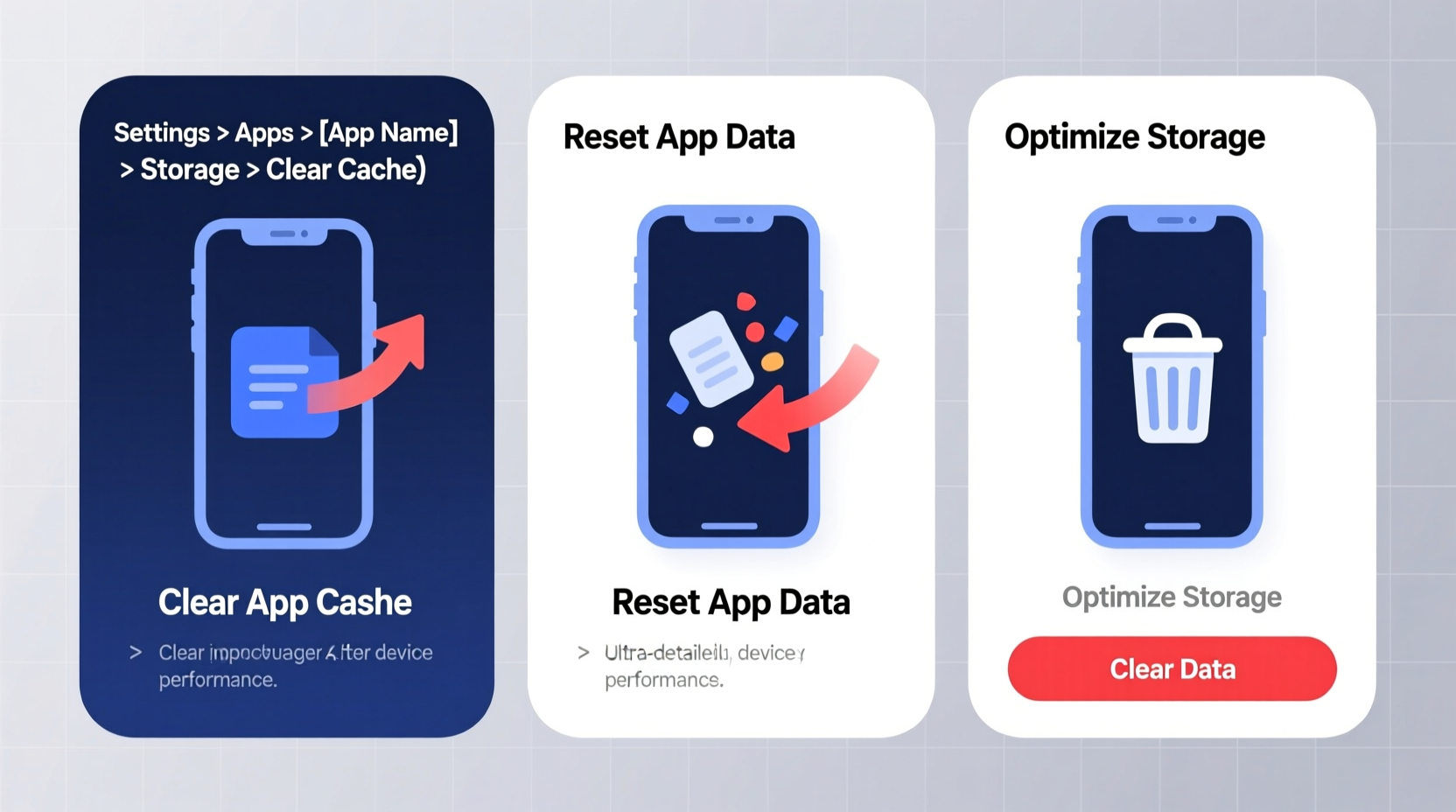
Every time you use an app—whether browsing social media, checking email, or streaming music—it stores temporary files known as \"cache.\" These include images, scripts, and session data designed to reduce loading times on repeat visits. However, not all apps manage this data efficiently. Some, like browsers and messaging platforms, generate large caches that grow unchecked. When thousands of fragmented files occupy internal storage, the system struggles to retrieve essential information quickly, leading to lag, crashes, and overheating.
Additionally, accumulated app data—distinct from cache—includes login tokens, preferences, and offline content. While useful, corrupted or outdated data can cause malfunctions. For example, a misconfigured preference file might force an app to reload constantly, draining both CPU and battery.
“Clearing cache regularly is like defragmenting a hard drive—it removes inefficiencies and allows the system to operate at peak performance.” — Rajiv Mehta, Mobile Systems Engineer at Android Authority Labs
Step-by-Step Guide: How to Clear App Cache and Data by Platform
The process varies slightly between Android and iOS, but both offer built-in tools to manage app storage effectively.
On Android Devices
- Navigate to Settings > Apps (or Apps & notifications).
- Select the app you want to clean (e.g., Chrome, Facebook, Instagram).
- Tap Storage & cache.
- To remove only temporary files, tap Clear Cache.
- If deeper troubleshooting is needed, tap Clear Storage or Clear Data—this resets the app to its default state.
On iOS Devices
iOS handles caching differently; there’s no universal “clear cache” button. Instead, users must delete and reinstall apps to purge cached content.
- Press and hold any app icon until menus appear.
- Select Remove App > Delete App.
- Reinstall the app from the App Store.
Note: Safari has a dedicated cache-clearing option under Settings > Safari > Clear History and Website Data. Use this monthly to maintain browser speed.
Do’s and Don’ts of Clearing App Data
| Do’s | Don’ts |
|---|---|
| Clear cache monthly for frequently used apps | Don’t clear data without backing up logins or progress |
| Use device cleanup tools like Files by Google or iPhone Storage Management | Don’t ignore system warnings about low storage |
| Restart your device after clearing major app data | Don’t assume clearing cache will fix hardware issues |
| Check which apps consume the most storage before acting | Don’t clear data on banking or security apps unless necessary |
Real Example: Recovering a Lagging Smartphone
Consider Maria, a freelance photographer who relies on her phone for client communication and cloud uploads. After six months of heavy use, her Android device began freezing during photo transfers. Despite having 30% battery, it would shut down unexpectedly. A diagnostic check revealed that her messaging app alone occupied over 5 GB of storage—mostly cached videos and images.
She followed the standard cache-clearing procedure and freed up nearly 7 GB across three apps. The result? Her phone booted 40% faster, multitasking improved significantly, and forced shutdowns ceased. This real-world case shows how invisible cache buildup can manifest as serious performance issues—even mimicking hardware failure.
Essential Checklist for Routine App Maintenance
- ✅ Review app storage usage weekly via Settings > Storage
- ✅ Clear cache for top 3 resource-heavy apps every month
- ✅ Delete unused apps that run background processes
- ✅ Enable automatic cache management if available (e.g., Samsung’s Device Care)
- ✅ Restart your device after major cleanups to refresh RAM and services
- ✅ Back up critical app data (like notes or drafts) before clearing full data
Frequently Asked Questions
Will clearing app cache delete my saved passwords or login sessions?
No, cache does not store credentials. However, clearing *app data* will log you out and erase settings. Always distinguish between the two actions—use “Clear Cache” for routine maintenance and reserve “Clear Data” for troubleshooting.
How often should I clear app cache?
For average users, once a month is sufficient. Power users—those who stream daily or use multiple social platforms—should consider biweekly clearing. Devices with less than 64 GB of storage benefit from more frequent maintenance.
Can clearing cache improve battery life?
Indirectly, yes. Bloated apps consume more CPU cycles trying to access disorganized files. By reducing background strain, cache cleanup helps prolong battery efficiency. Users commonly report 10–15% improvement in screen-on time after deep cleaning.
Conclusion: Make Cache Management Part of Your Digital Hygiene
Clearing app cache and data isn’t just a fix for sluggish devices—it’s a proactive habit that sustains long-term performance. Just as you wouldn’t let dust gather on a camera lens or leave files scattered across a desktop, digital clutter deserves regular attention. Modern smartphones are powerful, but their efficiency depends on disciplined maintenance. Taking ten minutes each month to audit app storage pays dividends in speed, reliability, and usability.




 浙公网安备
33010002000092号
浙公网安备
33010002000092号 浙B2-20120091-4
Comments
No comments yet. Why don't you start the discussion?