
Smartphones today run dozens of apps simultaneously, many operating in the background without users realizing their impact. Over time, this can lead to sluggish performance, reduced battery life, and increased storage usage. Whether you're using an Android device or an iPhone, knowing how to effectively clear apps is essential for maintaining optimal speed and responsiveness. Unlike simply closing a tab on a browser, managing mobile apps requires understanding system behavior, memory management, and user habits. This guide breaks down practical, tested methods to clear apps efficiently—without harming your device’s stability or data.
Understanding App Behavior: Background vs. Foreground
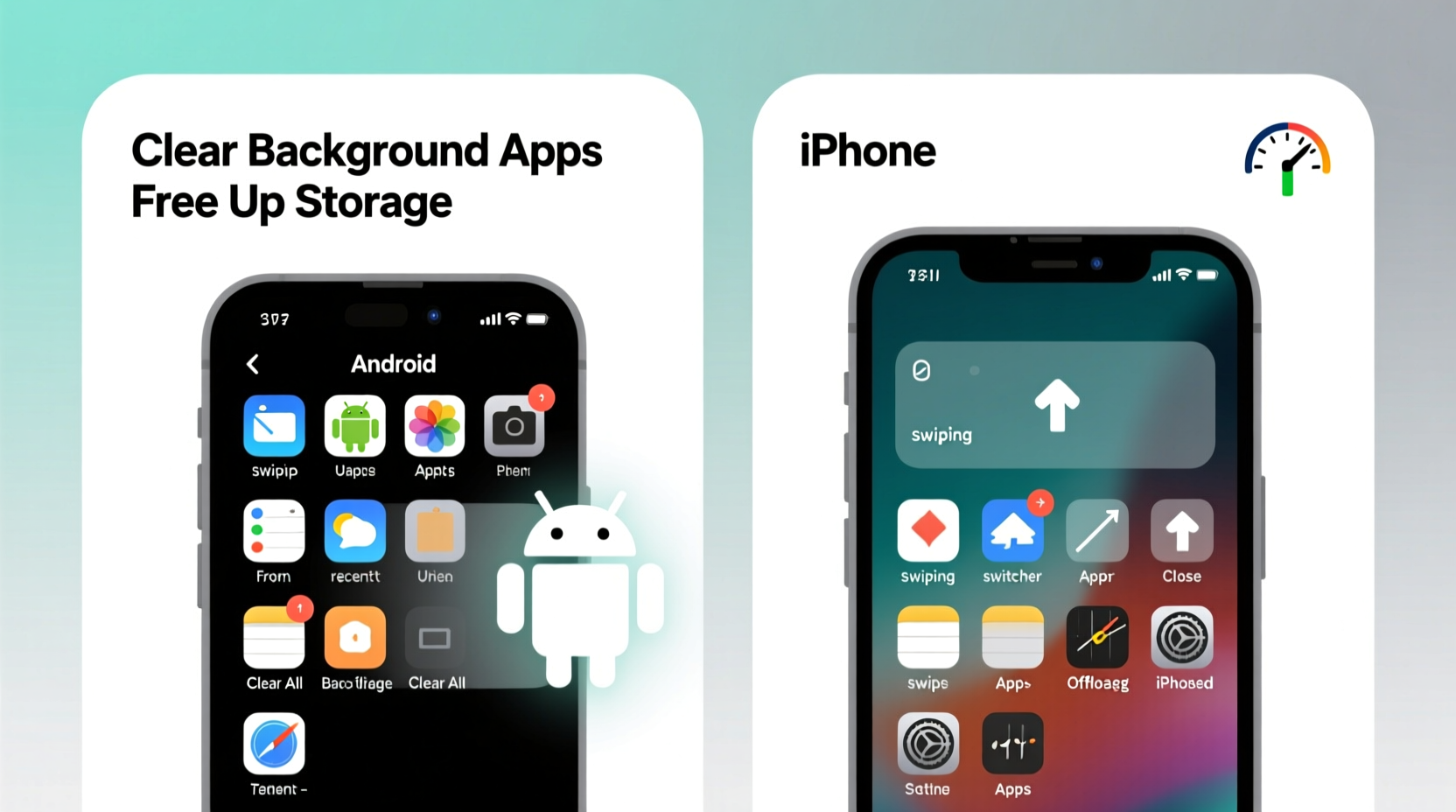
Before diving into clearing techniques, it's important to understand how apps operate. When you press the home button or swipe away an app, it doesn’t always stop running. On both Android and iOS, apps may remain in a suspended or background state, preserving your session for faster reopening. While this improves user experience, poorly managed background activity can consume RAM, drain battery, and slow down multitasking.
iOS uses a strict background process model—apps are paused quickly unless they’re performing specific tasks like navigation or audio playback. Android, however, allows more flexibility, letting apps run services in the background, which can be useful but also risky if not monitored.
“Modern smartphones are designed to manage memory intelligently, but user intervention—especially with resource-heavy apps—can significantly improve real-world performance.” — Dr. Lena Torres, Mobile Systems Analyst at TechInsight Labs
Step-by-Step Guide to Clear Apps on iPhone
Apple’s iOS makes it simple to view and close active apps through the App Switcher. Here’s how to do it correctly:
- On iPhone X or later, swipe up from the bottom of the screen and pause slightly in the center to open the App Switcher.
- For older models with a Home button, double-press the Home button.
- You’ll see cards representing recently used apps.
- Swipe each card upward to close the app.
- To close multiple apps at once, swipe them one by one or use multiple fingers to swipe two or three simultaneously.
Note: Closing all apps isn’t necessary. Focus on apps that are known to be resource-intensive—like social media platforms, games, or navigation tools—especially if they’ve been running for hours.
How to Clear Apps on Android Devices
Android offers several ways to manage running apps, depending on the manufacturer and OS version. The most universal method involves the Recent Apps menu:
- Tap the square or recent apps button (on devices with navigation buttons), or swipe up and hold (on gesture-enabled phones).
- Browse through the list of active apps.
- Swipe an app left or right to close it individually.
- Some devices offer a “Close All” button at the top or bottom of the screen—tap it to clear everything at once.
Alternatively, go to Settings > Apps > See all apps, select a specific app, and tap “Force Stop” if it’s misbehaving. Use this sparingly, as it may disrupt notifications or sync functions.
| Action | iPhone | Android |
|---|---|---|
| Open App Switcher | Swipe up and hold | Swipe up and hold or tap recent apps button |
| Close Single App | Swipe app card up | Swipe app left/right |
| Close All Apps | Swipe multiple cards or restart device | Use “Close All” button or swipe repeatedly |
| Force Stop Misbehaving App | Limited; restart or offload app | Settings > Apps > [App Name] > Force Stop |
When and Why You Should Clear Apps
Not every app needs constant clearing. However, certain situations justify manual intervention:
- After using GPS or music streaming apps: These often continue running in the background, consuming battery.
- If your phone lags or overheats: Excessive background activity may be the culprit.
- Following app crashes: Restarting the app after fully closing it can resolve glitches.
- Before installing major updates: Clearing related apps prevents conflicts during installation.
Regularly clearing apps isn't a substitute for good digital hygiene. It should complement other practices like updating software, managing storage, and reviewing permissions.
Mini Case Study: Recovering Performance on a Sluggish iPhone 12
Sarah, a freelance photographer, noticed her iPhone 12 was draining battery rapidly and freezing when switching between editing apps. She had Instagram, Lightroom, Spotify, and Google Maps open in the background. After swiping away all apps in the App Switcher and restarting her phone, she observed immediate improvements: smoother transitions, cooler operation, and extended battery life. By making it a habit to clear navigation and media apps after use, she maintained consistent performance over the next month.
Best Practices Checklist
To maintain peak performance across both platforms, follow this actionable checklist:
- Weekly Routine
- ✔️ Review battery usage in Settings to identify power-hungry apps
- ✔️ Manually clear high-resource apps like Facebook, TikTok, or Uber
- ✔️ Reboot your device at least once a week
- Monthly Maintenance
- ✔️ Offload unused apps (iOS) or uninstall bloatware (Android)
- ✔️ Clear app caches via Settings
- ✔️ Update all apps and OS versions
- As-Needed Actions
- ✔️ Close apps after intensive tasks (gaming, video calls)
- ✔️ Use “Force Stop” only for frozen or malfunctioning apps
- ✔️ Disable background refresh for non-essential apps
Common Myths About Clearing Apps
There are widespread misconceptions about app management:
- Myth: Keeping apps open saves battery. Reality: Suspended apps use minimal power, but active background processes do not.
- Myth: Swiping apps constantly improves speed. Reality: Frequent closing forces apps to reload entirely, which can slow things down.
- Myth: More RAM means better performance. Reality: Efficient memory management matters more than sheer capacity.
The goal isn’t to eliminate background activity entirely, but to manage it wisely.
Frequently Asked Questions
Does closing apps save battery?
Only for apps actively using resources in the background—like location tracking or streaming. Most idle apps consume negligible power. Closing them frequently may even reduce efficiency, as reopening requires more energy than resuming a suspended state.
Is it bad to force stop apps on Android?
Occasional use is safe, but doing it regularly can interrupt push notifications, cloud sync, and background downloads. Reserve “Force Stop” for apps that freeze or drain battery unexpectedly.
Do iPhones need app clearing as much as Androids?
Less so. iOS automatically suspends apps aggressively. However, power users running multiple creative or navigation tools benefit from periodic clearing, especially after long sessions.
Optimizing Long-Term Device Health
Clearing apps is just one part of smartphone maintenance. Combine it with broader optimization strategies:
- Turn off background app refresh for non-critical apps.
- Reduce motion effects and animations to ease GPU load.
- Enable automatic app updates to patch memory leaks and bugs.
- Use built-in features like iPhone’s “Offload Unused Apps” or Android’s “Battery Saver” mode.
These steps create a leaner, more responsive system over time.
Conclusion
Knowing how to clear apps on Android and iPhone empowers you to take control of your device’s performance. While modern operating systems handle memory well, targeted cleanup of resource-heavy applications can prevent slowdowns, extend battery life, and enhance daily usability. Instead of obsessively swiping apps away, focus on smart habits—restarting weekly, monitoring battery usage, and closing only those that matter. Small, consistent actions yield the best results.




 浙公网安备
33010002000092号
浙公网安备
33010002000092号 浙B2-20120091-4
Comments
No comments yet. Why don't you start the discussion?