
Unwanted calls—ranging from persistent telemarketers to outright scam attempts—are a growing nuisance for iPhone users. With the rise of spoofed numbers and automated robocalls, it’s no longer enough to simply ignore unknown callers. The good news is that Apple has built robust tools into iOS, and third-party solutions can further enhance protection. Whether you're receiving repeated spam calls or want to prevent future disruptions, there are practical, accessible methods to block these intrusions effectively.
Enable Silence Unknown Callers
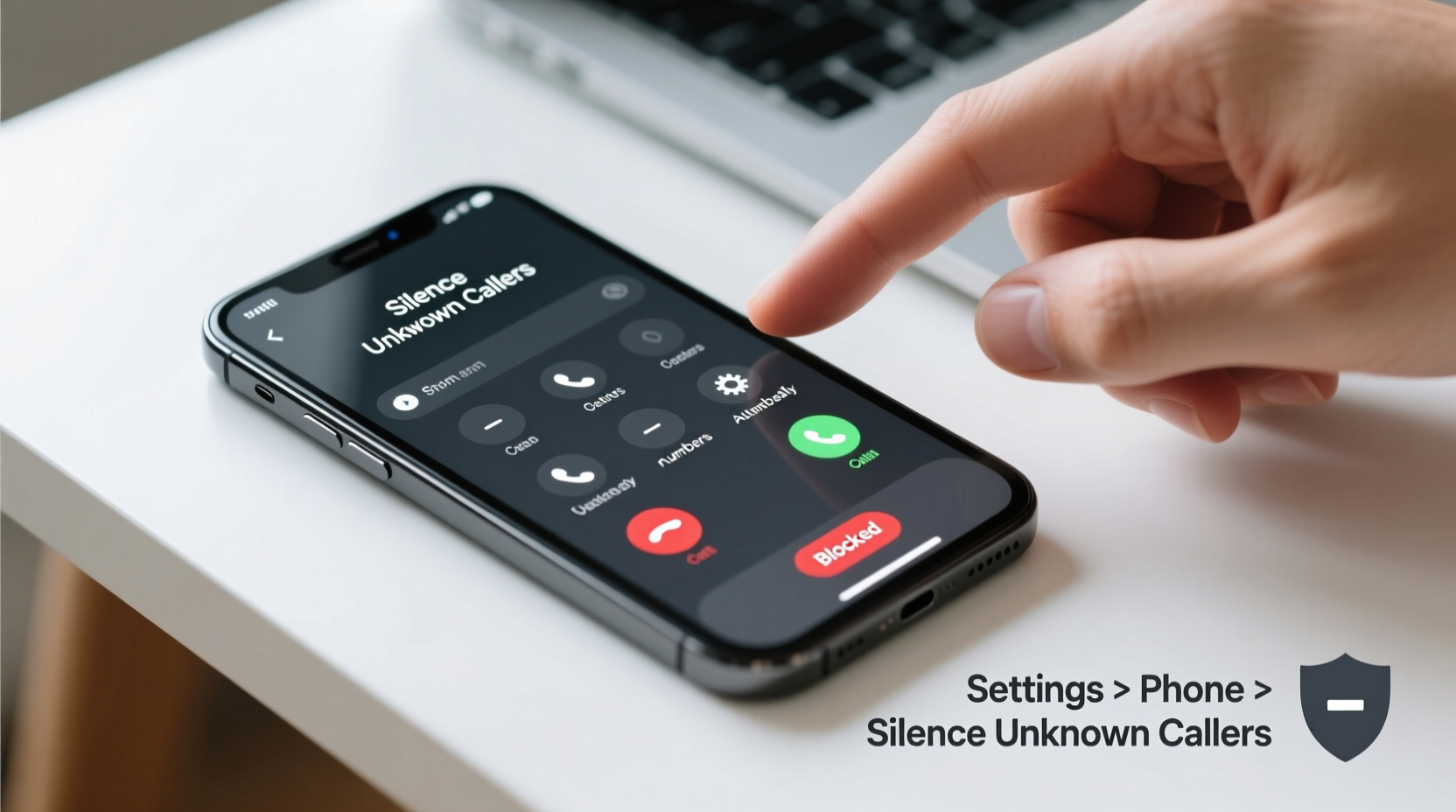
One of the most powerful native features on your iPhone is “Silence Unknown Callers.” When activated, this setting sends calls from numbers not saved in your contacts straight to voicemail. This doesn’t block the number permanently but prevents interruptions from unfamiliar sources.
To enable it:
- Open the Settings app.
- Tap Phone.
- Select Silence Unknown Callers.
- Toggle the switch to green.
With this feature on, only people in your contacts, recent email correspondents (if linked), or those who have previously left a voicemail will ring through. All others go silently to voicemail—without lighting up your screen or making noise.
Block Specific Numbers Manually
If a particular number keeps calling despite being unwanted, you can block it directly through your phone settings. This method works well for repeat offenders or known spam lines.
Here’s how to block a number:
- Go to Recents in the Phone app.
- Find the number you want to block and tap the (i) icon next to it.
- Scroll down and select Block this Caller.
- Confirm by tapping Block Contact.
Once blocked, the caller won’t be able to reach you via calls or FaceTime, and their messages won’t appear in your inbox. They’ll receive no notification they’ve been blocked.
This process also works from Messages: open a message thread, tap the sender’s name or number at the top, then choose “Info” and follow the same blocking steps.
Use Third-Party Call Blocking Apps
While iOS offers solid native tools, third-party apps provide advanced detection and real-time spam identification using crowd-sourced databases. These apps integrate with your iPhone’s call system to label and automatically block suspected spam.
Top-rated options include:
- RoboKiller: Uses AI-powered call screening and offers a “Answer Bots” feature to waste scammers’ time.
- Cisco Webex Calling: Includes spam detection and enterprise-grade call management.
- Hiya: Provides real-time caller ID and automatic spam blocking.
- Truecaller: One of the largest global databases for identifying spam and fraud calls.
To use these apps:
- Download the app from the App Store.
- Grant permissions for Call Detection and Call Blocking (found under Settings > Phone > Call Blocking & Identification).
- Enable the app toggle so it can monitor incoming calls.
These services often use subscription models, but many offer free trials. Keep in mind that while they improve accuracy, they may occasionally mislabel legitimate calls—so review blocked logs periodically.
Check Your Blocked Contacts List
It's wise to periodically review which numbers you've blocked, especially if you suspect a legitimate caller isn't getting through.
To view or unblock numbers:
- Navigate to Settings > Phone.
- Tap Blocked Contacts.
- Swipe left on any number to reveal an Unblock option.
This list includes all manually blocked numbers and those added via third-party apps that sync with iOS blocking systems.
| Method | Best For | Limits |
|---|---|---|
| Silence Unknown Callers | General spam reduction | Doesn’t block known spam numbers already in contacts |
| Manual Blocking | Repeat offenders | Requires action per number; ineffective against spoofing |
| Third-Party Apps | Real-time spam detection | Potential false positives; some require subscriptions |
| Carrier-Level Protection | Broad network filtering | Varies by provider; may need activation |
Activate Carrier-Based Spam Protection
Your mobile carrier may offer built-in anti-spam tools designed to intercept scam and robocalls before they reach your device. Most major U.S. carriers—including AT&T, Verizon, and T-Mobile—provide free call filtering services.
Examples include:
- AT&T ActiveArmor: Blocks known fraud and spam calls automatically.
- Verizon Call Filter: Offers basic spam detection and customizable blocking.
- T-Mobile Scam Shield: Includes Scam ID, Scam Block, and international scam protection.
These services typically require you to download the carrier’s app and opt into protection. Once enabled, they work alongside your iPhone’s native tools to add another layer of defense.
“Carriers are now using STIR/SHAKEN protocols to verify caller legitimacy. When combined with user-level blocking, this reduces fraudulent calls by over 60%.” — David Lin, Senior Network Security Analyst at CTIA
Mini Case Study: Reducing Daily Spam Calls
Sarah, a freelance designer in Austin, was receiving 15–20 spam calls daily. Many appeared as local numbers, making her hesitant to ignore them. After enabling “Silence Unknown Callers,” she immediately noticed fewer interruptions. She then installed Truecaller, which labeled suspicious numbers in real time. Within a week, her daily spam calls dropped to fewer than three. By combining iOS settings with a third-party app and her carrier’s Scam Shield, Sarah regained control of her phone without missing important client calls.
Essential Checklist: Block Unwanted Calls in Under 10 Minutes
Follow this quick checklist to secure your iPhone today:
- ✅ Turn on Silence Unknown Callers in Settings > Phone.
- ✅ Review recent calls and block 2–3 recurring spam numbers.
- ✅ Download a trusted call-blocking app like RoboKiller or Hiya.
- ✅ Enable the app in Settings > Phone > Call Blocking & Identification.
- ✅ Visit your carrier’s website or app to activate free scam protection.
- ✅ Set a monthly reminder to check your Blocked Contacts list.
Frequently Asked Questions
Will the person know I’ve blocked their call?
No. When you block a number, the caller receives no notification. Their call goes straight to voicemail, and they won’t see any indication of being blocked.
Can blocked callers leave a voicemail?
Yes. Blocked callers can still leave a voicemail, but it will be separated into a “Blocked Messages” section in the Voicemail tab. It won’t alert you or appear in your regular message list.
Why do I still get spam calls even after blocking?
Spammers frequently use “spoofing” to disguise their real number with fake ones that look local or legitimate. Since each call appears from a different number, manual blocking isn’t enough. Use Silence Unknown Callers and third-party apps to combat this issue more effectively.
Take Control of Your Phone Experience
Unwanted calls don’t have to be an unavoidable part of smartphone ownership. With a combination of iOS-native features, smart app integration, and carrier-level protections, you can dramatically reduce—or even eliminate—spam interruptions. The key is using layered defenses: silence unknowns, block repeat offenders, leverage real-time databases, and activate network-wide filters.




 浙公网安备
33010002000092号
浙公网安备
33010002000092号 浙B2-20120091-4
Comments
No comments yet. Why don't you start the discussion?