
Incognito mode is a powerful feature in mobile browsers that allows users to browse the web without saving history, cookies, or form data. While many Android users know how to open an incognito tab, fewer understand how to properly exit and manage these sessions to maintain privacy and avoid unintended exposure. Missteps—like thinking closing the app ends the session or leaving tabs open—can compromise the very privacy incognito mode promises. Understanding how to effectively close and manage incognito browsing ensures your digital footprint remains under your control.
Understanding Incognito Mode on Android
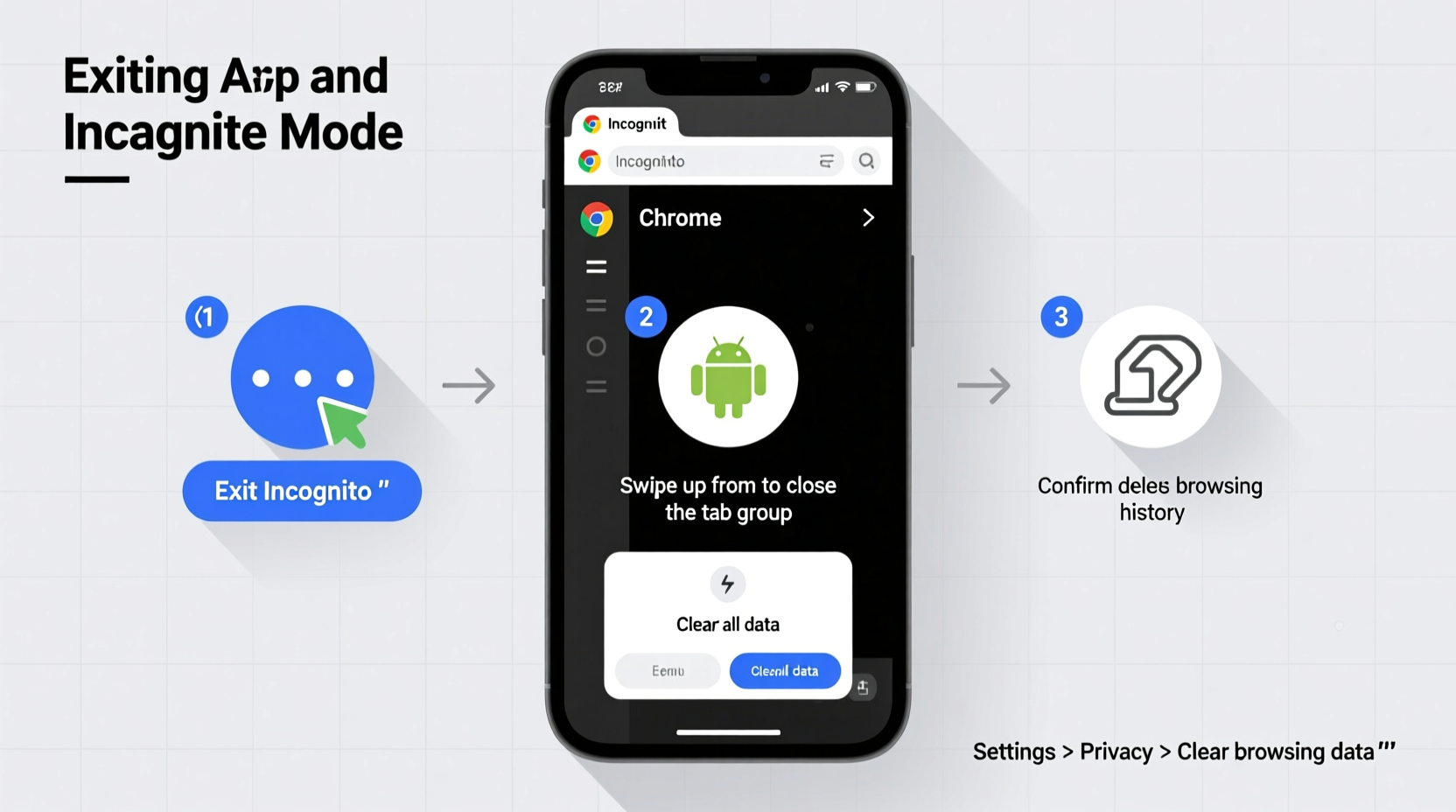
Incognito mode, known as \"Private Browsing\" in some browsers, operates differently than regular browsing. When activated, it prevents the browser from storing your history, search records, downloaded files list (though files themselves are saved), cookies, and site data. However, it does not make you anonymous online. Your internet service provider, employer, or websites themselves can still track your activity. On Android, major browsers like Google Chrome, Firefox, and Samsung Internet offer private modes with slight variations in behavior and interface.
The key misconception is that incognito mode offers complete anonymity. In reality, it only limits local data storage on your device. It’s ideal for shared devices, logging into multiple accounts, or avoiding targeted ads based on recent searches—but it’s not a shield against surveillance or malware.
How to Properly Exit Incognito Mode
Exiting incognito mode isn’t always as simple as switching back to a regular tab. Each browser handles session management differently, and incomplete closure can leave traces or active sessions vulnerable.
Step-by-Step Guide to Closing Incognito Tabs
- Open your browser (e.g., Chrome) and locate the incognito tab indicator—usually a dark theme with a spy icon.
- Tap the tab switcher icon (two overlapping squares) at the top-right corner.
- Identify incognito tabs, typically grouped separately from regular tabs.
- Swipe each incognito tab left or right to close them individually.
- Alternatively, tap “Close all incognito tabs” if the option appears when holding the tab switcher.
Once closed, no browsing history, cookies, or autofill data from those sessions will be retained. However, downloads and bookmarks created during incognito mode will remain unless manually deleted.
“Closing incognito tabs doesn’t happen automatically when you exit the app. Users must actively close the private session to ensure full data protection.” — Lena Park, Mobile Security Analyst at PrivacyFirst Labs
Best Practices for Managing Incognito Sessions
Effective management goes beyond just closing tabs. It involves proactive habits that reinforce privacy and prevent accidental exposure.
- Limit concurrent tabs: The more incognito tabs open, the easier it is to forget one is active.
- Avoid saving passwords: Even if prompted, never save login details during incognito sessions.
- Check for lingering tabs after rebooting: Some browsers restore incognito tabs after crashes or restarts, defeating the purpose.
- Use dedicated private browsers for higher sensitivity tasks (e.g., Firefox Focus, DuckDuckGo Browser).
Browser Comparison: Incognito Behavior Across Platforms
| Browser | Incognito Indicator | Closes on App Exit? | Restores After Crash? | Special Features |
|---|---|---|---|---|
| Google Chrome | Dark theme + spy icon | No | Yes (if enabled) | Sync disabled by default |
| Samsung Internet | Black background + mask icon | No | No | Enhanced tracker blocking |
| Mozilla Firefox | Purple theme + fox icon | No | Optional | One-time private browsing option |
| DuckDuckGo | Always private by default | Yes (auto-cleanup) | No | Auto-clears data post-session |
This comparison highlights that not all incognito modes behave the same. Chrome, while widely used, retains session memory unless explicitly closed. DuckDuckGo, in contrast, defaults to private browsing and auto-cleans, making it more secure for casual users.
Real-World Scenario: The Overlooked Tab
Consider Maria, a freelance consultant who uses her personal phone for client research. She opens an incognito tab in Chrome to review competitor pricing without influencing her usual search results. After finishing, she minimizes the browser and moves to her email. Later, her teenage son borrows the phone to check social media. Accidentally swiping up from the app switcher, he sees the active incognito tab and clicks it—exposing confidential market data.
The issue wasn’t the use of incognito mode but the failure to close it. Had Maria taken five seconds to swipe away the tab, the risk would have been eliminated. This scenario underscores the importance of treating incognito tabs like physical documents—secure them or dispose of them immediately after use.
Essential Checklist for Safe Incognito Use
- ✅ Confirm incognito mode is active before entering sensitive sites.
- ✅ Close all incognito tabs manually after use.
- ✅ Avoid downloading files unless necessary—and delete them afterward.
- ✅ Never save passwords or payment info during private sessions.
- ✅ Reboot the browser occasionally to clear residual cache.
- ✅ Use a private-first browser for frequent confidential browsing.
Frequently Asked Questions
Does closing the browser app automatically end incognito mode?
No. On most Android browsers, including Chrome, incognito tabs remain active even after you close and reopen the app. You must manually close each incognito tab through the tab manager to fully exit the session.
Can someone see my incognito history if they have access to my Google Account?
If you're signed into your Google Account while in incognito mode, your browsing activity may still be visible in your Google Activity Controls (e.g., Web & App Activity). To prevent this, ensure “Web & App Activity” is paused or sign out before using incognito mode.
Are incognito tabs safe from viruses or phishing?
No. Incognito mode does not protect against malware, phishing sites, or malicious downloads. It only prevents local data storage. Always exercise caution when visiting unfamiliar websites, regardless of browsing mode.
Conclusion: Take Control of Your Digital Privacy
Incognito mode is a valuable tool, but its effectiveness depends on user behavior. Simply opening a private tab isn’t enough—true privacy comes from disciplined management and proper closure. By understanding how different browsers handle incognito sessions, actively closing tabs, and adopting best practices, you can confidently use this feature without unintended exposure. Whether you're researching a surprise gift or accessing work accounts on a shared device, taking a few extra seconds to manage your session pays long-term privacy dividends.




 浙公网安备
33010002000092号
浙公网安备
33010002000092号 浙B2-20120091-4
Comments
No comments yet. Why don't you start the discussion?