
In today’s digital world, you’re likely to encounter dozens of file types—some familiar, others completely foreign. Whether it’s a .CR2 photo from a DSLR camera, a .DWG engineering blueprint, or a .ZIP archive, knowing how to open and use these files is essential. Many people delete unfamiliar files or assume they’re corrupted when the real issue is simply not having the right tool. This guide breaks down proven methods to open any file type, regardless of your technical skill level.
Understanding File Types and Extensions
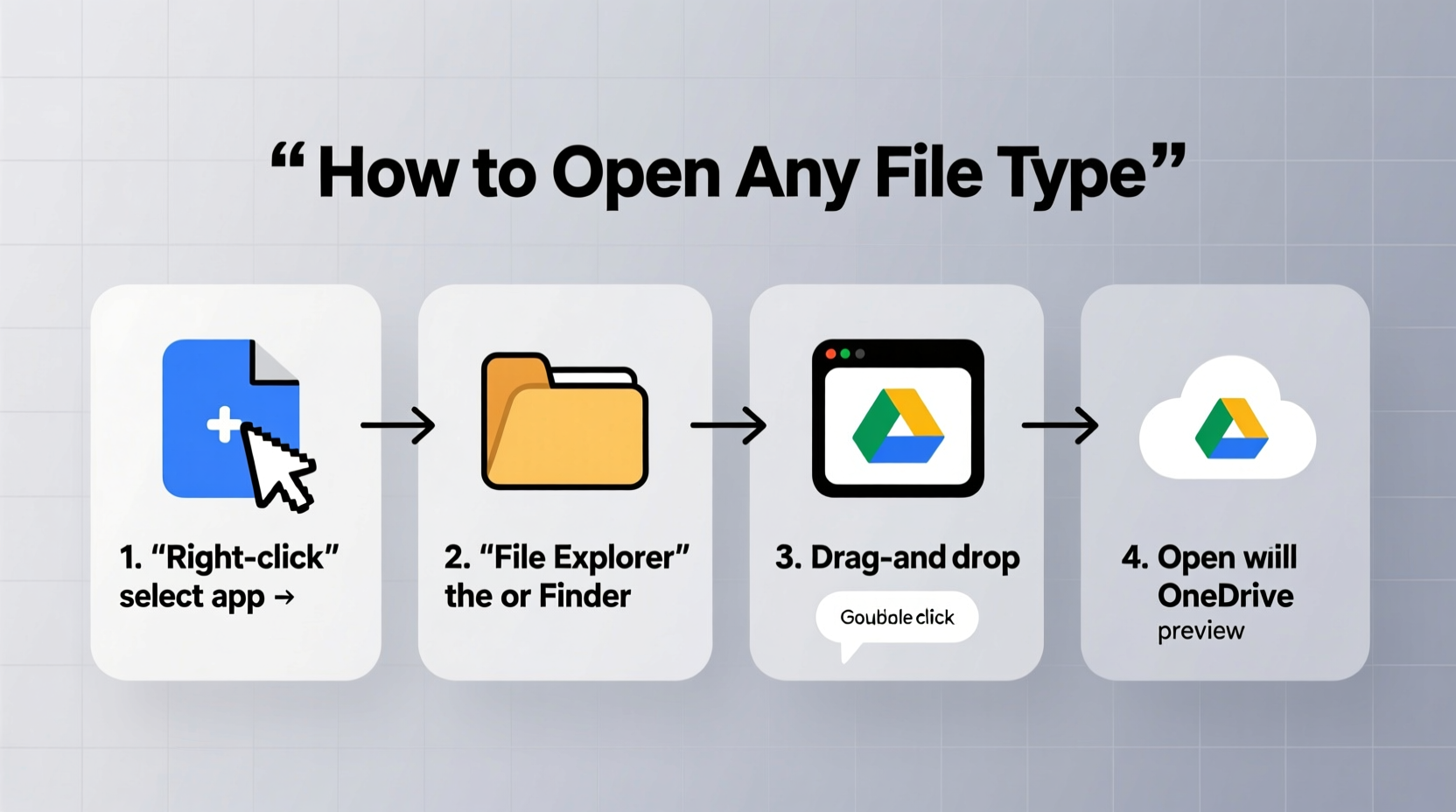
Every file on your computer has an extension—a few letters after a dot in the filename (e.g., .PDF, .MP4, .DOCX). These extensions tell your operating system what kind of data the file contains and which program should handle it. For example, a .JPG file is an image, while a .PPTX is a PowerPoint presentation.
When you double-click a file and nothing happens—or you get an error—it usually means your system doesn’t recognize the extension or lacks the appropriate software. The good news: most file types can be opened with the right approach.
Step-by-Step Guide to Opening Any File Type
- Identify the file extension. Right-click the file, select \"Properties\" (Windows) or \"Get Info\" (Mac), and look at the name. The part after the last dot is the extension.
- Search online for the file type. Use a search engine with the format: “What is a .XYZ file?” Replace XYZ with the actual extension.
- Determine the correct software. Most searches will reveal whether the file is associated with Adobe, Autodesk, Microsoft, or another provider.
- Download a compatible program. Choose from official software, free viewers, or cross-platform tools like VLC or 7-Zip.
- Open the file using the new application. Right-click the file, choose “Open With,” and select the installed program.
- Set default behavior (optional). After opening successfully, set the app as the default for that file type to avoid repeating steps.
This method works consistently across Windows, macOS, and Linux systems. It empowers users to solve file access issues independently, without relying on tech support.
Common File Types and How to Open Them
| File Extension | File Type | Recommended Software | Free Option Available? |
|---|---|---|---|
| Portable Document Format | Adobe Acrobat Reader | Yes | |
| .DOCX | Microsoft Word Document | Microsoft Word, LibreOffice | Yes |
| .PSD | Adobe Photoshop Image | Adobe Photoshop, GIMP | Yes (GIMP) |
| .ZIP / .RAR | Compressed Archive | 7-Zip, WinRAR, PeaZip | Yes |
| .DWG | AutoCAD Drawing | AutoCAD, DraftSight | Yes (DraftSight Viewer) |
| .CR2 / .NEF | Raw Camera Image | Adobe Lightroom, DxO PhotoLab | Limited (via free converters) |
| .MKV / .AVI | Video File | VLC Media Player | Yes |
| .SQL | Database Script | Notepad++, MySQL Workbench | Yes |
Using this reference, you can quickly determine the best path forward when encountering unfamiliar formats. Bookmark it or save a local copy for offline access.
Alternative Methods When Standard Tools Fail
Sometimes, even with the right software, a file refuses to open. This could be due to corruption, encryption, or incomplete downloads. Consider these alternative approaches:
- Use universal file viewers: Tools like File Viewer Plus (Windows) or Quick Look (Mac) can preview hundreds of formats without installing dedicated software.
- Try online converters: Websites like CloudConvert or Zamzar allow you to upload a file and convert it to a more accessible format (e.g., .DWG to .PDF).
- Check for embedded content: Some files, especially archives or disk images (.ISO), contain other files inside. Use extraction tools like 7-Zip or The Unarchiver to explore contents.
- Verify file integrity: If the file was downloaded or transferred, ensure the process completed fully. Compare file size with the source if possible.
“Over 60% of ‘unopenable’ files are actually accessible with free tools—we just don’t know they exist.” — Dr. Alan Reyes, Digital Archivist at MIT Libraries
Mini Case Study: Opening a Legacy Engineering File
Sarah, a junior project manager at a construction firm, received an old .DXF file from a client. Her computer showed no program could open it. Instead of replying she couldn’t access it, she followed a systematic approach:
She first confirmed the extension was .DXF (Drawing Exchange Format). A quick search revealed it was used in CAD software. She found that Autodesk offers a free viewer called DWG TrueView, which also supports .DXF. After downloading it, she opened the file successfully, extracted key measurements, and sent them back within hours.
Her initiative saved time and demonstrated resourcefulness. The client was impressed, and Sarah added a new troubleshooting technique to her workflow.
Essential Checklist for Handling Unknown Files
Before panicking over an unopenable file, run through this checklist:
- ✅ Confirm the file extension is visible (enable file extensions in OS settings).
- ✅ Search the extension online to identify its purpose.
- ✅ Check if a free viewer or converter exists.
- ✅ Try opening with a universal tool like 7-Zip or VLC.
- ✅ Verify the file isn’t password-protected or encrypted.
- ✅ Scan the file for malware if downloaded from an unknown source.
- ✅ Contact the sender for clarification or alternative formats.
This checklist reduces frustration and increases success rates, especially in professional environments where timely access matters.
Frequently Asked Questions
Can I open a file without knowing its extension?
Yes. Use a hex editor or file identification tool like TrID or DROID. These analyze the file’s internal structure to guess the type. Alternatively, change the file extension to .txt and open it in Notepad—if readable text appears, clues about the format may be visible.
Why does a file open incorrectly even with the right program?
This often happens when the file is damaged, partially downloaded, or saved in a newer version of the software than what you have. Try updating the program or requesting a re-export in a backward-compatible format.
Are online file converters safe?
Reputable services like CloudConvert use encryption and automatically delete files after conversion. However, never upload sensitive documents (e.g., financial records, personal IDs) to unknown websites. For confidential files, use offline tools whenever possible.
Final Thoughts and Next Steps
Being able to open any file type isn’t a technical superpower—it’s a learnable skill. By understanding extensions, leveraging free tools, and following a clear process, anyone can handle digital files confidently. The key is patience and a willingness to investigate rather than assume failure.
Start building your toolkit today. Install a few versatile programs like VLC, 7-Zip, and a PDF reader. Save this guide for future reference. The next time you receive a mysterious file, you won’t hesitate—you’ll know exactly what to do.




 浙公网安备
33010002000092号
浙公网安备
33010002000092号 浙B2-20120091-4
Comments
No comments yet. Why don't you start the discussion?