
Over time, even the most advanced iPad can begin to lag, freeze, or respond slowly. Apps may crash unexpectedly, multitasking becomes sluggish, and overall performance dips. While it’s tempting to blame aging hardware, the root cause is often temporary software glitches that accumulate in the background. One of the simplest yet most powerful solutions? Rebooting your device. A proper reboot clears cached data, resets active processes, and refreshes system memory—often restoring your iPad to near-new responsiveness.
Yet many users assume “rebooting” means simply holding the power button until the slider appears. In reality, there are multiple methods depending on your iPad model, the severity of the issue, and whether the device is responsive at all. This guide walks through every practical method to reboot your iPad effectively, helping you maintain optimal performance without unnecessary troubleshooting or factory resets.
Why Regular Reboots Improve Performance
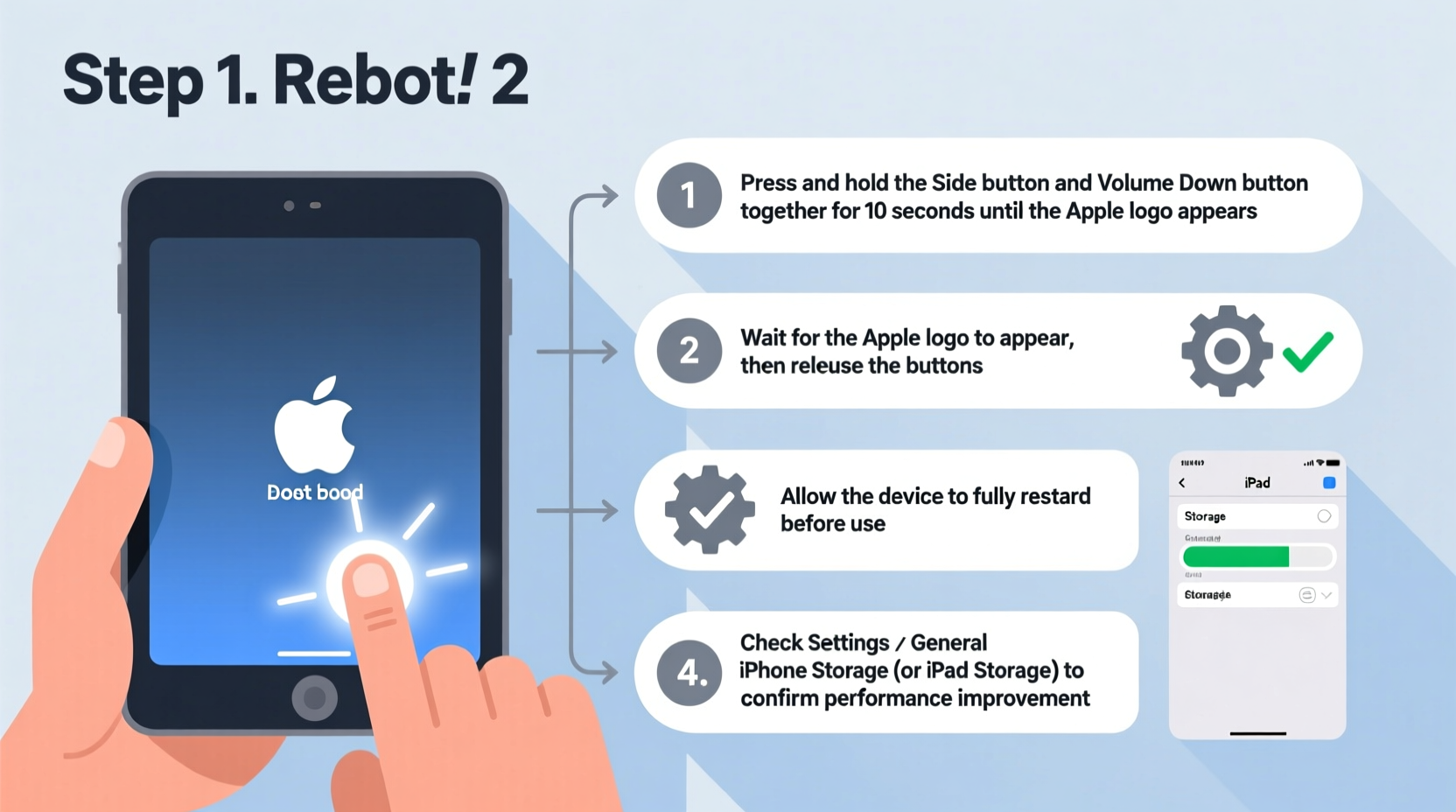
Your iPad runs numerous background processes—from syncing emails and updating apps to managing location services and notifications. Over days or weeks, these operations can create memory leaks or conflicts between apps, leading to slowdowns. Unlike shutting down completely, a full reboot forces all active processes to close and reload cleanly.
Apple engineers design iOS to be efficient, but no operating system is immune to fragmentation or resource contention over time. Rebooting acts like a reset switch for the entire system, much like restarting a computer after prolonged use.
“Periodic reboots are one of the most underused yet effective maintenance routines for iOS devices. They resolve transient bugs and prevent minor issues from escalating.” — David Lin, Senior iOS Support Analyst at AppleCare
Step-by-Step: How to Perform a Standard Reboot
A standard reboot is ideal when your iPad is functioning normally but feels sluggish. This method works across all modern iPad models, including iPad Pro, iPad Air, and iPad mini.
- Press and hold the Top (or Side) Button until the Power Off slider appears on screen.
- Drag the slider to the right to shut down the device.
- Wait for the screen to go completely black and remain off for at least 15 seconds.
- Press and hold the Top (or Side) Button again until the Apple logo appears.
- Allow the iPad to boot up fully before using it.
This process typically takes 30–60 seconds. Once complete, notice how apps launch faster and animations feel smoother. It’s particularly effective after installing major iOS updates, which often require a restart to finalize changes.
Force Restart: When Your iPad Is Frozen or Unresponsive
If your iPad is stuck on a frozen screen, unresponsive to touches, or caught in a boot loop, a force restart bypasses the normal shutdown sequence and reinitializes the system at a deeper level.
The steps vary based on your iPad model due to differences in button layout:
| iPad Model | Button Combination | Action Steps |
|---|---|---|
| iPad Pro (2018 and later) | Volume Up, Volume Down, Top Button | Press and release Volume Up, then Volume Down, then press and hold Top Button until Apple logo appears (~10 sec). |
| iPad Air (3rd gen and later), iPad mini (5th gen and later) | Top Button + Volume Up | Press and quickly release Volume Up, then press and hold Top Button until screen flashes and Apple logo shows. |
| iPad (7th gen and earlier), older iPad Air/mini | Top Button + Home Button | Press and hold both buttons simultaneously for at least 10 seconds until Apple logo appears. |
A force restart does not erase any data. It functions like unplugging and replugging a computer during a freeze. After the reboot, check if the issue resolves. If the iPad continues to freeze, consider freeing up storage space or updating iOS.
Soft Reset vs. Hard Reset: Understanding the Difference
The terms “soft reset” and “hard reset” are often used interchangeably, but they refer to very different actions:
- Soft Reset: Another name for a standard or force restart. It reboots the system without affecting user data.
- Hard Reset: Refers to erasing all content and settings, returning the iPad to factory condition. This requires going to Settings > General > Transfer or Reset iPad > Erase All Content and Settings.
Most performance issues do not require a hard reset. A soft reset (reboot) is safer and sufficient in 95% of cases. Reserve a hard reset for situations like preparing the device for resale, removing persistent malware-like behavior, or resolving deep-seated software corruption.
Mini Case Study: Recovering a Non-Responsive iPad in a Meeting
Sarah, a project manager, relied on her iPad Air during client presentations. Midway through a pitch, her screen froze while displaying financial charts. Tapping did nothing, and the Apple Pencil wouldn’t register input. Recalling the force restart method she’d read about, she pressed and released the volume buttons, then held the top button until the screen went black. Within 20 seconds, the Apple logo appeared. The iPad rebooted successfully, and she resumed her presentation with only a brief pause. No data was lost, and the app ran smoothly afterward. This incident reinforced her habit of weekly reboots and keeping critical files synced to iCloud.
Maintenance Checklist for Long-Term iPad Health
To maximize the benefits of rebooting, integrate it into a broader maintenance routine. Follow this checklist monthly:
- ✅ Reboot your iPad at least once per week
- ✅ Update iOS to the latest stable version
- ✅ Close unused apps in the App Switcher
- ✅ Clear Safari history and website data monthly
- ✅ Offload unused apps to free up storage
- ✅ Check battery health via Settings > Battery
- ✅ Restart after installing major app updates
These habits reduce strain on system resources and minimize the need for emergency reboots. Think of them as preventive care—just as regular oil changes keep a car running smoothly.
Frequently Asked Questions
Will rebooting delete my photos or apps?
No. A standard or force restart does not remove any personal data, apps, or settings. It only clears temporary system files and active processes stored in RAM.
How long should I wait before turning the iPad back on after shutting it down?
After powering off, wait 15–20 seconds before pressing the power button again. This ensures capacitors fully discharge and prevents residual power from interfering with the reboot process.
My iPad restarts automatically—should I be concerned?
Occasional automatic restarts may occur after background updates. However, frequent or repeated reboots could indicate low storage, overheating, or a failing battery. Monitor usage patterns and consult Apple Support if the behavior persists.
Conclusion: Make Rebooting Part of Your Digital Routine
Rebooting your iPad isn't just a fix for problems—it's a proactive strategy for maintaining speed, stability, and reliability. Whether you're using it for creative work, remote learning, or daily organization, a well-maintained device enhances productivity and reduces frustration. By understanding the different reboot methods and incorporating them into your routine, you extend the lifespan of your iPad and ensure it performs at its best.




 浙公网安备
33010002000092号
浙公网安备
33010002000092号 浙B2-20120091-4
Comments
No comments yet. Why don't you start the discussion?