
The internet is an essential part of daily life, but the growing number of intrusive ads—pop-ups, autoplay videos, banners, and tracking scripts—can make browsing slow, distracting, and even risky. These ads don’t just disrupt focus; they can compromise privacy and expose users to malware. Fortunately, there are proven methods to reclaim control over your digital environment. By combining ad-blocking tools, browser settings, and smart habits, you can significantly reduce or eliminate unwanted advertisements across websites and apps.
Why Ads Are More Than Just Annoying
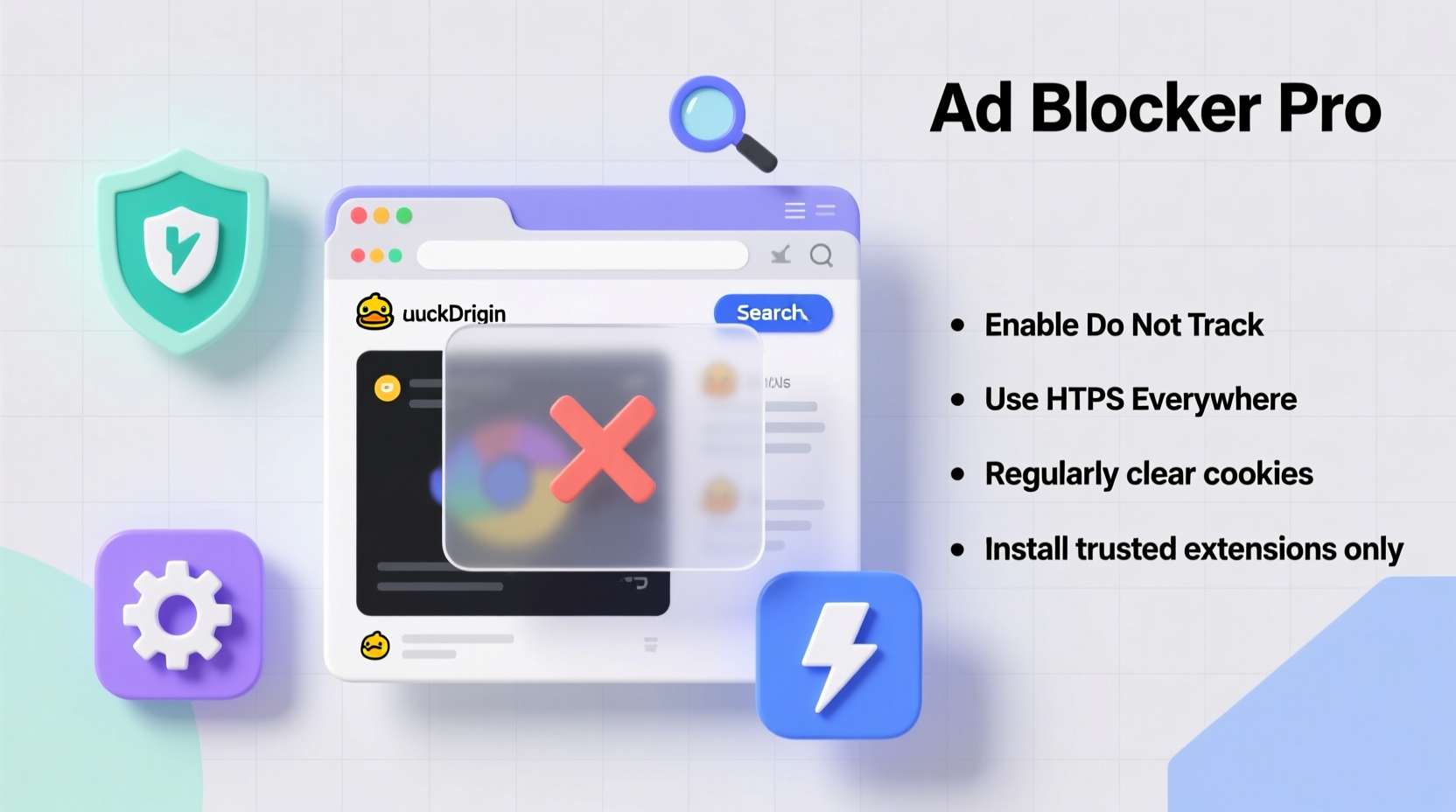
While some ads fund free content, many go beyond simple promotion. Modern digital advertising often involves extensive user tracking, behavioral profiling, and data collection. According to research from the Electronic Frontier Foundation (EFF), the average website hosts multiple third-party trackers that log browsing behavior across sites. This not only slows down page loading but also increases exposure to malicious content through compromised ad networks—a practice known as “malvertising.”
Excessive ads consume bandwidth, drain device batteries, and can lead to accidental clicks on phishing links. For users on limited data plans or older hardware, the impact is even more pronounced. Removing ads isn’t just about convenience—it’s a step toward better performance, enhanced security, and improved online privacy.
Top Tools for Blocking Ads Effectively
The most reliable way to block ads is by using dedicated software designed to filter out unwanted content before it loads. Below are the most trusted tools across different platforms:
| Tool | Platform | Key Features | Cost |
|---|---|---|---|
| uBlock Origin | Chrome, Firefox, Edge, Opera | Lightweight, open-source, blocks trackers and malware domains | Free |
| Adblock Plus (ABP) | All major browsers | Customizable filters, allows \"acceptable ads\" | Free (with optional donations) |
| AdGuard | Windows, macOS, iOS, Android, Browser extensions | System-wide blocking, parental controls, DNS filtering | Paid (with free version available) |
| Brave Browser | Desktop & Mobile | Built-in ad and tracker blocker, privacy-first design | Free |
| NextDNS | Router, mobile, desktop (via DNS) | Blocks ads at network level, works on all devices | Freemium |
Among these, uBlock Origin stands out for its efficiency and transparency. Unlike some ad blockers that monetize through whitelisting deals, uBlock Origin is maintained by volunteers and does not accept payments to allow certain ads. It uses minimal system resources while offering advanced filtering options for experienced users.
Step-by-Step Guide to a Cleaner Browsing Setup
Implementing ad-blocking effectively requires more than just installing a single extension. Follow this sequence to maximize protection across devices and contexts:
- Choose a secure browser: Start with a privacy-focused browser like Firefox, Brave, or Safari. These have stronger default protections against tracking compared to browsers that rely heavily on ad revenue.
- Install uBlock Origin: Add the official uBlock Origin extension from your browser’s verified add-ons store. Avoid clones with similar names.
- Enable strict blocking mode: In uBlock settings, activate “I am an advanced user” and enable lists like EasyList, EasyPrivacy, and anti-malware filters such as NoCoin or Malware Domain List.
- Use private browsing with caution: While incognito mode prevents history saving, it doesn’t block ads by default. Ensure your ad blocker is active in private windows (enable this in extension settings).
- Set up network-level filtering: For whole-home protection, configure AdGuard Home or use NextDNS on your router. This blocks ads on smartphones, smart TVs, and other devices without individual app support.
- Keep everything updated: Regularly update your browser, operating system, and ad-blocking tools to patch vulnerabilities and improve filter accuracy.
“Blocking ads isn’t just about aesthetics—it reduces attack surface. Many breaches start with malicious scripts delivered through legitimate ad networks.” — Dr. Lena Torres, Cybersecurity Researcher at OpenNet Lab
Common Pitfalls and What to Avoid
Even tech-savvy users can undermine their own efforts by making small mistakes. Here are frequent missteps and how to avoid them:
- Using outdated or fake ad blockers: Some extensions labeled as “ad blockers” are actually data harvesters. Always download from official sources and check developer reputation.
- Trusting all pop-up warnings: Fake virus alerts and “ad block detected” messages are often scams. Never click “Allow” on suspicious notifications—close the tab instead.
- Disabling blockers on news sites: While some publishers request disabling ad blockers for access, consider supporting them via subscriptions or donation buttons instead of re-enabling tracking.
- Ignoring mobile ads: Mobile browsers are increasingly targeted. Use Firefox with uBlock Origin on Android or install AdGuard for iOS to maintain consistency.
Mini Case Study: How One User Reduced Page Load Time by 70%
Sarah, a freelance writer based in Portland, noticed her laptop slowing down during research sessions. Pages like news portals and shopping sites took over 10 seconds to load, often freezing due to video ads. After installing uBlock Origin and switching to Brave for high-risk browsing, she measured load times using built-in developer tools. On CNN.com, initial load dropped from 12.4 seconds to 3.6 seconds. Data usage per session fell by nearly 50%, and battery life improved noticeably. She now recommends the setup to colleagues who work remotely.
Advanced Tactics: Going Beyond Basic Ad Blockers
For users seeking maximum control, additional layers can enhance results:
- DNS-based filtering: Services like NextDNS or AdGuard DNS stop ads before they reach your device by blocking requests at the domain level. This works across all apps, including streaming services.
- Hosts file modification: Advanced users can edit their system’s hosts file to redirect known ad servers to localhost (127.0.0.1). Tools like Pi-hole automate this on a network scale.
- Browser hardening: Disable JavaScript selectively using extensions like NoScript (Firefox) to prevent script-based ads and crypto miners. Use cautiously, as some sites break without JS.
FAQ
Will blocking ads hurt websites I like?
Potentially, yes—but not all advertising models are equal. If you value a site’s content, consider supporting it directly through memberships, donations, or purchasing products. This gives creators revenue without subjecting you to invasive tracking.
Are ad blockers legal?
Yes. Using ad blockers is legal in virtually all countries. You are in control of what software runs on your device. Publishers may discourage their use, but they cannot enforce compliance.
Can ads still track me if I block them?
If only basic banner ads are blocked, other tracking methods like fingerprinting or cookie syncing may still operate. Pair your ad blocker with privacy tools like Privacy Badger or disable third-party cookies for full protection.
Checklist: Build Your Ad-Free Browsing System
- ✅ Choose a privacy-respecting browser (Brave, Firefox, or Safari)
- ✅ Install uBlock Origin from the official repository
- ✅ Enable advanced filter lists (EasyPrivacy, Fanboy Annoyances)
- ✅ Set up DNS filtering via NextDNS or AdGuard
- ✅ Disable third-party cookies in browser settings
- ✅ Test effectiveness using sites like http://adsblocktest.com
- ✅ Review permissions for existing extensions monthly
Conclusion
A clean, ad-free browsing experience is within reach—and it doesn’t require technical expertise. With the right combination of tools and awareness, you can browse faster, protect your data, and avoid the risks associated with modern digital advertising. The steps outlined here form a sustainable foundation, whether you’re a casual user or managing multiple devices. Take control today: install a trusted ad blocker, fine-tune your settings, and enjoy a web that works for you—not advertisers.




 浙公网安备
33010002000092号
浙公网安备
33010002000092号 浙B2-20120091-4
Comments
No comments yet. Why don't you start the discussion?