
Cookies are small data files stored by websites on your Mac to remember your preferences, login status, and browsing behavior. While they can enhance convenience, accumulated cookies may slow down browsers, compromise privacy, or cause login issues over time. Whether you're concerned about digital footprint, troubleshooting website errors, or simply maintaining system hygiene, knowing how to effectively remove cookies on a Mac is essential. This guide walks you through practical methods across major browsers, advanced cleanup options, and best practices for managing your online privacy.
Understanding Cookies: Why Clean Them?
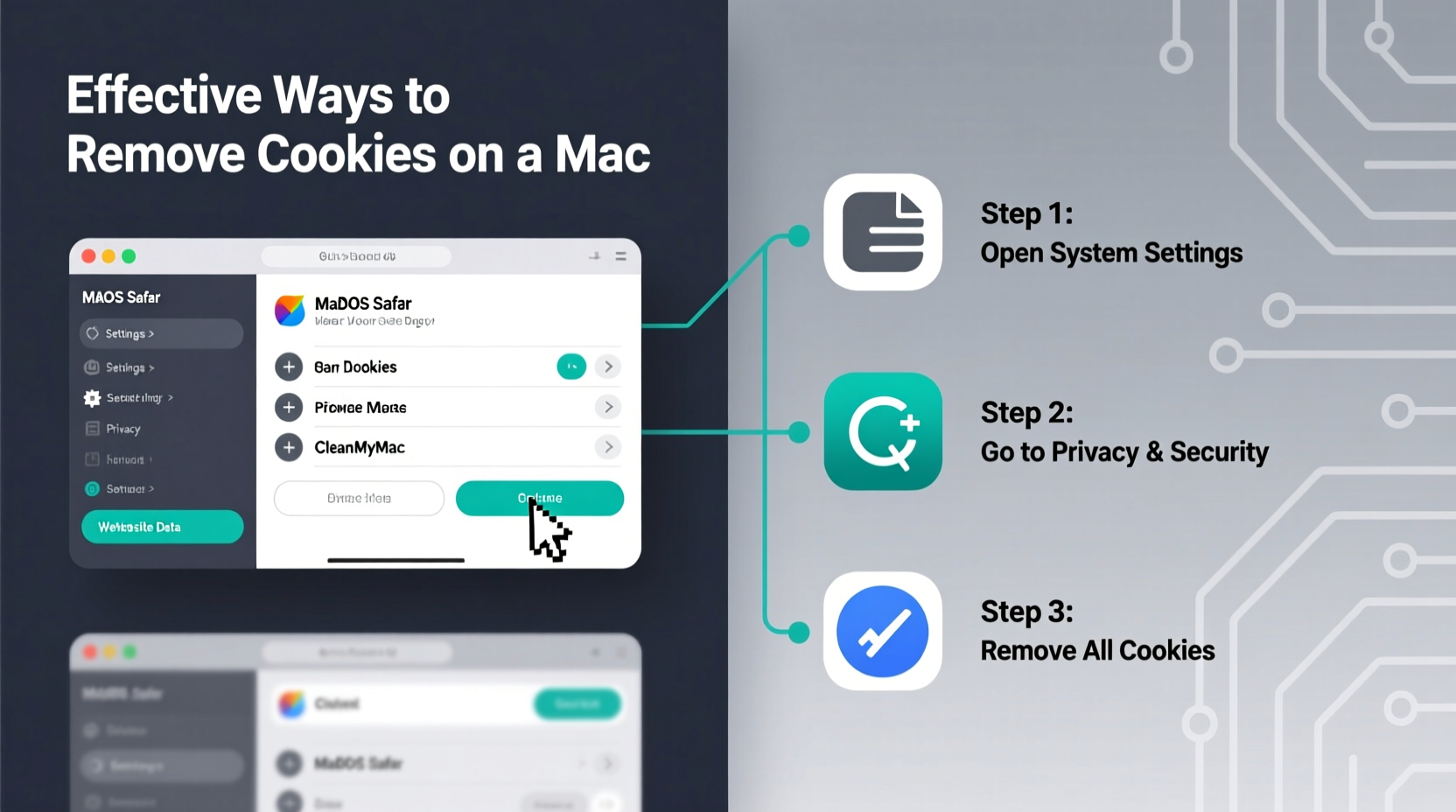
Not all cookies are harmful. Session cookies help maintain logins during a browsing session, while persistent cookies remember language settings or shopping cart items. However, third-party tracking cookies—often used by advertisers—can monitor your behavior across sites, raising privacy concerns. Over time, excessive cookie buildup can also lead to:
- Slower browser performance
- Outdated login credentials causing site errors
- Accumulation of tracking data from advertising networks
- Storage bloat in Safari, Chrome, or Firefox caches
Regularly clearing cookies helps maintain speed, security, and control over personal data. The key is doing it strategically—removing unwanted data without losing essential preferences unless intended.
Step-by-Step Guide to Remove Cookies by Browser
Safari: Built-In Privacy Tools
Safari is the default browser on macOS and integrates tightly with system privacy features. Follow these steps to delete cookies:
- Open Safari and click Safari in the top menu bar.
- Select Settings (or Preferences).
- Go to the Privacy tab.
- Click Manage Website Data…
- To remove all cookies, click Remove All. To selectively delete, search for specific sites and click Remove.
- Confirm deletion when prompted.
You can also use the “Remove” button at the bottom to erase data from multiple selected domains at once. For quick cleanup, go to History > Clear History, then choose a timeframe (e.g., last hour, today, or all history), which includes cookies depending on your selection.
Google Chrome: Granular Control
Chrome offers detailed cookie management for users who want precision:
- Launch Chrome and click the three-dot menu (top-right corner).
- Navigate to Settings.
- Go to Privacy and Security > Clear Browsing Data.
- Select a time range (e.g., \"All time\" for full removal).
- Check the box next to Cookies and other site data.
- Uncheck other items like cache if you only want to clear cookies.
- Click Clear Data.
For selective deletion, type chrome://settings/siteData in the address bar. This opens a searchable list of all stored site data. Hover over any entry and click the trash icon to remove individual cookies.
Mozilla Firefox: Enhanced Tracking Protection
Firefox prioritizes privacy with automatic tracker blocking, but manual cleanup remains useful:
- Click the menu button (three horizontal lines) and select Settings.
- Choose Privacy & Security from the sidebar.
- Scroll down to Cookies and Site Data.
- Click Clear Data….
- Ensure Cookies and Site Data is checked.
- Click Clear.
To manage exceptions, use the Manage Exceptions button to allow certain sites to store cookies despite global settings.
Advanced Cleanup: Beyond Browser Settings
Some cookies persist even after browser-level deletion because they’re embedded in system caches or linked to apps. For deeper cleaning, consider these approaches:
Use macOS Storage Management
macOS includes a built-in storage analyzer that identifies cached files, including web data:
- Click the Apple logo > About This Mac.
- Select the Storage tab and click Manage.
- Choose System Files or Browsers to review cached content.
- Select items to delete or click Review Files for more control.
This method removes residual data not always caught by browser tools.
Manual Removal via Finder (Expert Level)
Advanced users can navigate directly to cookie storage folders. Note: Always back up critical data before editing system directories.
Safari Cookies:
Navigate to: ~/Library/Cookies/
Look for Cookies.binarycookies or Cache.db files. Move them to Trash to reset Safari’s cookie database.
Chrome Cookies:
Path: ~/Library/Application Support/Google/Chrome/Default/Cookies
Deleting this file clears all Chrome cookies (browser must be closed first).
“Manually deleting cookies gives power users granular control, but it’s easy to disrupt active sessions. Use caution and close browsers before proceeding.” — Jordan Lee, Mac Systems Analyst
Do’s and Don’ts When Removing Cookies
| Do’s | Don’ts |
|---|---|
| Backup important logins before clearing cookies | Don’t delete cookies without understanding their purpose |
| Use private browsing for sensitive tasks instead of frequent cookie deletion | Don’t ignore browser updates that improve cookie management |
| Set up password manager integration to restore logins quickly | Don’t assume clearing cookies fully anonymizes browsing (IP and metadata remain) |
| Review stored site data monthly | Don’t disable all cookies—some are necessary for site functionality |
Real-World Example: Recovering from Login Loops
Sophia, a freelance designer in Portland, began experiencing repeated login prompts on her favorite project management tool. Despite correct credentials, she was redirected to the login page after each attempt. Suspecting corrupted cookies, she followed the Safari cleanup process outlined above. After removing site-specific data for the app, she reloaded the page and logged in successfully. The issue stemmed from an outdated authentication token stored in a persistent cookie—a common glitch resolved only by targeted cookie removal.
This case illustrates how misbehaving cookies can disrupt workflows, and why knowing how to remove them efficiently matters beyond general privacy.
Checklist: Effective Cookie Removal Routine
- ✅ Identify which browser(s) you use regularly
- ✅ Back up saved passwords using a secure manager
- ✅ Open browser settings and locate privacy or site data controls
- ✅ Choose time range and ensure “Cookies and site data” is selected
- ✅ Confirm deletion and restart browser
- ✅ Test critical websites to ensure functionality
- ✅ Schedule monthly cleanup or use private browsing for sensitive sessions
Frequently Asked Questions
Will removing cookies log me out of all websites?
Yes. Cookies store login sessions, so clearing them will require re-authentication on most sites. Using a trusted password manager makes re-logging in faster and more secure.
Can I block all cookies permanently?
You can enable strict blocking in Safari or install extensions like uBlock Origin in Chrome/Firefox. However, blocking all cookies may break website functionality, such as e-commerce checkouts or form submissions.
Are cookies the same as cache?
No. Cache stores images and scripts to speed up loading; cookies store user-specific data like logins and preferences. Both can be cleared independently in browser settings.
Take Control of Your Digital Environment
Managing cookies isn’t just about freeing up space—it’s a fundamental aspect of digital self-care. By understanding how cookies work and mastering removal techniques across browsers, you gain greater control over your privacy, performance, and online experience. Whether you're resolving technical glitches or minimizing tracking, the steps in this guide provide actionable, reliable methods tailored for Mac users.




 浙公网安备
33010002000092号
浙公网安备
33010002000092号 浙B2-20120091-4
Comments
No comments yet. Why don't you start the discussion?