
The \"R\" symbol on a Samsung mobile phone indicates that the device is in roaming mode, meaning it's connecting to a network outside your carrier’s primary coverage area. While this is normal when traveling internationally or near regional borders, persistent roaming—especially when you're at home—can lead to higher data charges, poor call quality, and battery drain. Understanding how to identify, manage, and resolve unwanted roaming signals is essential for maintaining reliable service and avoiding unnecessary costs.
This guide explores practical, tested methods to eliminate the R symbol from your Samsung phone, restore optimal network performance, and prevent future roaming disruptions.
Understanding the 'R' Symbol: What It Means and When It Appears
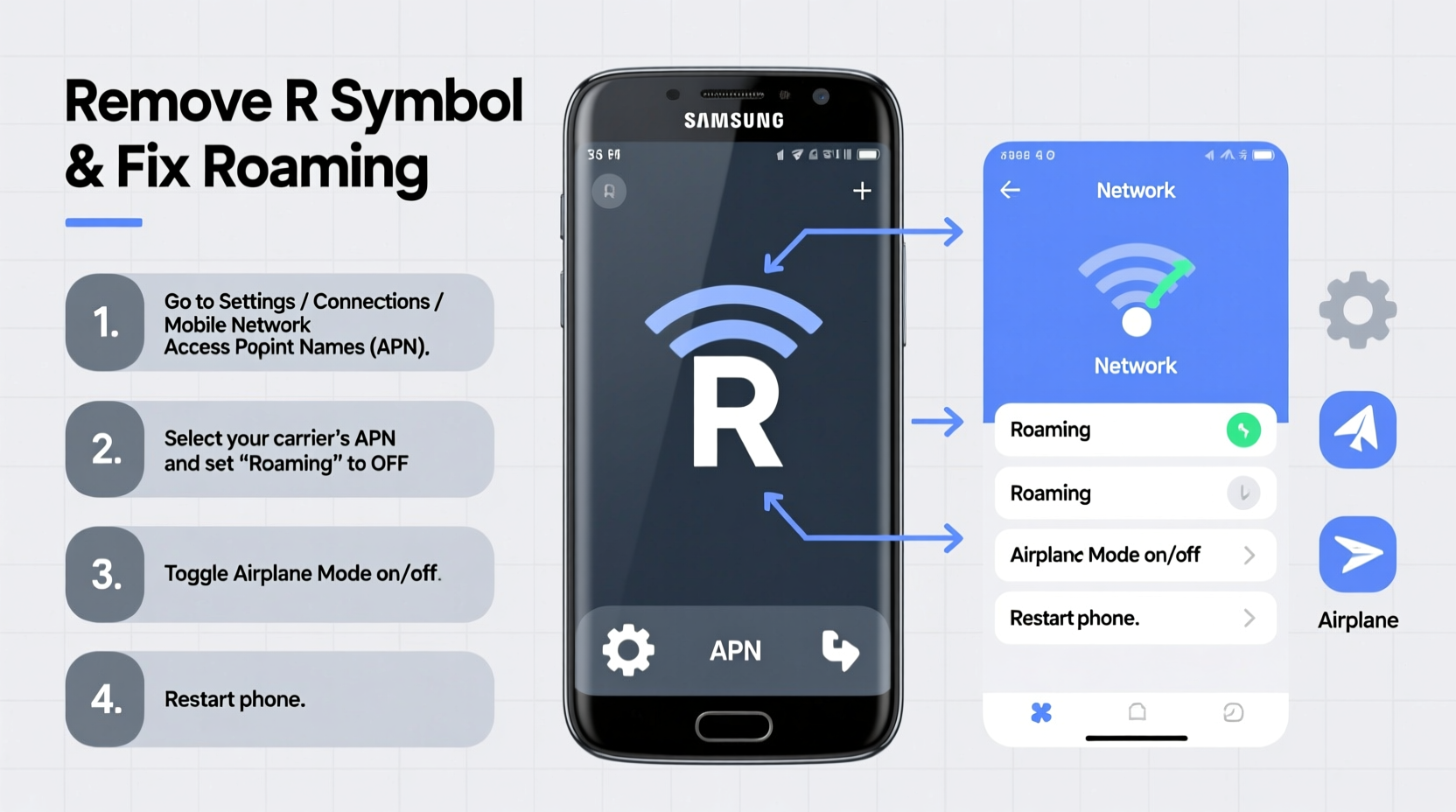
The \"R\" stands for **Roaming** and appears next to your signal bars when your phone connects to a partner network instead of your primary carrier. This commonly happens when:
- You’re traveling outside your home network zone (domestically or internationally).
- Your carrier has weak or no coverage in your current location.
- Network settings are misconfigured or outdated.
- There’s a temporary outage with your main provider.
While occasional roaming is harmless, prolonged display of the R symbol—even in areas with strong local coverage—suggests a deeper issue. Left unaddressed, it may result in:
- Increased data usage fees.
- Slower internet speeds due to weaker partner networks.
- Poor voice call reliability or dropped calls.
- Excessive battery consumption as the phone constantly searches for better signals.
“Persistent roaming within your home region often points to incorrect network selection or outdated APN settings.” — David Lin, Senior Mobile Network Engineer at T-Mobile
Step-by-Step Guide to Remove the R Symbol and Fix Roaming Issues
Follow this structured troubleshooting process to resolve unwanted roaming on your Samsung device:
- Restart Your Phone
Begin with the simplest fix: power off your device completely and turn it back on. A reboot clears temporary glitches and forces the phone to re-scan available networks. - Check Airplane Mode
Ensure Airplane Mode is disabled. Accidental activation can disrupt normal network detection and cause inconsistent connections. - Manually Select Your Network
Navigate to: Settings > Connections > Mobile Networks > Network Operators. Wait for the list to populate, then tap your primary carrier (e.g., Verizon, AT&T, T-Mobile). Choosing your network manually prevents automatic connection to roaming partners. - Update Preferred Roaming List (PRL)
On CDMA carriers like Verizon or US Cellular, outdated PRL data can cause roaming errors. Dial *#1#778#*# to access Service Info > System Update > Update PRL. Confirm success after completion. - Reset Network Settings
If problems persist, reset all network configurations: Settings > General Management > Reset > Reset Network Settings. This restores Wi-Fi, Bluetooth, and cellular settings to default, often resolving hidden configuration conflicts.
Advanced Fixes: APN Configuration and Software Updates
If basic steps fail, inspect your Access Point Name (APN) settings—these control how your phone accesses data through your carrier. Incorrect APNs can force unintended roaming.
How to Verify and Correct APN Settings
Go to: Settings > Connections > Mobile Networks > Access Point Names.
Select your current APN (usually labeled by your carrier). Ensure these fields match official carrier specifications:
| Setting | Correct Example (T-Mobile) | Incorrect Value |
|---|---|---|
| Name | T-Mobile US LTE | Custom or blank |
| APN | fast.tmobile.com | internet or generic value |
| MCC | 310 | Wrong country code |
| MNC | 260 | Inconsistent with carrier |
| APN Type | default,supl,mms | Missing mms or supl |
To restore defaults: Tap the three-dot menu > Reset to Default. Then select the correct profile and save.
Install Carrier & System Updates
Carriers periodically push updates to improve network compatibility. Check for them under:
- Settings > Software Update > Download and Install
- Settings > Connections > Mobile Networks > Carrier Settings Update (if available)
These updates often include updated roaming lists, improved handover logic, and bug fixes related to network detection.
Common Mistakes That Trigger Unwanted Roaming
Avoid these pitfalls that unknowingly keep your phone in roaming mode:
- Leaving Wi-Fi Assist Enabled: This feature uses cellular data when Wi-Fi is weak, potentially triggering roaming without your awareness.
- Using Third-Party ROMs or Modded Firmware: Custom software may lack proper carrier integrations, leading to incorrect network behavior.
- Ignoring SIM Card Health: A damaged or improperly seated SIM can't authenticate properly with your home network, forcing fallback to roaming partners.
- Disabling 5G/LTE Automatically: Some older network fallback modes increase reliance on secondary towers prone to roaming agreements.
Mini Case Study: Resolving Persistent Roaming in Rural Texas
Jamie, a nurse living in Marfa, Texas, noticed her Samsung Galaxy S22 displayed the R symbol daily despite being within AT&T’s advertised coverage zone. She experienced slow data, frequent call drops, and unexpected charges on her bill.
After trying multiple resets, she discovered that her phone was latching onto a roaming partner tower (Cricket Wireless) because her device hadn’t updated its PRL in over six months. By dialing the service code *#1#778#*# and updating her system settings, her phone reconnected directly to AT&T’s LTE band. The R symbol disappeared immediately, and her data speeds improved by over 60%.
This case highlights how remote locations with overlapping carrier footprints require up-to-date network lists to avoid unintended roaming—even without leaving home.
FAQ: Frequently Asked Questions About Roaming on Samsung Phones
Why does my phone show roaming when I haven’t left my city?
This typically occurs when your primary carrier lacks a nearby tower, so your phone connects to a partner network. It can also stem from incorrect network settings or an outdated PRL. Manually selecting your carrier or resetting network settings usually resolves it.
Does roaming always cost extra?
Not necessarily. Many U.S. carriers include domestic roaming at no additional charge. However, international roaming or premium data packages may incur fees. Always confirm your plan details with your provider.
Can a factory reset fix persistent roaming?
Yes, but it should be a last resort. A factory reset erases all data and reinstalls the OS, which can clear deep-seated software bugs affecting network detection. Back up your data first and only proceed if other solutions fail.
Final Checklist: Eliminate the R Symbol for Good
Use this actionable checklist to systematically address and prevent roaming issues:
- ✅ Restart your Samsung phone.
- ✅ Disable Airplane Mode and Wi-Fi Assist.
- ✅ Manually select your home network under Network Operators.
- ✅ Update your PRL using *#1#778#*# (for CDMA carriers).
- ✅ Reset network settings via Settings > General Management > Reset.
- ✅ Verify APN settings match your carrier’s official configuration.
- ✅ Install the latest software and carrier updates.
- ✅ Inspect and reseat the SIM card.
- ✅ Contact customer support if the issue persists after all steps.
Conclusion: Take Control of Your Connection
The R symbol doesn’t have to be a permanent fixture on your Samsung phone. With the right knowledge and proactive maintenance, you can eliminate unwanted roaming, reduce costs, and enjoy faster, more stable connectivity wherever you are. These fixes are accessible to any user and often take less than ten minutes to implement.




 浙公网安备
33010002000092号
浙公网安备
33010002000092号 浙B2-20120091-4
Comments
No comments yet. Why don't you start the discussion?