
In an era where digital transactions are routine, managing stored payment methods is a critical aspect of personal cybersecurity. The Google Play Store, used by billions for apps, games, movies, and subscriptions, stores payment information for convenience. However, retaining outdated or unnecessary card details increases the risk of unauthorized charges or data exposure. Whether you're switching payment methods, sharing a device, or simply minimizing digital footprints, knowing how to securely remove your card from Google Play is essential. This guide outlines reliable, step-by-step methods to delete your card information—ensuring your financial data stays under your control.
Why Removing Saved Cards Matters
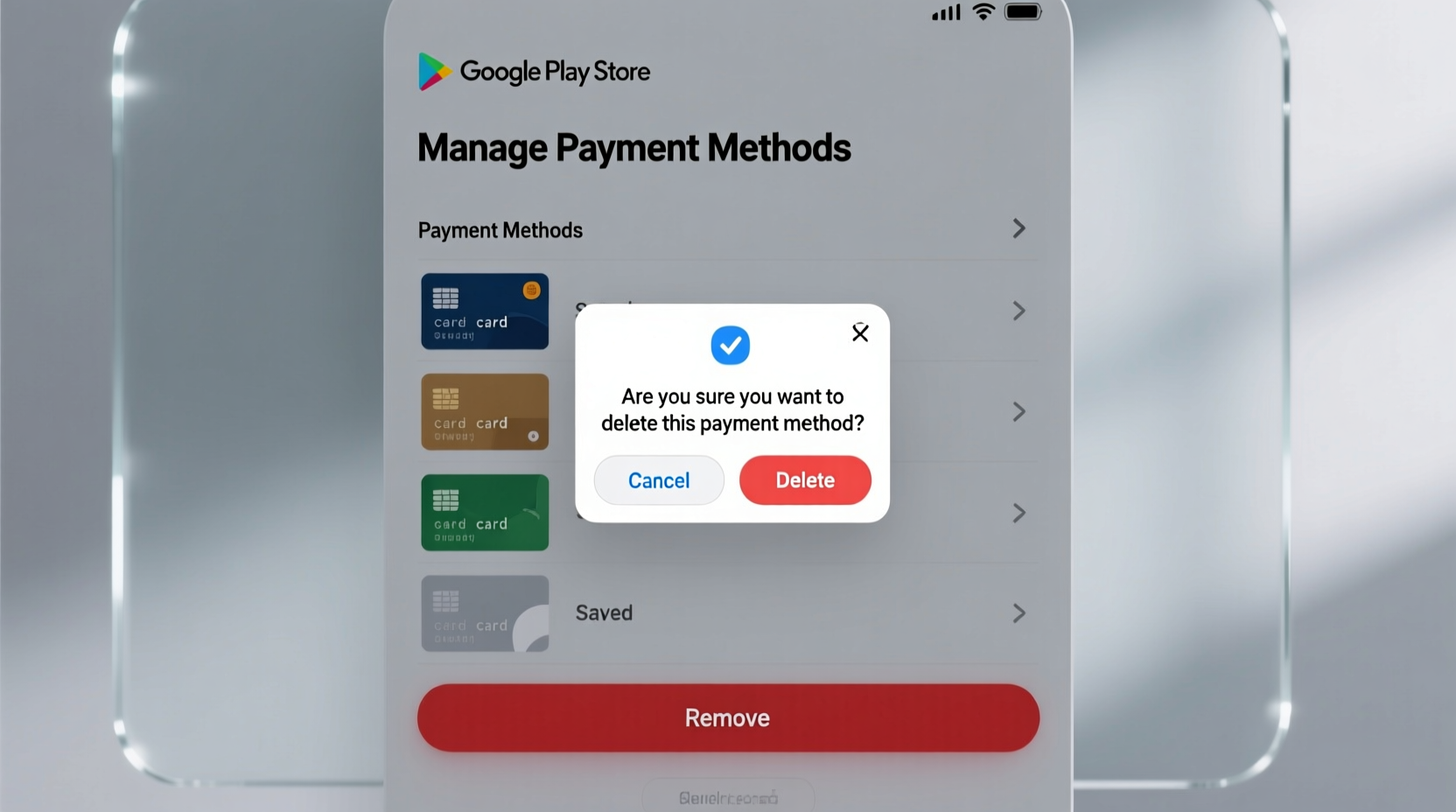
Leaving credit or debit card details in any online account—even one as trusted as Google—poses potential risks. Data breaches, phishing attacks, or unauthorized access to your Google account could lead to fraudulent purchases. Additionally, auto-renewing subscriptions may continue charging an old card even after expiration, leading to service interruptions or declined fees that affect your credit standing.
Google employs robust encryption and security protocols, but user-level protection remains equally important. Deleting unused cards reduces attack surface and supports better digital hygiene. It also helps prevent accidental purchases, especially on shared or family devices.
“Users often overlook saved payment methods as a vulnerability point. Cleaning up outdated financial data is just as important as using strong passwords.” — David Lin, Cybersecurity Analyst at Digital Shield Labs
Step-by-Step: How to Remove Your Card from Google Play Store
The process to remove a payment method varies slightly depending on whether you’re using an Android device or accessing your Google Account via a desktop browser. Below are detailed instructions for both platforms.
On an Android Device
- Open the Google Play Store app.
- Tap your profile icon in the top-right corner.
- Select Payments & subscriptions.
- Tap Payment methods.
- Under “Payment methods,” locate the card you want to remove.
- Tap the card, then select Remove.
- Confirm the action when prompted.
Note: If the “Remove” option is grayed out, it may be due to active subscriptions linked to that card. Cancel those first (covered later in this guide).
On Desktop (via Google Account)
- Go to pay.google.com and sign in with your Google account.
- Navigate to the Payment methods section in the left sidebar.
- Hover over the card you wish to delete.
- Click the three-dot menu (⋮) next to the card.
- Select Remove.
- Confirm deletion in the pop-up window.
This method often provides more visibility into all associated services, including YouTube memberships or Google One subscriptions tied to the card.
Common Obstacles and How to Overcome Them
Sometimes, removing a card isn’t immediate due to system restrictions. Here’s how to handle frequent issues:
Active Subscriptions Blocking Removal
Google prevents removal of a payment method if it's linked to an active subscription. To resolve this:
- Return to Payments & subscriptions in the Play Store.
- Select Subscriptions.
- Review each active plan (e.g., Spotify, Netflix, cloud storage).
- Either cancel the subscription or change its payment method before deleting the card.
Outstanding Balance or Pending Transactions
If you have unpaid charges—such as a failed purchase or prorated refund—Google may retain the card until the balance clears. Wait 24–48 hours after resolving the transaction, then retry removal.
Family Group Manager Restrictions
If you’re part of a Google Family Group, the group manager may enforce certain payment policies. Contact the administrator if you lack permission to modify or delete payment options.
Best Practices for Managing Payment Methods Securely
Removing a card is just one step. Maintaining long-term security requires ongoing vigilance. Follow these best practices to stay protected.
| Action | Benefit | Frequency |
|---|---|---|
| Review saved payment methods | Identify outdated or unfamiliar cards | Every 3 months |
| Delete unused cards | Reduce risk of misuse | Immediately after use |
| Use virtual credit cards (if available) | Limits exposure of real card details | For one-time purchases |
| Enable two-factor authentication (2FA) | Protects account access | Ongoing |
| Monitor transaction history | Catch fraud early | Weekly |
Real-World Example: Securing a Shared Device
Maya, a college student, lent her phone to her roommate for a quick app download. Unbeknownst to her, the roommate made several in-app purchases using Maya’s default Google Play card. When Maya received a notification of $78 in charges, she immediately logged into her Google Account and removed the card. She then reviewed her subscription list and discovered a gaming membership she never authorized. After canceling it and enabling purchase authentication, she restored control over her account. This experience led her to adopt a habit of removing stored cards when not actively using them—especially before lending her device.
This scenario underscores how easily payment data can be misused, even among trusted contacts. Proactive management prevents such incidents.
Frequently Asked Questions
Will removing my card cancel my subscriptions?
No, removing a payment method does not automatically cancel subscriptions. You must manually cancel or update the payment method for each subscription to avoid service disruption or failed renewals.
Can I re-add the same card later?
Yes. Removing a card doesn’t blacklist it. You can re-enter the same card details anytime you make a purchase or manage payments. Ensure your device and network are secure when doing so.
Is my card data completely erased from Google’s servers?
Google states that once a payment method is removed, it is de-linked from your account and no longer used for transactions. While encrypted backups may exist temporarily for compliance, the card cannot be reactivated without re-entry. For full details, refer to Google’s Privacy Policy.
Final Checklist Before Removing Your Card
- ✅ Check for active subscriptions tied to the card
- ✅ Cancel or switch payment method for recurring services
- ✅ Confirm there are no pending purchases or refunds
- ✅ Ensure you have an alternative payment method if needed
- ✅ Log in to pay.google.com to verify complete removal across all devices
Take Control of Your Digital Financial Safety
Your payment information is valuable—and worth protecting. Removing unused card details from the Google Play Store is a simple yet powerful step toward stronger digital security. By following the steps outlined here, addressing common obstacles, and adopting regular maintenance habits, you reduce the risk of fraud and gain greater peace of mind. Don’t wait for a suspicious charge to act. Audit your Google payment methods today, clean up outdated entries, and reinforce your account defenses. A few minutes now can prevent significant hassle later.




 浙公网安备
33010002000092号
浙公网安备
33010002000092号 浙B2-20120091-4
Comments
No comments yet. Why don't you start the discussion?